Tag Archives: Docker Desktop

Hands on creating a book store with Claude, for beginners, showing errors generated and fixing them easily

Claude AI hands on creating a Book e-Commerce and fixing errors, PHPStorm, PHP, Docker Desktop, MySQL in Windows

I’ll show the process of a creation of a web application for a e-Commerce book store.

The most important is to define a good requirements prompt.
I created a file named docs/promptia.md

Set the quality to the max in youtube to be able to see the screen clearly.

It takes long time, so unless you want to see all the process in real time, use the chapters I added to skip to the parts you’re interested.

Chapters in the youtube video:

00:00 Tell Claude to create a web app based on docs/promptia.md
18:29 Claude asks permission to run Powershell commands
19:02 Application created
19:37 Check in PHPStorm the promptia.md
19:51 Add to git and Commit with PHPStorm
20:27 Create and launch containers
20:50 Create the containers
20:54 Launch containers
21:10 Show in Docker Desktop
21:23 Display in logs entrypoint.sh
22:04 composer install
22:19 Error: missing composer require symfony/yaml
22:32 Asking Claude to fix the error
23:50 Destroy project to ensure it is build without errors (for later in Production)
24:28 Create destroy-project.bat
25:42 Re-creating the containers
25:52 Re-creating without cache
29:20 Containers launched in Docker Desktop
30:10 composer update
30:28 Checking engine container error in a .yaml in Claude Code
31:13 Error non-existent service “doctrine system cache pool”
31:34 Inside the engine container curl http://127.0.0.1 Http Error 500
31:44 composer dump-env dev
31:57 Error a non-empty secret is required Http Error 500
32:14 Showing Claude the error, so it fixes it
33:12 Check from the engine container curl http://127.0.0.1
33:42 Error could not find the driver
33:51 Asking Claud to fix the error
34:05 Finding the error in the logs
34:27 I ask Claude, to continue with the log entry, after it finishes
35:16 Claude fixes the first problem and starts analyzing the second
35:35 Claude finds and fixes the second problem (introduced by Claude before)
37:12 Creating the Database with the Command
37:32 A new curl, and a new error found (introduced by Claude before)
37:58 Requesting to Claude to fix the error
38:25 Claude fixes the error
38:30 The new website loads correctly
39:00 Viewing register form (needs work)
39:05 Request a script to enter to mysql via CLI
40:02 I open the new script login_to_mysql.sh in PHPStorm
40:23 Trying the CLI Command to init the Database Schema
40:39 Giving chmod +x from Docker (for commiting to the repo)
40:45 login_to_mysql.sh fails (due an error introduced by Claude before)
40:58 finding extension=pdo_mysql in php.ini on the container duplicated
41:10 Asking Claude to remove the error
41:37 Claude realizes the error
41:45 Logged to MySQL with the script
42:05 DESC orders;
42:18 Asking Claude a refactor or prices from DECIMAL to Integers
43:53 Ask next questions while Claude is still working
46:56 Update the Command to reflect the new field changes
48:00 Copy the ALTER TABLE
48:05 Execute in the MySQL in Docker Desktop
48:12 Schema updated in docs/scheme.md
48:18 Add a field “public_name”
48:58 Update MySQL with the ALTER
Vibe coding with Google Antigravity, new features, to a project, in real time

This video shows real example of my workflow, in real time, on how I programmed with Google Antigravity some new features, like adding discount coupons, for my commercial web project for quickly audio conversion https://audioconverter.carlesmateo.com/

I show some problems when working with Gemini 3 Flash, and how I instructed the IA to fix them.

Using Docker in Windows 10 without Windows Desktop with Docker Engine and without WSL

I added this article to my Docker Combat Guide book.

The change of license of Docker Desktop for Windows has been a low punch, a dirty one.

Many big companies use Windows as for the laptops and workstations, we like it or not.

You can setup a Linux development computer or Virtual Machine, you may argue, but things are not as easier.

Big companies have Software licenses assigned to corporation machines, so you may not use your Pycharm license in a Linux VM.

You may no use Docker Desktop either, if your company did not license it.

And finally you may need to have access to internal resources, like Artifactory, or Servers where access is granted via ACL, so only you, from your Development machine can access it. So you have to be able to run Docker locally.

After Docker introduced this changed of license I was using VirtualBox with NAT attached to the VPN Virtual Ethernet, and I port forwarded to be able to SSH, deploy, test, etc… from outside to my Linux VM, and it was working for a while, until with the last VirtualBox update and some Windows updates where pushed to my Windows box and my VirtualBox VMs stopped booting most of the times and having random problems.

I configured a new Linux VM in a Development Server, and I opened Docker API so my Pycharm’s workstation was able to deploy there and I was able to test. But the Dev Ip’s do not have access to the same Test Servers I need my Python Automation projects to reach (and quickly I used 50 GB of space), so I tried WSL. I like Pycharm I didn’t want to switch to VStudio Code because of their good Docker extensions, in any case I could not run my code locally with venv cause some of the packages where not available for Windows, so I needed Linux to run the Unit Testing and see the Code Coverage, run the code, etc…

I tried Hyper-V, tried with NAT External, but it was incompatible with my VPN.

Note: WSL can be used, but I wanted to use Docker Engine, not docker in WSL.

Installing Docker Command line binaries

The first thing I checked was the Docker downloads page.

I found the stand alone binary.

https://docs.docker.com/engine/install/binaries/#install-server-and-client-binaries-on-windows

In order to install it:

  1. Download the zip file from the page, in my case docker-20.10.12.zip
  2. Open PowerShell as Administrator
  3. Run: Expand-Archive C:\Users\carlesmateo\Downloads\docker-20.10.12.zip  -DestinationPath $Env:ProgramFiles\DockerCLI
  4. Run: cd $Env:ProgramFiles\DockerCLI\docker
  5. Run: .\dockerd.exe –register-service
  6. Run: Start-Service docker
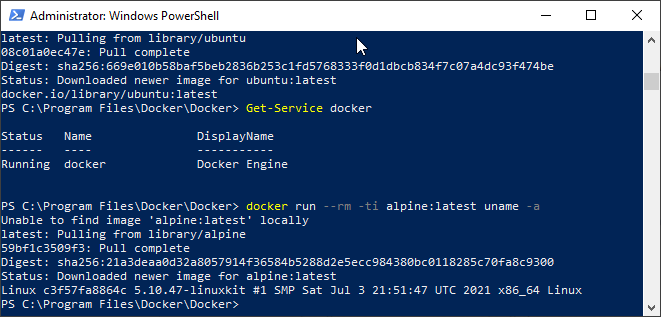
  7. Check that Docker lists the running Containers (no errors) with: docker ps
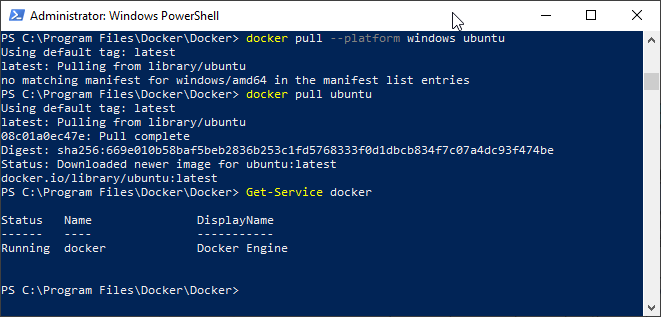
  8. Check that the Service is running with: Get-Service docker
    You should expect something like:
Status Name DisplayName
------ ---- -----------
Running docker Docker Engine

Attempt to pull an Image with: docker pull ubuntu or docker pull php

If it works, you’re done, but most probably you will get it starting and get this error:

Error response from daemon: unsupported os linux

or this other error:

no matching manifest for windows/amd64 10.0.19042 in the manifest list entries

Depending on your system you may need to do certain things:

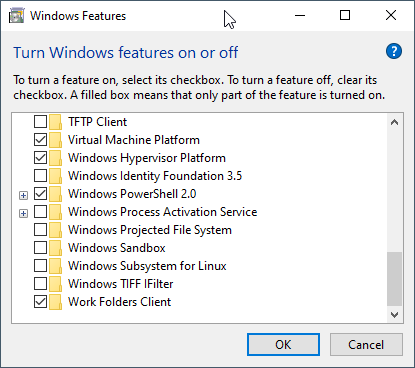
Turn Windows features on or off

I would make sure that are enabled:

  • Containers
  • Hyper-V
  • Virtual Machine Platform
  • Windows Hypervisor Platform
As you see WSL is not enabled

Press OK, and restart your computer.

Try Again to docker pull ubuntu

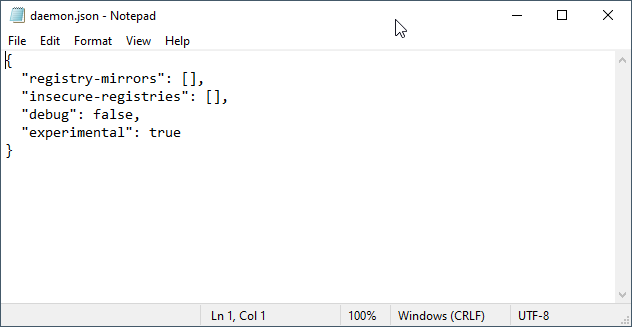
Enable Experimental Mode

Edit this file to enable experimental, you can run from the PowerShell:

notepad C:\ProgramData\Docker\config\daemon.json
Change experimental from false to: true

Save the file and restart the Service:

Restart-Service docker

Check if it works

Get-Service docker
Status   Name               DisplayName
------   ----               -----------
Running  docker             Docker Engine

Try if now it works.

Switch Daemon

If it is not working, try running:

cd "C:\Program Files\Docker\Docker\"
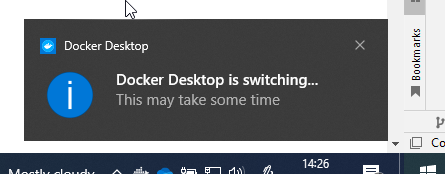
.\DockerCli.exe -SwitchDaemon

Give it two minutes and try to pull an image.

If it is still not working reboot, and try again:

cd "C:\Program Files\Docker\Docker\"
.\DockerCli.exe -SwitchDaemon

After it is working

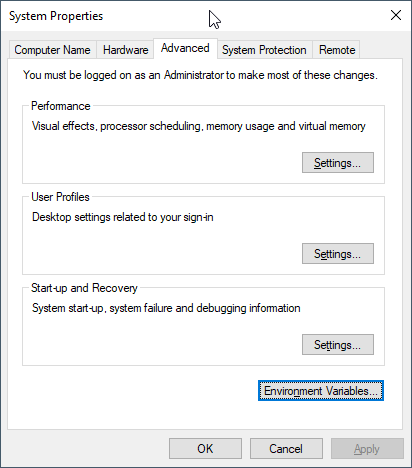
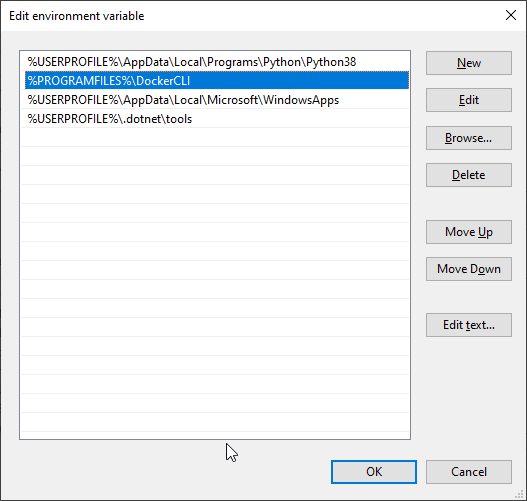
I recommend you to add the new stand alone docker to the path, so you can call it from the terminal at any moment.

Edit the variable PATH of your user profile (not System wide)

I recommend you to have it on top after Python.