| Quick Access to my selection Last Update: 2022-10-24 09:36:42 Ireland Time / 2022-10-24 01:36:42 PDT-0700 Unix epoch: 1666600602 | ||||||||||||||||||||||||||||||||||||||||||||||||||||||
|



















How to protect your WordPress site using PHP Firewall plugin
This article explains how you can protect your WordPress site from attacks using my PHP Firewall WordPress plugin version 1.0.8.
This plugin is a commercial plugin, with one time fee, that it’s absolute worth it. It is not available as free plugin lite in WordPress.org. Only in my Software store. It is also available as PHP Firewall Drupal module.
Once you install the plugin, you click in Enable protection and the Firewall will start to detect attempts to find exploits in your server automatically, and will block the offending IPs.
If you Enable count of blocked requests you’ll see than in few minutes, the Firewall has blocked hundreds of attempts.
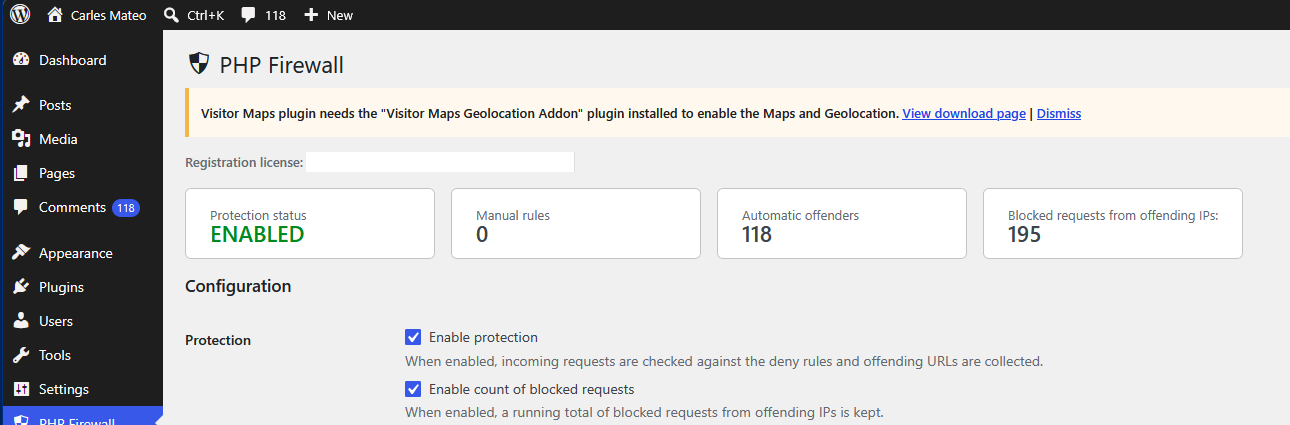
In this example, I activated the protection, and after some time it has automatically detected and blocked 118 offending IP Addresses, and has blocked 195 malevolent requests.
In 36 hours the number of blocked requests will get to thousands:

Enabling the count of blocked requests makes a small update in the database to increment the counter, it’s a very lightweight operation, but it is worth it to get an idea of how many malevolent requests the software is blocking. You can enable it for an hour, see how many bad requests you get, and disable it if you want.
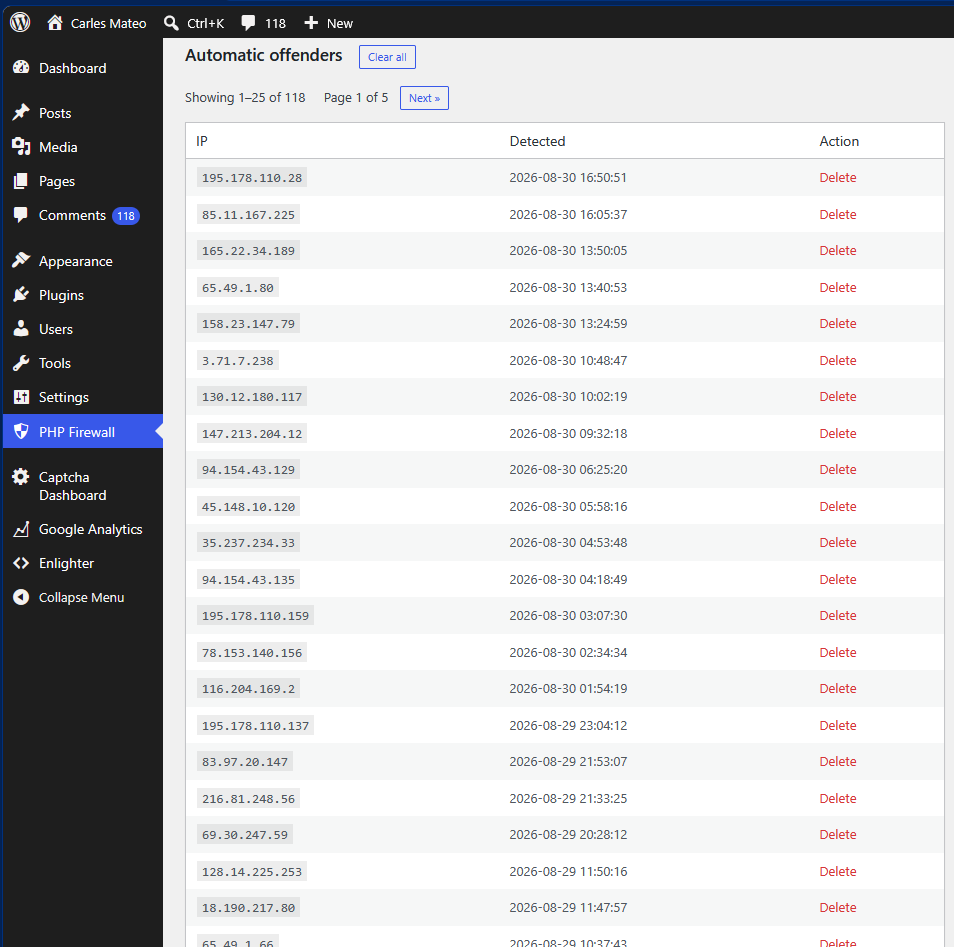
Once you activate the protection you will start to see IP Addresses that have been blocked because they attempted a known exploit, and the IPs have been added to the list of Automatic offenders.
This function is known as WAF or Web Application Firewall.
Once an IP is detected as offender, it will get a 403 Forbidden answer from the Server immediately, and the precious resources from the server will be saved (CPU, Memory, Internet bandwidth).
If you want, you can delete the IP from the list to allow it access again (for example, if a colleague was doing a test).
As you see, you will get many IP from attackers blocked in a short window of time.
The reality is that bots are trying exploits against random IP Addresses all the times, and some times your server will go very slow because of all those bots trying to hack into your server, and your visitors will experience slow loading pages or even the server may crash due to all these bots activity. Also, depending on your Cloud provider, you may be paying for Internet Outgoing traffic that is consumed by bots.
So this plugin is a must have, in my opinion as Engineer. That’s why I created it. Because many people was asking for help.
But there are other types of abuse. For example, malicious bots will try to get access to your blog by doing requests with random passwords to wp-login.php every second.
The Firewall cannot block this route by default because is the route that legit users use to login to WordPress. But we have functionalities in the plugin to deal with these attacks (without having to analyse the web server logs, which is a task that System Administrators and Site Reliability Engineers do).
Activate Enable log of non blocked requests for analysis

This will record every allowed request (not the blocked ones), so we can analyse them.
Just scroll down, to Latest requests
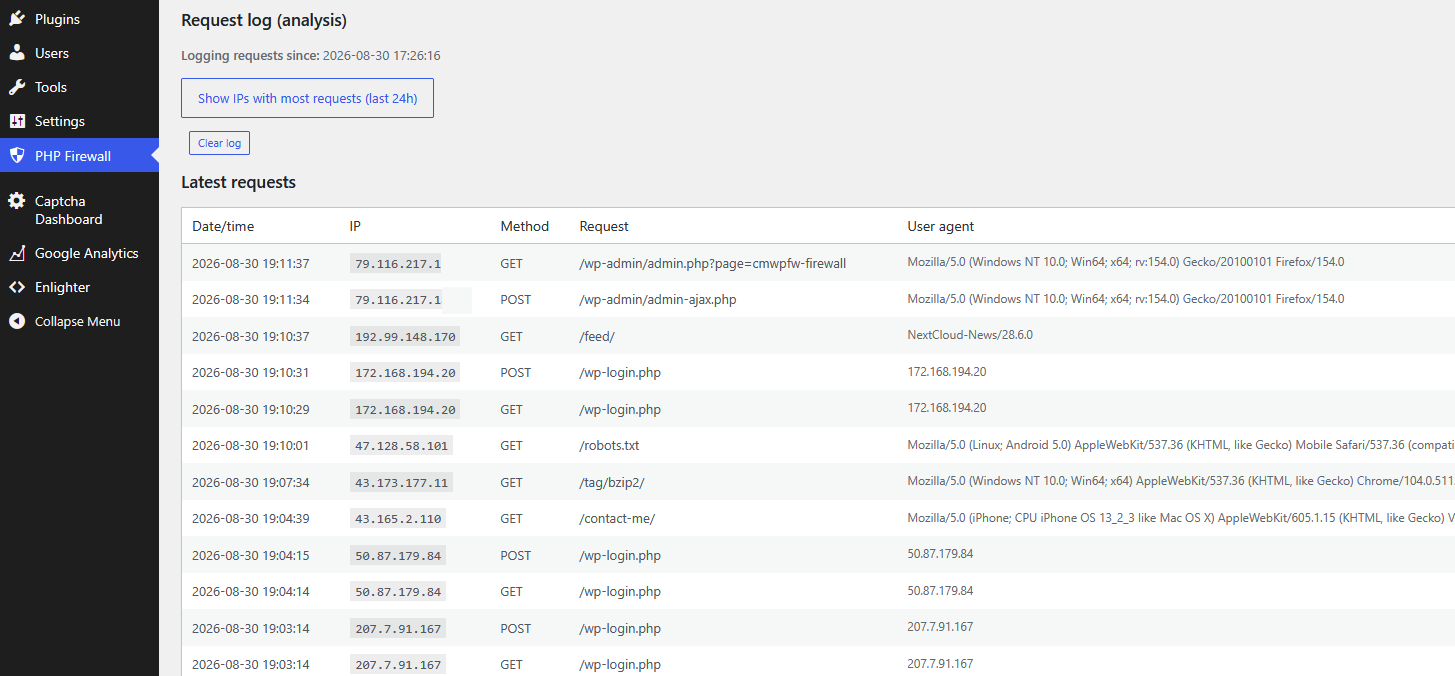
As you can see there are IP Addresses that did a POST to /wp-login.php
That means that attempted to login in your site. So, they tried a password to hack your WordPress site.
Those IP Addresses are attempting to login every second or every two seconds.
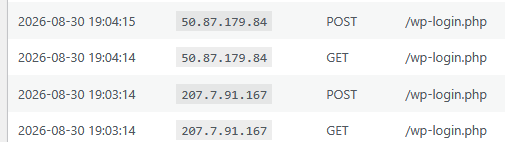
These kind of attacks are not only bad, as they can get access to your site, they can also degrade the health of your database.
You can investigate where these IP’s come from doing a Whois search, or asking Google: whois 50.87.179.84
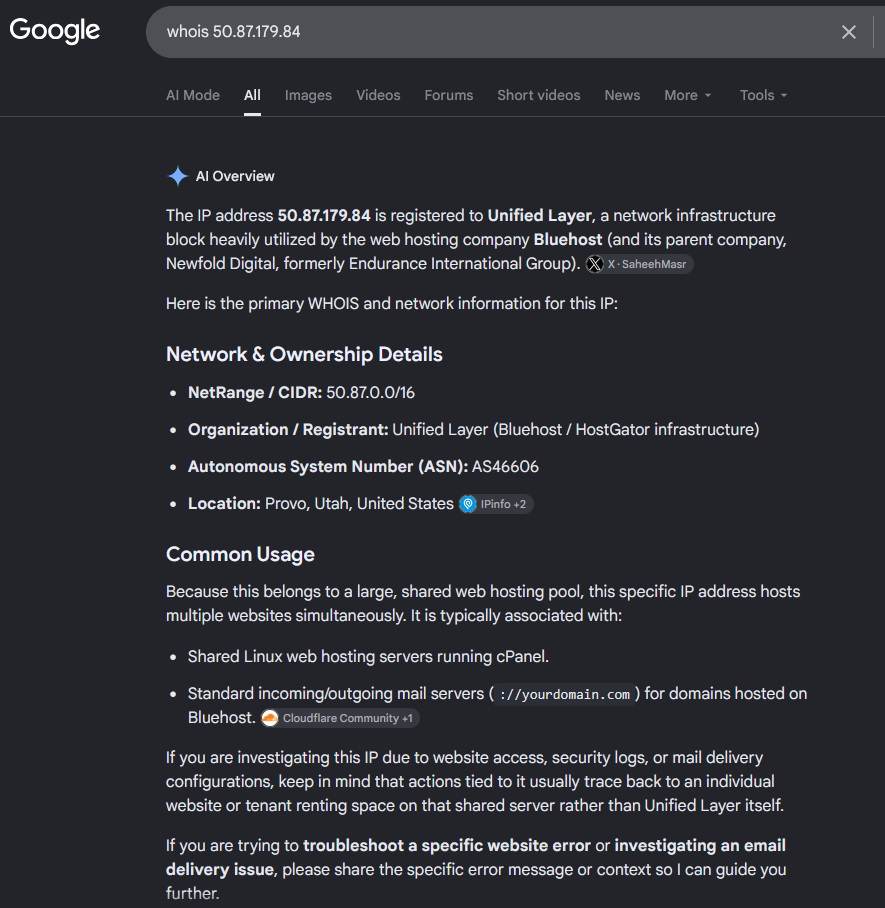
So, it’s a hosting from Bluehost / HostGator, a Cloud Provider. Servers from Cloud providers are typically hacked to try to hack other servers.
You can block the IP directly in the PHP Firewall using the custom rules, or as you can see in the information provider, this Cloud Provider has a NetRange / CIDR of 50.87.0.0/16.
A block /16 comprises 65,536 IP Addresses, so you’ll probably get attacks from many different IP’s in from that block. Instead of blocking just the IP that attacked your site, my approach is to block all the IP’s from that block.
So we add to Manual IP deny rules the block:
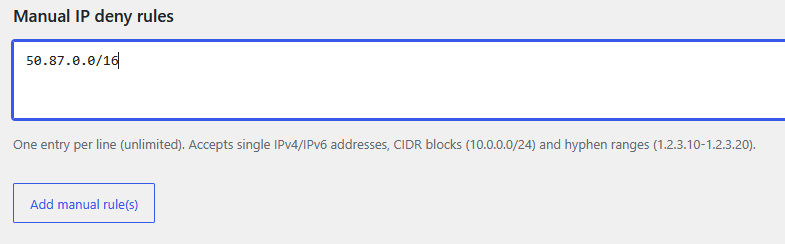
The reasoning about blocking all the 65,536 IP Addresses from the Cloud provider is that your WordPress site is probably a site for humans. You want humans to read your blog posts, or if it’s an e-Commerce site, you want to sell to humans. You don’t want bots to use the resources of your server or to try to hack your server. So blocking Cloud Provider’s IP ranges, seems like a good strategy.
If you are one of the few WordPress sites with third party integrations that need to be reached from Cloud providers, you can avoid denying those blocks of IP Addresses that your partners use.
We investigate the other IP:
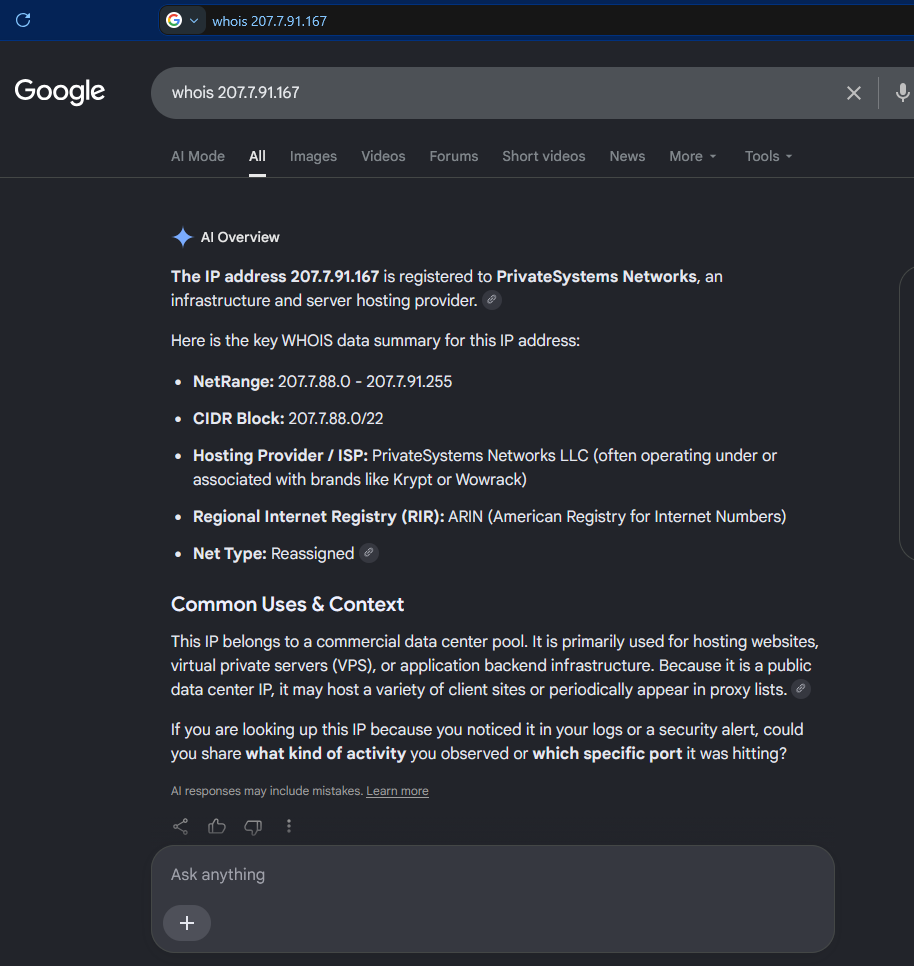
And it’s the same case, so we also block the CIDR Block in the PHP Firewall.
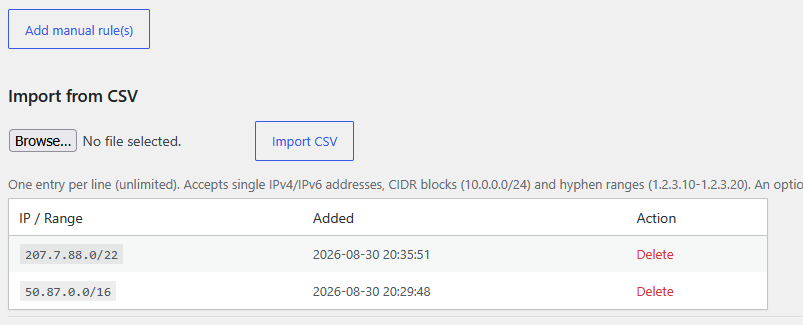
A /22 block comprises 1,024 IP Addresses. So, with two lines in our firewall we have blocked potential malicious requests from 66,560 IP Addresses.
Obviously we cannot analize all the requests we get, but Firewall PHP plugin provides a very useful tool that will display the IP Addresses that did more request to our server in the last 24 hours.
Just click on Show IPs with most requests (last 24h)
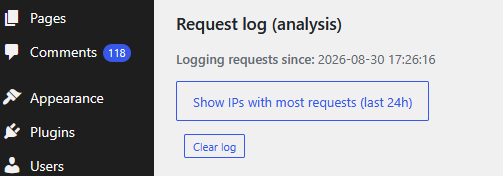
The top 50 IP Addresses that performed more requests are displayed:
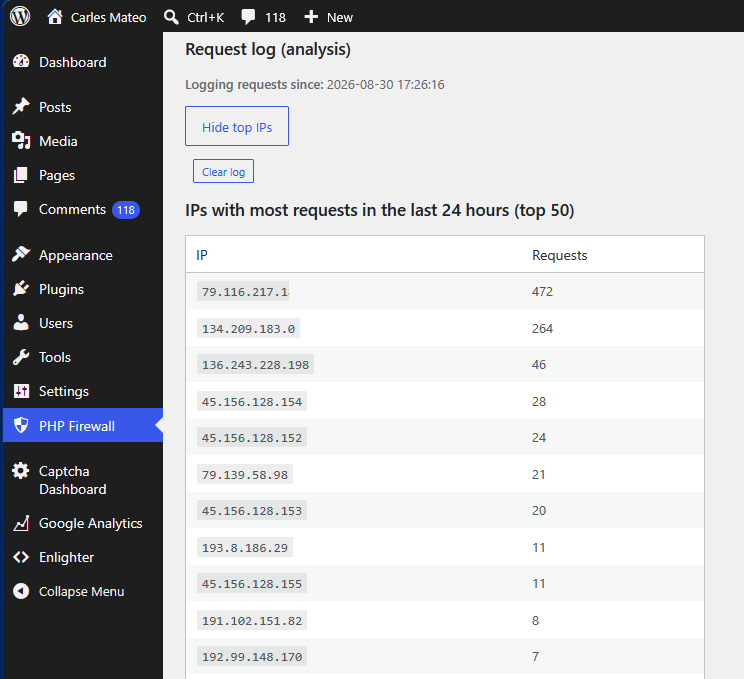
In this case, the first IP Address belongs to my own IP Address. Which makes sense because WordPress opened in the browser keeps doing requests to the server.
As I activated the log at 17:26:16 and it’s 21:44:10 in around 4 hours and 15 minutes I got an IP Addresses that did 264 requests.
The IP 134.209.183.0 has performed 264 requests that went through.
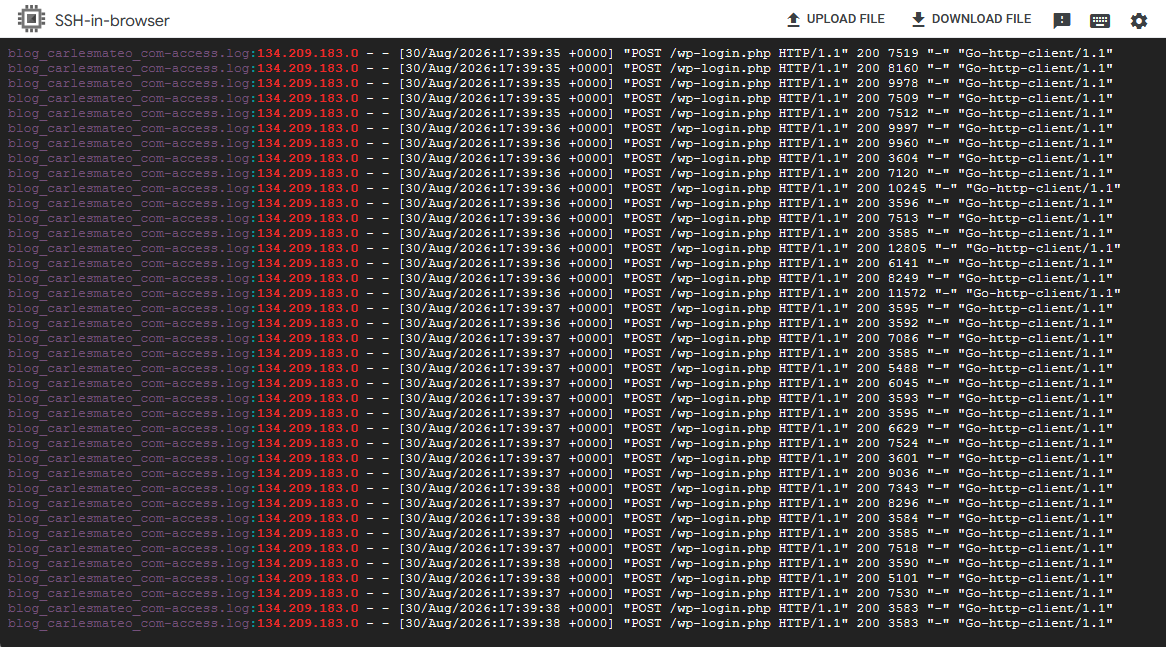
If I check the logs of the server I see that it was attempting to hack the server (trying user/password on wp-login.php)
grep "134.209.183.0" *.log
As you can see, this IP was requesting 12 requests per second trying to hack into /wp-login.php
And if we do the whois of this IP Address, it belongs to Digital Ocean:
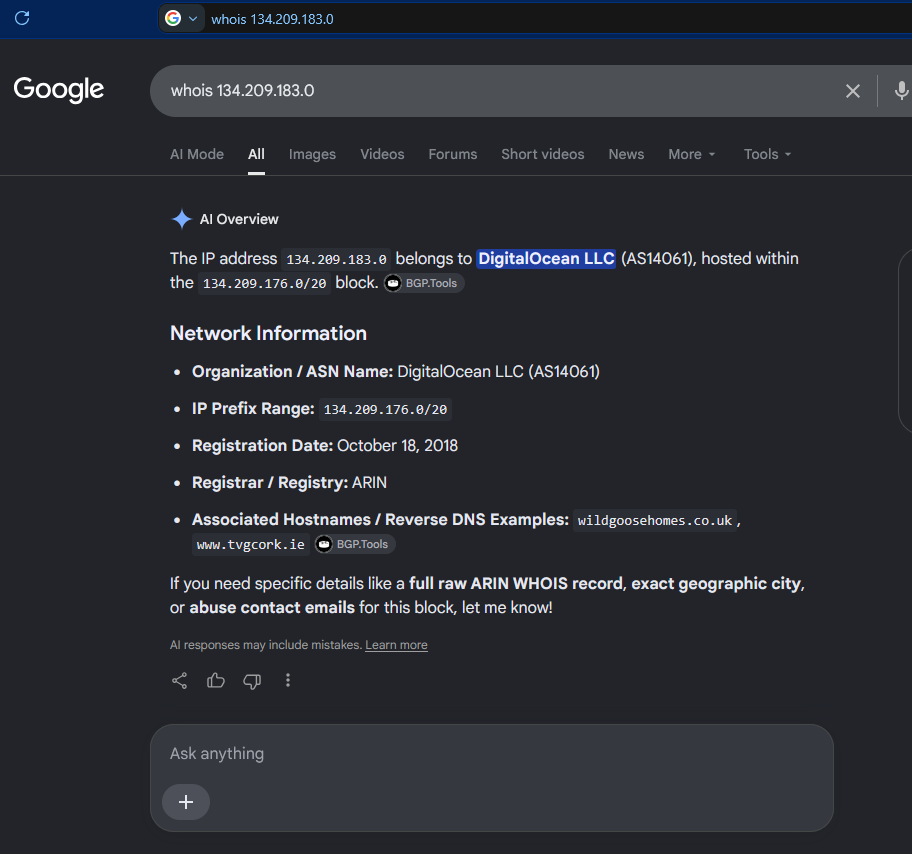
So we block the entire block 134.209.176.0/20 in the PHP Firewall.
Now the server will block any request from the 4,096 in that block range and will not spend time and resources that are intended for your human visitors.
Most of the attacks come from Cloud providers. Normally are servers that got hacked, and they used those servers to try to hack other servers.
PHP Firewall provides great help in protecting your sites, specially if you don’t have a dedicated team of System Engineers that check the logs regularly, and block the offending IP Addresses in the firewalls.
After 12 hours we see more IP Addresses that made thousands of requests:

According to google those IP Addresses belong to Oracle Cloud:
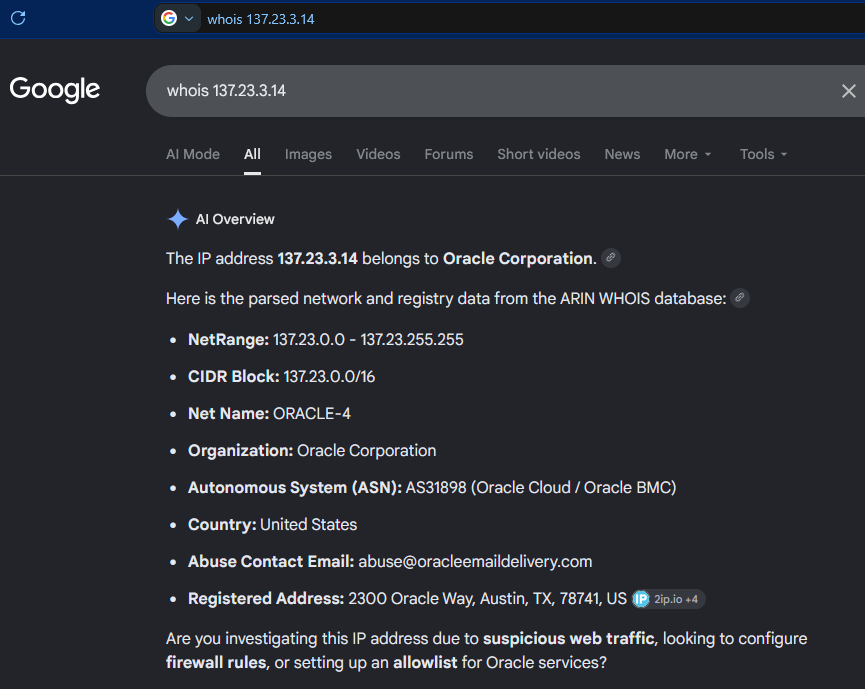
So, we block the CIDR Block: 137.23.0.0/16 (which will block the two offending IP Addresses, as they form part of that block)
In the latest requests we can see how are new IP Addresses scanning for authors in order to try to attempt logins:
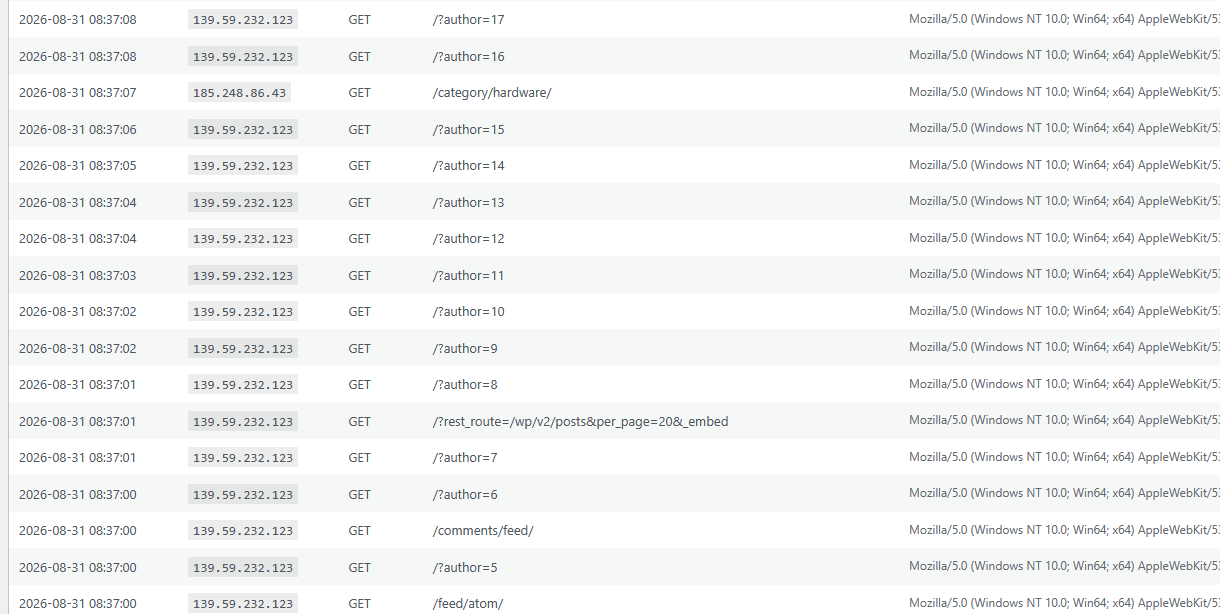
As you can see this IP Address is doing 10 requests in the same second trying passwords (POST to /wp-login.php) in order to attempt to hack the WordPress site.
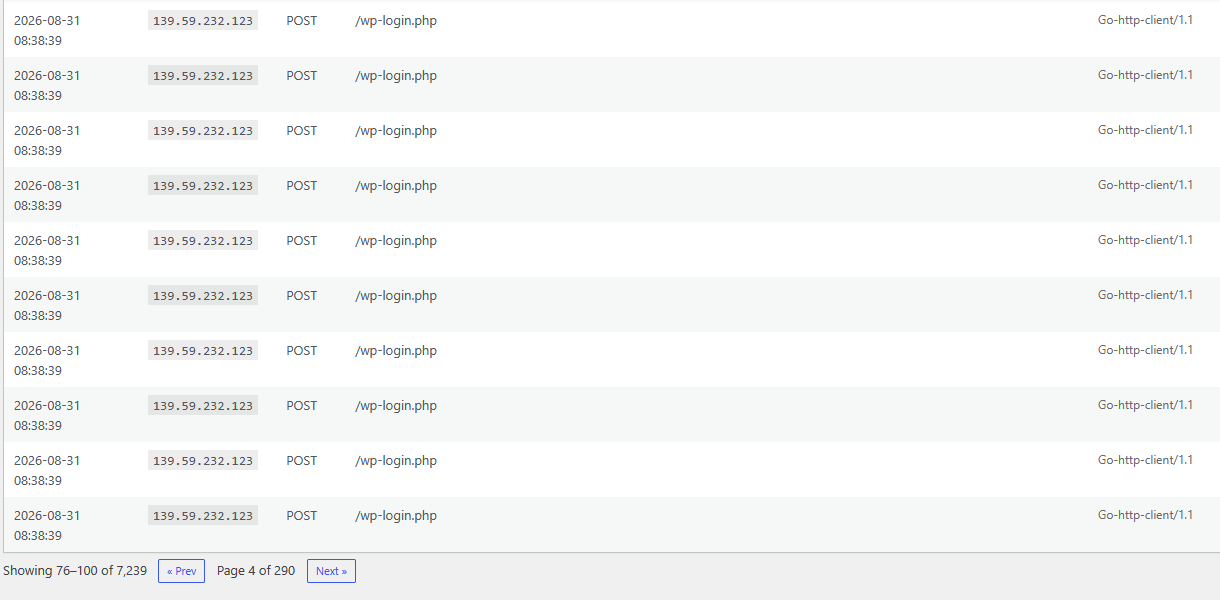
We do a whois search to see who is the owner of that IP Address:
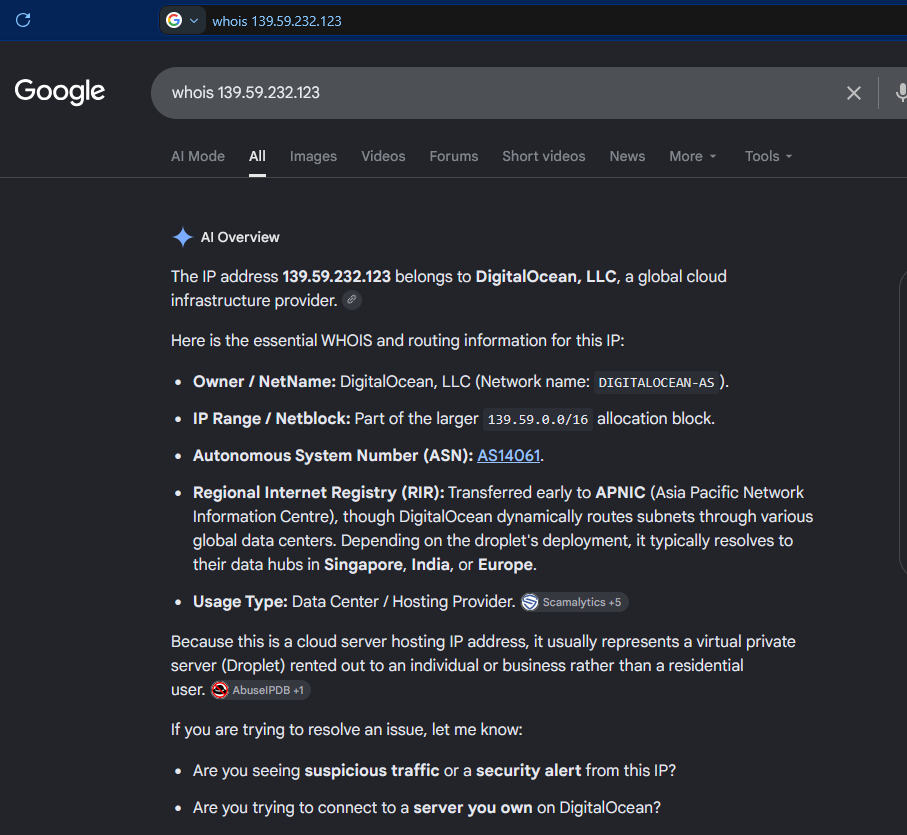
Is from DigitalOcean, the Cloud Provider. We block all the Netblock 139.59.0.0/16
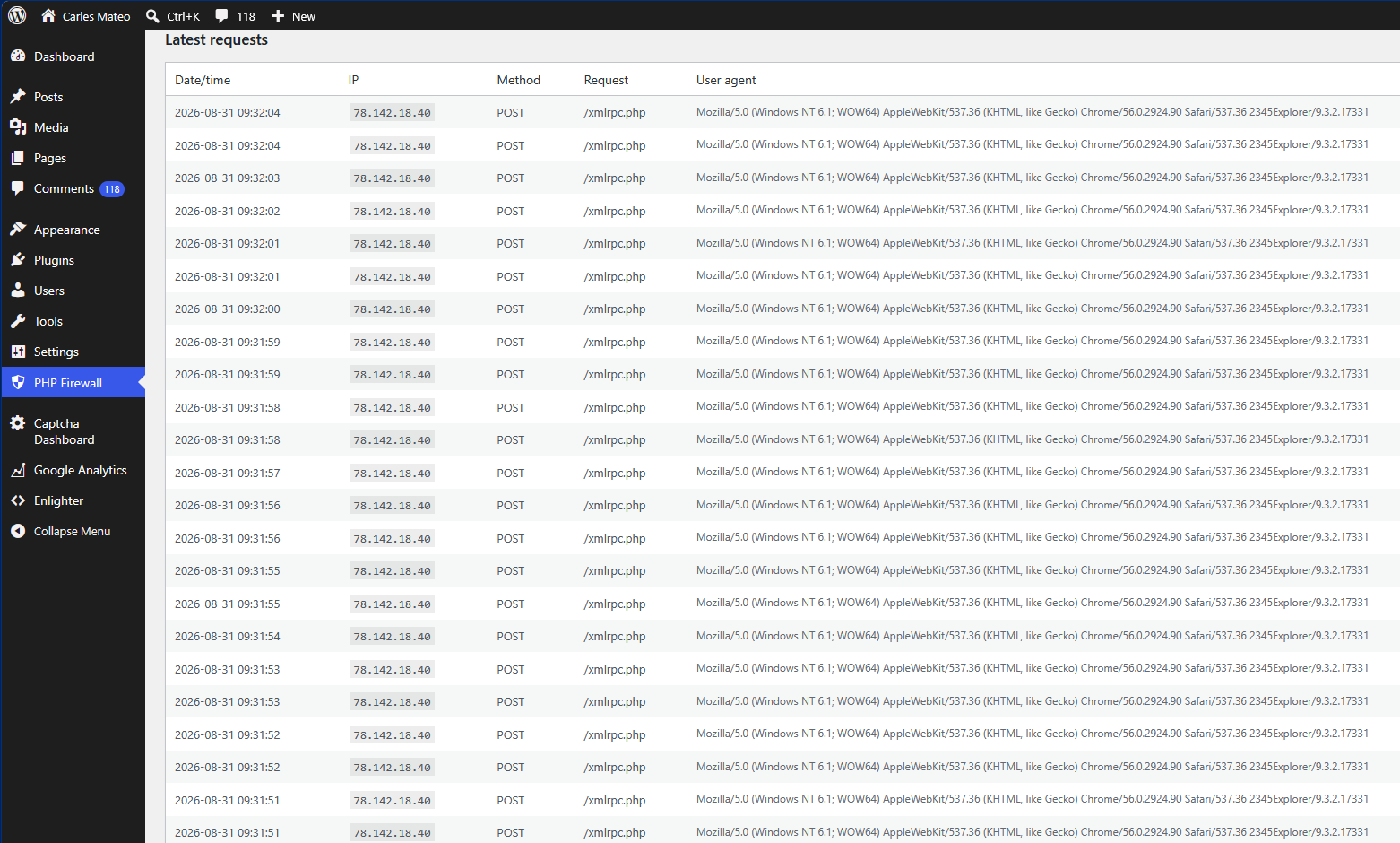
We see a new IP attacking the server, it is attempting two connections per second POST to /xmlrpc.php which tries to perform actions on the site. xmlrpc.php is a legit mechanism from WordPress, for example to register pingbacks, so it is not blocked by default. But hackers use xmlrpc.php to try thousands of passwords at once without passing by the login screen.
If you do not use older mobile apps or specific remote publishing tools that rely on it you sholud block xmlrpc.php
The whois shows that many attacks come from this provider:
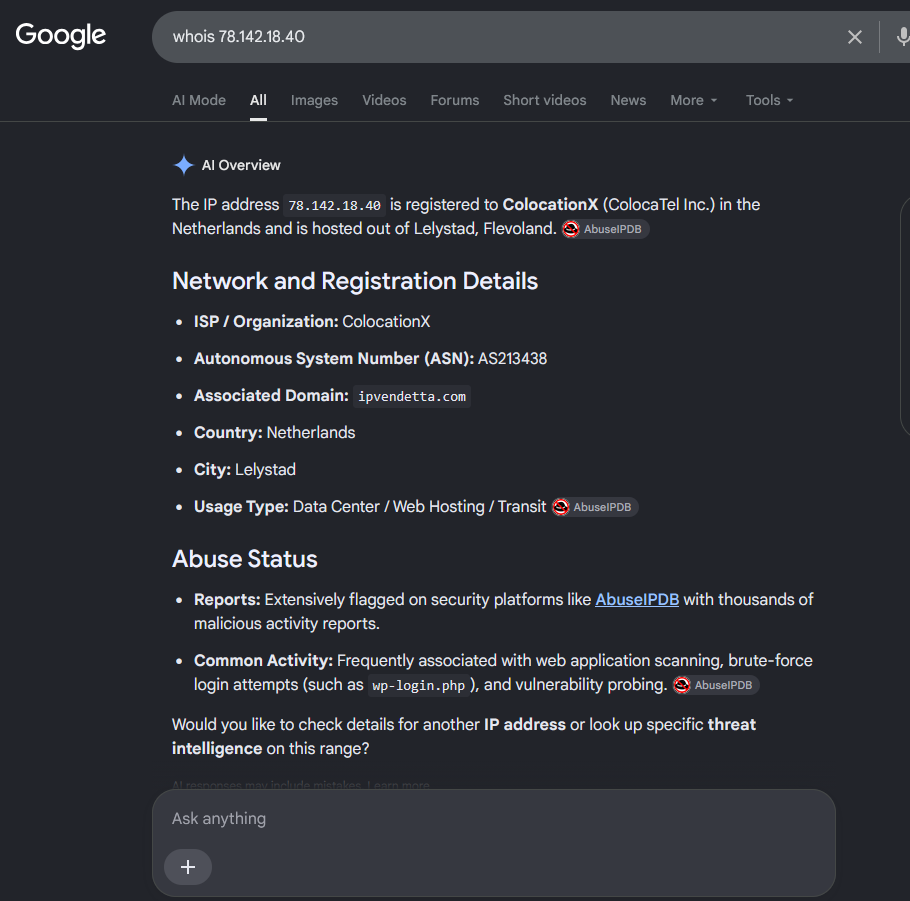
The site AbuseIPDB flags that IP as an attacker with more than 5,000 reports: https://www.abuseipdb.com/check/78.142.18.40
We can block the 256 IP Addresses of the class C, so: 78.142.18.0/24
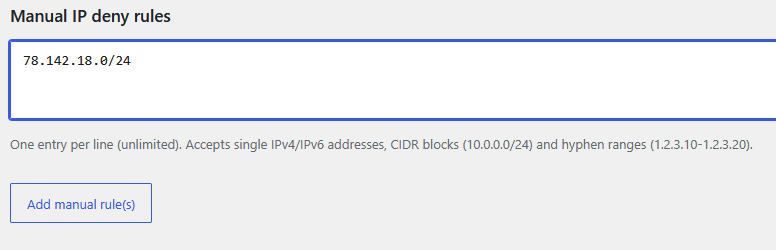
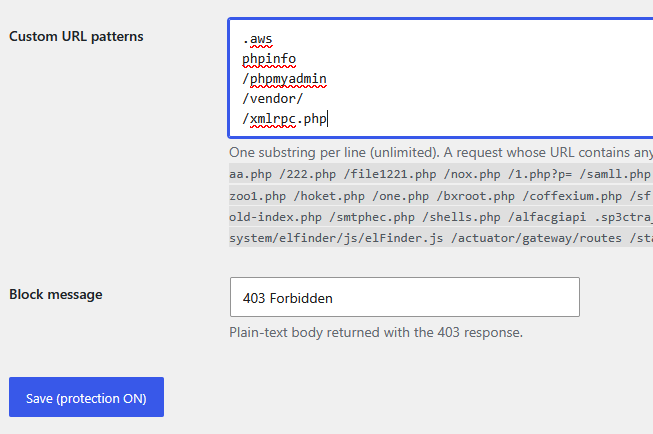
We will also block the requests to /xmlrpc.php using Custom URL patterns:
Later, we see that there are more IPs attacking trying to abuse wp-login.php so we will block them:
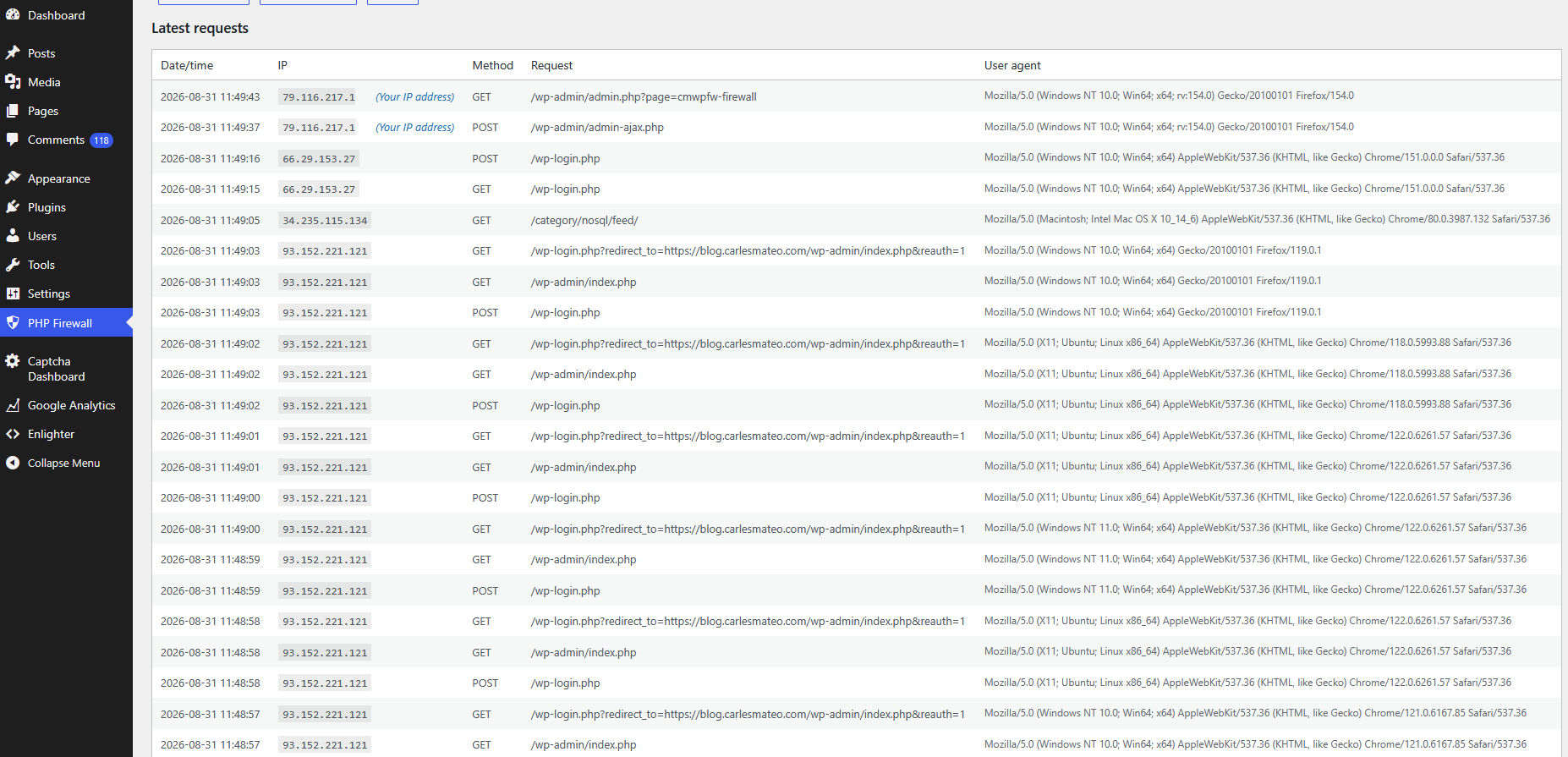
We check the IP that is doing so many attempts to hack requesting wp-login.php
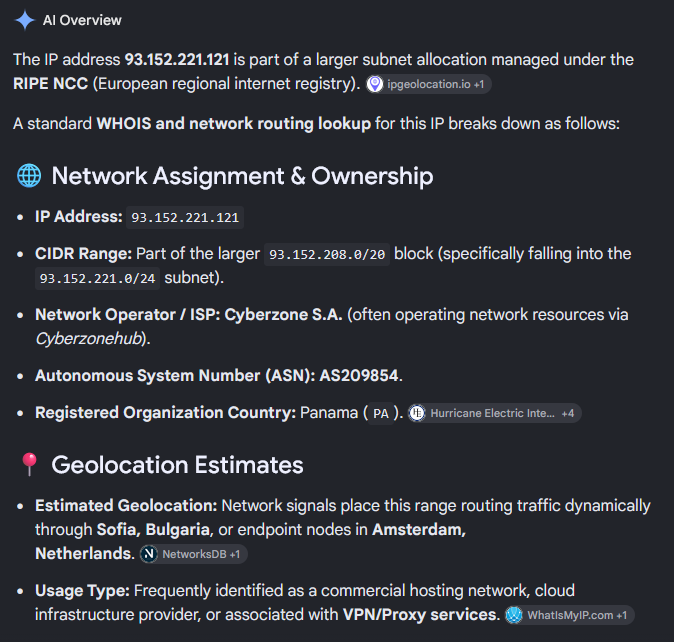
And all the range has been flagged for automated malicious activity and brute-force attempts
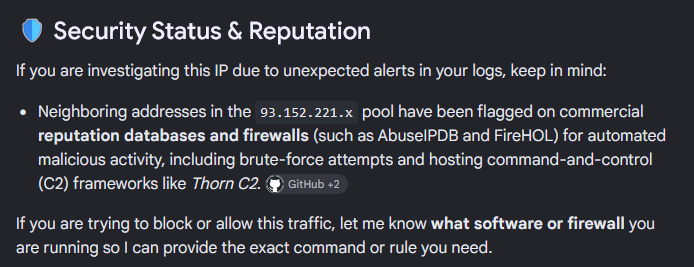
So we block all the 256 IP (class C) 93.152.221.0/24.
Two days later I check the IPs doing more requests:
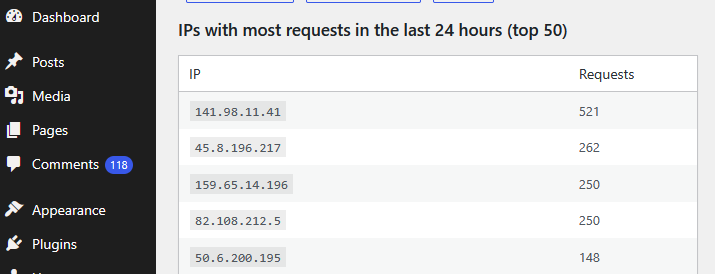
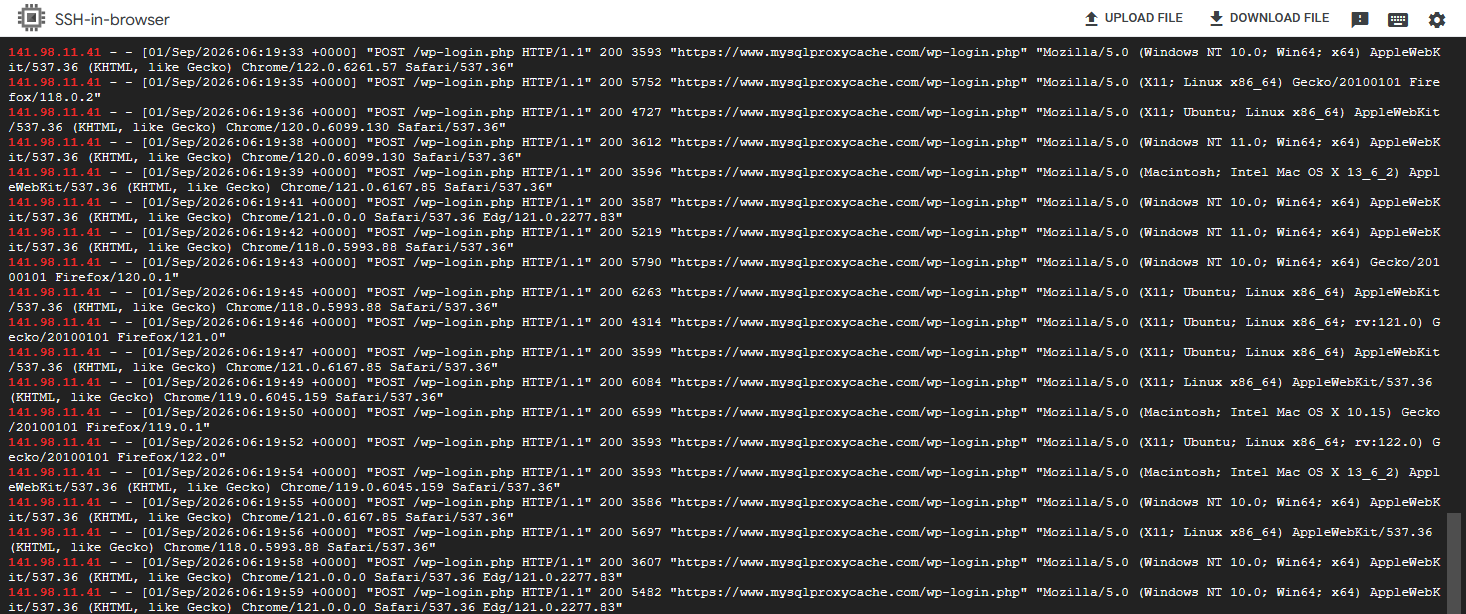
I looked at the logs what requests was doing the first IP:
All were attempts to hack the site through /wp-login.php
We check what kind of IP is this, and it’s from a Cloud provider:
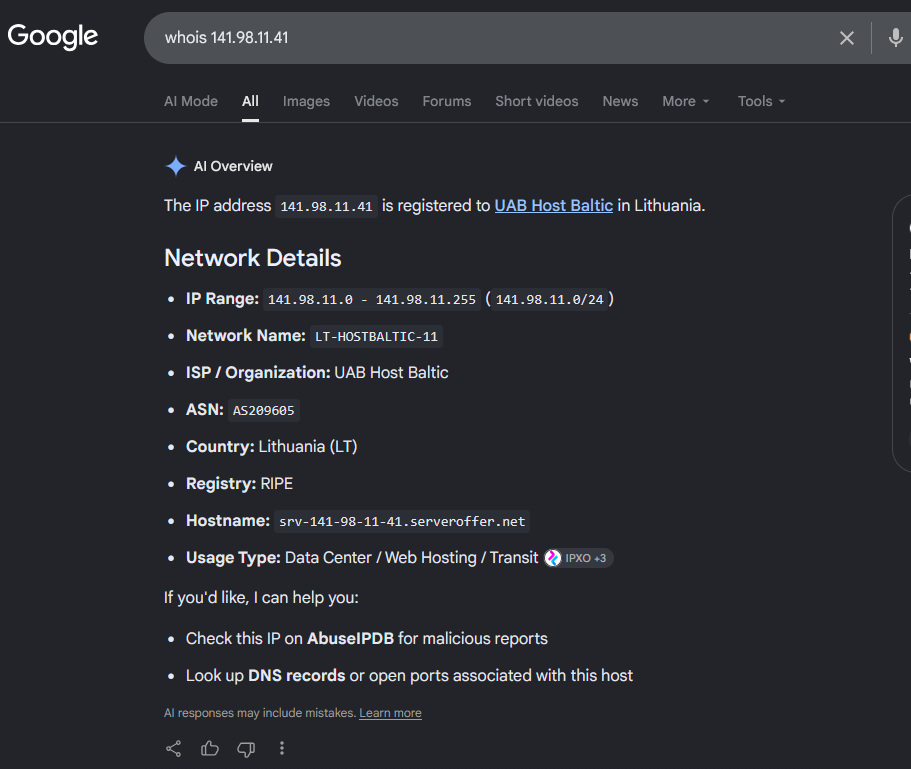
So we block the range 141.98.11.0/24 in IP Firewall.
If you have SSH to the server, or a control panel from your Cloud Provider, you can block it in the firewall.
For Ubuntu, with ufw that is:
sudo ufw insert 1 deny from 141.98.11.0/24 to any
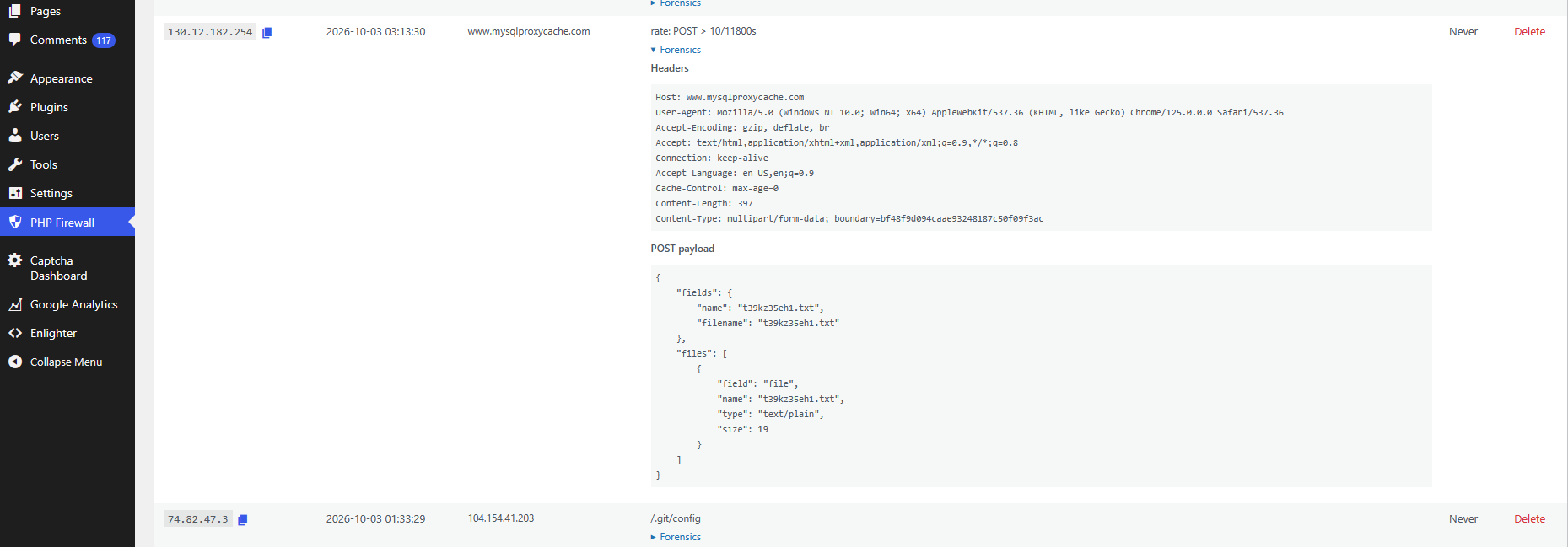
You can do forensics as well, and inspect what Payload are carrying the attacks, for instance:
A video of using WordPress PHP Firewall v. 1.1.0:
PHP Firewall WordPress plugin is a great help, as it blocks most of the attacks automatically, and offers you tools to detect the IPs that do more requests, so you can block them (or the entire range) easily, and to track the latest requests and export them.
Also, the price of the plugin is one time fee per site. Not a recurring payment.
There is also PHP Firewall Drupal module and a PrestaShop module.
If you want to acquire the Firewall rules that we have been collecting over the years, you can also buy the Firewall rules of Cloud providers from which we received attacks. These can be applied to any Firewall software, for instance Ubuntu ufw, or to my plugin/modules.
Forensics Postmortem Analysis and how abusive bots pushed me to migrate part of my services from Google Cloud to another Cloud provider
I tested Google Cloud when they were in beta, years ago, and I helped their Team to improve the service. And I’ve been using Google Cloud for years.
Here I explain, how an incident, this August, almost made me leave Google Cloud for good. In fact, I migrated many services to other providers. I walk through the steps I took.
The best advice to start with, is, enable Cloud Billing alerts.
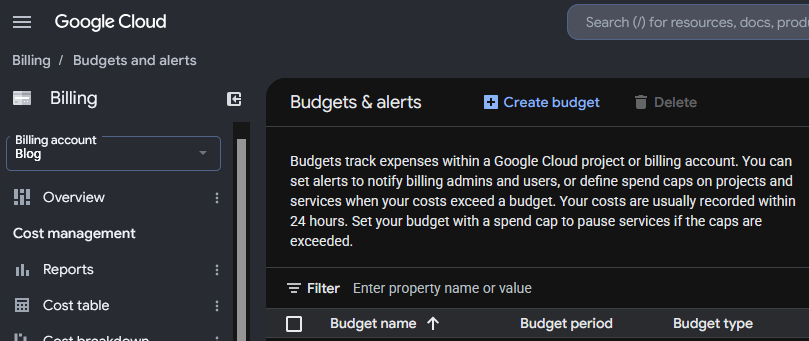
Everything started with the alert of Cloud Billing alerting me that half of the budget for the month had been exhausted around the 7th of the month. I checked the panel, and at the beginning I didn’t pay much attention to it, as Billing was indicating that the extra cost was in Compute in a specific region where I had provisioned new instances and more storage and it was just few euros.
Compute Engine Costs are mixed with the bandwidth consumption in the Dashboards which makes no sense:

So, I had to check different dashboards to realise it was a data transfer issue, and honestly, at the beginning I didn’t know where the problem was, but as I wrongly inferred, that the instance generating egress traffic was the one named “ubuntu26-04” I was investigating mainly that.
The first thing to learn that Google Cloud Billing shows the pure Compute and bandwidth usage together. I dislike it, for obvious reasons.
Next day budget for the month was almost gone.
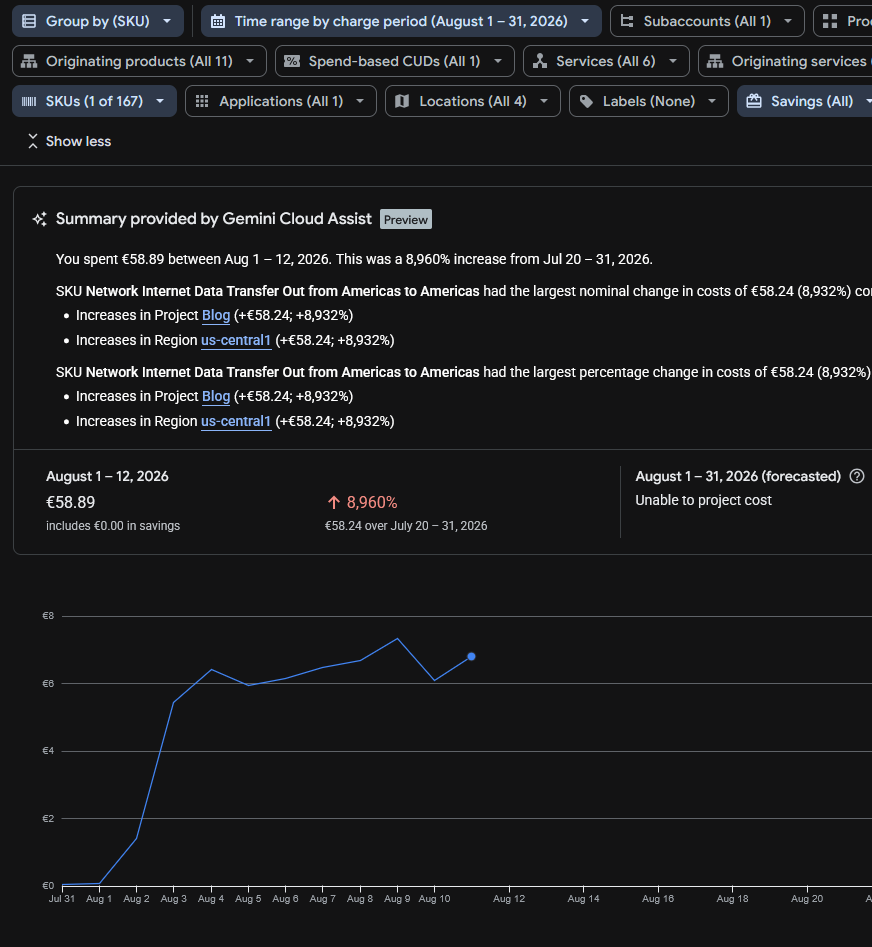
Running the reports I saw “SKU Network Internet Data Transfer Out from Americas to Americas” which was confusing, and initially made me think if it could be the new backups system, sending the backups to my centralised server using the AI compatible agent with the public IP for the API and encryption, but I discarded this very quickly due to the volume of data and I modified the system to use internal IPs instead of the public ones.
The only clear thing at this point was that Internet data transfer (egress) was being sent, and Google makes you pay for that.
I had released several projects recently, like https://read.carlesmateo.com/en Text-to-speech to generate MP3 from text files, or https://sendmeafile.carlesmateo.com/en to send and receive huge files, with resume, checksum verification, AI compatible… So my first thought was that one of the projects or its dependencies could have been compromised, or fanatic AI/crawlers were downloading the sample MP3 files again and again.
I made a mistake when checking Cloud Billing. It indicated that the expenses came from us-central1, so checked the list of instances’ regions and I thought the problem came from a new instance named “ubuntu26-04”.
But I made a mistake, because there are several zones in every region, like us-central1-a, us-central1-b, us-central1-c… My new instance for the new projects was in the zone us-central1-f but I had more than that one instance in the region, only that in different zones. But when I checked the zones for the instances I did not realise that there was more than one instance in the zone us-central1 and I assumed the new instance was the only one in the zone and should be the one generating the egress traffic.
I only had ports 80 and 443 opened in Google’s firewall, so there could be requests to the web server, or that the server got hacked. I analysed the nginx logs for the server and found no huge traffic or big files being requested.
Nowadays bots and crawlers and AI’s generate a crazy amount of traffic, so I had to discard this.
Also, recently Amazon had a problem were it presented huge bills (erroneous) of more than 1 Million dollars to some customers. I didn’t know if Google was calculating the bandwidth costs well.
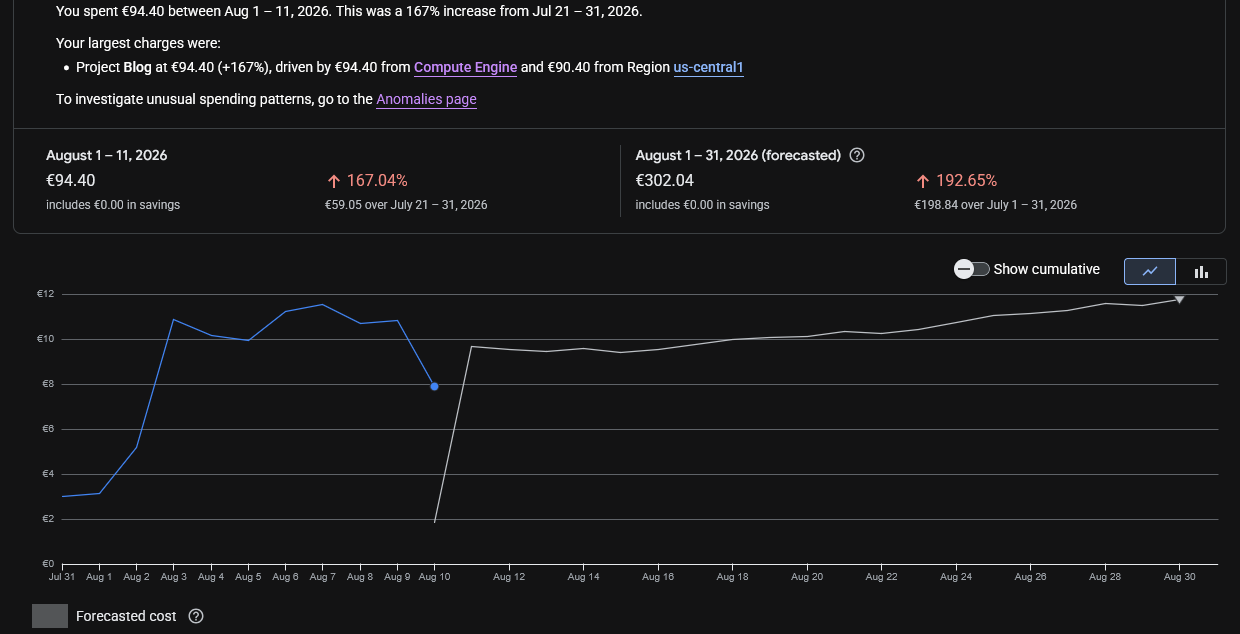
The Billing Dashboard showed that the increment in data sent was costing me around 11€ per day, so it allowed me to start moving services from that server, with relative calm. The forecast for all the August month displayed that the bill would cost me 300€, which was not nice.
In the meantime I hired a VPS with unlimited data and started to migrate the Docker services there as fast as I could with the idea of shutting down the compromise instance to cut the costs.
One of the things that really made me angry, while I was migrating to avoid those over costs, is that I checked again, the next day, the Cloud Billing Reports, the web loaded and informed me that it had changed with news and showed some floating popups pointing how it work and some improvements pushed by the Google Dev Team, and when I continued, the Cloud Billing Report was displaying an unexpected amount of money to pay in August 2026, more than 10 times what I expected, instead of the forecast I saw previously. So it looked like I had to pay that amount for August, and I started to look at what caused that increment of costs quickly, which fas frustrating. And after a while, when I was thinking about stopping the services, I found that Google had changed the page of the reports and the filters were reset to yearly, and the page was showing the already paid costs from 1st August 2025 to 31th August 2026.
Later I reported how frustrating was the experience to Google as “you should not do that” and “users dislike frequent changes”.

Companies are not aware that when they change things, they often annoy the customers a lot.
Years ago I migrated from my long term account with Amazon AWS to Google Cloud Compute Engine cause I was feed up of the problems in Amazon, how many programming errors they had, the changes they did, causing problems, like to the identifiers of the objects (I had older created objects, with shorter hash, and some API calls did not work any more), and how difficult they made simple things. User Interface was bad, and they also lost two of my instances and communicated really poorly (I also reported that to a friend in Amazon and I had some conversations with Amazon’s AWS PMs), and they were over expensive for developers, so I ended migrating to Google Cloud. And now Google is repeating some of the same mistakes.
They are not only expensive. They make things that could be easy, difficult, for the developers.
These big companies force you to stay continuously learning they changes. They offer great solutions for the Enterprise, but for developers and Startups the costs could be overkill.
Probably they are over-kill and over-expensive for developers and Startups.
With Google Cloud I have experienced some technical issues too, as my older instance froze several times and became irresponsive and I had to do a stop from the web console and I had to wait until the command timed out and Google realised there was a problem so it would consider the instance finally shutdown and I could start it again in other non faulty hardware.
If you are a company with a Load Balancer, with health checks, and several front servers, and 20 developers, you can afford to have Web servers KO, as the Load Balancer will handle it nicely, but if you have a single server with WordPress sites, if the instance stops it means that nobody can access those sites.
As an example of costs, for a Google e2-medium (2 vCPUs, 4 GB of Memory and 20 GB of disk) in us-central1 I pay around 30 € per month. And it happens that the forecast for this month in bandwidth was 300 €.
Also storage is around 1€/month per 10GB for standard. So 200GB of regular space is 20 €/month.
For SSD 1.7€/month per 10GB, even tough provides more IOPS, but not more speed. 200GB of space more is 34 € more per month.
I migrated to a provider were I pay 30 € per month for a 8 vCPU and 24 GB of memory and includes 200 GB of NVMe, and I have unlimited bandwidth. Extra storage is also much more cheap. And the static IP is included (for Google you pay around 1.1€ per month).
The key in here was the unlimited bandwidth.
I also could have rented a dedicated server with 64GB of RAM for around 64 €/month, but these comes with some down sides, like if your server experiences a hardware error, you’ll have to wait for the System Administrators from the Cloud Provider to physically replace the components. With a VPS or instance, I can just launch it in a healthy hardware immediately.
As I was migrating services and investigating the origin of the problems, I saw that 500 GB of data were transferred from us-central1 since the 1st of August.
The Billing Report didn’t allow me to filter for IP. It only helped to know the region, us-central1, which helped me to identify the possible services that could be having the problems.

To be honest, I should have located the origin of the problem quickly, but I did so well blocking bots and uneducated crawlers in the past years, that I had no problems for years, and GCE has mad many changes over time, so I did not remember that I could monitor real time network usage of my servers. Most of the servers I troubleshoot I have only SSH access, so I use network tools.
But as I told previously, I mistakenly thought that just one instance was running in us-central1, and that was not the case. They were in different zones of us-central1.
The live traffic inspection in the server with tools like ss, netstat, nethogs, iftop, iotop and ps revealed normal traffic and load.
A second revision from the nginx logs didn’t reveal any problem over time. And the only opened ports were 80 and 443. With the services I considered potentially more vulnerable (as they used python dependencies) migrated to the new VPS and stopped in the “ubuntu26-04” Google server, the usage shown and the forecast for bandwidth was not reduced and it was the same.
One thing I learned, and I suspected it from my tests with https://sendmeafile.carlesmateo.com/en is that the maximum speed that my instances were able to transfer from Google to Internet (egress) was around 50 Mbps per connection.
I didn’t see this in Google Cloud’s documentation, but in my tests transferring data from Google servers using the public interface and from different locations to this google server I consistently achieved always that top speed of around 50 Mbps per connection (around 6.25 MB/s), but when I communicated Google servers using their private interfaces, the speed for a single connection was much more higher. So I assumed that the bandwidth was capped. After seeing the data transferred in the Billing Cloud Report, it looks clear to me that an important part of the server’s bandwidth max was being used. Later, Apache logs, confirmed me many requests at the same exact second.
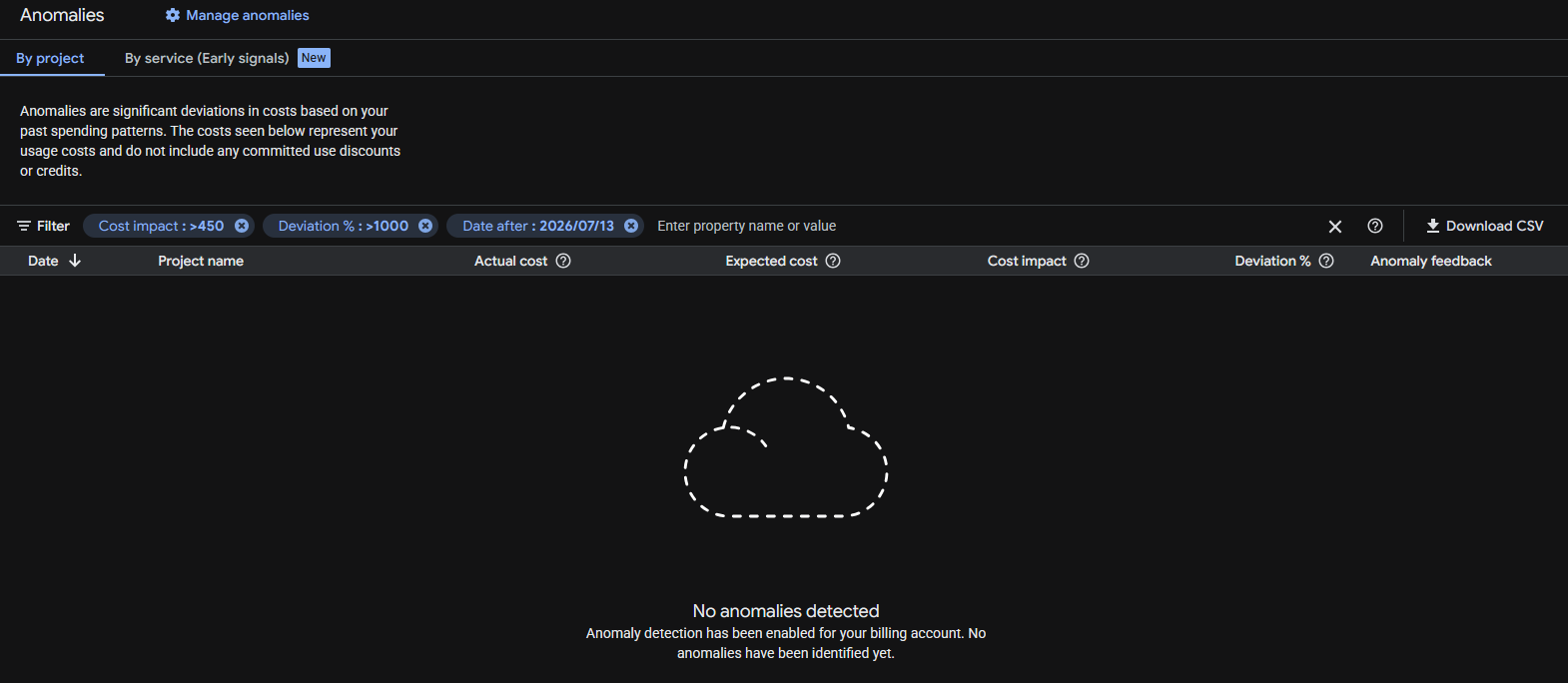
Google anomalies tool detected nothing despite the huge increment in data transfer and cost variation (8,960% respect July!).
Before taking the decision to migrating to another server one has to think, not only in costs, but also on how trustworthy are the storage systems, the resiliency of the systems, how many times they are down per year… there are surprises that you discover as you go. With the experience.
But honestly, I felt it was not worth the price to continue with Google Cloud and it was conditioning the kind of projects I could start. My architecture is resilient, based in containers and I can deploy it fast. I also have backups.
Google storage is not that super trustable in my opinion (neither Amazon’s). Some times my VMs froze and Google monitor dashboard stops drawing the lines of metrics (like CPU usage), but Google doesn’t catch that the VM is frozen. My guess is that the problem is the storage or compute servers dying.
Having to pay per GB transferred in a time where bots and AI index your sites continuously, and abuse the servers by launching many requests concurrently, generating load, and where bots consume much more data than humans, force you to take architecture decisions and to implement strategies.
Possible solutions like using CDN’s like Cloudflare to be protected against DoS, to cache statics and to cut bandwidth and CPU abuse (requests to origin), using other cache systems or migrating to other Cloud providers that are more developer and Start up friendly, and that have unlimited data transfer, etcetera.
When I was presented with the new Google Billing Reports page and the filter was reset to one year, and I saw the price that should be showing multiplied by 10, I contacted Google Cloud by X. They kindly replied and invited me to contact them privately. I did and we opened a ticket. Around three hours later I got an email from a Google staff, telling me that they will investigate the problem, and giving me an expected response deadline of 5 days.
It was nice, but by the time I received the email I already had found and sorted the problem.
I troubleshoot the instance “ubuntu26-04” but the CPU usage was low, and no permanent connections (a sign that could have indicated that was hacked):
That Looked normal
sudo ss -tunp state established
Then I did something that I should have done before, I checked the metrics from all the different instances in Google Cloud Compute, starting from the one I initially guessed was the one suffering the problems. That machine was clear. No high CPU usage. No high bandwidth usage. Nothing.
And then I saw it.
Through VM Instances I narrowed to the one in us-central1 that was consuming the Internet bandwidth, “instance-1”:
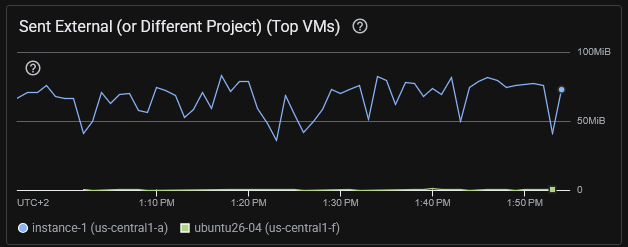
I was checking the wrong server. The consuming excess of egress was from instance-1 that hosted several WordPress sites and it was using Apache2, not nginx.
Some commands I ran:
# Check for the data sent by Apache. This found a lot of traffic. Note: the access.log of all the sites were being analysed
sudo awk '{s+=$10} END {print s/1024/1024/1024 " GB"}' /var/log/apache2/*access.log
# returned 36.4578 GB that's for a day, so something was clearly wrong

# Analyze requests: See what is more heavy. So basically bots trying to hack into the server and some heavy images. Note root home for at least a server is huge (50MB)
sudo awk '{a[$7]+=$10} END {for(u in a) print a[u]/1024/1024" MB\t"u}' /var/log/apache2/*access.log | sort -rn | head -20
54.3218 MB      /
21.6173 MB      /wp-login.php
17.1676 MB      /wp-content/uploads/2022/10/20221001_200930-cut.png
16.5822 MB      /wp-content/uploads/2022/10/20221001_201033.png
10.7245 MB      /wp-content/uploads/2022/02/python_loop.gif
6.61174 MB      /xmlrpc.php
6.60595 MB      /page/2/?shopdetail%2FI37266592159
6.60595 MB      /page/2/?shopdetail%2FI37256267952
6.60595 MB      /page/2/?shopdetail%2FI37256137878
6.60595 MB      /page/2/?shopdetail%2FI37256033568
6.60595 MB      /page/2/?shopdetail%2FI37224959793
6.60595 MB      /page/2/?shopdetail%2FI37214305672
6.60595 MB      /page/2/?shopdetail%2FI37203620584
6.60595 MB      /page/2/?shopdetail%2FE37266925367
6.60595 MB      /page/2/?shopdetail%2FE37242498260
6.60595 MB      /page/2/?shopdetail%2FE37207321261
6.60595 MB      /page/2/?shopdetail%2FA37259909717
6.60595 MB      /page/2/?shopdetail%2FA37259600135
6.60595 MB      /page/2/?shopdetail%2FA37256306882
6.60595 MB      /page/2/?shopdetail%2FA37256197883

# Analyze requests: See what IP's are requesting more traffic in total. Gotcha
sudo awk '{a[$1]+=$10} END {for(i in a) print a[i]/1024/1024" MB\t"i}' /var/log/apache2/*access.log | sort -rn | head -20
34549.2 MB      74.7.241.60
1491.36 MB      116.202.235.23
287.651 MB      3.41.188.33
232.362 MB      74.7.227.160
199.987 MB      18.97.9.169
183.748 MB      66.249.74.42
84.1681 MB      114.119.140.64
78.3209 MB      114.119.149.169
70.5166 MB      114.119.156.46
67.8224 MB      114.119.150.29
66.7544 MB      114.119.145.237
58.7278 MB      114.119.147.113
57.1822 MB      114.119.162.62
56.0061 MB      66.249.74.43
55.3612 MB      114.119.141.79
21.9245 MB      216.73.217.35
21.2516 MB      104.243.44.93
17.7313 MB      79.116.217.181
17.1676 MB      189.81.71.184
16.5822 MB      205.188.63.181
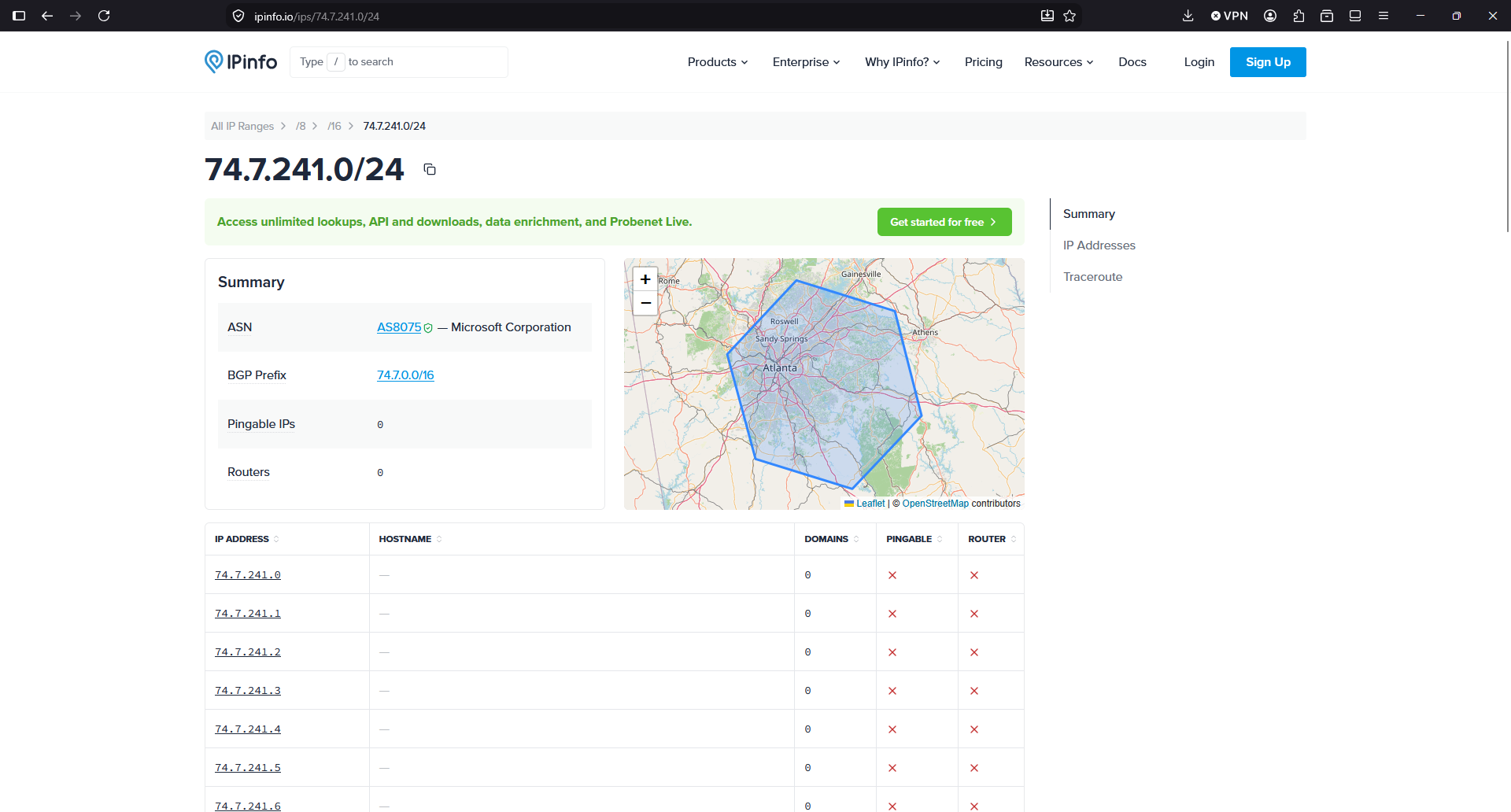
So we see that this IP 74.7.241.60 is requesting 34.5 GB in a day.
So, according to this IP Info service, the IP is from Microsoft. So apparently, crawlers/IA from Microsoft or running in Microsoft infrastructure, were costing me money because they are abusing, scanning my sites, with many connections concurrently, like horrible soulless machines:
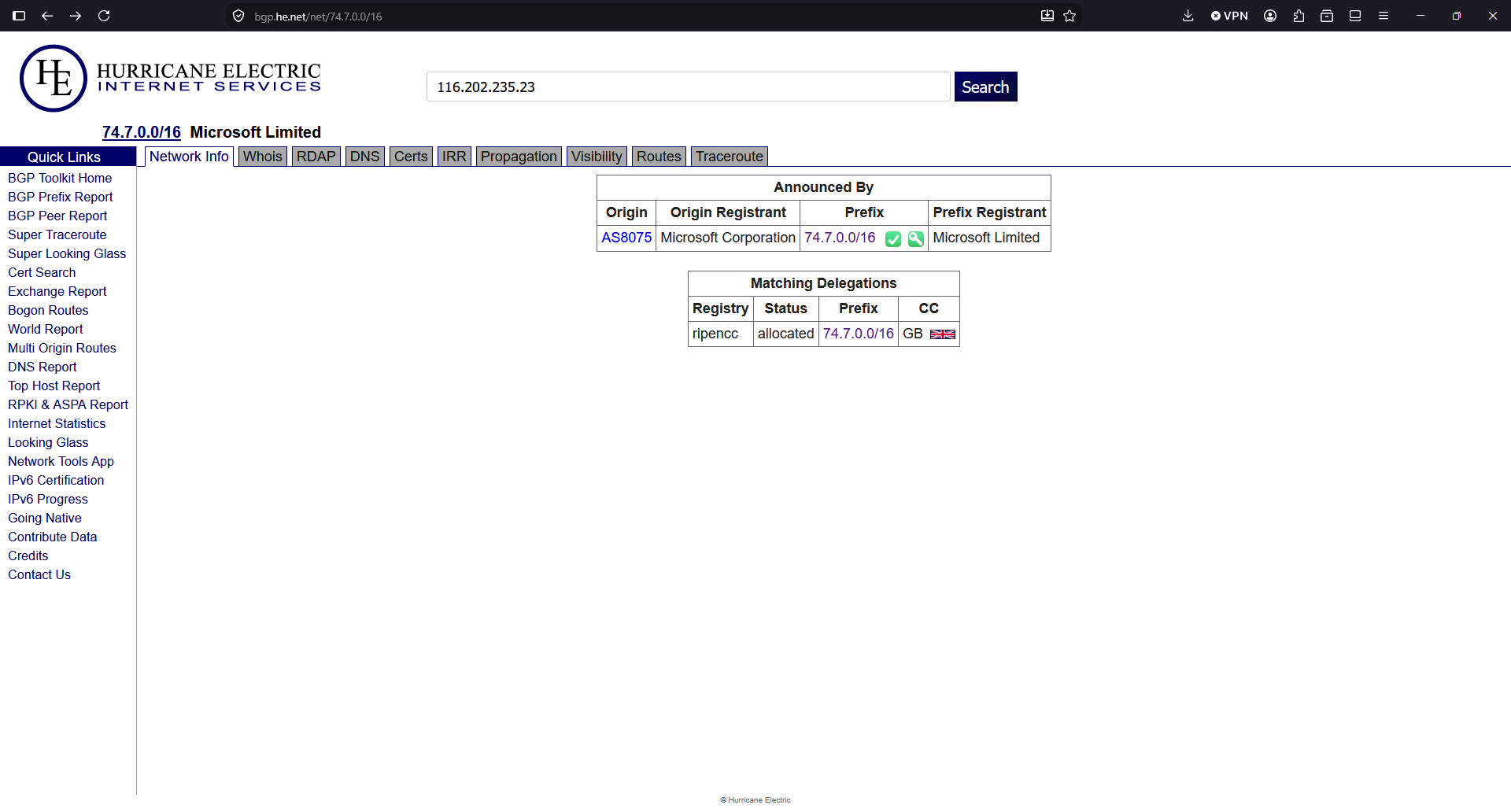
I double checked the IP with another provider:
A command to see a sample of what kind of requests I have from this IP, brings more light:
grep "74.7.241.60" /var/log/apache2/*access.log | head -20
/var/log/apache2/www_mysqlproxycache_com-access.log:74.7.241.60 - - [13/Aug/2026:00:00:22 +0000] "GET /page/2/?shopdetail%2FI37207088742 HTTP/1.1" 200 3463409 "http://www.mysqlproxycache.com/page/2/?shopdetail/I37207088742" "Mozilla/5.0 AppleWebKit/537.36 (KHTML, like Gecko; compatible; GPTBot/1.4; +https://openai.com/gptbot)"
/var/log/apache2/www_mysqlproxycache_com-access.log:74.7.241.60 - - [13/Aug/2026:00:00:34 +0000] "GET /page/3/?shopdetail/I37207088742 HTTP/1.1" 301 264 "http://www.mysqlproxycache.com/page/2/?shopdetail/I37207088742" "Mozilla/5.0 AppleWebKit/537.36 (KHTML, like Gecko; compatible; GPTBot/1.4; +https://openai.com/gptbot)"
/var/log/apache2/www_mysqlproxycache_com-access.log:74.7.241.60 - - [13/Aug/2026:00:00:35 +0000] "GET /page/3/?shopdetail%2FI37207088742 HTTP/1.1" 200 1900262 "http://www.mysqlproxycache.com/page/3/?shopdetail/I37207088742" "Mozilla/5.0 AppleWebKit/537.36 (KHTML, like Gecko; compatible; GPTBot/1.4; +https://openai.com/gptbot)"
/var/log/apache2/www_mysqlproxycache_com-access.log:74.7.241.60 - - [13/Aug/2026:00:00:37 +0000] "GET /page/7/?shopdetail/E37249347969 HTTP/1.1" 301 264 "http://www.mysqlproxycache.com/page/6/?shopdetail/E37249347969" "Mozilla/5.0 AppleWebKit/537.36 (KHTML, like Gecko; compatible; GPTBot/1.4; +https://openai.com/gptbot)"
According to the User-Agent is GPTBot. So apparently a bot running in Microsoft self-identifying as OpenAI were killing causing high usage to my server and to my budget by requesting many pages at the same time, for an old shopdetail page that does not exist in that server (maybe there was a shop years before I got that IP), and spends a lot of bandwidth responding with a heavy page of 6 MB.
In the logs I saw many request at the same precise second.
Asking to Claude it tells me that the range of IPs of the Microsoft attacker IP are not in the publicly published IPs of OpenAI for GPTBot, so apparently somebody using Microsoft IPs is pretending to be a GPT Bot, and it isn’t:

The domain is an old WordPress that has been hacked. Yes, this happens more often that we would like, with WordPress.
I checked the https and it returns a SSL potential warning in the SSL.
I tried with http http://www.mysqlproxycache.com/page/7/?shopdetail%2FI37224744693 (one of the requests in the logs) and I saw that the WordPress site was hacked.
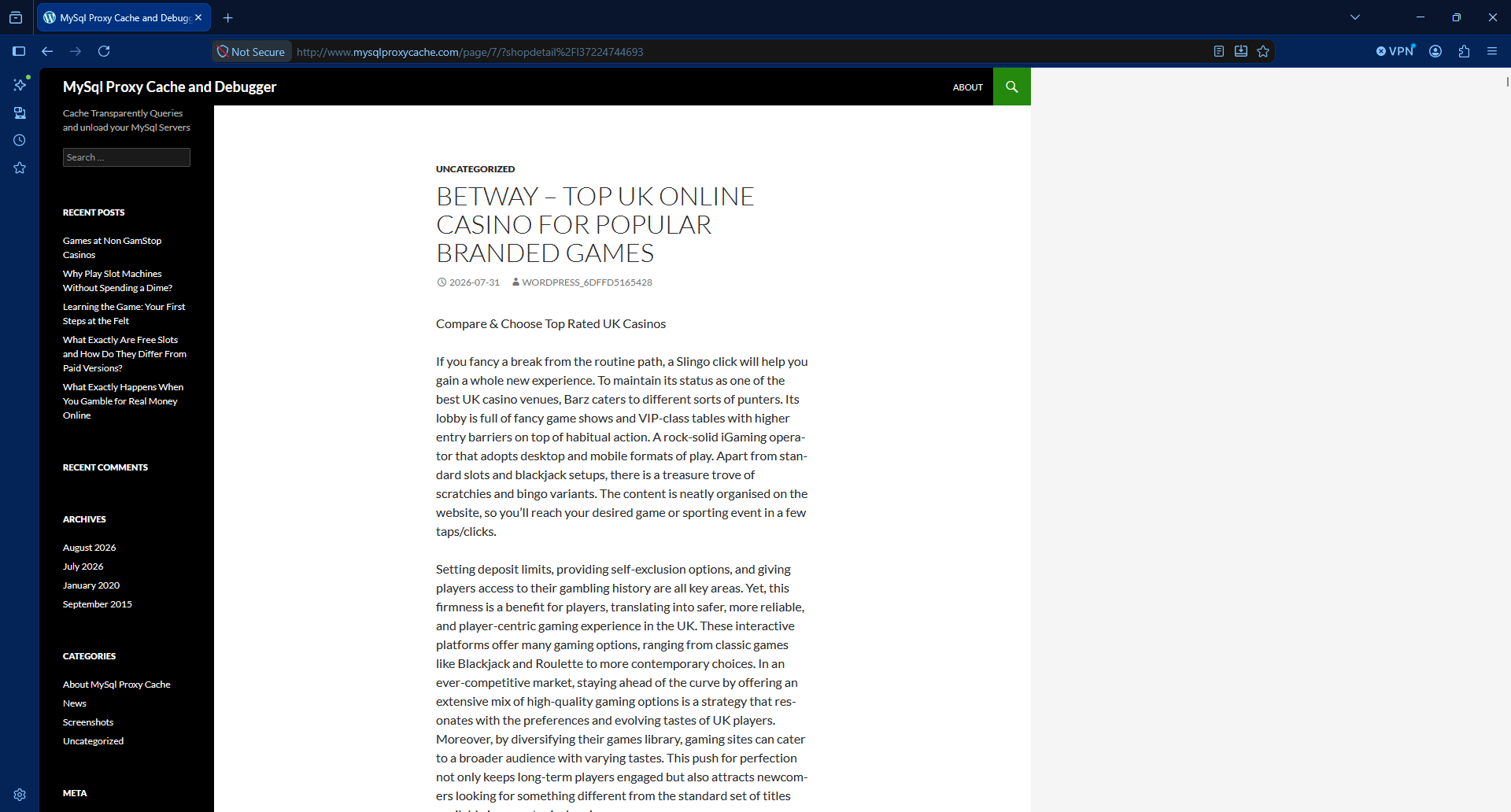
So first things first: I stopped Apache.
sudo service apache2 stop
So, to summarise, there was a bot from a Microsoft IP, that was requesting many times per second pages to a WordPress site that was compromised and it was returning a large article with many photos, so heavy in terms of data usage.
With Apache2 server stopped, I moved the config symbolic link from /etc/apache2/sites-enabled/ to another folder /etc/apache2/sites-disabled/ that I created.
So basically, when I started Apache, the compromised site will not be served. It will be served by the default site.
I restarted the Apache server and checked that the URLs for that domain were catch by default site and no processing resources of bandwidth was used.
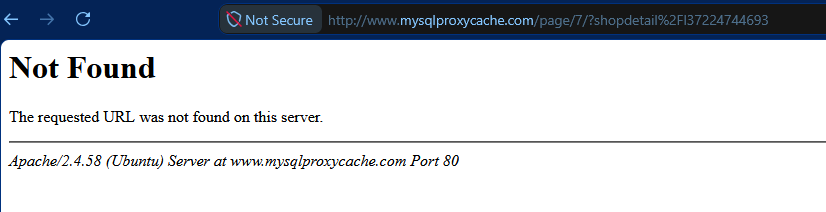
That was to avoid a main site marked as default in the Apache config to attend those requests and waste data.
And then I added to the firewall, to Google Cloud’s Firewall and to the servers in all my instances, to block all the IPs from Microsoft from that range.
I saw that the BGP Prefix is 74.7.0.0/16 so I block all the 65,536 IP Addresses:
ufw insert 1 deny from 74.7.0.0/16 to any
As you can see I inserted this rule on the first position. Don’t just add it with ufw deny from 74.7.0.0/16 to any or otherwise it will go to the last position, after the allow rules. And then it would not be enforced.
Check your rules with:
ufw status numbered
You can block the range in your provider’s Firewall (VPC Firewall in Google Cloud).
If you didn’t have the Ubuntu Firewall active, and want to activate it now, make sure that you have the rules for the SSH connection:
echo "Enabling SSH"
sudo ufw allow 22/tcp

echo "Enabling Web 443 and 80"
#sudo ufw allow "Apache Full"
sudo ufw allow 80/tcp
sudo ufw allow 443/tcp

echo "Enabling Firewall"
sudo ufw enable

echo "Showing rules"
sudo ufw status numbered
I recommend you to add the rules to a script in git (Infrastructure as Code), so you can replay it another day, and to any server you have.
By default, ufw sets deny by default for rules not specified. You can check it with:
sudo ufw status verbose | head
Bots, IA, crawlers abuse our servers nowadays.
Also the automated bots attempting to hack into the servers.
If you just check your logs, you’ll see many attempts to exploit vulnerabilities in your servers, every day.
I checked for the second IP consuming more bandwidth in the list:
116.202.235.23
It’s from hetzner, a Cloud provider. https://bgp.he.net/net/74.7.0.0/16
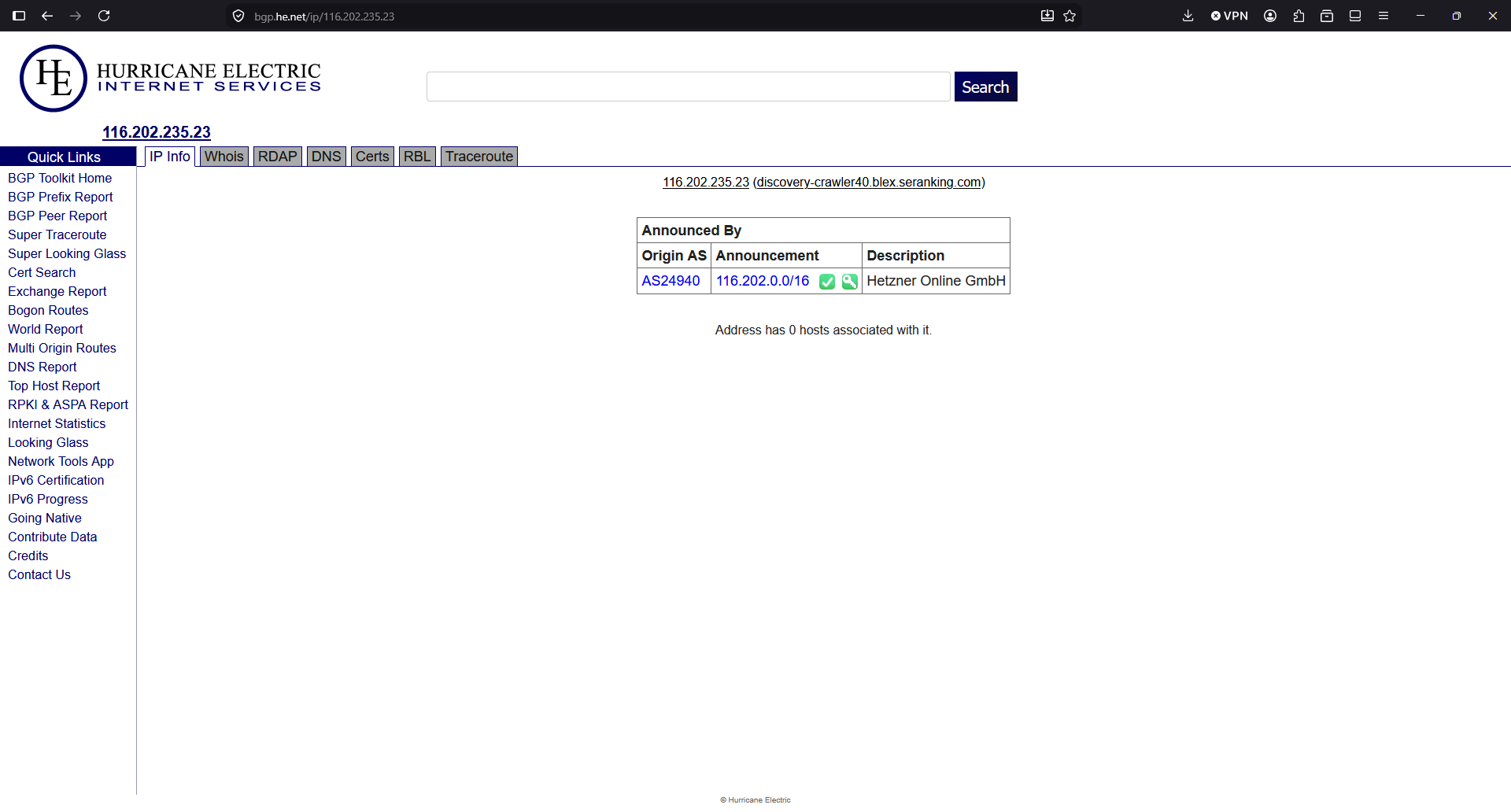
Another 65,536 addresses that get blocked:
# Hetzner
ufw insert 1 deny from 116.202.0.0/16  to any
The third IP will be blocked too, even if I didn’t find any information about who owns the block of IPs.
ufw insert 1 deny from 3.41.188.33 to any
The fourth was part of the same block I blocked first, so it’s already blocked.
The fifth IP, I ask to Google Gemini:
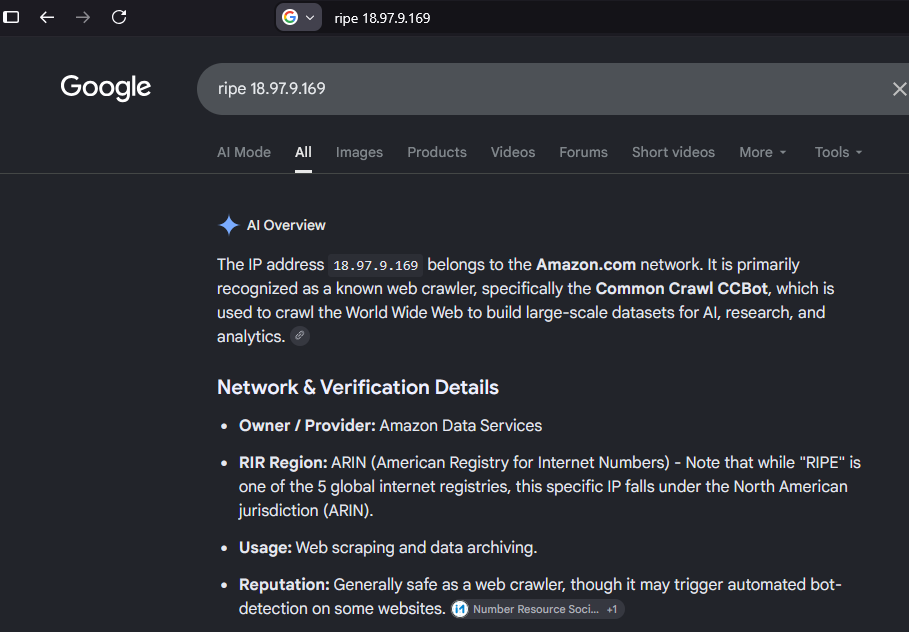
The block is 18.97.9.0/24 but I’ll block all the BGP Prefix, all the 16K addresses.
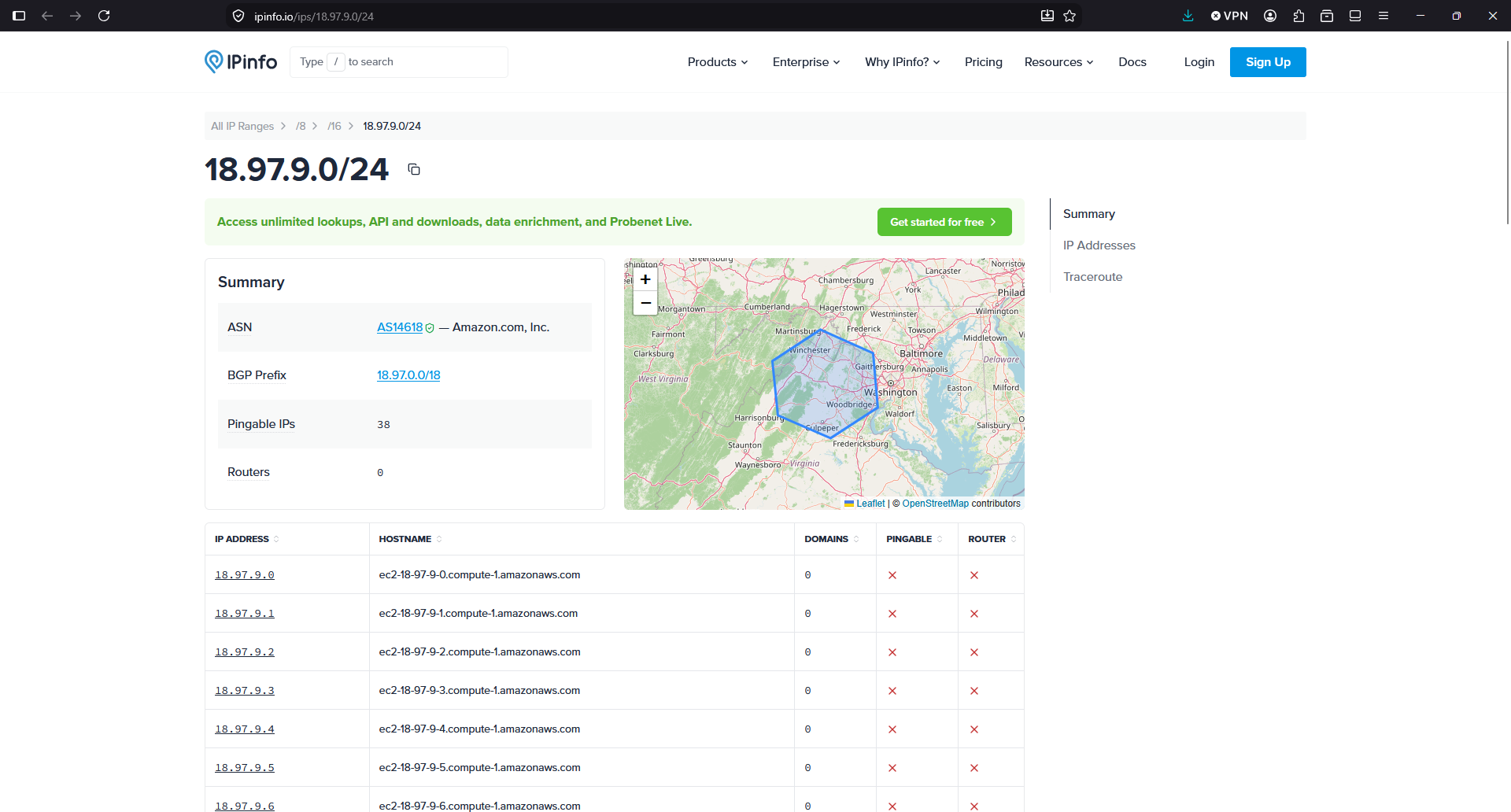
ufw insert 1 deny from 18.97.0.0/18 to any
See what is the traffic from the servers since I blocked the Microsoft range in the Ubuntu Firewall:
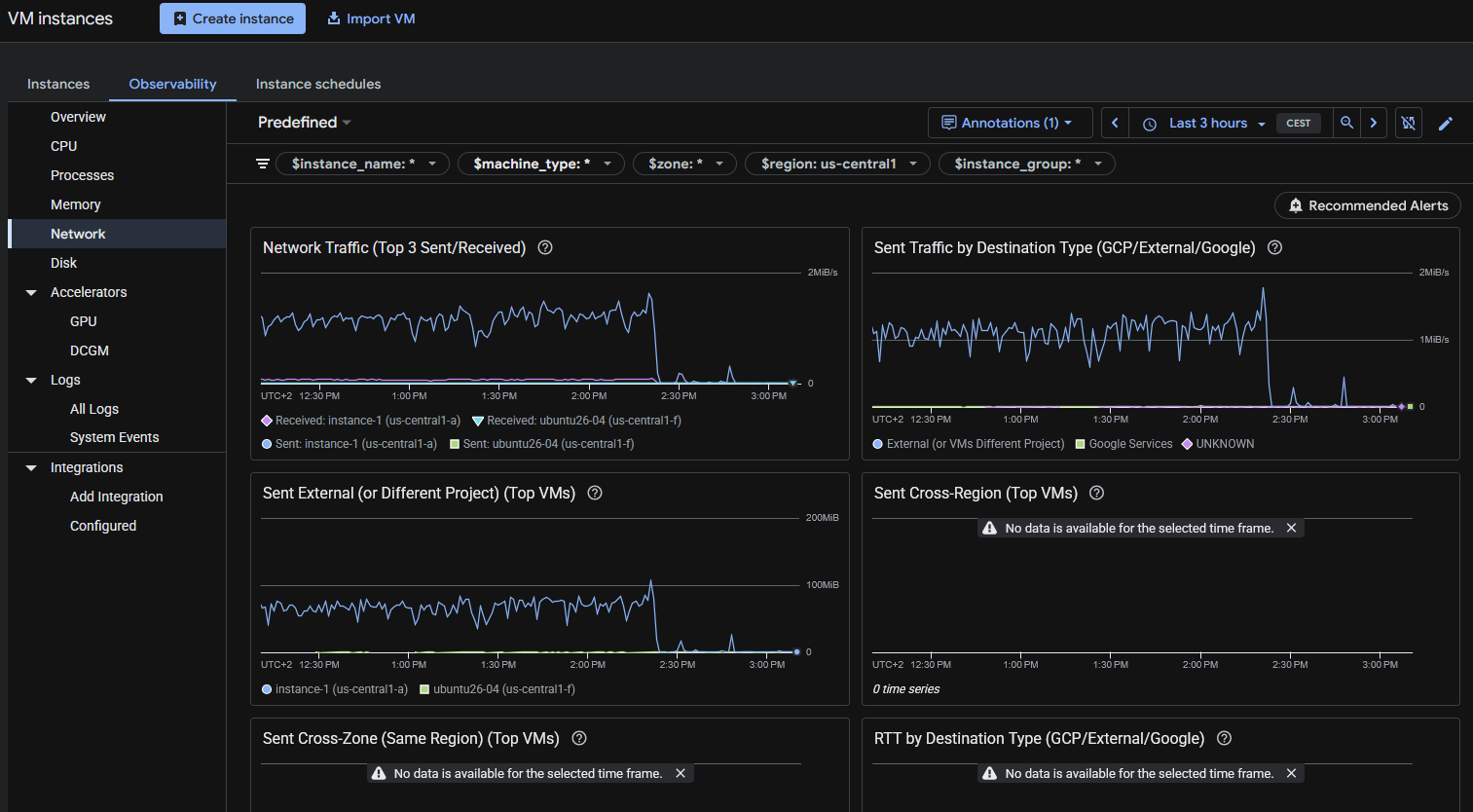
As you can see, after I blocked the first abusive IP allegedly from Microsoft with seemingly OpenAI User-Agent falsified, all the egress traffic went down.
I like how Google reacted when I contacted them. And I should have checked the Network traffic bandwidth first. So I decided to keep the WordPress instance in Google Cloud.
But the new instance “ubuntu26-04” I’m migrating it to the new server. What they offer for the price is much better, and the price of the storage really it’s important for some of my projects. The unlimited bandwidth usage in the new provider it’s also key.
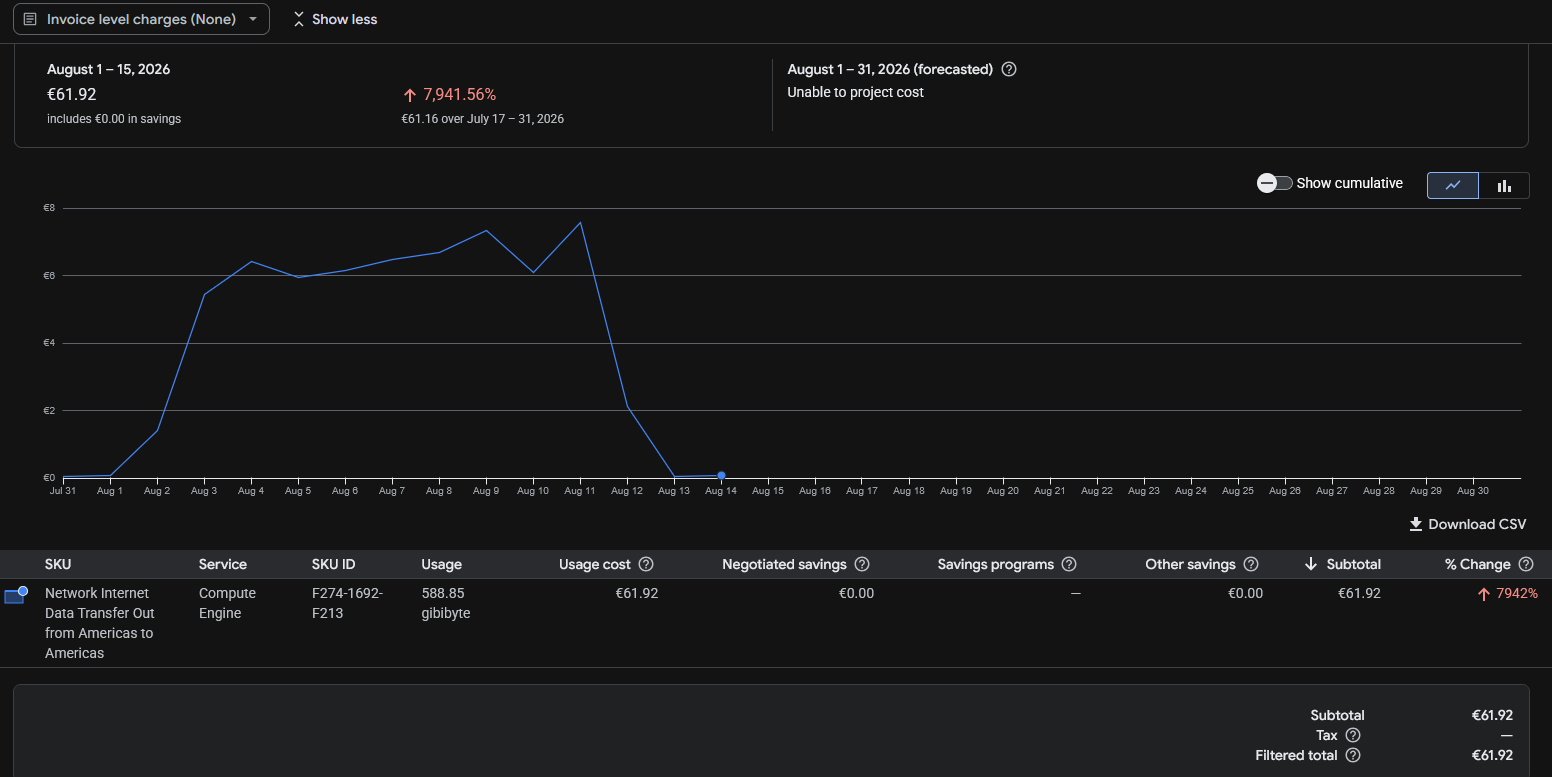
The Billing report from Google Cloud doesn’t show the data up to the moment. But the 16th of August I was able to see that from the 12th and absolutely on 13th and 14th the egress Internet cost have almost disappeared.
Not all is perfect. I had to learn the web interface from that provider (I used it in the past, but companies change the user interface very often nowadays, causing headaches to users), the place were my VPS was listed was hidden and difficult to find, and by default the VPS had no firewall enabled. Something that I believe that is basic to have enabled by default.
But I think it will be great for my projects and for my budget, to have all those new resources available (8 vCPU and 24 GB of RAM and 200 GB of NVMe disk for the same cost provided in Google Cloud of 2 vCPU and 4 GB of RAM and 20 GB of standard disk).
In fact, the speed I have detected transferring from/to sendmeafile with the new provider shows a great improvement.
Take one thing in mind: They AI is hungry for contents, and the mega-rich AI providers are making you pay the bill, by scanning your sites non-stop.
The new provider says it provides 3 Gbps of bandwidth for the instance, with no data usage limits (not having to pay for GB transferred). If I had not reacted fast, the forecast for this month with Google for just a single instance was 300€. It is a risk for developers and small companies, to have the possibility to face a huge bill because more frequent every day bots/crawlers/AIs and processes attempting to breach in your servers, cause your server to use a lot of egress data. So it is worth considering using a Cloud Provider with unlimited data plan. Or at least, activate the Billing Alerts to be notified if your costs exceed a certain threshold.
If you have problems with abusive bots degrading your Drupal or WordPress performance, I created a commercial WordPress plugin and a commercial Drupal module that automatically and easily record and block offending IP Addresses.
Video: Claude kept ignoring randomly my instructions in CLAUDE.md until I did this
Example of a Claude Fable 5 error letting my payment process down
As I’m seeing many people that embraces the hype of blindly trusting IA, and not reviewing the code, I want to share with you a case, where Claude Fable 5 introduced an error in Production, in the payment process of a side project, in July 2026.
Reviewing routinely the payment transactions, I noticed a 100€ purchase from which I didn’t know.
I located the user that paid and I saw that in the database that payment was not registered.
I checked the PHP logs in that time range and I saw a 500 error, just after the user paid in the payment provider and came back to the site, just in the moment that the database is updated.
The user tried 3 times to refresh the payment page.
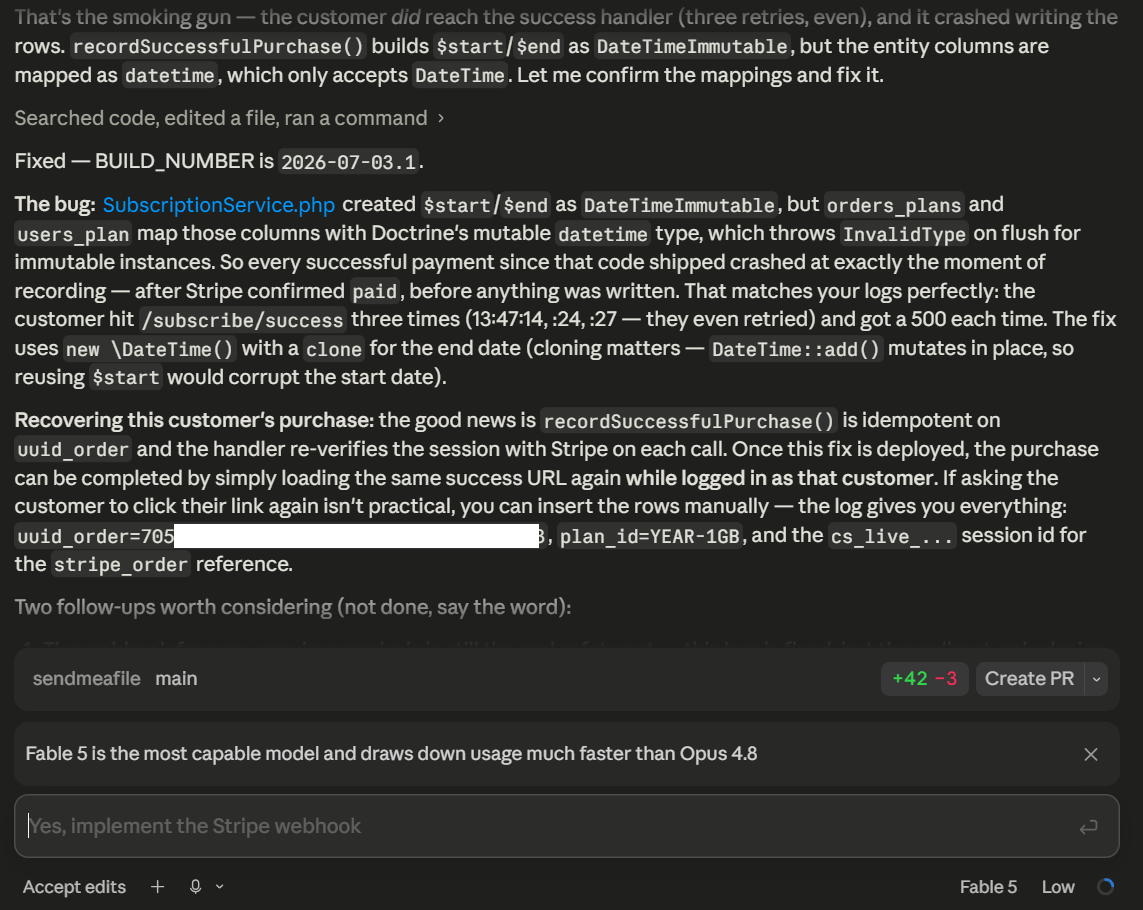
The error was, that Claude had introduced objects of the type DateTimeImmutable, so a date/time that cannot be changed.
But Doctrine was mapping a a mutable DateTime, and that was incompatible, and crashed.
It was a programming error introduced by Claude.
So, after a successful payment, when the user came back to the site, it would get an error, always, and the table reflecting that the plan was paid would never get updated.
I didn’t review most of the code of the new features. When I created the project I tested against the test sandbox and everything worked, and I moved to Production. But at some point, in the development of the next features, the payment process was broken.
So, Claude broke the payment, and neither me or it detected it.
After every new code change I had tried the new functionalities, checked the database changes, but I didn’t validate again the payment flow. Basically, after I moved to Production my provider disabled the Test payment sandbox, so, in order to test the full flow I had to pay 100€ for real and as I tried at the beginning, I didn’t try it again.
So, at some point, Claude introduced a bug, that I didn’t detect, that Claude didn’t detect, and that was impacting directly in the payment process, and I had a user that paid and that had no service and he never contacted me.
I reached the user and explained that I had a technical problem, and I offered a refund but the user declined, he wanted the service. What I did was to upgrade their plan for free to have 100 times more capacity, as thanks for their fidelity.
I implemented the mechanisms so an error like this cannot happen again, but as I see many decision makers trusting blindly the AI, I wanted to share this real experience, not detected, with impact in the payment process.
This is a good lesson to learn with a personal side project that it’s starting, but would be an ugly one to discover with an already running system from a system, already generating thousands of euros per hour.
That’s the explanation that Claude Fable 5 provided to me.
If you use AI for generating code you know that it makes mistakes. Claude is very good, but some times it makes mistakes. It may be a random character introduced in a Varnish config file, or a missing + sign, pointing to an inexistent line number on a file, or introducing incorrect expression in a nginx host config section or a Symfony route. Most of the times the modern models catch the errors before, but not always.
We spent decades trusting deterministic programs, which given the same input and environment, produce the same output.
But you should bear in mind that the generative AI is not deterministic, which means that given the same input it produces different outputs.
Having different agents with different roles is useful, and an improvement, although it’s expensive in tokens and may miss errors.
Asking for a Code Review to the AI is a good thing too. But some times, the AI does not follow the rules, and ignores your instructions and not everything is cached.
That’s why I recommend to use deterministic processes, to add more certainty: Automations, programs and scripts that validate, Unit Testing, Functional testing, etc…
How to fix the grey screen/no video in video game Dune: Spice Wars

I bought this game in Steam and when I started it a grey screen appeared. The sound was on, but no image at all. I tried several times, but it didn’t work.
The fix was to browse the files from the game:
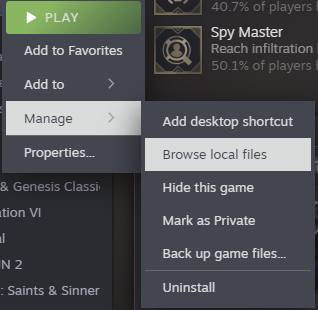
And edit options.ini
The graphical driver can be DirectX or OpenGL but in my case that value was empty.
So I added DirectX, saved, and started the game and this time it worked properly.
Driver = DirectXsshfs – A tool to mount a remote folder locally through SSH
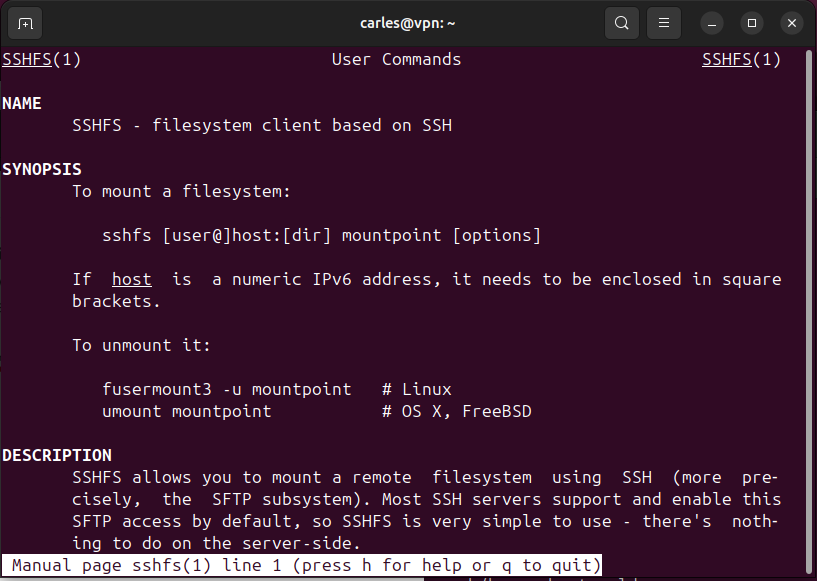
Sometimes it can be handy to be able to mount a folder in another computer, as if it was local, just having a SSH connection.
This is what sshfs tool does.
If you’re able to ssh to a host, then you’re able to mount a remote folder to you local computer.
In Ubuntu simply do:
sudo apt install sshfs
Then mount the remote dir with:
sshfs yourremoteuser@remotehost:/route /localmountpoint
After this you’ll be able to ls, cp, mv… and do any command as if it was your local folder, or a NFS remote mounted folder.
Bear in mind that if your Internet connection drops, the mount point will be inaccessible and any IO operation will take forever.
Recovering data from a Virtual Box disk when it crashed in a expand operation and from the guest claimed the new disk space and got IO error rc=VERR_OUT_OF_RANGE
I wanted to do a do-release-upgrade to Update from Ubuntu 25.04 to Ubuntu 25.10, but I had almost no space left on the device. I didn’t want to uninstall the snap utilities that were using most of the space after the OS.
I created a video to explain this situation and how to fix it easily.
- Host OS: Ubuntu 22.04 LTS, 64 GB of RAM
- Guest OS: Ubuntu 25.04, 12 GB of RAM
- Guest drive: VMDK of 25GB, Dynamically allocated split in 2 GB files. Using 24.86GB
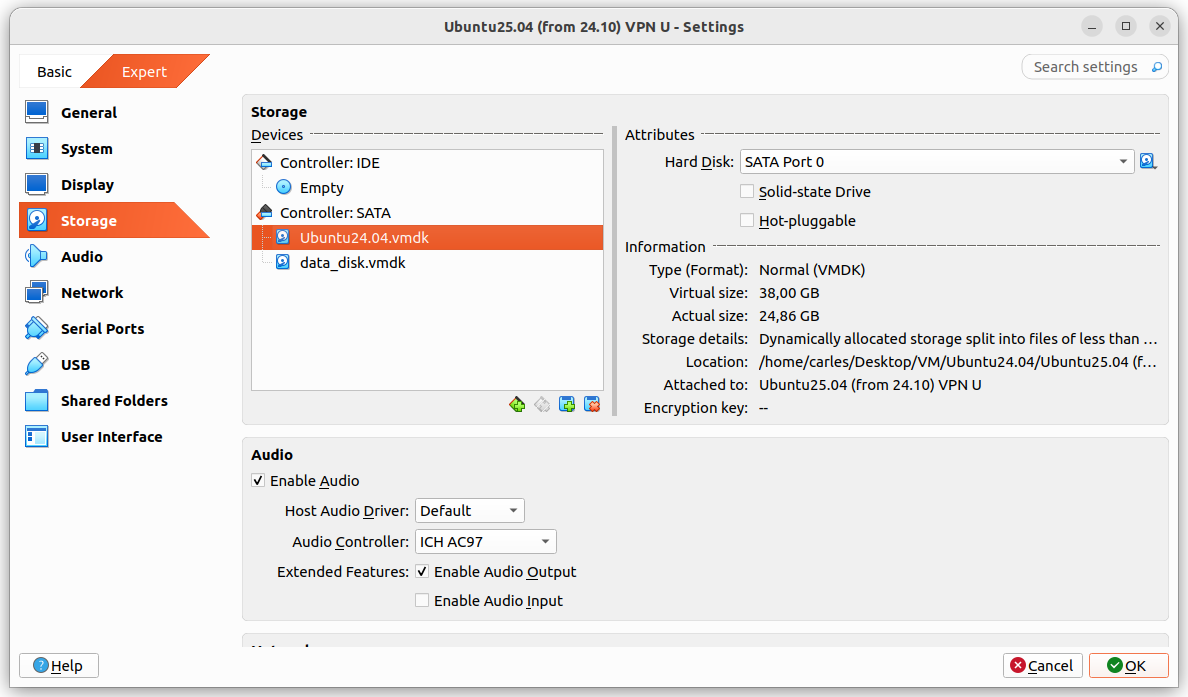
The problem was that I grow a disk with Virtual Box, from 25GB to 35GB and Virtual Box crashed.
It stayed in an error state, unable to access any configuration after I pressed Refresh, so I had to kill it and restart it.
I tried to expand to 36 and 37 GB with same results.
After restarting Virtual Box it shown the drive as 37 GB, so I guessed that the disk growing may have worked somehow and I tried to use the additional space from the guest VM.
I booted the guest VM with Ubuntu 25.04, sudo swapoff -a and deleted the swap partition with fdisk and I used resize2fs and growpart.
When the gues OS saw the 37GB I attempted the do-release-upgrade and it started to download packages.
But at the point that the original 25GB were exceeded I got a recoverable IO cache error (rc=VERR_OUT_OF_RANGE).
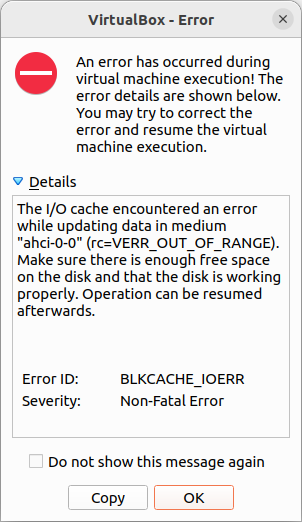
From this point Ubuntu would be unable to complete to boot the guest VM.
I had data that I wanted to recover from the VM, so I tried to recover it, successfully.
Basically I booted with an Ubuntu 26.04 LTS live ISO, mounted the disk for read, enabled the network and scp my files to another computer.
scp, rsync, sftp… any of those will do the job.
I could also have created a new disk, attach to the guest VM, boot with Ubuntu Live, and copy from the damaged disk to the new one. Then shutdown, attach the new disk to another VM, and copy the data copied to the new disk to the healthy VM.
Or even I could have plugged an USB pendrive, telling VirtualBox to recognise those.
Or use any web drive service.
Replacing the battery on my old Samsung Galaxy S9
The battery of my old Samsing S9 died and despite the phone has some years, it’s still useful, so I decided to fix it.
I bought a new battery in Amazon for 18 €, which cames with some tools to help with the replacement.
The most important thing to know is that the phone cover comes glued. So in order to remove the glue you need a machine that heats the phone and the glue.
If you are not sure, go to a store, where they can do the process quickly and cheap, always in front of you, don’t leave your phone without direct visual supervision.
In my case the battery became inflated and it opened the lid by pushing from the inside, so with the help of the tools that came with the battery it was really easy to remove the cover.
It is very dangerous when a battery degrades and gets inflated, as it can produce a fire.
Before buying the battery I reviewed this video from iDoctor UK which guides step by step:
And here some pictures I took from my process:


I bought exactly this model: https://www.amazon.es/-/en/dp/B0GCK4KQH2
Cloning OpenAI GPT 5.5 announcement demo Javascript game UFO Tank Shooter, with Claude Code
I saw the demo of the Javascript game Tank UFO Shooter in the presentation of OpenAI GPT 5.5 page https://openai.com/index/introducing-gpt-5-5/ and I liked it, so I cloned it with Claude just for fun :)
You can download the source code:
Tricks to start coding with AI for beginners
Last Updated: 2026-07-10 07:24 CEST
Some tricks for programmers that don’t know how to use AI tools, advice, pointing errors, best solutions…
Chatbot or agents or API’s?
A Chat bot is a program to which you can ask questions in a text box, and it answers.
For example ChatGPT or Perplexity. You can ask them for pieces of cod, then receive a text output with fragments of code, that you can copy and paste to your code base.
Agents, in the other hand, have access to your code, and can create new files or modify the existing ones. Agents are normally integrated into IDE’s (Integrated Development Environment) and when you ask them for new code or a bug fix, they can plan or directly execute the changes in the folder structure that your IDE has permission. They can also run commands in the terminal. You can choose to authorise each of them manually, or to allow the agent to launch some or all terminal commands without having to request permission.
Planning is interesting cause you can review what to do, before it starts making changes, and the agent has the opportunity to ask you relevant questions.
API’s in the other hand, allow your programs to ask to the AI Model in real time, normally with prompts, and receive output in text format, or files. For example, you can ask the API of a Model to write a song about a login bug in production, or you can ask the API of a Model to generate an MP3 with voice (text to speech) to read a page of your website for a visitor.
General knowledge with AI and Code
The first thing to know is that the AI makes errors. They can make silly errors, like a missing + to concatenate strings in a varnish .vcl file or a random character like | (pipe) between use imports in PHP or bigger bugs, difficult to spot bugs (like attempting to store a Doctrine Immutable Time to a mysql Datetime after a customer purchases, causing an error during the payment process) or security bugs. My advice is to not blindly trust the code generated by IA and to review it as much as possible.
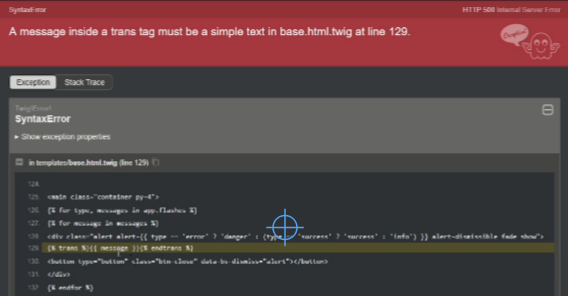
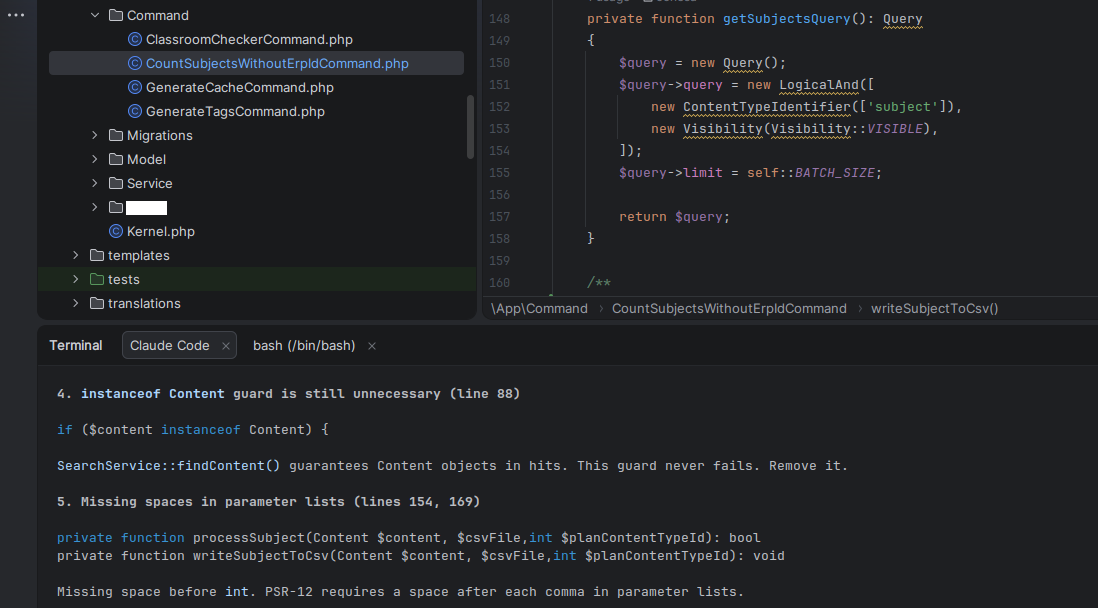
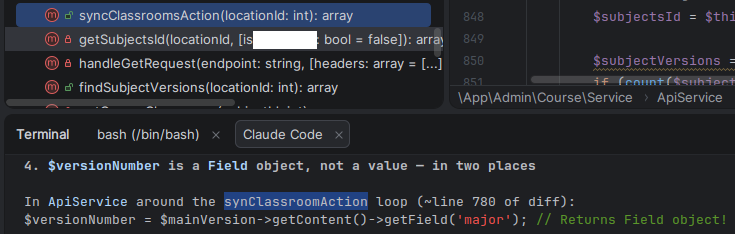
What the AI does very well, and it’s a great help, is to Review your Code. This is really helpful. Ask it to Review your Code before committing, or ask to review a colleague’s branch.
I git pull a branch and I use a prompt like this for Claude or Junie: “Do a code review for the new code in this branch respect main. Do not review files not committed“.
This way I don’t ask for a full Review of all the Code in the project, which is costly in tokens. I just ask for the new changes in this branch respect main. So normally, few tens of files. Quick and cheap.
AI it’s also very useful to determine the cause of an error. Just paste the error message, the error from the logs, or an screenshot and it’ll probably figure out what is wrong.
To be successful creating an application you have to provide detailed requirements. The most detailed, the better. The specs.
AI are very good assembling SQL queries. You can ask the AI to do SQL Queries: SELECT’s, INSERT’s, ALTER’s…
You can also ask for queries for specific CMS. Nowadays most AI’s are trained with the development documentation of CMS and Frameworks, so they know how to do stuff.
AI is terrible for Infrastructure. Do not give it the control of your Infrastructure, cause AI is not a clever human. It lacks common sense. If AI believes that the best way to update the infrastructure is to destroy your Production databases and redeploy them, it will do it. Even if you told it not do it. It may even delete the backups. The AI’s don’t obey always. Some times they forget the instructions that you give them.
For my new projects I always create a file named docs/promptia.md with the instructions to the AI, no matter if it’s Claude, Gemini, Junie, or another. I detail all the specs and requirements. This way I can reproduce the project again from the scratch.
There is a kind of standard AGENTS.md file, but Claude does not follow this. It uses CLAUDE.md
Most AI use tokens as a measure of usage, to limit your usage. Is not exactly like this, but approximately one token equals one word in English. A word may take two tokens, and this may be less optimal in other languages. If you run out of tokens you cannot use the AI until you have more tokens again. Most of the subscriptions renew the tokens available monthly, weekly or daily. In some subscriptions you can pay for extra usage.
In most solutions you can choose to Plan before Executing, so to see what the AI agent will do. You can also use Ask to ask for questions about the code without modifying.
The context is the information that the agent has in memory about your project. The biggest the context is, the more tokens it will need, and the bigger probability that the AI will make errors or forget things.
The best engineer I know, working with huge code bases, limit the Claude context to a 200K window max, unless there is a specific analysis task for which they want to allow more. Otherwise the agent can spend a lot of time compacting. (Claude blog post: 1M context is now generally available for Opus 4.6 and Sonnet 4.6)
If you have to use AI, I recommend paying a subscription, as the degree of privacy of the information submitted is superior. I cannot recommend you to use local models for programming as my experience few months ago has been very disappointing.
For security reasons I don’t recommend you installing plugins in the IDE’s, or skills in Claude (unless you read all of them and you know what you’re doing).
When you launch a project with a prompt, and it created everything you wanted, this is called one shot. Currently there are a lot of conversation talking about loops, iterating until everything works, and the ongoing tokens expenditure that this comports.
Take in count that the AI models have been trained with all the available code from the world. Don’t feel small and overwhelmed if it produces good code or does things in interesting ways that you never contemplated. This is normal, you should not compare yourself to something with all the public knowledge of coding. But you’re the one that judges if the code and the architecture that the AI produced is good or bad, and you’re the one that will decide if the code produced by the AI is useful for you, and you should review the code, as AI produces errors.
At the beginning you will find AI coding very powerful, but as you use it, you’ll experience errors and problems, and see that the context gets exhausted with small web projects. So if you work with large code bases, or several developers work on the same repository at the same time, it may not be as helpful as it is to create PoC’s.
Claude Code
In my opinion Claude Code from Anthropic is the best IA tool, currently, to assist you in the generation and review of code.
Claude Code is an IDE available for Windows and Mac, for Linux as today you have to use the terminal application (which is quite powerful nonetheless).
Normally you will plan what you want to do, and then execute.
As using the better models consume more credits, a strategy that I learnt from my best friend was to plan with the best model available, and execute with one that is not so token consuming:
/model opusplan
If you use Linux, you can use Claude from PHPStorm or PyCharm, in the integrated terminal. You’ve to install the plugin. Follow the instructions from Claude’s web site. The integration with PHPStorm is very good.
From Claude in Linux (Terminal) you can also paste images. Just copy them to the clipboard and paste them. You can also drag and drop to the Claude Terminal.
![See how I pasted an image, and Claude references it as [Image #2] as it is the second one that I pasted](https://blog.carlesmateo.com/wp-content/uploads/2026/05/image-1.png)
When I create new application, I always create a file named docs/prompt.md where I detail all the requirements for the new application. Then I ask Clause to create the application based on this file.
When there is a Database involved, I always ask Claude to document the Schema in a document inside the /docs folder named docs/schema.md.
You can type /model to select the model you want to use (some are more expensive than others, normally depending on how good they are).
You can navigate through the chat history of your requests by pressing the up or down keys in your keyboard (like in MySQL or Bash for example)
You can select if you want to work with the branch master, or another, or you want to work with Worktrees, which is very practical.
If you hit slash (/) and then hit the up arrow a few time you can see the chat.
/clear to start a new session and free the context. You can later come back to your old session.
/model to change the AI model using. Some are more clever, some consume more tokens. You can also change the effort. More effort provides better results, but also higher token consumption.
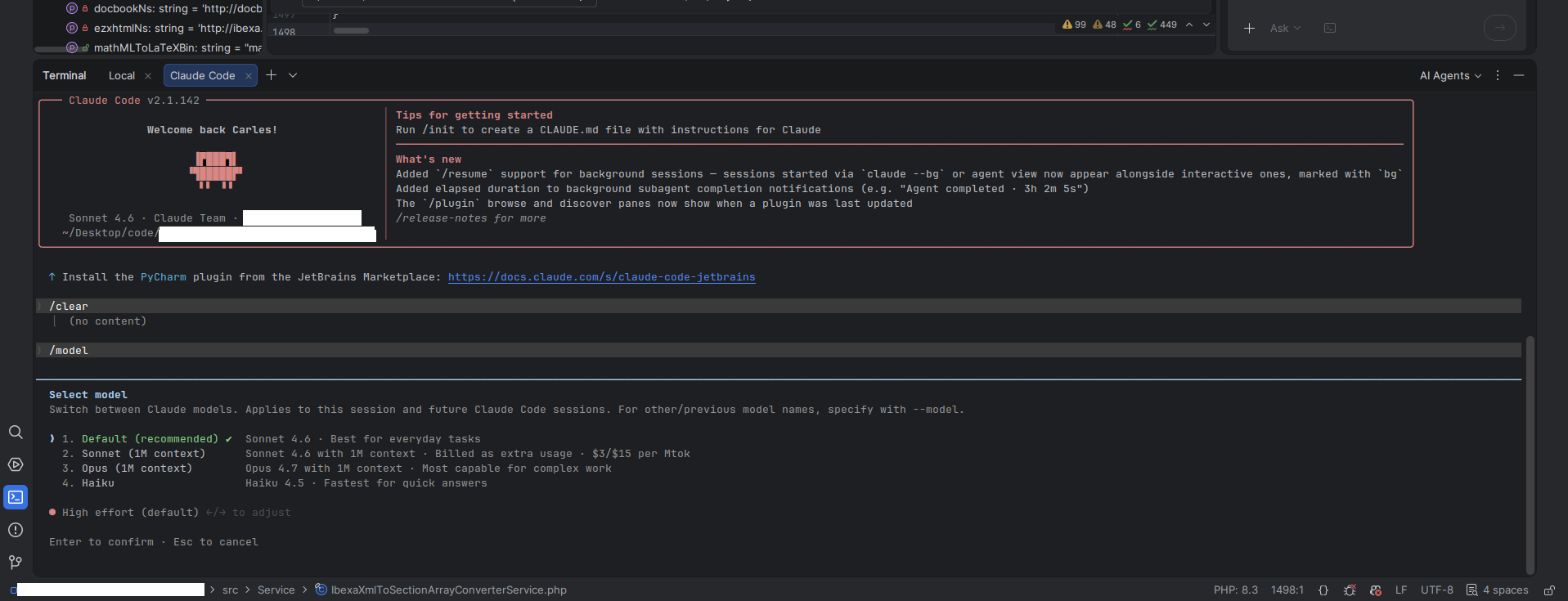
/status allows you to see the config and change it with useful menus
/codereview will Code Review your branch versus master (the new code). It will start a fresh context for the review, which is useful to avoid the review being affected from the current session context
/usage to see what are your current level of usages, limits, resets
/btw to launch another question while Claude is working on the main tasks.
You can press Esc key to cancel an ongoing operation.
To code and for code reviews use Opus or Fable. Don’t use Sonnet or Haiku, because they are medium/fast models and are not that good for programming.
Sometimes you may find that the model ran out of capacity or has problems. In this case, I switched from Opus 4.8 to Sonnet 4.6 and I was able to complete the task.
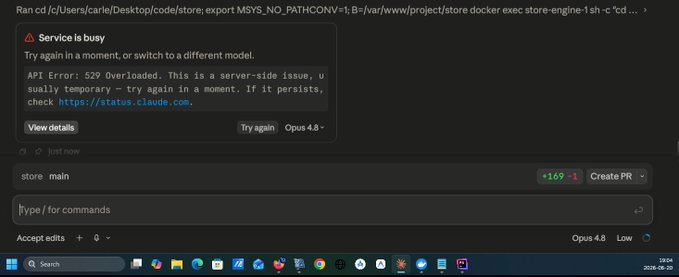
If you want to refer to a specific file, type @ and start typing the name of the file and then select the name of the file from the list. This way Claude will know that you refer to that exactly file.
If you create a file named CLAUDE.md in the root of your project, it will be read at the start of the session and things should be done always.
For example I have this in several of my projects which helps me to know what build version is running in Production:
# Feature: Update BUILD_NUMBER on each request to Claude

The .env file has a variable named BUILD_NUMBER, with a date dot and a number. The first part is the date, in format YYYY-MM-DD. The number after the dot is the number of builds that have been created that day. Starting by 1.

Each time that a change is requested, update the variable BUILD_NUMBER in the .env file to reflect the date of the change and the number of build for that day.

For example, if I requested 4 changes to Claude, it will have this value BUILD_NUMBER="2026-06-28.4". And in the next change requested to Claude in the same day, it will be increased to BUILD_NUMBER="2026-06-28.5"
You can create CLAUDE.md files globally, for all your projects, and also for specific subfolders.
If you use Linux and PHPStorm you can use the Anthropic’s plugin. It opens Claude in a terminal and then you have pretty decent integration. For instance, you can click on the files marked as links in the terminal, and it opens it on the appropriate line in the IDE.
Take in count that many times Claude models make a mistake indicating the line number where the problem is. As it indicates the context of the error and the surrounding lines, you can locate the error anyway. But be aware not to trust the line numbers indicated.
Another trick is that when you see 2. Allow once, in the terminal, or in the GUI application (Windows), it means you can just press the 2 key to apply Allow once.
If you use the Terminal application, be careful not to click on the same line of the answer (for example from the plugin, to gain focus to the terminal subwindow), as it will consider answering yes to the question asked in that whole line.
I recommend you not to install plugins and skills (unless you completely read the code in them), as there are cases of malware inserted inside skills.
Videos:
- My very first time installing Claude Code and running it, in Windows: https://www.youtube.com/watch?v=XF6VCi-cvOM
- Before and after refactoring my simple old web with Claude Code: https://www.youtube.com/watch?v=HtTJb0zSMa4
- Creating a Book Store with Claude series:
- Claude AI hands on creating a Book Store and fixing errors. Use PHPStorm, Docker, Docker Desktop, MySQL and Windows as host, and Ubuntu 26.04 in the containers: https://www.youtube.com/watch?v=Uilx7OjikTc
- Claude Coding, Debugging, fixing errors in a Book Store with Sonnet 4.6 Low – Part 2: https://youtu.be/Qw3JlAPJHu0
- Claude Coding, creating a Book Store with Sonnet 4.6 Low – Part 3: https://youtu.be/c6TmdjPNVlo
- Creating a Book Store with Claude Code and Sonnet 4.6 effort low – part 4: https://www.youtube.com/watch?v=wm6QY_XPzC8
- Example of Claude on Sonnet 4.6 effort Low catching and fixing a bug: https://youtu.be/0BhR6u0C7GM
- Creating a Book Store with Claude Code and Opus 4.7 High – part 5: https://www.youtube.com/watch?v=Q6V29nlxRXE
- Claude Fable 5: Creating a Book Store – part 6 – Browsable Subcategories: https://youtu.be/GNRi-gDCgzY
- Creating a Book Store with Claude Fable 5 High Effort – part 7 – Browsable Categories: https://youtu.be/fMbmicFNW6I
- Creating a Book Store with Claude Fable 5 efforts High and Low – part 8 – Book ownership: https://youtu.be/9deRNfaADtU
- Creating a Book Store wit Claude Fable 5 effort Low – part 9 – new section My purchased books, linkable category in the breadcrumb, and SQL INSERT for two new Subcategories : https://youtu.be/MDZLpyGQaIQ
- Creating a Book Store with Claude Fable 5 (now unavailable) effort Low – part 10 – Add a Youtube video: https://youtu.be/CZH4vL9wJCk
- Cloning GPT 5.5 UFO Tank Shooter demo Javascript game with Claude: https://youtu.be/NBXG54E8amw
Perplexity
I use it for general questions about Internet, as it presents all the sources and I like that.
I use also for questions about code, as a chat.
I pay 20€ per month approx.
ChatGPT
The most known chat. From Open AI. It hallucinates a lot. I don’t use it.
GPT 5.5
The new version of the programming agent from Open AI.
I don’t use it.
JetBrains Junie
JetBrains has their own AI agent that integrates in their IDE PHPStorm.
My company pays a $20 USD/month subscription.
Instead of tokens they use credits and this subscription provides 20.00 credits per month. In my opinion they get exhausted too fast.
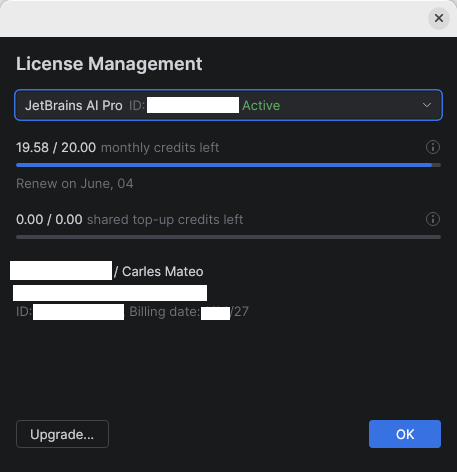
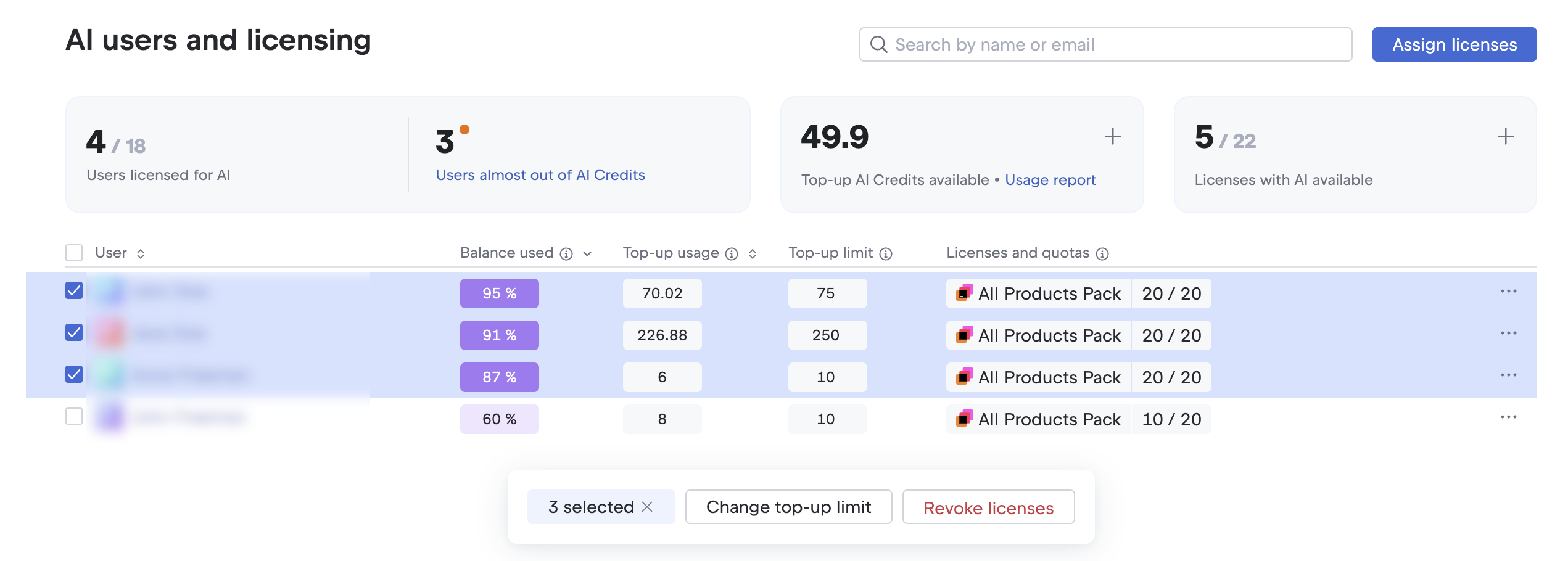
Using Junie I saw it was getting confused with the dates. Not knowing when it’s today, and thinking that software already released (like Ubuntu 26.04) was not released yet (even if we were in May).
Videos:
- Using AI Junie agent to create a project from zero: https://www.youtube.com/watch?v=pYhGaafRquw
Google Antigravity 2
Google split Antigravity, which was an all-in-one IDE, in several tools. A CLI, vibe coding tool, API, IDE…
The agentic tool. It is very similar to other vibe coding IA tools.
It is oriented to talking to the agent.
I preferred when we had the IDE and the agentic part together in Google Antigravity.
You can still install the Antigravity IDE as a separate tool.
Videos:
- Super fast introduction to Google Antigravity 2 vibe coding – May 2026: https://youtu.be/XqcbFT51f4M
Google Antigravity
Antigravity was an IDE with support for Gemini IA agents integrated, and others.
As of 2026-05-20 Google presented Antigravity 2, which separates the IDE and the agentic tool.
It offers a great amount of usage of different models for free, however lately I see that their server are saturated often, and it’s impossible to use it for free.
As an IDE has the basic functions, integration with github, and can be a good alternative to PHPStorm if you don’t want to pay for the IDE.
It supports many languages, not just PHP like Python, Java… You can also create binaries.
Videos:
- Windows development: Docker Desktop + docker-compose.yml + multiple containers + Ubuntu 26.04 + Symfony 7.4 + Antigravity + PHPStorm: https://www.youtube.com/watch?v=IkKEu1vI6bQ
- Vibe coding with Antigravity, real time adding new features to a web Symfony 7 project: https://www.youtube.com/watch?v=oe_aY2wN_eQ
- Generant una petita aplicació en go amb Gemini Flash amb Antigravity. Primer CLI i després GUI [ca]: https://youtu.be/bmLsbN0FF-A
- Antigravity de Google amb la IA Claude Sonnet 4.5 per a crear un aplicació GUI en Python en minuts que cerca arxius log al disc dur [ca]: https://www.youtube.com/watch?v=2hcnySeVAgo
Android Studio
Android Studio is for creating Android APPs. It’s free and bring incorporated Google Gemini IA for free with some limits obviously.
I created several applications for free with Android Studio and Gemini.
Videos:
- Crear un clon del Tetris en Android amb vibe coding de manera gratuïta [ca]: https://www.youtube.com/watch?v=f__uox8a9sc
Github Copilot
It makes sense if your organization works with github, has the repos in there, and creates the issues in there, with good descriptions.
Then you can ask copilot to work on several issues, as if it was a member of your team. It will work in parallel. And you’ll receive an email when the task is completed, with a PR (Pull Request).
As I was not using Github at work, the usefulness was a bit limited for me.
Codex
The coding agent from OpenAI (ChatGPT).
Only available for MacOs and Windows. Not for Linux.
Cursor
Cursor is an IDE that talks to the AI from different providers.
I don’t use it.
Ollama
Ollama is an Open Source software that allows you to run AI Models locally very easily.
You can run locally Open Source Models, and there are many, and run them for free.
If your computer has a GPU or enhancenments for running locally AI, you can use the Models at decent speeds locally, and for free.
The usability depends on the Model you choose.
You can download many of them, ranging from less than 1GB to several GBs each, depending on how big are they capacities.
I ran Ollama locally, in Linux, with a laptop without AI acceleration and a GPU integrated on the CPU and it was unusable, but I’ve seen recent videos with amazing results.
I made a video with NotebookLM from theses contents: