Tag Archives: Virtual Box

Recovering data from a Virtual Box disk when it crashed in a expand operation and from the guest claimed the new disk space and got IO error rc=VERR_OUT_OF_RANGE

I wanted to do a do-release-upgrade to Update from Ubuntu 25.04 to Ubuntu 25.10, but I had almost no space left on the device. I didn’t want to uninstall the snap utilities that were using most of the space after the OS.

I created a video to explain this situation and how to fix it easily.

  • Host OS: Ubuntu 22.04 LTS, 64 GB of RAM
  • Guest OS: Ubuntu 25.04, 12 GB of RAM
  • Guest drive: VMDK of 25GB, Dynamically allocated split in 2 GB files. Using 24.86GB
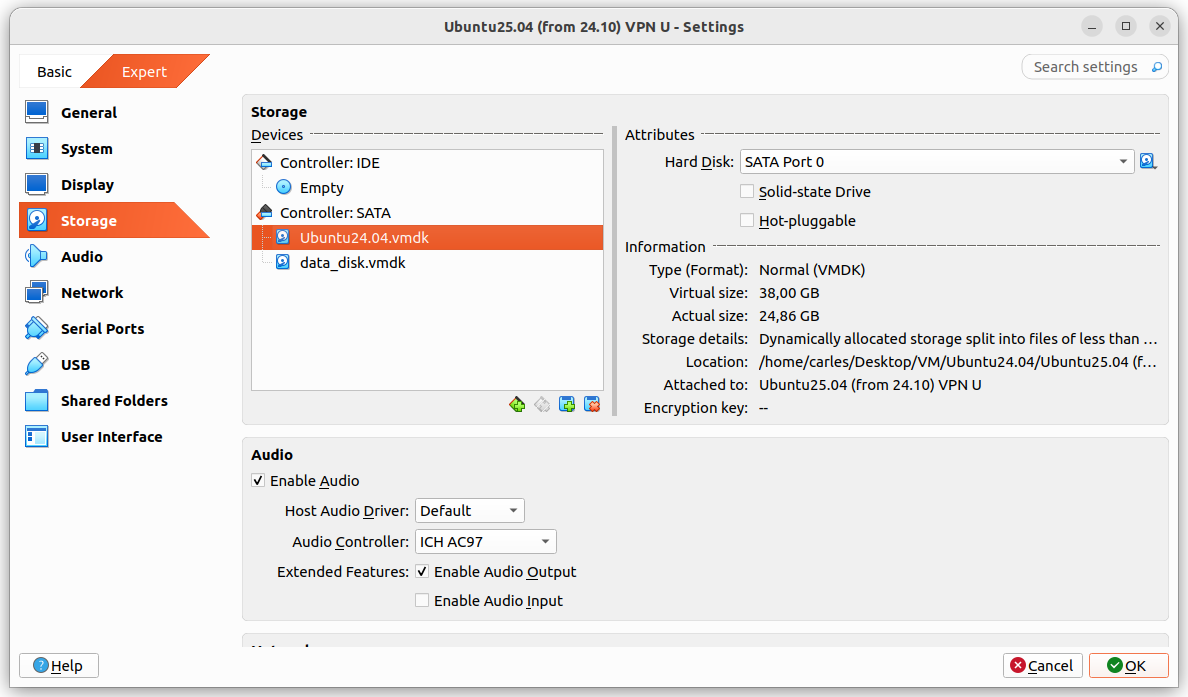
The problem was that I grow a disk with Virtual Box, from 25GB to 35GB and Virtual Box crashed.

It stayed in an error state, unable to access any configuration after I pressed Refresh, so I had to kill it and restart it.

I tried to expand to 36 and 37 GB with same results.

After restarting Virtual Box it shown the drive as 37 GB, so I guessed that the disk growing may have worked somehow and I tried to use the additional space from the guest VM.

I booted the guest VM with Ubuntu 25.04, sudo swapoff -a and deleted the swap partition with fdisk and I used resize2fs and growpart.

When the gues OS saw the 37GB I attempted the do-release-upgrade and it started to download packages.

But at the point that the original 25GB were exceeded I got a recoverable IO cache error (rc=VERR_OUT_OF_RANGE).
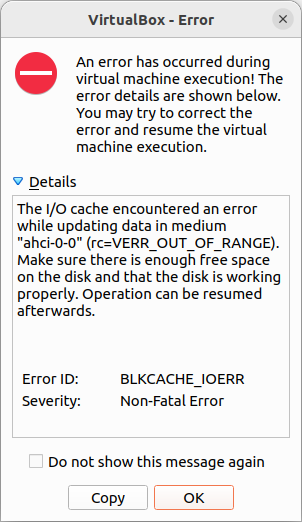
From this point Ubuntu would be unable to complete to boot the guest VM.

I had data that I wanted to recover from the VM, so I tried to recover it, successfully.

Basically I booted with an Ubuntu 26.04 LTS live ISO, mounted the disk for read, enabled the network and scp my files to another computer.

scp, rsync, sftp… any of those will do the job.

I could also have created a new disk, attach to the guest VM, boot with Ubuntu Live, and copy from the damaged disk to the new one. Then shutdown, attach the new disk to another VM, and copy the data copied to the new disk to the healthy VM.

Or even I could have plugged an USB pendrive, telling VirtualBox to recognise those.

Or use any web drive service.
Using Windows 10 Appliance in Ubuntu Virtual Box 4.3.10

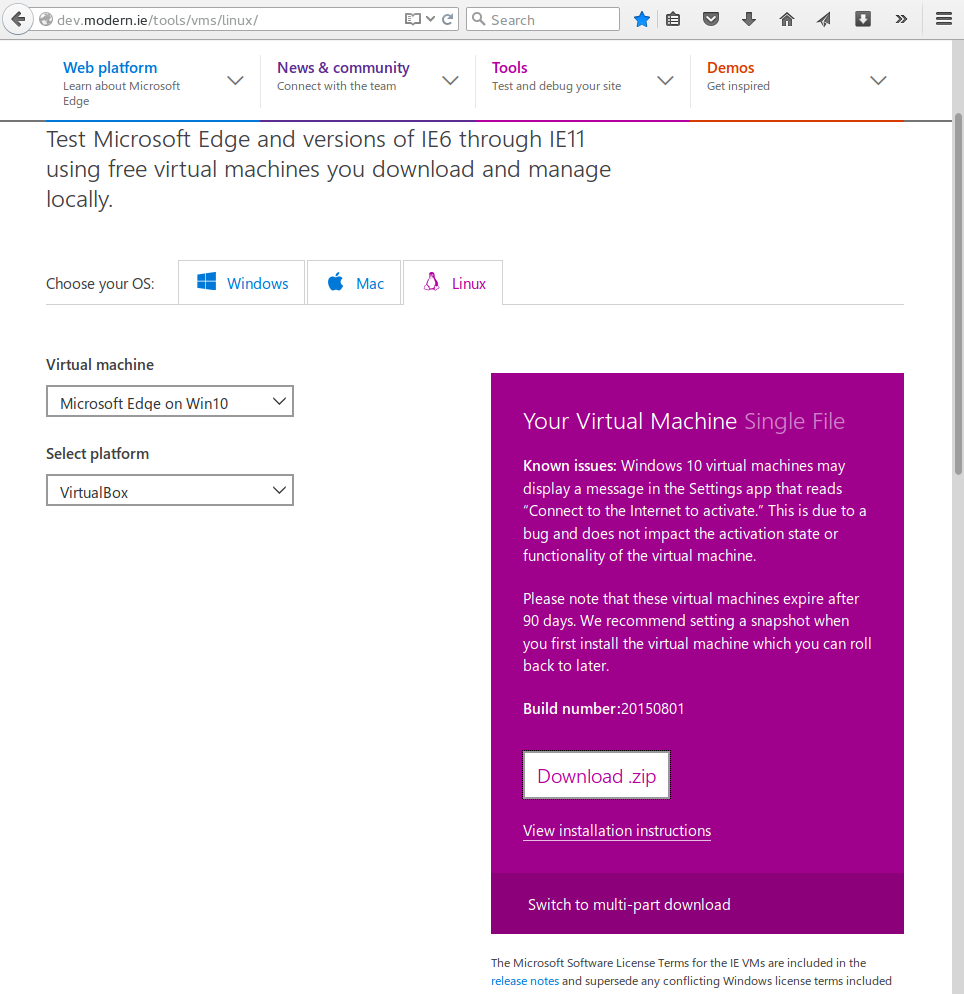
blog-carlesmateo-com-microsoft-edgeMicrosoft has released Windows 10, and with it the possibility to Download a Windows 10 Appliance to run under Virtual Box, VMWare player, HyperV (for windows), Parallels (Mac). Their idea is to allow you to test Microsoft Edge new browser in addition of being able to test the older browsers in older VM images.

I wanted to use Windows 10 to check compatibility with my messenger c-client.

Also I wanted to know how Java behaves.

The Windows 10 VM image will work for 90 days. You can download it from here (http://dev.modern.ie/tools/vms/linux/).

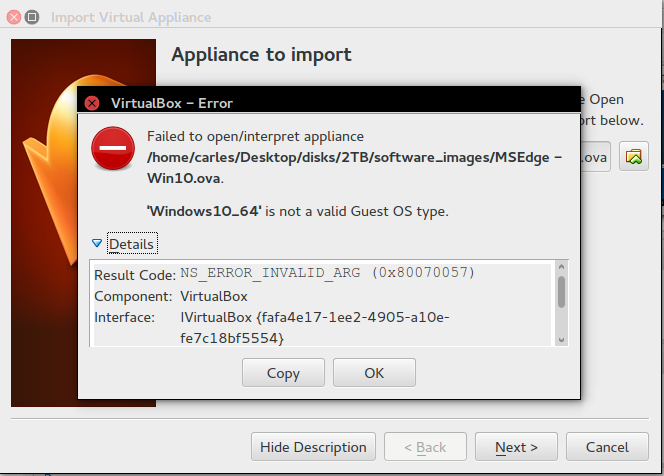
Instructions are very precarious and they didn’t specify a minimum version, however if you use Virtual Box under Ubuntu 14.04, so Virtual Box 4.3.10, you’ll not be able to import the Appliance as you’ll get an error.

Update: Thanks to Razvan and Eric!, readers that reported that this also works for Mac OS 10.9.5. + Virtual Box 4.3.12 and VirtualBox 4.3.20 running under Windows 7 respectively.

‘Windows10_64’ is not a valid Guest OS type.

Result Code: NS_ERROR_INVALID_ARG (0x80070057)
Component: VirtualBox
Interface: IVirtualBox {fafa4e17-1ee2-4905-a10e-fe7c18bf5554}
Callee: IAppliance {3059cf9e-25c7-4f0b-9fa5-3c42e441670b}

blog-carlesmateo-com-virtualbox-appliance-import-error-is-not-a-valid-guest-os-type

I was looking to find a solution and found no solution on the Internet, so I decided to give a chance and try to fix it by myself.

The error is: ‘Windows10_64’ is not a valid Guest OS type. so obviously, the Windows10_64 is not on the list of the VirtualBox yet, it is a pretty new release. Microsoft could had shipped it with OS Type Windows 64 Other, or Windows 8 64 bits, but they did’t. I wondered if I could edit the image to trick it to appear as a recognized image.

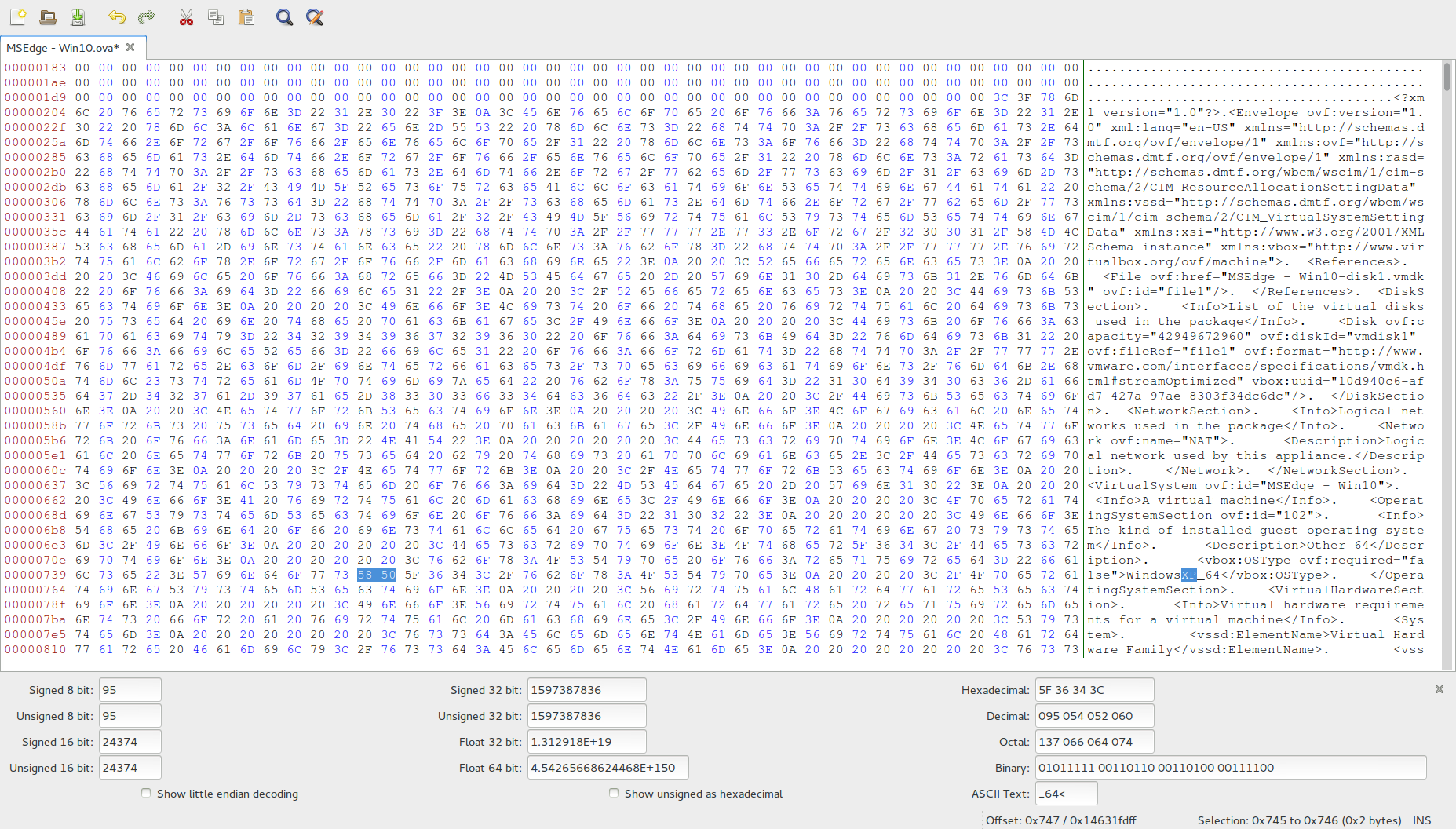
I edited the file (MSEdge – Win10.ova) with Bless Hex Editor, an hexadecimal editor.

I looked for the String “Windows10_64” and found two occurrences.

blog-carlesmateo-com-bless-hex-editor-searchingI had to replace the string and leave it with exact number of bytes it has, so the same length (do not insert additional bytes). I searched for the list of supported OSes and found that “WindowsXP_64” would be a perfect match. I replaced that 10 for XP twice.

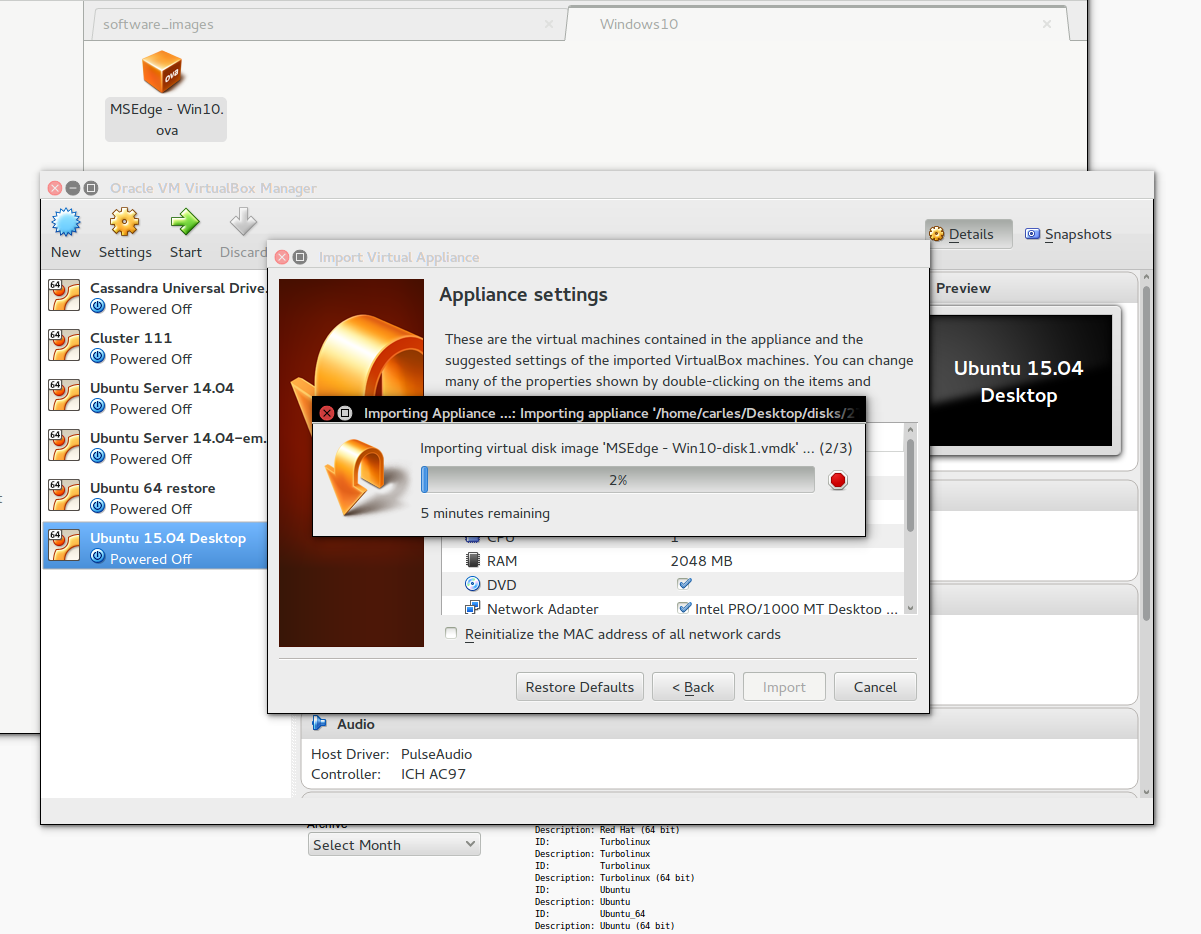
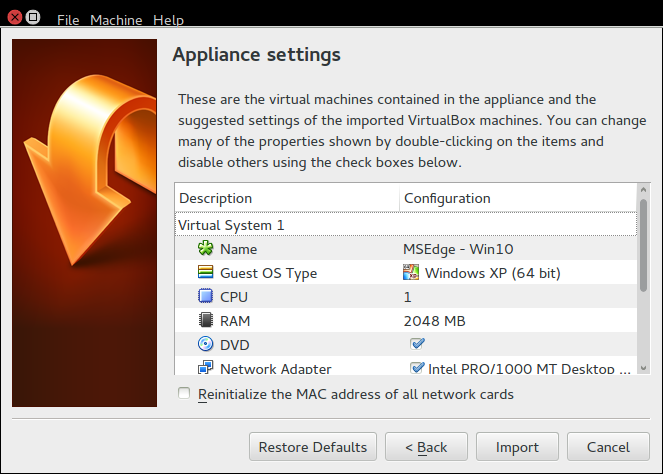
blog-carlesmateo-com-bless-hex-editor-windows10_64-to-windowsXP_64Then tried to import the Appliance and it worked.

blog-carlesmateo-com-virtual-box-importing-windows10-appliance-ova-cutblog-carlesmateo-com-bless-applicance-settingsI tried to run it like that, but it froze on the boot, with the new blue logo of windows.

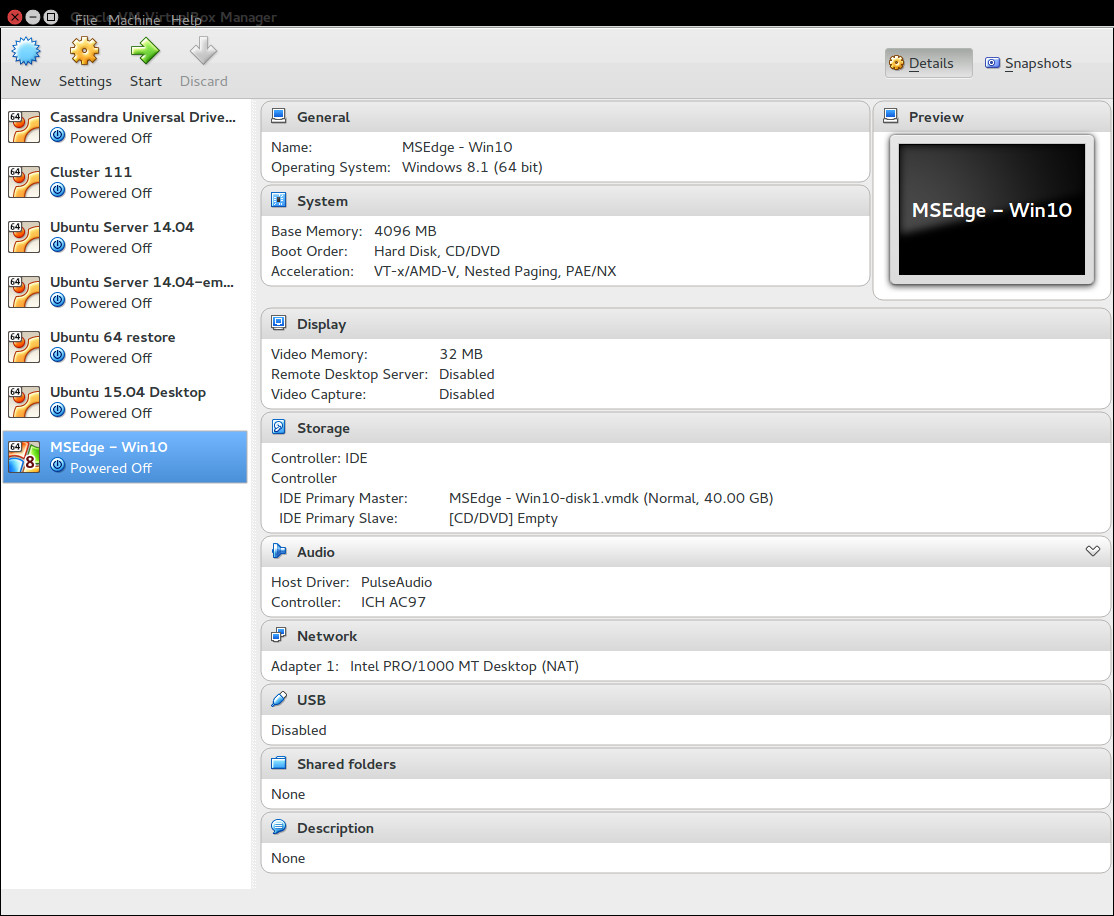
I figured out that Windows XP would probably not be the best similar architecture, so I edited the config and I set Windows 8.1 (64 bit). I also increased the RAM to 4096 MB and set a 32 MB memory for the video card.

blog-carlesmateo-com-config-vbox-microsoft-windows-10-msedge

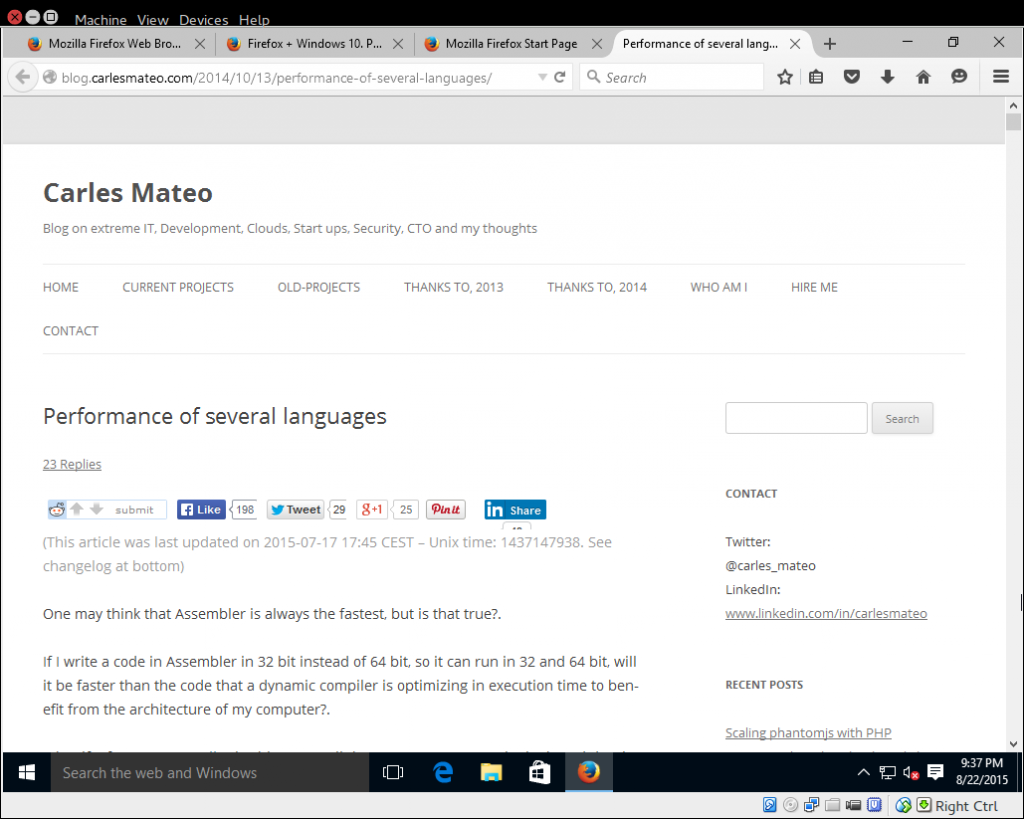
Then I just started the VM and everything worked.

blog-carlesmateo-com-windows10-in-virtual-box-linux

Ok, a funny note: Just started, it installed me an update without asking ;)