Category Archives: Ubuntu Linux

Showing the exploting Copy Fail CVE-2026-31431 in an Ubuntu 24.04 just launched in Google Cloud, and how to fix it

So I show here how I launched a fresh Ubuntu 24.04 in Google Cloud, on 2026-05-04, and demostrate the exploit of escalation privileges Copy Fail (CVE-2026-31431) which allows you to become root from a regular user account in almost any Linux since year 2017.

It consists in the execution of a Python 3 code, which is only 732 bytes.

I show how I fixed it by upgrading the kernel and rebooting.

Here you can see the original tweet I saw: https://x.com/DarkWebInformer/status/2049579219190165658?s=20

And access the code: https://github.com/theori-io/copy-fail-CVE-2026-31431

I also tried on a fresh deployed Ubuntu 26.04 LTS and it was not affected by the exploit.

Resizing the disk of your Ubuntu Server in Google Cloud GCP without rebooting

If you are running your instances in Google Gloud Compute Engine and you want to increase the size of the Disk without having to reboot, this video explains step by step how you can do it.

Go to Disks in GCP, select the disk of the instance you want to increase, then press Edit.

After you increase the Disk in Google Cloud Dashboard, then ssh to you instance.

There type:

lsblk

in order to list the devices.

In my case is sda and I want to grow the partition 1.

So I proceed with:

sudo growpart /dev/sda 1

Which growing from 30GB to 40GB produces the output:

CHANGED: partition=1 start=2324480 old: size=60590047 end=62914526 new: size=81561567 end=83886046

Is you type lsblk again you’ll see the new size.

But if you type df -h you’ll see that Linux still doesn’t see the space.

To finalize and claim the additional space execute (in my case is sda1):

sudo resize2fs /dev/sda1

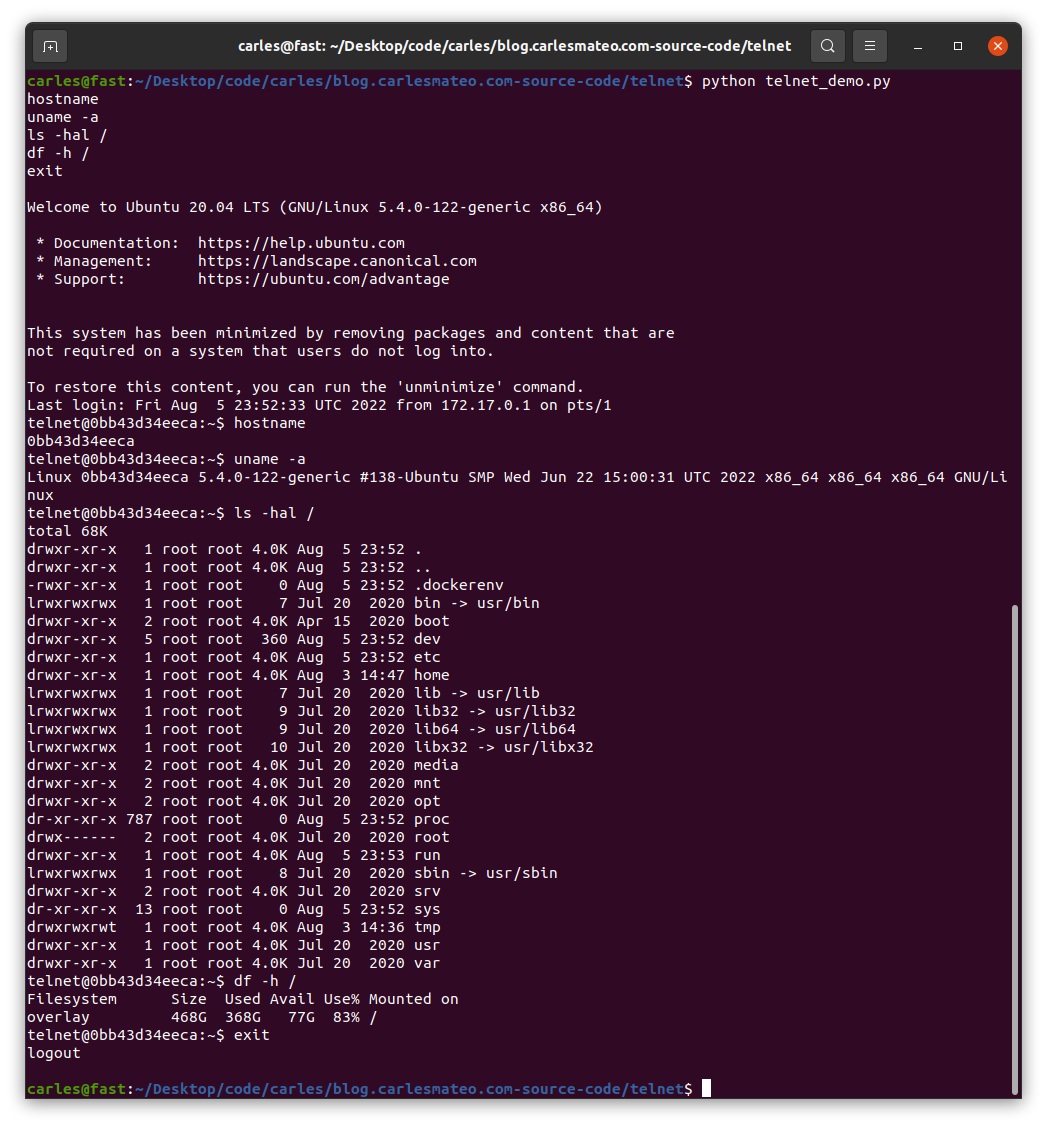
Sudo problems in Ubuntu 26.04 LTS with Google Cloud: I’m sorry user. I’m afraid I can’t do that

I show in the video, how briefly after using sudo, it stops working.

I did this proof of concept and, I got the same problem:

sleep 300 && sudo cat /etc/lsb-release

Checking with:

id -nG

clearly showed that my user is part of google-sudoers But then:

journalctl -u google-guest-agent -f

Displays:

Apr 26 17:54:07 ubuntu26-04 google_guest_agent[851]: Adding existing user carles_mateo to google-sudoers group.
Apr 26 17:54:07 ubuntu26-04 gpasswd[89648]: user carles_mateo added by root to group google-sudoers
Apr 26 17:54:07 ubuntu26-04 google_guest_agent[851]: Updating keys for user carles_mateo.
Apr 26 17:54:11 ubuntu26-04 google_guest_agent[851]: Updating keys for user carles_mateo.
Apr 26 17:57:11 ubuntu26-04 google_guest_agent[851]: ERROR non_windows_accounts.go:219 invalid ssh key entry - expired key: carles_mateo:...google-ssh {"userName":"carles.mateo@gmail.com","expireOn":"2026-04-26T17:57:05+0000"}
Apr 26 17:57:11 ubuntu26-04 google_guest_agent[851]: ERROR non_windows_accounts.go:219 invalid ssh key entry - expired key: carles_mateo:ssh-rsa...
Apr 26 17:57:11 ubuntu26-04 google_guest_agent[851]: Removing user carles_mateo.
Apr 26 17:57:11 ubuntu26-04 gpasswd[89736]: user carles_mateo removed by root from group google-sudoers

Installing Ubuntu 26.04 LTS in Google Cloud Compute Engine

The video shows step by step how to create an Instance in Google Cloud Compute Engine of the type e2, increase the size of the disk, and install Ubuntu 26.04 LTS Server.

Also shows how the new htop looks, with new IO options.

You know that utilites from coreutils have been rewriten in Rust, like sudo. I was wondering if it would work well. I thoguht I was encountering the first problems, after I experienced that when launched sudo, like in example, a sudo apt install package , sudo then stops working and I’ve to exit the shell and relogin.

I found that it is Google Cloud that removes my user from google-sudoers after 3 minutes.

I explain it in here.

Solving silent exit error on eZ Launchpad

You have installed eZ Launchpad, and you can execute the binary ez from your home folder or other paths, however when you execute it from a project folder you cloned with git (with its .platform.app.yaml file) ez returns to prompt without any error message.

The exit code is 255, but even if you strace the process you don’t find the exact problem.

Inside your project you run ez without any argument in a clean install of Ubuntu 24.04 LTS with PHP 8.3, or with PHP 8.4, without xDebug, without opcache, without memory limit… nothing works with no visible error message in the logs or in the error output. However if you run it outside the project folder, it works, and it displays the typical help messages.

I reproduced this behavior on several Ubuntu computers. The fix I found is to execute ez with PHP 8.1

You can install PHP8.1 from ondrej repository, then you can update alternates to execute PHP 8.1 by default in your system, or you create the project by invoking ez with PHP 8.1 explicitly with:

php8.1 ~/ez create

This will kickstart the creation of your ez project based on Docker containers.

Backup and Restore your Ubuntu Linux Workstations

This is a mechanism I invented and I’ve been using for decades, to migrate or clone my Linux Desktops to other physical servers.

This script is focused on doing the job for Ubuntu but I was doing this already 30 years ago, for X Window as I was responsible of the Linux platform of a ISP (Internet Service Provider). So, it is compatible with any Linux Desktop or Server.

It has the advantage that is a very lightweight backup. You don’t need to backup /etc or /var as long as you install a new OS and restore the folders that you did backup. You can backup and restore Wine (Windows Emulator) programs completely and to/from VMs and Instances as well.

It’s based on user/s rather than machine.

And it does backup using the Timestamp, so you keep all the different version, modified over time. You can fusion the backups in the same folder if you prefer avoiding time versions and keep only the latest backup. If that’s your case, then replace s_PATH_BACKUP_NOW=”${s_PATH_BACKUP}${s_DATETIME}/” by s_PATH_BACKUP_NOW=”${s_PATH_BACKUP}” for instance. You can also add a folder for machine if you prefer it, for example if you use the same userid across several Desktops/Servers.

I offer you a much simplified version of my scripts, but they can highly serve your needs.

#!/usr/bin/env bash

# Author: Carles Mateo
# Last Update: 2022-10-23 10:48 Irish Time

# User we want to backup data for
s_USER="carles"
# Target PATH for the Backups
s_PATH_BACKUP="/home/${s_USER}/Desktop/Bck/"

s_DATE=$(date +"%Y-%m-%d")
s_DATETIME=$(date +"%Y-%m-%d-%H-%M-%S")

s_PATH_BACKUP_NOW="${s_PATH_BACKUP}${s_DATETIME}/"

echo "Creating path $s_PATH_BACKUP and $s_PATH_BACKUP_NOW"
mkdir $s_PATH_BACKUP
mkdir $s_PATH_BACKUP_NOW

s_PATH_KEY="/home/${s_USER}/Desktop/keys/2007-01-07-cloud23.pem"
s_DOCKER_IMG_JENKINS_EXPORT=${s_DATE}-jenkins-base.tar
s_DOCKER_IMG_JENKINS_BLUEOCEAN2_EXPORT=${s_DATE}-jenkins-blueocean2.tar
s_PGP_FILE=${s_DATETIME}-pgp.zip

# Version the PGP files
echo "Compressing the PGP files as ${s_PGP_FILE}"
zip -r ${s_PATH_BACKUP_NOW}${s_PGP_FILE} /home/${s_USER}/Desktop/PGP/*

# Copy to BCK folder, or ZFS or to an external drive Locally as defined in: s_PATH_BACKUP_NOW
echo "Copying Data to ${s_PATH_BACKUP_NOW}/Data"
rsync -a --exclude={} --acls --xattrs --owner --group --times --stats --human-readable --progress -z "/home/${s_USER}/Desktop/data/" "${s_PATH_BACKUP_NOW}data/"
rsync -a --exclude={'Desktop','Downloads','.local/share/Trash/','.local/lib/python2.7/','.local/lib/python3.6/','.local/lib/python3.8/','.local/lib/python3.10/','.cache/JetBrains/'} --acls --xattrs --owner --group --times --stats --human-readable --progress -z "/home/${s_USER}/" "${s_PATH_BACKUP_NOW}home/${s_USER}/"
rsync -a --exclude={} --acls --xattrs --owner --group --times --stats --human-readable --progress -z "/home/${s_USER}/Desktop/code/" "${s_PATH_BACKUP_NOW}code/"


echo "Showing backup dir ${s_PATH_BACKUP_NOW}"
ls -hal ${s_PATH_BACKUP_NOW}

df -h /

See how I exclude certain folders like the Desktop or Downloads with –exclude.

It relies on the very useful rsync program. It also relies on zip to compress entire folders (PGP Keys on the example).

If you use the second part, to compress Docker Images (Jenkins in this example), you will run it as sudo and you will need also gzip.

# continuation... sudo running required.

# Save Docker Images
echo "Saving Docker Jenkins /home/${s_USER}/Desktop/Docker_Images/${s_DOCKER_IMG_JENKINS_EXPORT}"
sudo docker save jenkins:base --output /home/${s_USER}/Desktop/Docker_Images/${s_DOCKER_IMG_JENKINS_EXPORT}
echo "Saving Docker Jenkins /home/${s_USER}/Desktop/Docker_Images/${s_DOCKER_IMG_JENKINS_BLUEOCEAN2_EXPORT}"
sudo docker save jenkins:base --output /home/${s_USER}/Desktop/Docker_Images/${s_DOCKER_IMG_JENKINS_BLUEOCEAN2_EXPORT}
echo "Setting permissions"
sudo chown ${s_USER}.${s_USER} /home/${s_USER}/Desktop/Docker_Images/${s_DOCKER_IMG_JENKINS_EXPORT}
sudo chown ${s_USER}.${s_USER} /home/${s_USER}/Desktop/Docker_Images/${s_DOCKER_IMG_JENKINS_BLUEOCEAN2_EXPORT}
echo "Compressing /home/${s_USER}/Desktop/Docker_Images/${s_DOCKER_IMG_JENKINS_EXPORT}"
gzip /home/${s_USER}/Desktop/Docker_Images/${s_DOCKER_IMG_JENKINS_EXPORT}
gzip /home/${s_USER}/Desktop/Docker_Images/${s_DOCKER_IMG_JENKINS_BLUEOCEAN2_EXPORT}

rsync -a --exclude={} --acls --xattrs --owner --group --times --stats --human-readable --progress -z "/home/${s_USER}/Desktop/Docker_Images/" "${s_PATH_BACKUP_NOW}Docker_Images/"

There is a final part, if you want to backup to a remote Server/s using ssh:

# continuation... to copy to a remote Server.

s_PATH_REMOTE="bck7@cloubbck11.carlesmateo.com:/Bck/Desktop/${s_USER}/data/"

# Copy to the other Server
rsync -e "ssh -i $s_PATH_KEY" -a --exclude={} --acls --xattrs --owner --group --times --stats --human-readable --progress -z "/home/${s_USER}/Desktop/data/" ${s_PATH_REMOTE}

I recommend you to use the same methodology in all your Desktops, like for example, having a data/ folder in the Desktop for each user.

You can use Erasure Code to split the Backups in blocks and store a piece in different Cloud Providers.

Also you can store your Backups long-term, with services like Amazon Glacier.

Other ideas are storing certain files in git and in Hadoop HDFS.

If you want you can CRC your files before copying to another device or server.

You will use tools like: sha512sum or md5sum.
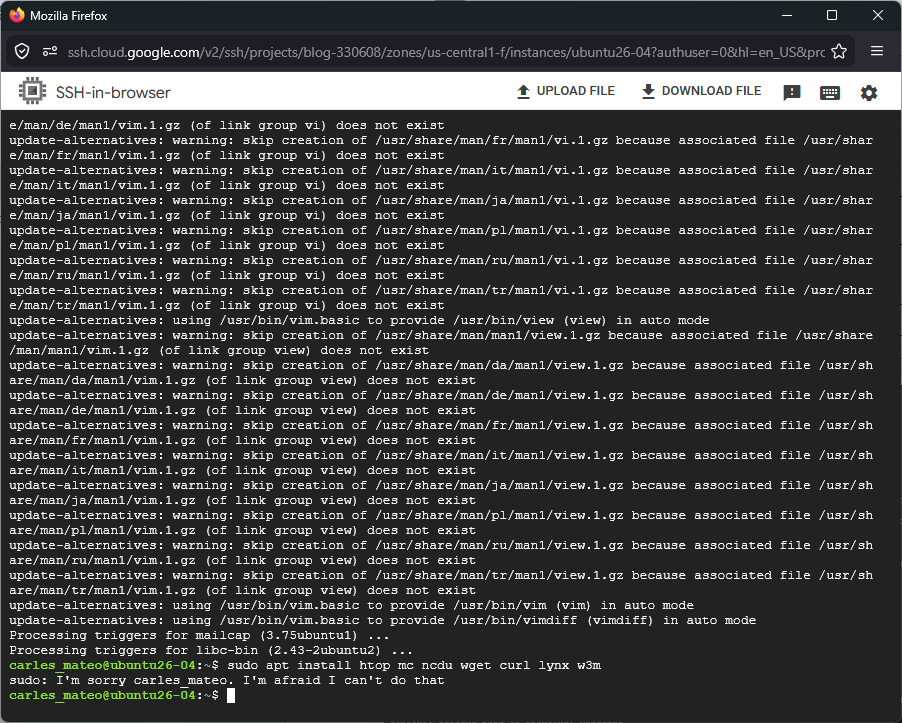
Docker with Ubuntu with telnet server and Python code to access via telnet

Explanations building the Container and running the python code

Here you can see this Python code to connect via Telnet and executing a command in a Server:

File: telnet_demo.py

#!/usr/bin/env python3
import telnetlib

s_host = "localhost"
s_user = "telnet"
s_password = "telnet"

o_tn = telnetlib.Telnet(s_host)

o_tn.read_until(b"login: ")
o_tn.write(s_user.encode('ascii') + b"\n")

o_tn.read_until(b"Password: ")

o_tn.write(s_password.encode('ascii') + b"\n")

o_tn.write(b"hostname\n")
o_tn.write(b"uname -a\n")
o_tn.write(b"ls -hal /\n")
o_tn.write(b"exit\n")

print(o_tn.read_all().decode('ascii'))

File: Dockerfile

FROM ubuntu:20.04

MAINTAINER Carles Mateo

ARG DEBIAN_FRONTEND=noninteractive

# This will make sure printing in the Screen when running in detached mode
ENV PYTHONUNBUFFERED=1

RUN apt-get update -y && apt install -y sudo telnetd vim systemctl  && apt-get clean

RUN adduser -gecos --disabled-password --shell /bin/bash telnet

RUN echo "telnet:telnet" | chpasswd

EXPOSE 23

CMD systemctl start inetd; while [ true ]; do sleep 60; done

You can see that I use chpasswd command to change the password for the user telnet and set it to telnet. That deals with the complexity of setting the encrypted password.

File: build_docker.sh

#!/bin/bash

s_DOCKER_IMAGE_NAME="ubuntu_telnet"

echo "We will build the Docker Image and name it: ${s_DOCKER_IMAGE_NAME}"
echo "After, we will be able to run a Docker Container based on it."

printf "Removing old image %s\n" "${s_DOCKER_IMAGE_NAME}"
sudo docker rm "${s_DOCKER_IMAGE_NAME}"

printf "Creating Docker Image %s\n" "${s_DOCKER_IMAGE_NAME}"
sudo docker build -t ${s_DOCKER_IMAGE_NAME} .
# If you don't want to use cache this is your line
# sudo docker build -t ${s_DOCKER_IMAGE_NAME} . --no-cache

i_EXIT_CODE=$?
if [ $i_EXIT_CODE -ne 0 ]; then
    printf "Error. Exit code %s\n" ${i_EXIT_CODE}
    exit
fi

echo "Ready to run ${s_DOCKER_IMAGE_NAME} Docker Container"
echo "To run in type: sudo docker run -it -p 23:23 --name ${s_DOCKER_IMAGE_NAME} ${s_DOCKER_IMAGE_NAME}"

When you run sudo ./build_docker.sh the image will be built. Then run it with:

sudo docker run -it -p 23:23 --name ubuntu_telnet ubuntu_telnet

If you get an error indicating that the port is in use, then your computer has already a process listening on the port 23, use another.

You will be able to stop the Container by pressing CTRL + C

From another terminal run the Python program:

python3 ./telnet_demo.py