Validate IP Addresses and Networks with CIDR in Python

Python has a built-in package named ipaddress

You don’t need to install anything to use it.

This simple code shows how to use it

import ipaddress


def check_ip(s_ip_or_net):
    b_valid = True
    try:
        # The IP Addresses are expected to be passed without / even if it's /32 it would fail
        # If it uses / so, the CIDR notation, check it as a Network, even if it's /32
        if "/" in s_ip_or_net:
            o_net = ipaddress.ip_network(s_ip_or_net)
        else:
            o_ip = ipaddress.ip_address(s_ip_or_net)

    except ValueError:
        b_valid = False

    return b_valid


if __name__ == "__main__":
    a_ips = ["127.0.0.2.4",
             "127.0.0.0",
             "192.168.0.0",
             "192.168.0.1",
             "192.168.0.1 ",
             "192.168.0. 1",
             "192.168.0.1/32",
             "192.168.0.1 /32",
             "192.168.0.0/32",
             "192.0.2.0/255.255.255.0",
             "0.0.0.0/31",
             "0.0.0.0/32",
             "0.0.0.0/33",
             "1.2.3.4",
             "1.2.3.4/24",
             "1.2.3.0/24"]

    for s_ip in a_ips:
        b_success = check_ip(s_ip)
        if b_success is True:
            print(f"The IP Address or Network {s_ip} is valid")
        else:
            print(f"The IP Address or Network {s_ip} is not valid")

And the output is like this:

The IP Address or Network 127.0.0.2.4 is not valid
The IP Address or Network 127.0.0.0 is valid
The IP Address or Network 192.168.0.0 is valid
The IP Address or Network 192.168.0.1 is valid
The IP Address or Network 192.168.0.1  is not valid
The IP Address or Network 192.168.0. 1 is not valid
The IP Address or Network 192.168.0.1/32 is valid
The IP Address or Network 192.168.0.1 /32 is not valid
The IP Address or Network 192.168.0.0/32 is valid
The IP Address or Network 192.0.2.0/255.255.255.0 is valid
The IP Address or Network 0.0.0.0/31 is valid
The IP Address or Network 0.0.0.0/32 is valid
The IP Address or Network 0.0.0.0/33 is not valid
The IP Address or Network 1.2.3.4 is valid
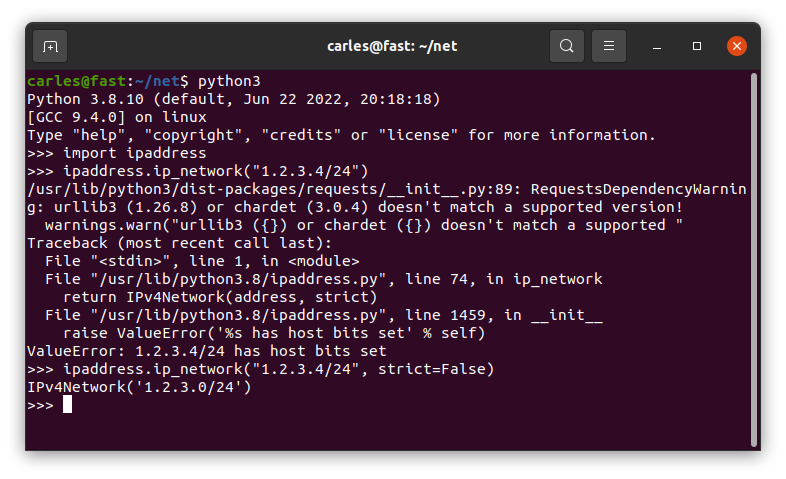
The IP Address or Network 1.2.3.4/24 is not valid
The IP Address or Network 1.2.3.0/24 is valid

As you can read in the code comments, ipaddress.ip_address() will not validate an IP Address with the CIDR notation, even if it’s /32.

You should strip the /32 or use ipaddress.ip_network() instead.

As you can see 1.2.3.4/24 is returned as not valid.

You can pass the parameter strict=False and it will be returned as valid.

ipaddress.ip_network(s_ip_or_net, strict=False)

See where is the space used in your Android phone from Ubuntu Terminal

So, you may have your Android phone full and you don’t know where the space is.

You may have tried Apps for Android but none shows the information in the detail you would like. Linux to the rescue.

First of all you need a cable able to transfer Data. It is a cable that will be connected to your computer, normally with an USB 3.0 cable and to your smartphone, normally with USB-C.

Sometimes phone’s connectors are dirty and don’t allow a stable connection. Your connections should allow a stable connection, otherwise the connection will be interrupted in the middle.

Once you connect the Android smartphone to the computer, unlock the phone and authorize the data connection.

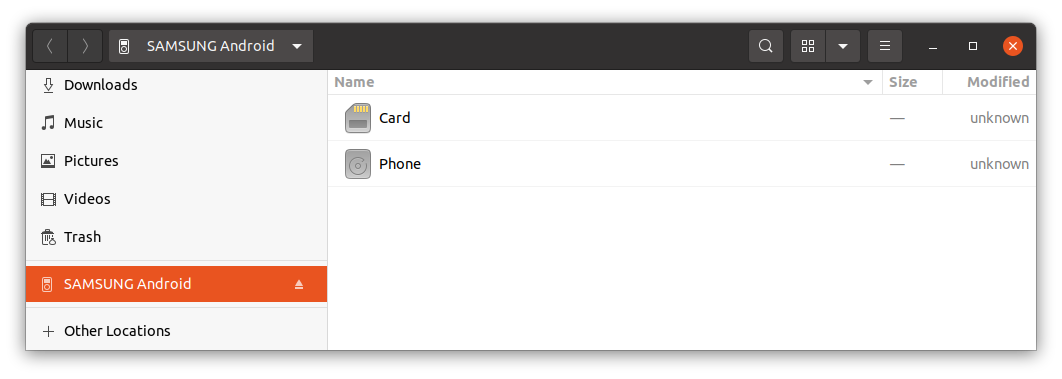
You’ll see that your computer recognizes the phone:

Open the terminal and enter this directory:

cd /run/user/1000/gvfs/

Here you will see your device and the name is very evident.

The usual is to have just one device listed, but if you had several Android devices attached you may want to query first, in order to identify it.

The Android devices use a protocol named Media Transfer Protocol (MTP) when connecting to the USB port, and that’s different on the typical way to access the USB port.

usb-devices  | grep "Manufacturer=" -B 3

Run this command to see all the devices connected to the USB.

You may see Manufacturer=SAMSUNG or Manufacturer=OnePlus etc…

The information returned will allow you to identify your device in /run/user/1000/gvfs/

You may get different type of outputs, but if you get:

T:  Bus=02 Lev=01 Prnt=01 Port=00 Cnt=01 Dev#= 13 Spd=480 MxCh= 0

your device can be accessed inside:

cd mtp\:host\=%5Busb%3A002%2C013%5D/

There you’ll see Card and Phone.

You can enter the Phone internal storage or the SD Card storage directory:

cd Phone

To see how the space is distributed nicely I recommend you to use the program ncdu if you don’t have you can install it with:

sudo apt install ncdu

Then run ncdu:

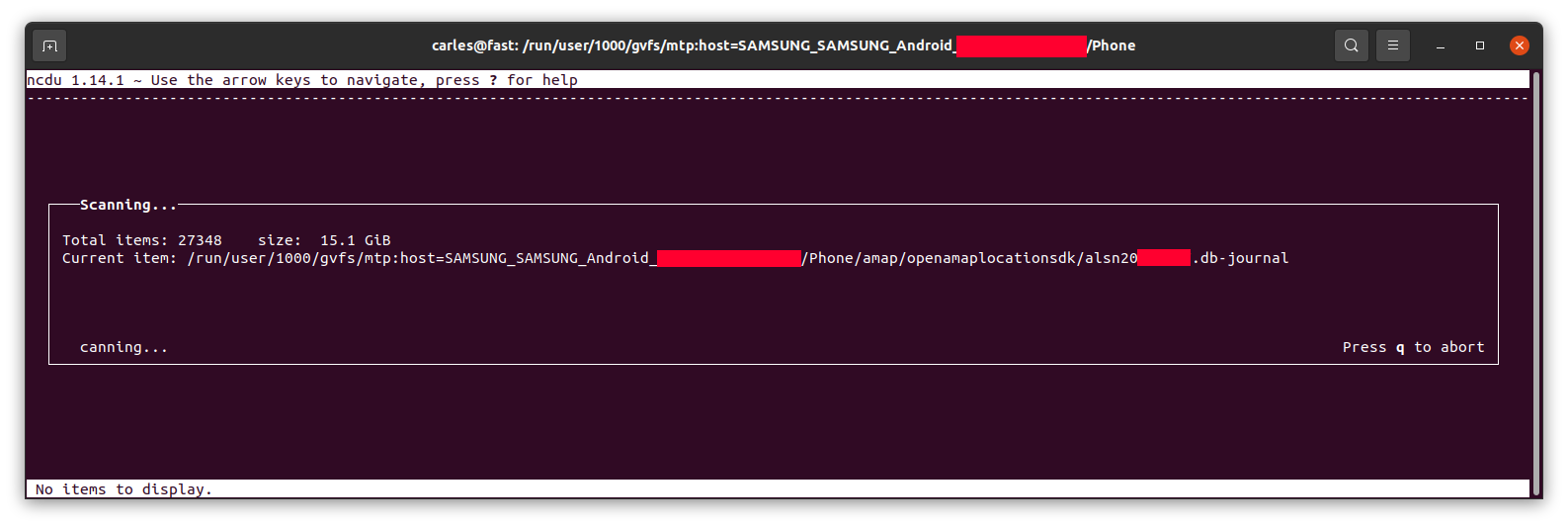
ncdu

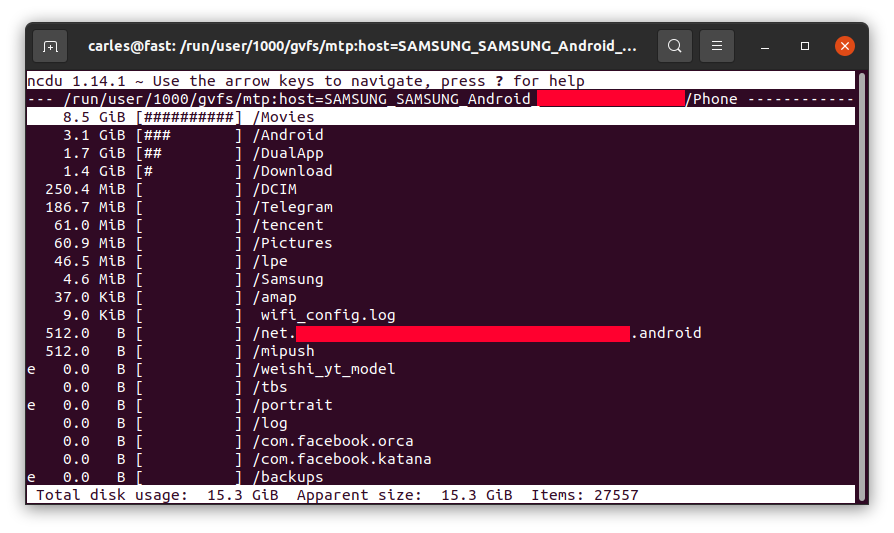
It will calculate the space…

… and let you know, sorted from more to less, and will allow you to browse the sub-directories with the keyboard arrow keys and enter to get major clarity.

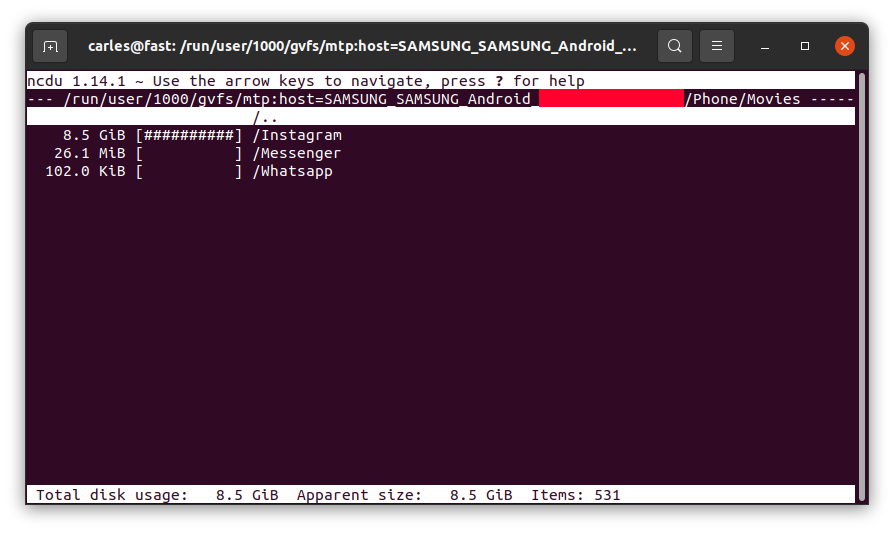
For example, in my case I saw 8.5 GB in the folder Movies on the phone, where I didn’t download any movie, so I checked.

I entered inside by pressing Enter:

So Instagram App was keeping a copy all the videos I uploaded, in total 8.5 GB of my Phone’s space and never releasing them!.

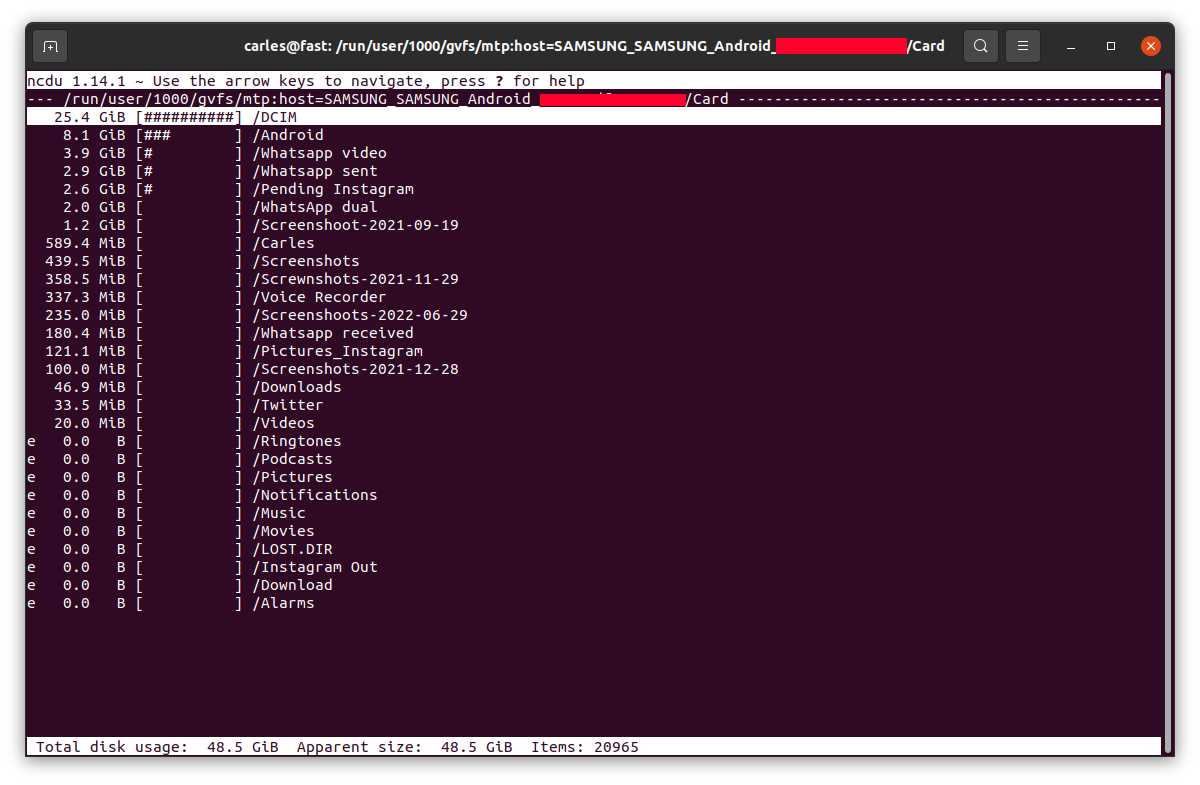
Example for the SD card, where the usage was as expected:

News from the blog 2022-07-22

Carles in the News

For all my friends and followers, I started to translate my radio space “El nou món digital” (in Catalan) to English “The New Digital World”. I cover Science, Technology, Entertainment and Video games.

You can see the first programs I translated here:

Catalan and English programs RAB

And the script and links mentioned here:

https://blog.carlesmateo.com/2022/06/20/rab-el-nou-mon-digital-2022-06-27-ca/

Social

I’ve created an Instagram fan page for me / for the blog.

It is open for everybody.

https://www.instagram.com/blog_carlesmateo/

Videos for learning how to code

Learning How to code Python Unit Tests with pytest from the scratch, for beginners:

I added it to my series of videos:

https://blog.carlesmateo.com/learn-python-3-unit-testing/

Video for learning how to use RabbitMQ with Python in a Docker Container

https://blog.carlesmateo.com/2022/07/20/creating-a-rabbitmq-docker-container-accessed-with-python-and-pika/

Site carlesmateo.com

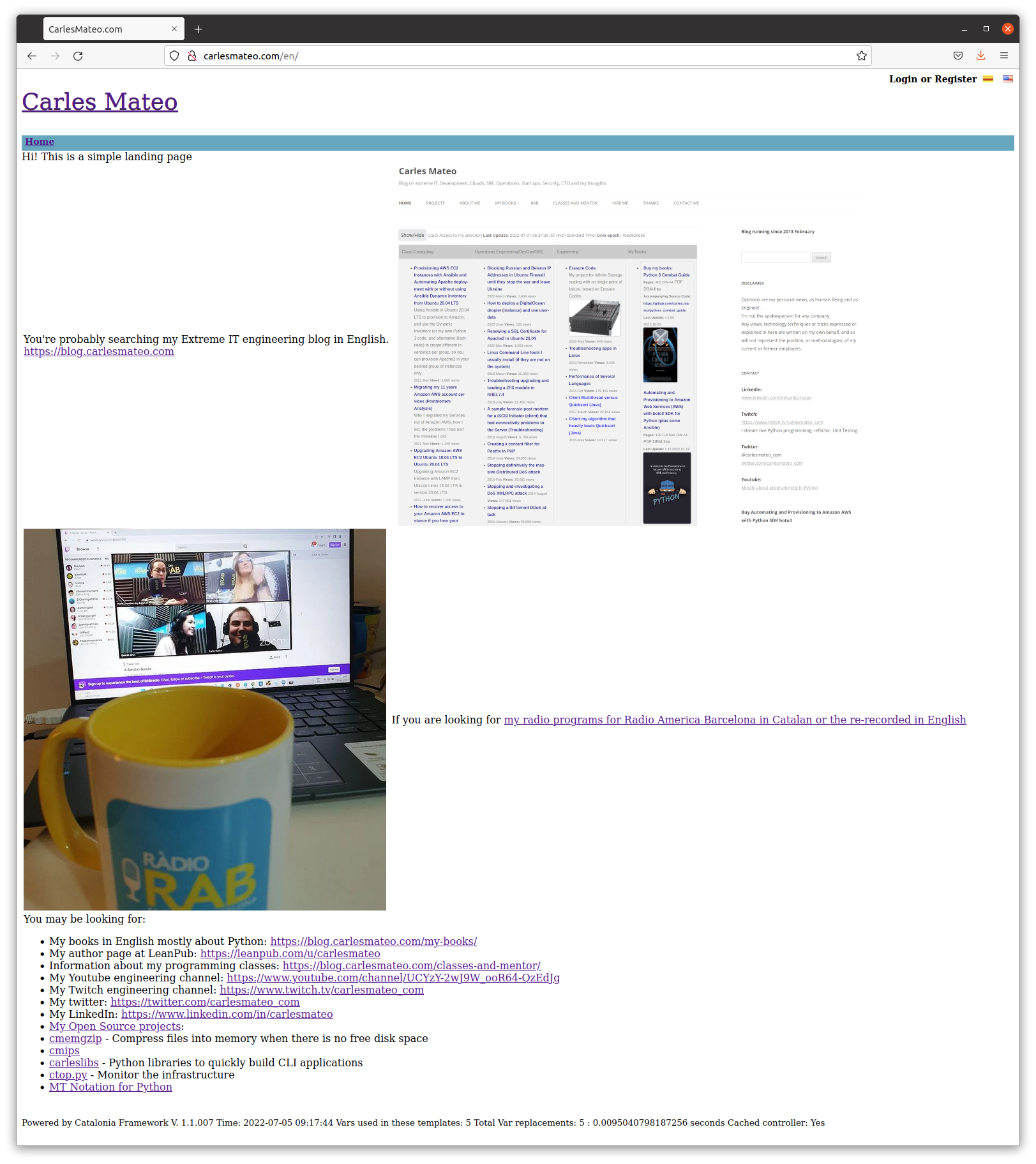
I use mostly this site https://blog.carlesmateo.com to centralize everything, so I’ve kept http://carlesmateo.com as a simple landing page made with my old (from 2013) ultra fast PHP Framework Catalonia Framework.

I decided to create a Jenkins Pipeline to deploy any updates to this pages and I updated it a bit at least to provide the most common information searched.

Don’t expect anything fancy at Front End level. :)

Cloud

I created a video about how to provision a Ubuntu Droplet in Digital Ocean.

It’s just for beginners, or if you used other CSP’s and you wonder how Digital Ocean user interface is.

It is really easy, to be honest. Amazon AWS should learn from them.

I also created another about how to provision using User Data Cloud Init feature:

https://blog.carlesmateo.com/2022/06/25/how-to-deploy-a-digitalocean-droplet-instance-and-use-userdata/

Books

My Books

I have updated Docker Combat Guide to show how to work with different users in the Dockerfile and accessing an interactive terminal.

I have also added how to create a Jenkins containerized.

Books I bought > CI/CD

I recommend you these books:

I’ve created a video about how to deploy jenkins in Docker, following the official documentation, in 4 minutes.

Install jenkins on Docker in ubuntu in 4 minutes

And posted an article about solving the error load key invalid format when provisioning from Jenkins with your SSH .pem Key in a variable.

https://blog.carlesmateo.com/2022/07/05/solving-linux-load-key-ssh_yourserver-invalid-format-when-provisioning-from-jenkins/

Open Source from Carles

CTOP.py

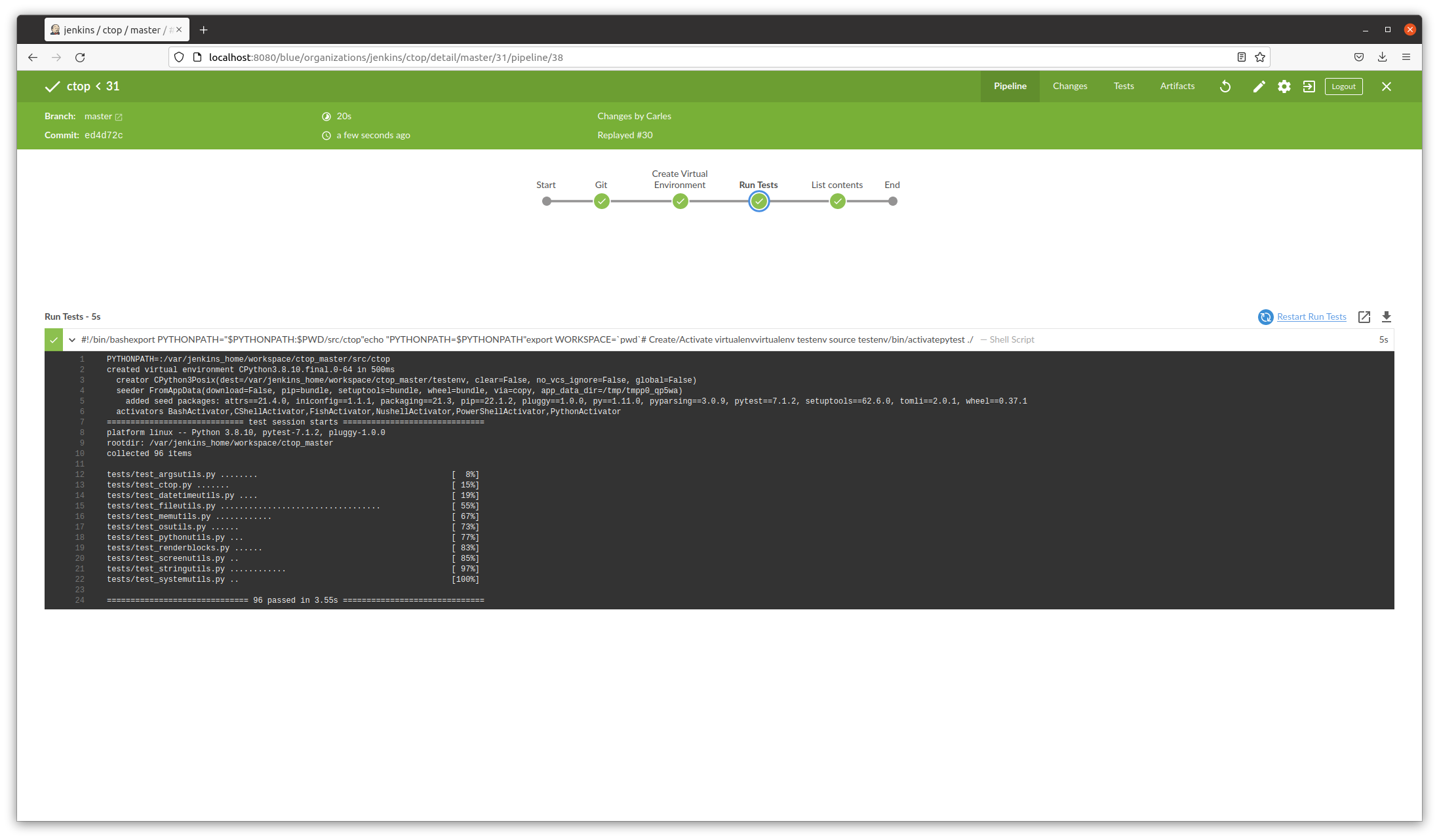
I have released a new version of CTOP, ctop.py version 0.8.9.

This version fixes few bugs, and adds better Unit Testing Code Coverage, and is integrated with jenkins (provides Jenkinsfile and a Dockerfile ready to automate the testing pipeline)

Sudo ku solver, Sudoku solver in Python, and Engineering solving problem approach

I’ve created this video explaining my experience writing a program to solve two impossible, very annoying Sudokus. :)

https://blog.carlesmateo.com/2022/04/26/working-on-a-sudoku-solver-in-python-source-code/

Commander Turtle: a small program in Python so children can learn to code by drawing

Children can learn to code and share their scripts, which are comma separated, easily.

Commander Turtle

My life at Activision Blizzard

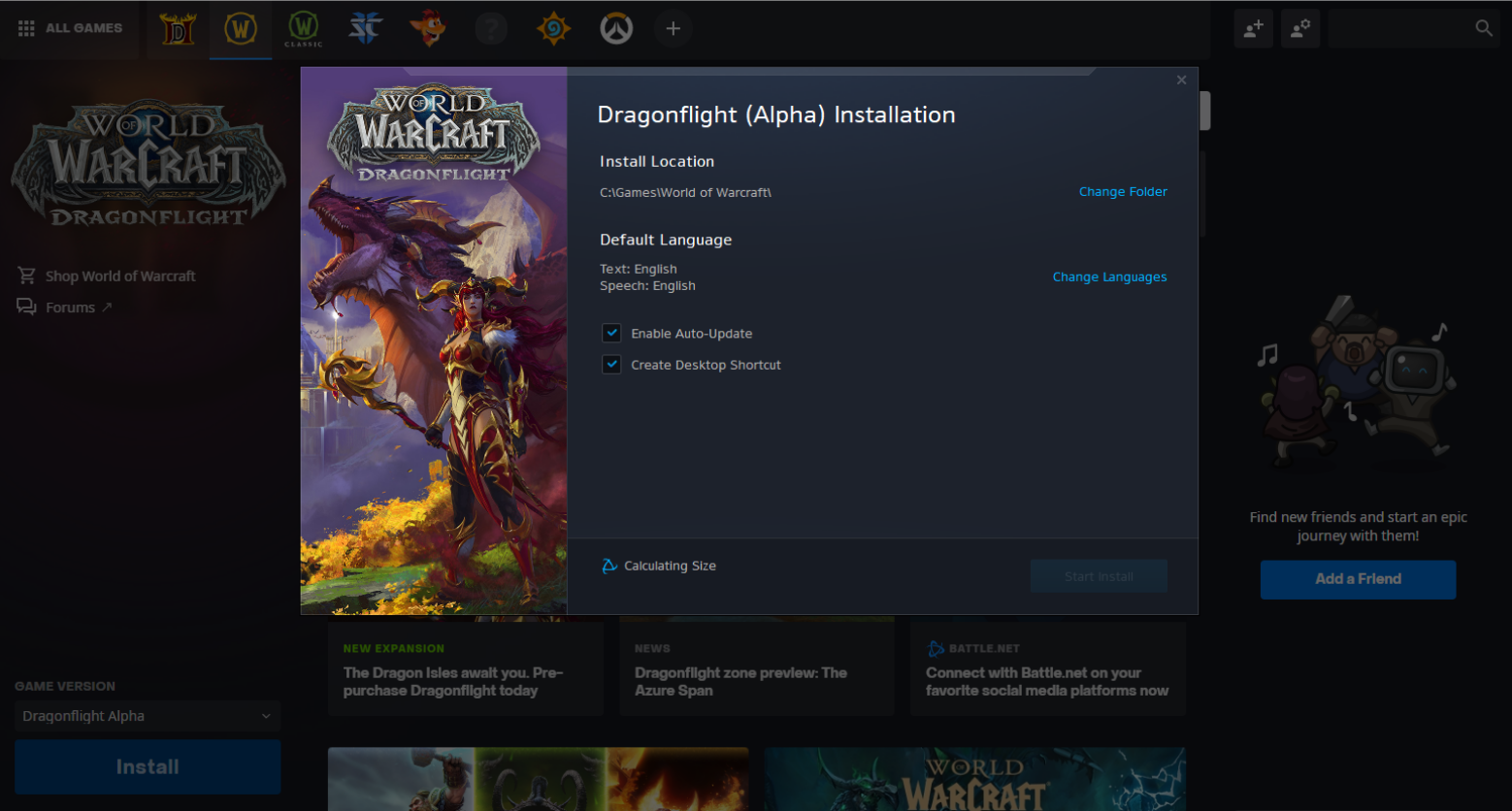
We have released World of Warcraft Dragonflight Alpha.

In the sync meetings I lead with Wow SRE and product Team I was informed that streaming would be open. Myself I was granted to stream over twitch, but so far I didn’t want to stream video games in my engineering channels. It’s different kind of audiences IMO. Let me know if you would like to get video game streams in my streaming channels.

Lich King

Humor

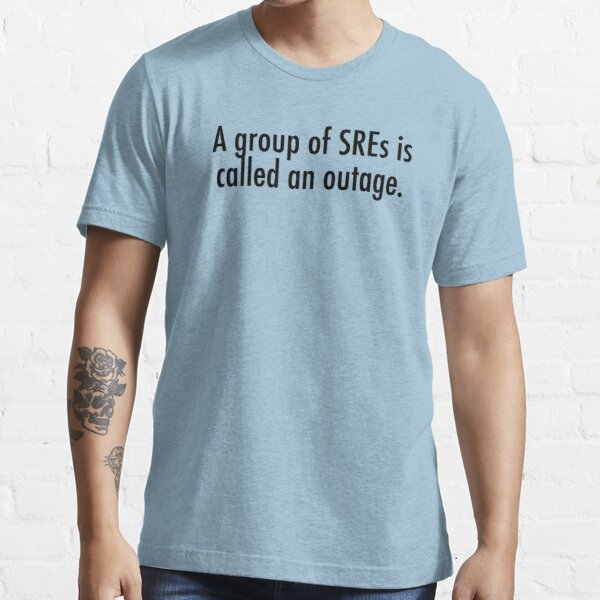
If you have been in a madness of Servers of a Cluster getting irresponsible and having to cold reboot them from remote hands iDracs or similar, you know why my friends sent me this image :D

Creating a RabbitMQ Docker Container accessed with Python and pika

In this video, that I streamed on Twitch, I demonstrate the code showed here.

I launch the Docker Container and operated it a bit, so you can get to learn few tricks.

I created the RabbitMQ Docker installation based on the official RabbitMQ installation instructions for Ubuntu/Debian:

https://www.rabbitmq.com/install-debian.html#apt-cloudsmith

One interesting aspect is that I cover how the messages are delivered as byte sequence. I show this by sending Unicode characters

Files in the project

Dockerfile

FROM ubuntu:20.04

MAINTAINER Carles Mateo

ARG DEBIAN_FRONTEND=noninteractive

# This will make sure printing in the Screen when running in dettached mode
ENV PYTHONUNBUFFERED=1

ARG PATH_RABBIT_INSTALL=/tmp/rabbit_install/

ARG PATH_RABBIT_APP_PYTHON=/opt/rabbit_python/

RUN mkdir $PATH_RABBIT_INSTALL

COPY cloudsmith.sh $PATH_RABBIT_INSTALL

RUN chmod +x ${PATH_RABBIT_INSTALL}cloudsmith.sh

RUN apt-get update -y && apt install -y sudo python3 python3-pip mc htop less strace zip gzip lynx && apt-get clean

RUN ${PATH_RABBIT_INSTALL}cloudsmith.sh

RUN service rabbitmq-server start

RUN mkdir $PATH_RABBIT_APP_PYTHON

COPY requirements.txt $PATH_RABBIT_APP_PYTHON

WORKDIR $PATH_RABBIT_APP_PYTHON

RUN pwd

RUN pip install -r requirements.txt

COPY *.py $PATH_RABBIT_APP_PYTHON

COPY loop_send_get_messages.sh $PATH_RABBIT_APP_PYTHON

RUN chmod +x loop_send_get_messages.sh

CMD ./loop_send_get_messages.sh

cloudsmith.sh

#!/usr/bin/sh
# From: https://www.rabbitmq.com/install-debian.html#apt-cloudsmith

sudo apt-get update -y && apt-get install curl gnupg apt-transport-https -y

## Team RabbitMQ's main signing key
curl -1sLf "https://keys.openpgp.org/vks/v1/by-fingerprint/0A9AF2115F4687BD29803A206B73A36E6026DFCA" | sudo gpg --dearmor | sudo tee /usr/share/keyrings/com.rabbitmq.team.gpg > /dev/null
## Cloudsmith: modern Erlang repository
curl -1sLf https://dl.cloudsmith.io/public/rabbitmq/rabbitmq-erlang/gpg.E495BB49CC4BBE5B.key | sudo gpg --dearmor | sudo tee /usr/share/keyrings/io.cloudsmith.rabbitmq.E495BB49CC4BBE5B.gpg > /dev/null
## Cloudsmith: RabbitMQ repository
curl -1sLf https://dl.cloudsmith.io/public/rabbitmq/rabbitmq-server/gpg.9F4587F226208342.key | sudo gpg --dearmor | sudo tee /usr/share/keyrings/io.cloudsmith.rabbitmq.9F4587F226208342.gpg > /dev/null

## Add apt repositories maintained by Team RabbitMQ
sudo tee /etc/apt/sources.list.d/rabbitmq.list <<EOF
## Provides modern Erlang/OTP releases
##
deb [signed-by=/usr/share/keyrings/io.cloudsmith.rabbitmq.E495BB49CC4BBE5B.gpg] https://dl.cloudsmith.io/public/rabbitmq/rabbitmq-erlang/deb/ubuntu bionic main
deb-src [signed-by=/usr/share/keyrings/io.cloudsmith.rabbitmq.E495BB49CC4BBE5B.gpg] https://dl.cloudsmith.io/public/rabbitmq/rabbitmq-erlang/deb/ubuntu bionic main

## Provides RabbitMQ
##
deb [signed-by=/usr/share/keyrings/io.cloudsmith.rabbitmq.9F4587F226208342.gpg] https://dl.cloudsmith.io/public/rabbitmq/rabbitmq-server/deb/ubuntu bionic main
deb-src [signed-by=/usr/share/keyrings/io.cloudsmith.rabbitmq.9F4587F226208342.gpg] https://dl.cloudsmith.io/public/rabbitmq/rabbitmq-server/deb/ubuntu bionic main
EOF

## Update package indices
sudo apt-get update -y

## Install Erlang packages
sudo apt-get install -y erlang-base \
                        erlang-asn1 erlang-crypto erlang-eldap erlang-ftp erlang-inets \
                        erlang-mnesia erlang-os-mon erlang-parsetools erlang-public-key \
                        erlang-runtime-tools erlang-snmp erlang-ssl \
                        erlang-syntax-tools erlang-tftp erlang-tools erlang-xmerl

## Install rabbitmq-server and its dependencies
sudo apt-get install rabbitmq-server -y --fix-missing

build_docker.sh

#!/bin/bash

s_DOCKER_IMAGE_NAME="rabbitmq"

echo "We will build the Docker Image and name it: ${s_DOCKER_IMAGE_NAME}"
echo "After, we will be able to run a Docker Container based on it."

printf "Removing old image %s\n" "${s_DOCKER_IMAGE_NAME}"
sudo docker rm "${s_DOCKER_IMAGE_NAME}"

printf "Creating Docker Image %s\n" "${s_DOCKER_IMAGE_NAME}"
sudo docker build -t ${s_DOCKER_IMAGE_NAME} . --no-cache

i_EXIT_CODE=$?
if [ $i_EXIT_CODE -ne 0 ]; then
    printf "Error. Exit code %s\n" ${i_EXIT_CODE}
    exit
fi

echo "Ready to run ${s_DOCKER_IMAGE_NAME} Docker Container"
echo "To run in type: sudo docker run -it --name ${s_DOCKER_IMAGE_NAME} ${s_DOCKER_IMAGE_NAME}"
echo "or just use run_in_docker.sh"

requirements.txt

pika

loop_send_get_messages.sh

#!/bin/bash

echo "Starting RabbitMQ"
service rabbitmq-server start

echo "Launching consumer in background which will be listening and executing the callback function"
python3 rabbitmq_getfrom.py &

while true; do

    i_MESSAGES=$(( RANDOM % 10 ))

    echo "Sending $i_MESSAGES messages"
    for i_MESSAGE in $(seq 1 $i_MESSAGES); do
        python3 rabbitmq_sendto.py
    done

    echo "Sleeping 5 seconds"
    sleep 5

done

echo "Exiting loop"

rabbitmq_sendto.py

#!/usr/bin/env python3
import pika
import time

connection = pika.BlockingConnection(pika.ConnectionParameters(host="localhost"))

channel = connection.channel()

channel.queue_declare(queue="hello")

s_now = str(time.time())

s_message = "Hello World! " + s_now + " Testing Unicode: çÇ àá😀"
channel.basic_publish(exchange="", routing_key="hello", body=s_message)
print(" [x] Sent '" + s_message + "'")
connection.close()

rabbitmq_getfrom.py

#!/usr/bin/env python3
import pika


def callback(ch, method, properties, body):
    # print(f" [x] Received in channel: {ch} method: {method} properties: {properties} body: {body}")
    print(f" [x] Received body: {body}")


connection = pika.BlockingConnection(pika.ConnectionParameters(host="localhost"))

channel = connection.channel()

channel.queue_declare(queue="hello")

print(" [*] Waiting for messages. To exit press Ctrl+C")

# This will loop
channel.basic_consume(queue="hello", on_message_callback=callback)
channel.start_consuming()

print("Finishing consumer")

Video: Parse the Tables from a Website with Python pandas

A quick video, of 3 minutes, that shows you how it works.

If you don’t have pandas installed you’ll have to install it and lxml, otherwise you’ll get an error:

  File "/home/carles/Desktop/code/carles/blog.carlesmateo.com-source-code/venv/lib/python3.8/site-packages/pandas/io/html.py", line 872, in _parser_dispatch
    raise ImportError("lxml not found, please install it")
ImportError: lxml not found, please install it

You can install both from PyCharm or from command line with:

pip install pandas
pip install lxml

And here the source code:

import pandas as pd


if __name__ == "__main__":

    # Do not truncate the data when printing
    pd.set_option('display.max_colwidth', None)
    # Do not truncate due to length of all the columns
    pd.set_option('display.max_columns', None)
    pd.set_option('display.max_rows', None)
    pd.set_option('display.width', 2000)
    # pd.set_option('display.float_format', '{:20,.2f}'.format)

    o_pd_my_movies = pd.read_html("https://blog.carlesmateo.com/movies-i-saw/")
    print(len(o_pd_my_movies))

    print(o_pd_my_movies[0])

Video: How to create a Docker Container for LAMPP step by step

How to create a Docker Container for Linux Apache MySQL PHP and Python for beginners.

Note: Containers are not persistent. Use this for tests only. If you want to keep persistent information use Volumes.

Sources: https://gitlab.com/carles.mateo/blog.carlesmateo.com-source-code/-/tree/master/twitch/live_20220708_dockerfile_lamp

File: Dockerfile

FROM ubuntu:20.04

MAINTAINER Carles Mateo

ARG DEBIAN_FRONTEND=noninteractive

RUN apt update && \
    apt install -y vim python3-pip &&  \
    apt install -y net-tools mc vim htop less strace zip gzip lynx && \
    apt install -y apache2 mysql-server ntpdate libapache2-mod-php7.4 mysql-server php7.4-mysql php-dev libmcrypt-dev php-pear && \
    apt install -y git && apt autoremove && apt clean && \
    pip3 install pytest

RUN a2enmod rewrite

RUN echo "Europe/Ireland" | tee /etc/timezone

ENV APACHE_RUN_USER  www-data
ENV APACHE_RUN_GROUP www-data
ENV APACHE_LOG_DIR   /var/log/apache2
ENV APACHE_PID_FILE  /var/run/apache2/apache2.pid
ENV APACHE_RUN_DIR   /var/run/apache2
ENV APACHE_LOCK_DIR  /var/lock/apache2
ENV APACHE_LOG_DIR   /var/log/apache2

COPY phpinfo.php /var/www/html/

RUN service apache2 restart

EXPOSE 80

CMD ["/usr/sbin/apache2", "-D", "FOREGROUND"]

File: phpinfo.php

<html>
<?php

// Show all information, defaults to INFO_ALL
phpinfo();

// Show just the module information.
// phpinfo(8) yields identical results.
phpinfo(INFO_MODULES);
?>
</html>

File: build_docker.sh

#!/bin/bash

s_DOCKER_IMAGE_NAME="lampp"

echo "We will build the Docker Image and name it: ${s_DOCKER_IMAGE_NAME}"
echo "After, we will be able to run a Docker Container based on it."

printf "Removing old image %s\n" "${s_DOCKER_IMAGE_NAME}"
sudo docker rm "${s_DOCKER_IMAGE_NAME}"

printf "Creating Docker Image %s\n" "${s_DOCKER_IMAGE_NAME}"
# sudo docker build -t ${s_DOCKER_IMAGE_NAME} . --no-cache
sudo docker build -t ${s_DOCKER_IMAGE_NAME} .

i_EXIT_CODE=$?
if [ $i_EXIT_CODE -ne 0 ]; then
    printf "Error. Exit code %s\n" ${i_EXIT_CODE}
    exit
fi

echo "Ready to run ${s_DOCKER_IMAGE_NAME} Docker Container"
echo "To run in type: sudo docker run -p 80:80 --name ${s_DOCKER_IMAGE_NAME} ${s_DOCKER_IMAGE_NAME}"
echo "or just use run_in_docker.sh"

echo
echo "If you want to debug do:"
echo "docker exec -i -t ${s_DOCKER_IMAGE_NAME} /bin/bash"

Solving Linux Load key “ssh_yourserver”: invalid format when provisioning from Jenkins

If you are getting an error like this when you try to provision using rsync or running commands from SSH from a Docker Instance from a worker node in Jenkins, having your SSH Key as a variable in Jenkins, here is a way to solve it.

These are the kind of errors that you’ll be receiving:

Load key "ssh_yourserver": invalid format

web@myserver.carlesmateo.com: Permission denied (publickey).

rsync: connection unexpectedly closed (0 bytes received so far) [sender]

rsync error: unexplained error (code 255) at io.c(235) [sender=3.1.3]

script returned exit code 255

So this applies if you copied your .pem file as text and pasted in a variable in Jenkins.

You’ll find yourself with the load key invalid format error.

I would suggest to use tokens and Vault or Consul instead of pasting a SSH Key, but if you need to just solve this ASAP that’s the trick that you need.

First encode your key with base64 without any wrapping. This is done with this command:

cat keys/key_azure_myserver_carlesmateo_com.pem | base64 --wrap=0

In your Jenkins steps you’ll add this code:

#!/bin/bash
echo "Creating credentials"
echo $SSH_YOURSERVER | base64 --decode > ssh_yourserver
echo "Setting permissions"
chmod 600 ssh_yourserver

Having a certificate then you can define new steps that will deploy to Production by rsyncing:

#!/bin/bash
echo "Deploying www..."
rsync -e "ssh -i ssh_carlesmateo -o StrictHostKeyChecking=no -o UserKnownHostsFile=/dev/null" -av --progress --exclude={} --stats --human-readable -z www/ web@myserver.carlesmateo.com:/var/www/myawesomeproject/www/

Note that in this case I’m ignoring Strict Host Key Checking, which is not the preferred option for security, but you may want to use it depending on your strategy and characteristics of your Cloud Deployments.

Note also that I’m indicating as User Known Hosts File /dev/null. That is something you may want to have is you provision using Docker Containers that immediately destroyed after and Jenkins has not created the user properly and it is unable to write to ~home/.ssh/known_hosts

I mention the typical errors where engineers go crazy and spend more time fixing.

Install Jenkins on Docker with Blue Ocean and persisten Voluemes in Ubuntu 20.04 LTS in 4 minutes

Following the official documentation:

https://www.jenkins.io/doc/book/installing/docker/#setup-wizard

The steps are:

Create the network bridge named jenkins

docker network create jenkins

to execute Docker commands inside jenkins nodes we will use docker:dind

docker run \
  --name jenkins-docker \
  --rm \
  --detach \
  --privileged \
  --network jenkins \
  --network-alias docker \
  --env DOCKER_TLS_CERTDIR=/certs \
  --volume jenkins-docker-certs:/certs/client \
  --volume jenkins-data:/var/jenkins_home \
  --publish 2376:2376 \
  docker:dind \
  --storage-driver overlay2

Created a Dockerfile with these contents:

FROM jenkins/jenkins:2.346.1-jdk11
USER root
RUN apt-get update && apt-get install -y lsb-release
RUN curl -fsSLo /usr/share/keyrings/docker-archive-keyring.asc \
  https://download.docker.com/linux/debian/gpg
RUN echo "deb [arch=$(dpkg --print-architecture) \
  signed-by=/usr/share/keyrings/docker-archive-keyring.asc] \
  https://download.docker.com/linux/debian \
  $(lsb_release -cs) stable" > /etc/apt/sources.list.d/docker.list
RUN apt-get update && apt-get install -y docker-ce-cli
USER jenkins
RUN jenkins-plugin-cli --plugins "blueocean:1.25.5 docker-workflow:1.28"

Build it:

docker build -t myjenkins-blueocean:2.346.1-1 .

Run the Container:

docker run \
  --name jenkins-blueocean \
  --restart=on-failure \
  --detach \
  --network jenkins \
  --env DOCKER_HOST=tcp://docker:2376 \
  --env DOCKER_CERT_PATH=/certs/client \
  --env DOCKER_TLS_VERIFY=1 \
  --publish 8080:8080 \
  --publish 50000:50000 \
  --volume jenkins-data:/var/jenkins_home \
  --volume jenkins-docker-certs:/certs/client:ro \
  myjenkins-blueocean:2.346.1-1

See the Id of the running Containers:

docker ps

As in my case my jenkins container Id is 77b6a5a7ae8d in order to know the jenkins administrator password I check the logs for my jenkins Container with docker logs 77b6a5a7ae8d:

docker logs 77b6a5a7ae8d
Running from: /usr/share/jenkins/jenkins.war
webroot: EnvVars.masterEnvVars.get("JENKINS_HOME")
2022-06-26 21:02:05.492+0000 [id=1]	INFO	org.eclipse.jetty.util.log.Log#initialized: Logging initialized @549ms to org.eclipse.jetty.util.log.JavaUtilLog
2022-06-26 21:02:05.583+0000 [id=1]	INFO	winstone.Logger#logInternal: Beginning extraction from war file
2022-06-26 21:02:05.613+0000 [id=1]	WARNING	o.e.j.s.handler.ContextHandler#setContextPath: Empty contextPath
2022-06-26 21:02:05.674+0000 [id=1]	INFO	org.eclipse.jetty.server.Server#doStart: jetty-9.4.45.v20220203; built: 2022-02-03T09:14:34.105Z; git: 4a0c91c0be53805e3fcffdcdcc9587d5301863db; jvm 11.0.15+10
2022-06-26 21:02:05.986+0000 [id=1]	INFO	o.e.j.w.StandardDescriptorProcessor#visitServlet: NO JSP Support for /, did not find org.eclipse.jetty.jsp.JettyJspServlet
2022-06-26 21:02:06.020+0000 [id=1]	INFO	o.e.j.s.s.DefaultSessionIdManager#doStart: DefaultSessionIdManager workerName=node0
2022-06-26 21:02:06.020+0000 [id=1]	INFO	o.e.j.s.s.DefaultSessionIdManager#doStart: No SessionScavenger set, using defaults
2022-06-26 21:02:06.021+0000 [id=1]	INFO	o.e.j.server.session.HouseKeeper#startScavenging: node0 Scavenging every 600000ms
2022-06-26 21:02:06.463+0000 [id=1]	INFO	hudson.WebAppMain#contextInitialized: Jenkins home directory: /var/jenkins_home found at: EnvVars.masterEnvVars.get("JENKINS_HOME")
2022-06-26 21:02:06.647+0000 [id=1]	INFO	o.e.j.s.handler.ContextHandler#doStart: Started w.@7cf7aee{Jenkins v2.346.1,/,file:///var/jenkins_home/war/,AVAILABLE}{/var/jenkins_home/war}
2022-06-26 21:02:06.668+0000 [id=1]	INFO	o.e.j.server.AbstractConnector#doStart: Started ServerConnector@4c402120{HTTP/1.1, (http/1.1)}{0.0.0.0:8080}
2022-06-26 21:02:06.669+0000 [id=1]	INFO	org.eclipse.jetty.server.Server#doStart: Started @1727ms
2022-06-26 21:02:06.669+0000 [id=25]	INFO	winstone.Logger#logInternal: Winstone Servlet Engine running: controlPort=disabled
2022-06-26 21:02:06.925+0000 [id=32]	INFO	jenkins.InitReactorRunner$1#onAttained: Started initialization
2022-06-26 21:02:07.214+0000 [id=39]	INFO	jenkins.InitReactorRunner$1#onAttained: Listed all plugins
2022-06-26 21:02:10.781+0000 [id=47]	INFO	jenkins.InitReactorRunner$1#onAttained: Prepared all plugins
2022-06-26 21:02:10.794+0000 [id=35]	INFO	jenkins.InitReactorRunner$1#onAttained: Started all plugins
2022-06-26 21:02:10.803+0000 [id=42]	INFO	jenkins.InitReactorRunner$1#onAttained: Augmented all extensions
WARNING: An illegal reflective access operation has occurred
WARNING: Illegal reflective access by org.codehaus.groovy.vmplugin.v7.Java7$1 (file:/var/jenkins_home/war/WEB-INF/lib/groovy-all-2.4.21.jar) to constructor java.lang.invoke.MethodHandles$Lookup(java.lang.Class,int)
WARNING: Please consider reporting this to the maintainers of org.codehaus.groovy.vmplugin.v7.Java7$1
WARNING: Use --illegal-access=warn to enable warnings of further illegal reflective access operations
WARNING: All illegal access operations will be denied in a future release
2022-06-26 21:02:11.634+0000 [id=30]	INFO	jenkins.InitReactorRunner$1#onAttained: System config loaded
2022-06-26 21:02:11.635+0000 [id=30]	INFO	jenkins.InitReactorRunner$1#onAttained: System config adapted
2022-06-26 21:02:11.642+0000 [id=48]	INFO	jenkins.InitReactorRunner$1#onAttained: Loaded all jobs
2022-06-26 21:02:11.645+0000 [id=46]	INFO	jenkins.InitReactorRunner$1#onAttained: Configuration for all jobs updated
2022-06-26 21:02:11.668+0000 [id=67]	INFO	hudson.model.AsyncPeriodicWork#lambda$doRun$1: Started Download metadata
2022-06-26 21:02:11.675+0000 [id=67]	INFO	hudson.model.AsyncPeriodicWork#lambda$doRun$1: Finished Download metadata. 4 ms
2022-06-26 21:02:11.733+0000 [id=52]	INFO	jenkins.install.SetupWizard#init: 

*************************************************************
*************************************************************
*************************************************************

Jenkins initial setup is required. An admin user has been created and a password generated.
Please use the following password to proceed to installation:

3de0910b83894b9294989552e6fa9773

This may also be found at: /var/jenkins_home/secrets/initialAdminPassword

*************************************************************
*************************************************************
*************************************************************

2022-06-26 21:02:22.901+0000 [id=52]	INFO	jenkins.InitReactorRunner$1#onAttained: Completed initialization
2022-06-26 21:02:23.013+0000 [id=24]	INFO	hudson.lifecycle.Lifecycle#onReady: Jenkins is fully up and running

In my case the password is at the bottom, between the stars: 3de0910b83894b9294989552e6fa9773

Go with your browser to: http://localhost:8080

How to deploy a DigitalOcean droplet (instance) and use userdata

You can see how to deploy a new droplet also named Instance or VM to DigitalOcean Cloud Provider in this video.

You can see how User Data works in this other video.

The userdata script is run as root the first time the instance is deployed.

I provisioned using this userdata script:

#!/bin/bash

sudo apt update && sudo apt install -y net-tools vim mc htop less strace zip gzip lynx curl wget git apache2

cd /opt/
git clone https://gitlab.com/carles.mateo/ctop.git

If you look for ctop.py check this page:

CTOP.py

For information about User Data from Digital Ocean:

https://docs.digitalocean.com/products/droplets/how-to/provide-user-data/