I completed my ZFS on Ubuntu 20.04 LTS book. I had an error in an actual hard drive so I added a Troubleshooting section explaining how I fixed it.
I paused for a while the advance of my book Python: basic exercises for beginners, as my colleague Michela is translating it to Italian. She is a great Engineer and I cannot be more happy of having her help.
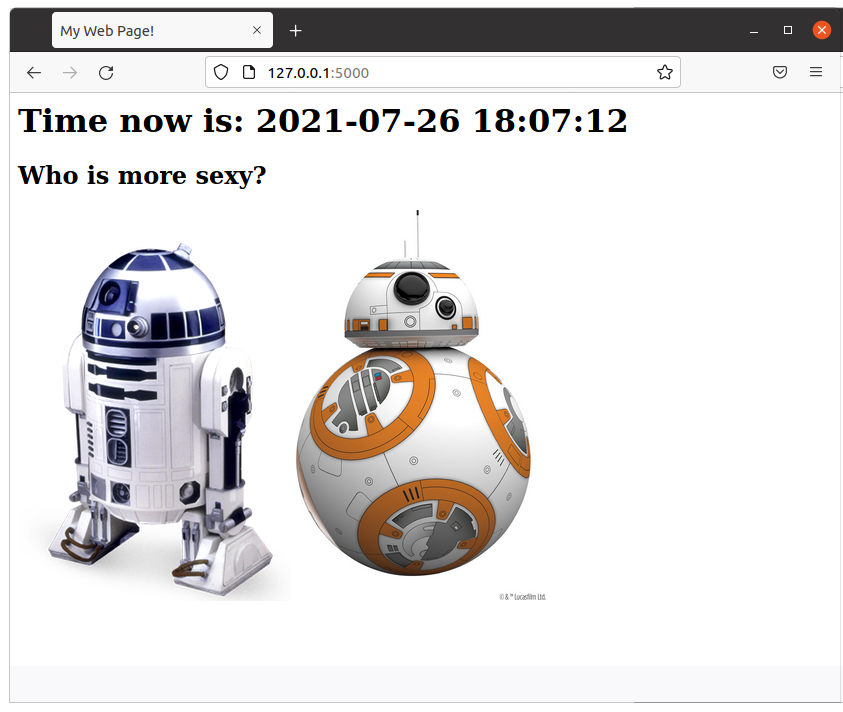
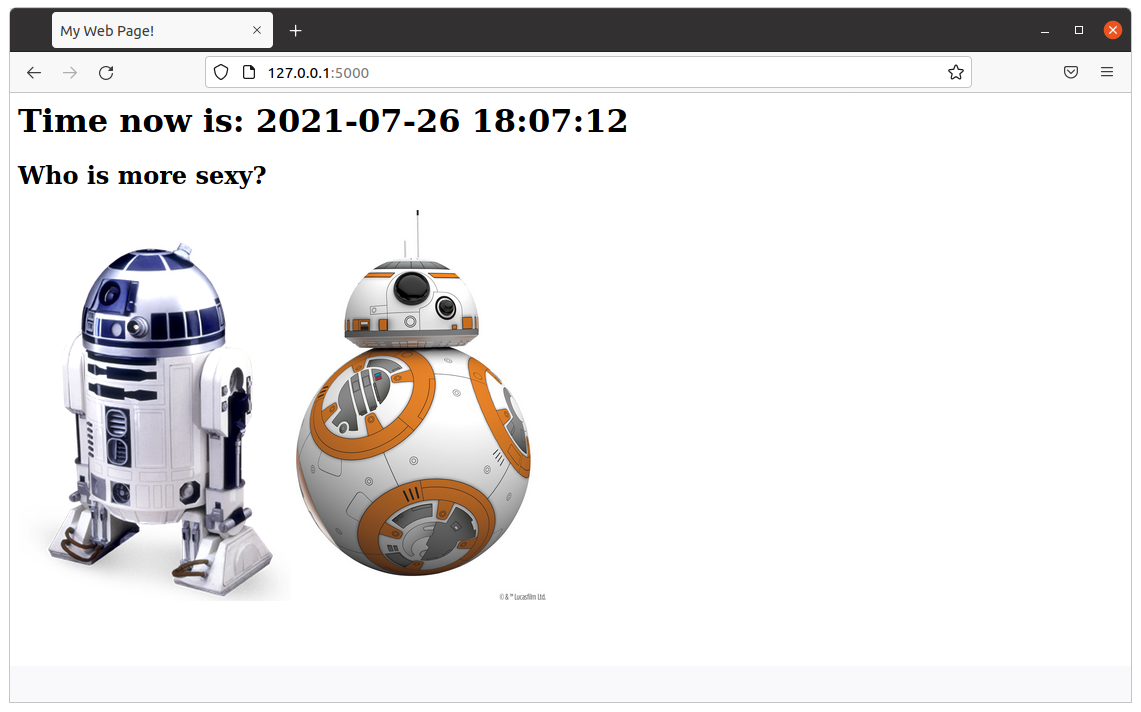
I added a new article about how to create a simple web Star Wars game using Flask. As always, I use Docker and a Dockerfile to automate the deployment, so you can test it without messing with your local system. The code is very simple and easy to understand.
This way I set an entry in /etc/hosts and I can do all the tests I want.
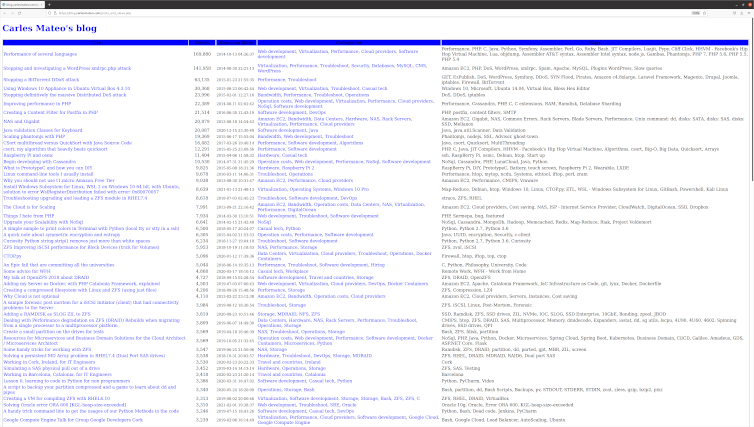
I added a new section to the blog, is a link where you can see all the articles published, ordered by number of views. /posts_and_views.php
Is in the main page, just after the recommended articles. Here you can see the source code.
I removed the Categories:
Storage
ZFS
In favor of:
Hardware
Storage
ZFS
So the articles with Categories in the group deleted were reassigned the Categories in the second group.
Visually:
I removed some annoying lines from the Quick Selection access. They came from inherited CSS properties from my WordPress, long time customized, and I created new styles for this section.
I adjusted the line-height to avoid separation between lines being too much.
I added a link in the section of Other Engineering Blogs that I like, to the great https://github.com/lesterchan site, author of many super cool WordPress plugins.
As you can see I use wp-config.php file to get the Database Settings (username, password, database) but I don’t use the WordPress Engine, it is just a stand alone PHP. So I wrote my own function to get the slug based on the category name. I believe the slug for it is in the Database and I could have added this as a SubQuery with JOINs, which would be better, but I wanted to keep the Database workload lightweight and especially, I did not want to invest more time investigating how the get the slug.
As I tested my function I didn’t find any Category failing but I saw that I had the Category Storage repeated in two different structure tree in Categories, and I will only always link to just the first one (So I was not linkin to the slug storage-2). I fixed that Category that I found repeated but to be honest if this script was a commercial solution or an Open Source solution properly maintained rather than just a sample, I would update it to have Categories and Tags’ slugs coming from the Database.
I would probably make it work with a Cron that would generate a cached page, updated every hour or every ten minutes. I did this in other projects I worked or in my PHP Framework Catalonia Framerwork.
But honestly, the load of the page does not justify a major effort in optimizing here, in this case.
<!DOCTYPE html>
<html>
<head>
    <style>
        .first {

            background-color: blue;
            padding: 12px;
        }
        .second {
            background-color: rgba(254, 253, 252, 0.7);
            text-align: center;
            padding:20px 0;
            font-size: 20px;
        }

        .centered {
            text-align: center;
        }

        /* unvisited link */
        a:link {
            color: blue;
            text-decoration: none;
        }

        /* visited link */
        a:visited {
            color: blue;
            text-decoration: none;
        }

        /* mouse over link */
        a:hover {
            color: #00A8EF;
            text-decoration: underline;
        }

        /* selected link */
        a:active {
            color: blue;
        }
    </style>
<body>
<?php

include "wp-config.php";

$s_site_name = "Carles Mateo's blog";
$s_site_link = "https://blog.carlesmateo.com";

function get_category_slug($s_text) {
    $s_output_text = strtolower($s_text);
    $s_output_text = str_replace(" ", "-", $s_output_text);

    return $s_output_text;
}

?>
<h1><a href="<?php print $s_site_link; ?>"><?php print($s_site_name); ?></a></h1>
<?php


$s_sort = "views DESC, post_date, post_title DESC";

if (array_key_exists("sort", $_GET)) {
    if ($_GET["sort"] == "date") {
        $s_sort = "post_date, views, post_title";
    }
}

$s_servername = "localhost";
$s_database = DB_NAME;
$s_username = DB_USER;
$s_password = DB_PASSWORD;


// Create connection
$o_conn = new mysqli($s_servername, $s_username, $s_password, $s_database);

// Check connection
if ($o_conn->connect_error) {
    die("Connection failed: " . $o_conn->connect_error);
}

/*
mysql> DESCRIBE wp_posts;
+-----------------------+-----------------+------+-----+---------------------+----------------+
| Field                 | Type            | Null | Key | Default             | Extra          |
+-----------------------+-----------------+------+-----+---------------------+----------------+
| ID                    | bigint unsigned | NO   | PRI | NULL                | auto_increment |
| post_author           | bigint unsigned | NO   | MUL | 0                   |                |
| post_date             | datetime        | NO   |     | 0000-00-00 00:00:00 |                |
| post_date_gmt         | datetime        | NO   |     | 0000-00-00 00:00:00 |                |
| post_content          | longtext        | NO   |     | NULL                |                |
| post_title            | text            | NO   |     | NULL                |                |
| post_excerpt          | text            | NO   |     | NULL                |                |
| post_status           | varchar(20)     | NO   |     | publish             |                |
| comment_status        | varchar(20)     | NO   |     | open                |                |
| ping_status           | varchar(20)     | NO   |     | open                |                |
| post_password         | varchar(255)    | NO   |     |                     |                |
| post_name             | varchar(200)    | NO   | MUL |                     |                |
| to_ping               | text            | NO   |     | NULL                |                |
| pinged                | text            | NO   |     | NULL                |                |
| post_modified         | datetime        | NO   |     | 0000-00-00 00:00:00 |                |
| post_modified_gmt     | datetime        | NO   |     | 0000-00-00 00:00:00 |                |
| post_content_filtered | longtext        | NO   |     | NULL                |                |
| post_parent           | bigint unsigned | NO   | MUL | 0                   |                |
| guid                  | varchar(255)    | NO   |     |                     |                |
| menu_order            | int             | NO   |     | 0                   |                |
| post_type             | varchar(20)     | NO   | MUL | post                |                |
| post_mime_type        | varchar(100)    | NO   |     |                     |                |
| comment_count         | bigint          | NO   |     | 0                   |                |
+-----------------------+-----------------+------+-----+---------------------+----------------+
 */

/*
mysql> describe wp_postmeta;
+------------+-----------------+------+-----+---------+----------------+
| Field      | Type            | Null | Key | Default | Extra          |
+------------+-----------------+------+-----+---------+----------------+
| meta_id    | bigint unsigned | NO   | PRI | NULL    | auto_increment |
| post_id    | bigint unsigned | NO   | MUL | 0       |                |
| meta_key   | varchar(255)    | YES  | MUL | NULL    |                |
| meta_value | longtext        | YES  |     | NULL    |                |
+------------+-----------------+------+-----+---------+----------------+
 */

$s_sql = "SELECT DISTINCT post_title, post_content,
                 (SELECT CAST(meta_value AS SIGNED) FROM wp_postmeta WHERE wp_postmeta.meta_key = 'views' AND wp_postmeta.post_id = wp_posts.ID) AS 'views',
                 (SELECT group_concat(wp_terms.name separator ',')
                         FROM wp_terms
                  INNER JOIN wp_term_taxonomy
                          ON wp_terms.term_id = wp_term_taxonomy.term_id
                  INNER JOIN wp_term_relationships wpr
                          ON wpr.term_taxonomy_id = wp_term_taxonomy.term_taxonomy_id
                  WHERE
                         taxonomy= 'category' AND wp_posts.ID = wpr.object_id
                ) AS 'Categories',
                (SELECT group_concat(wp_terms.name separator ', ')
                        FROM wp_terms
                 INNER JOIN wp_term_taxonomy
                         ON wp_terms.term_id = wp_term_taxonomy.term_id
                 INNER JOIN wp_term_relationships wpr
                         ON wpr.term_taxonomy_id = wp_term_taxonomy.term_taxonomy_id
                 WHERE
                        taxonomy= 'post_tag' AND wp_posts.ID = wpr.object_id
                ) AS 'Tags',
               ID, post_name, post_date, post_modified, post_type
          FROM wp_posts
          WHERE
                post_type = 'post' AND post_status = 'publish'
          ORDER BY
                $s_sort";

$o_result = $o_conn->query($s_sql);

if ($o_result->num_rows > 0) {
    ?><table style="border:1px solid">
    <tr class="first"><th>Title</th><th style="min-width:100px">Views</th><th style="min-width:150px">Creation Date</th><th>Categories</th><th>Tags</th></tr>

    <?php
    $i_total_views = 0;
    $i_articles = 0;

    // output data of each row
    while($row = $o_result->fetch_assoc()) {
        $s_style='style="border:1px solid"';
        $s_style='';
        $s_url = $row['post_name'];
        print('<tr>');
        print("<td $s_style>");
        print('<a href="'.$s_url.'" target="_blank">');
        print($row["post_title"]);
        print('</a>');
        print("</td>");
        print('<td class="centered" '.$s_style.'>');
        print(number_format($row["views"]));
        print("</td>");
        print("<td $s_style>");
        print("<small>");
        print($row["post_date"]);
        print("</small>");
        print("</td>");
        print("<td $s_style>");
        $s_categories = $row["Categories"];
        $a_categories = explode (",", $s_categories);
        $s_categories_content = "";
        foreach($a_categories as $s_category) {
            $s_category_slug = "/category/".get_category_slug($s_category)."/";
            $s_categories_content = $s_categories_content .'<a href="'.$s_category_slug.'" target="_blank">';
            $s_categories_content = $s_categories_content .$s_category;
            $s_categories_content = $s_categories_content ."</a>, ";
        }

        if (strlen($s_categories_content) > 0) {
            $s_categories_content = substr($s_categories_content, 0, -2);
        }

        print($s_categories_content);
        print("</td>");
        print("<td $s_style>");
        print($row["Tags"]);
        print("</td>");
        // $row["post_content"];
        $i_total_views = $i_total_views + intval($row["views"]);
        $i_articles++;
        echo "</tr>";
    } ?></table><?php
    print("<strong>Total articles:</strong> ".number_format($i_articles)." <strong>Total Views:</strong> ".number_format($i_total_views));
    print("<br>");
} else {
    echo "<p>0 results</p>";
}
$o_conn->close();

?>
</body>
</html>
After Docker Image flask_app is built, you can run a Docker Container based on it with:
sudo docker run -d -p 5000:5000 --name flask_app flask_app
After you’re done, in order to stop the Container type:
sudo docker stop flask_app
Here is the source code of the Python file flask_app.py:
#
# flask_app.py
#
# Author: Carles Mateo
# Creation Date: 2020-05-10 20:50 GMT+1
# Description: A simple Flask Web Application
#              Part of the samples of https://leanpub.com/pythoncombatguide
#              More source code for the book at https://gitlab.com/carles.mateo/python_combat_guide
#

from flask import Flask
import datetime


def get_datetime(b_milliseconds=False):
    """
    Return the datetime with miliseconds in format YYYY-MM-DD HH:MM:SS.xxxxx
    or without milliseconds as YYYY-MM-DD HH:MM:SS
    """
    if b_milliseconds is True:
        s_now = str(datetime.datetime.now())
    else:
        s_now = str(datetime.datetime.now().strftime("%Y-%m-%d %H:%M:%S"))

    return s_now


app = Flask(__name__)

# Those variables will keep their value as long as Flask is running
i_votes_r2d2 = 0
i_votes_bb8 = 0


@app.route('/')
def page_root():
    s_page = "<html>"
    s_page += "<title>My Web Page!</title>"
    s_page += "<body>"
    s_page += "<h1>Time now is: " + get_datetime() + "</h1>"
    s_page += """<h2>Who is more sexy?</h2>
<a href="r2d2"><img src="static/r2d2.png"></a> <a href="bb8"><img width="250" src="static/bb8.jpg"></a>"""
    s_page += "</body>"
    s_page += "</html>"

    return s_page


@app.route('/bb8')
def page_bb8():
    global i_votes_bb8

    i_votes_bb8 = i_votes_bb8 + 1

    s_page = "<html>"
    s_page += "<title>My Web Page!</title>"
    s_page += "<body>"
    s_page += "<h1>Time now is: " + get_datetime() + "</h1>"
    s_page += """<h2>BB8 Is more sexy!</h2>
                <img width="250" src="static/bb8.jpg">"""
    s_page += "<p>I have: " + str(i_votes_bb8) + "</p>"
    s_page += "</body>"
    s_page += "</html>"

    return s_page


@app.route('/r2d2')
def page_r2d2():
    global i_votes_r2d2

    i_votes_r2d2 = i_votes_r2d2 + 1

    s_page = "<html>"
    s_page += "<title>My Web Page!</title>"
    s_page += "<body>"
    s_page += "<h1>Time now is: " + get_datetime() + "</h1>"
    s_page += """<h2>R2D2 Is more sexy!</h2>
                <img src="static/r2d2.png">"""
    s_page += "<p>I have: " + str(i_votes_r2d2) + "</p>"
    s_page += "</body>"
    s_page += "</html>"

    return s_page


if __name__ == "__main__":
    app.run(host="0.0.0.0", port=5000, debug=True)
As always, the naming of the variables is based on MT Notation.
The Dockerfile is very straightforward:
FROM ubuntu:20.04

MAINTAINER Carles Mateo

ARG DEBIAN_FRONTEND=noninteractive

RUN apt update && \
    apt install -y vim python3-pip &&  pip3 install pytest && \
    apt-get clean

ENV PYTHON_COMBAT_GUIDE /var/python_combat_guide

RUN mkdir -p $PYTHON_COMBAT_GUIDE

COPY ./ $PYTHON_COMBAT_GUIDE

ENV PYTHONPATH "${PYTHONPATH}:$PYTHON_COMBAT_GUIDE/src/:$PYTHON_COMBAT_GUIDE/src/lib"

RUN pip3 install -r $PYTHON_COMBAT_GUIDE/requirements.txt

# This is important so when executing python3 -m current directory will be added to Syspath
# Is not necessary, as we added to PYTHONPATH
#WORKDIR $PYTHON_COMBAT_GUIDE/src/lib

EXPOSE 5000

# Launch our Flask Application
CMD ["/usr/bin/python3", "/var/python_combat_guide/src/flask_app.py"]
I’ve released v. 0.99 of carleslibs package This package includes utilities for:
Files and Directories handling
Date/Time retrieval
Python version detection
You can install it with:
pip install carleslibs
The minimum requirement declared is Python 3.6, although they work with Python 3.5 and Python 2.7, as I want to drop support for no longer supported versions.
If you are enrolled with Linux Academy, I recommend you this Python course: Python 3 Scripting for System Administrators https://linuxacademy.com/cp/modules/view/id/168 Does not cover OOP, but it does a bit of Unit Testing, and talks a lot about PIP and Virtual Environments.
However we are going to run everything from a Docker Container so the only thing you need is to have installed Docker.
If you prefer to install MySql in your computer (or Virtual Box instance) directly, skip the Docker steps.
Dockerfile
The Dockerfile is the file that Docker uses to build the Docker Container.
Ours is like that:
FROM ubuntu:20.04

MAINTAINER Carles Mateo

ARG DEBIAN_FRONTEND=noninteractive

RUN apt update && apt install -y python3 pip mysql-server vim mc wget curl && apt-get clean

RUN pip install mysql-connector-python

EXPOSE 3306

ENV FOLDER_PROJECT /var/mysql_carles

RUN mkdir -p $FOLDER_PROJECT

COPY docker_run_mysql.sh $FOLDER_PROJECT
COPY start.sql $FOLDER_PROJECT
COPY src $FOLDER_PROJECT

RUN chmod +x /var/mysql_carles/docker_run_mysql.sh

CMD ["/var/mysql_carles/docker_run_mysql.sh"]
The first line defines that we are going to use Ubuntu 20.04 (it’s a LTS version).
We install all the apt packages in a single line, as Docker works in layers, and what is used as disk space in the previous layer is not deleted even if we delete the files, so we want to run apt update, install all the packages, and clean the temporal files in one single step.
I also install some useful tools like: vim, mc, less, wget and curl.
We expose to outside the port 3306, in case you want to run the Python code from your computer, but having the MySql in the Container.
The last line executes a script that starts the MySql service, creates the table, the user, and add two rows and runs an infinite loop so the Docker does not finish.
build_docker.sh
build_docker.sh is a Bash script that builds the Docker Image for you very easily.
It stops the container and removes the previous image, so your hard drive does not fill with Docker images if you do modifications.
It checks for errors building and it also remembers you how to run and debug the Docker Container.
#!/bin/bash

# Execute with sudo

s_DOCKER_IMAGE_NAME="blog_carlesmateo_com_mysql"

printf "Stopping old image %s\n" "${s_DOCKER_IMAGE_NAME}"
sudo docker stop "${s_DOCKER_IMAGE_NAME}"

printf "Removing old image %s\n" "${s_DOCKER_IMAGE_NAME}"
sudo docker rm "${s_DOCKER_IMAGE_NAME}"

printf "Creating Docker Image %s\n" "${s_DOCKER_IMAGE_NAME}"
sudo docker build -t ${s_DOCKER_IMAGE_NAME} . --no-cache

i_EXIT_CODE=$?
if [ $i_EXIT_CODE -ne 0 ]; then
    printf "Error. Exit code %s\n" ${i_EXIT_CODE}
    exit
fi

echo "Ready to run ${s_DOCKER_IMAGE_NAME} Docker Container"
echo "To run type: sudo docker run -d -p 3306:3306 --name ${s_DOCKER_IMAGE_NAME} ${s_DOCKER_IMAGE_NAME}"
echo "or just use run_in_docker.sh"
echo
echo "Debug running Docker:"
echo "docker exec -it ${s_DOCKER_IMAGE_NAME} /bin/bash"
echo
docker_run.sh
I also provide a script named docker_run.sh that runs your Container easily, exposing the MySql port.
#!/bin/bash

# Execute with sudo

s_DOCKER_IMAGE_NAME="blog_carlesmateo_com_mysql"

docker run -d -p 3306:3306 --name ${s_DOCKER_IMAGE_NAME} ${s_DOCKER_IMAGE_NAME}

echo "Showing running Instances"
docker ps
As you saw before I named the image after blog_carlesmateo_com_mysql.
I did that so basically I wanted to make sure that the name was unique, as the build_docker.sh deletes an image named like the name I choose, I didn’t want to use a generic name like “mysql” that may lead to you to delete the Docker Image inadvertently.
docker_run_mysql.sh
This script will run when the Docker Container is launched for the first time:
#!/bin/bash

# Allow to be queried from outside
sed -i '31 s/bind-address/#bind-address/' /etc/mysql/mysql.conf.d/mysqld.cnf

service mysql start

# Create a Database, a user with password, and permissions
cd /var/mysql_carles
mysql -u root < start.sql

while [ true ]; do sleep 60; done
With sed command we modify the line 31 of the the MySQL config file so we can connect from Outside the Docker Instance (bind-address: 127.0.0.1)
As you can see it executes the SQL contained in the file start.sql as root and we start MySql.
Please note: Our MySql installation has not set a password for root. It is only for Development purposes.
start.sql
The SQL file that will be ran inside our Docker Container.
CREATE DATABASE carles_database;

CREATE USER 'python'@'localhost' IDENTIFIED BY 'blog.carlesmateo.com-db-password';
CREATE USER 'python'@'%' IDENTIFIED BY 'blog.carlesmateo.com-db-password';
GRANT ALL PRIVILEGES ON carles_database.* TO 'python'@'localhost';
GRANT ALL PRIVILEGES ON carles_database.* TO 'python'@'%';

USE carles_database;

CREATE TABLE car_queue (
    i_id_car int,
    s_model_code varchar(25),
    s_color_code varchar(25),
    s_extras varchar(100),
    i_right_side int,
    s_city_to_ship varchar(25)
);

INSERT INTO car_queue (i_id_car, s_model_code, s_color_code, s_extras, i_right_side, s_city_to_ship) VALUES (1, "GOLF2021", "BLUE7", "COND_AIR, GPS, MULTIMEDIA_V3", 0, "Barcelona");
INSERT INTO car_queue (i_id_car, s_model_code, s_color_code, s_extras, i_right_side, s_city_to_ship) VALUES (2, "GOLF2021_PLUGIN_HYBRID", "BLUEMETAL_5", "COND_AIR, GPS, MULTIMEDIA_V3, SECURITY_V5", 1, "Cork");
As you can see it creates the user “python” with the password ‘blog.carlesmateo.com-db-password’ for access local and remote (%).
It also creates a Database named carles_database and grants all the permissions to the user “python”, for local and remote.
This is the user we will use to authenticate from out Python code.
Then we switch to use the carles_database and we create the car_queue table.
We insert two rows, as an example.
select_values_example.py
Finally the Python code that will query the Database.
import mysql.connector

if __name__ == "__main__":
    o_conn = mysql.connector.connect(user='python', password='blog.carlesmateo.com-db-password', database='carles_database')
    o_cursor = o_conn.cursor()

    s_query = "SELECT * FROM car_queue"

    o_cursor.execute(s_query)

    for a_row in o_cursor:
        print(a_row)

    o_cursor.close()
    o_conn.close()
Nothing special, we open a connection to the MySql and perform a query, and parse the cursor as rows/lists.
Please note: Error control is disabled so you may see any exception.
Executing the Container
First step is to build the Container.
From the directory where you cloned the project, execute:
sudo ./build_docker.sh
Then run the Docker Container:
sudo ./docker_run.sh
The script also performs a docker ps command, so you can see that it’s running.
Then change to the directory where I installed the sample files:
cd /var/mysql_carles
And execute the Python 3 example:
python3 select_values_example.py
Tying together MySql and a Python Menu with Object Oriented Programming
In order to tie all together, and specially to give a consistent view to my students, to avoid showing only pieces but a complete program, and to show a bit of Objects Oriented in action I developed a small program which simulates the handling of a production queue for Volkswagen.
MySQL Library
First I created a library to handle MySQL operations.
lib/mysqllib.py
import mysql.connector


class MySql():

    def __init__(self, s_user, s_password, s_database, s_host="127.0.0.1", i_port=3306):
        self.s_user = s_user
        self.s_password = s_password
        self.s_database = s_database
        self.s_host = s_host
        self.i_port = i_port

        o_conn = mysql.connector.connect(host=s_host, port=i_port, user=s_user, password=s_password, database=s_database)
        self.o_conn = o_conn

    def query(self, s_query):
        a_rows = []

        o_cursor = self.o_conn.cursor()

        o_cursor.execute(s_query)

        for a_row in o_cursor:
            a_rows.append(a_row)

        o_cursor.close()

        return a_rows

    def insert(self, s_query):

        o_cursor = self.o_conn.cursor()

        o_cursor.execute(s_query)
        i_inserted_row_count = o_cursor.rowcount

        # Make sure data is committed to the database
        self.o_conn.commit()

        return i_inserted_row_count

    def delete(self, s_query):

        o_cursor = self.o_conn.cursor()

        o_cursor.execute(s_query)
        i_deleted_row_count = o_cursor.rowcount

        # Make sure data is committed to the database
        self.o_conn.commit()

        return i_deleted_row_count


    def close(self):

        self.o_conn.close()
Basically when this class is instantiated, a new connection to the MySQL specified in the Constructor is established.
We have a method query() to send SELECT queries.
We have a insert method, to send INSERT, UPDATE queries that returns the number of rows affected.
This method ensures to perform a commit to make sure changes persist.
We have a delete method, to send DELETE Sql queries that returns the number of rows deleted.
We have a close method which closes the MySql connection.
A Data Object: CarDO
Then I’ve defined a class, to deal with Data and interactions of the cars.
Initially I was going to have a CarDO Object without any logic. Only with Data.
In OOP the variables of the Instance are called Properties, and the functions Methods.
Then I decided to add some logic, so I can show what’s the typical use of the objects.
So I will use CarDO as Data Object, but also to do few functions like printing the info of a Car.
Queue Manager
Finally the main program.
We also use Object Oriented Programming, and we use Dependency Injection to inject the MySQL Instance. That’s very practical to do Unit Testing.
from lib.mysqllib import MySql
from do.cardo import CarDO


class QueueManager():

    def __init__(self, o_mysql):
        self.o_mysql = o_mysql

    def exit(self):
        exit(0)

    def main_menu(self):
        while True:
            print("Main Menu")
            print("=========")
            print("")
            print("1. Add new car to queue")
            print("2. List all cars to queue")
            print("3. View car by Id")
            print("4. Delete car from queue by Id")
            print("")
            print("0. Exit")
            print("")

            s_option = input("Choose your option:")
            if s_option == "1":
                self.add_new_car()
            if s_option == "2":
                self.see_all_cars()
            if s_option == "3":
                self.see_car_by_id()
            if s_option == "4":
                self.delete_by_id()

            if s_option == "0":
                self.exit()

    def get_all_cars(self):
        s_query = "SELECT * FROM car_queue"

        a_rows = self.o_mysql.query(s_query)
        a_o_cars = []

        for a_row in a_rows:
            i_id_car = a_row[0]
            s_model_code = a_row[1]
            s_color_code = a_row[2]
            s_extras = a_row[3]
            i_right_side = a_row[4]
            s_city_to_ship = a_row[5]

            o_car = CarDO(i_id_car=i_id_car, s_model_code=s_model_code, s_color_code=s_color_code, s_extras=s_extras, i_right_side=i_right_side, s_city_to_ship=s_city_to_ship)
            a_o_cars.append(o_car)

        return a_o_cars

    def get_car_by_id(self, i_id_car):
        b_success = False
        o_car = None

        s_query = "SELECT * FROM car_queue WHERE i_id_car=" + str(i_id_car)

        a_rows = self.o_mysql.query(s_query)

        if len(a_rows) == 0:
            # False, None
            return b_success, o_car

        i_id_car = a_rows[0][0]
        s_model_code = a_rows[0][1]
        s_color_code = a_rows[0][2]
        s_extras = a_rows[0][3]
        i_right_side = a_rows[0][4]
        s_city_to_ship = a_rows[0][5]

        o_car = CarDO(i_id_car=i_id_car, s_model_code=s_model_code, s_color_code=s_color_code, s_extras=s_extras, i_right_side=i_right_side, s_city_to_ship=s_city_to_ship)
        b_success = True

        return b_success, o_car

    def replace_apostrophe(self, s_text):
        return s_text.replace("'", "´")

    def insert_car(self, o_car):

        s_sql = """INSERT INTO car_queue
                                (i_id_car, s_model_code, s_color_code, s_extras, i_right_side, s_city_to_ship)
                         VALUES
                                (""" + str(o_car.get_i_id_car()) + ", '" + o_car.get_s_model_code() + "', '" + o_car.get_s_color_code() + "', '" + o_car.get_s_extras() + "', " + str(o_car.get_i_right_side()) + ", '" + o_car.get_s_city_to_ship() + "');"

        i_inserted_row_count = self.o_mysql.insert(s_sql)

        if i_inserted_row_count > 0:
            print("Inserted", i_inserted_row_count, " row/s")
            b_success = True
        else:
            print("It was impossible to insert the row")
            b_success = False

        return b_success

    def add_new_car(self):
        print("Add new car")
        print("===========")

        while True:
            s_id_car = input("Enter new ID: ")
            if s_id_car == "":
                print("A numeric Id is needed")
                continue

            i_id_car = int(s_id_car)

            if i_id_car < 1:
                continue

            # Check if that id existed already
            b_success, o_car = self.get_car_by_id(i_id_car=i_id_car)
            if b_success is False:
                # Does not exist
                break

            print("Sorry, this Id already exists")

        s_model_code = input("Enter Model Code:")
        s_color_code = input("Enter Color Code:")
        s_extras = input("Enter extras comma separated:")
        s_right_side = input("Enter R for Right side driven:")
        if s_right_side.upper() == "R":
            i_right_side = 1
        else:
            i_right_side = 0
        s_city_to_ship = input("Enter the city to ship the car:")

        # Sanitize SQL replacing apostrophe
        s_model_code = self.replace_apostrophe(s_model_code)
        s_color_code = self.replace_apostrophe(s_color_code)
        s_extras = self.replace_apostrophe(s_extras)
        s_city_to_ship = self.replace_apostrophe(s_city_to_ship)

        o_car = CarDO(i_id_car=i_id_car, s_model_code=s_model_code, s_color_code=s_color_code, s_extras=s_extras, i_right_side=i_right_side, s_city_to_ship=s_city_to_ship)
        b_success = self.insert_car(o_car)

    def see_all_cars(self):
        print("")

        a_o_cars = self.get_all_cars()

        if len(a_o_cars) > 0:
            print(a_o_cars[0].get_car_header_for_list())
        else:
            print("No cars in queue")
            print("")
            return

        for o_car in a_o_cars:
            print(o_car.get_car_info_for_list())

        print("")

    def see_car_by_id(self, i_id_car=0):
        if i_id_car == 0:
            s_id = input("Car Id:")
            i_id_car = int(s_id)

        s_id_car = str(i_id_car)

        b_success, o_car = self.get_car_by_id(i_id_car=i_id_car)
        if b_success is False:
            print("Error, car id: " + s_id_car + " not located.")
            return False

        print("")
        o_car.print_car_info()
        print("")

        return True

    def delete_by_id(self):

        s_id = input("Enter Id of car to delete:")
        i_id_car = int(s_id)

        if i_id_car == 0:
            print("Invalid Id")
            return

        # reuse see_car_by_id
        b_found = self.see_car_by_id(i_id_car=i_id_car)
        if b_found is False:
            return

        s_delete = input("Are you sure you want to DELETE. Type Y to delete: ")
        if s_delete.upper() == "Y":
            s_sql = "DELETE FROM car_queue WHERE i_id_car=" + str(i_id_car)
            i_num = self.o_mysql.delete(s_sql)

            print(i_num, " Rows deleted")

            # if b_success is True:
            #     print("Car deleted successfully from the queue")


if __name__ == "__main__":

    try:

        o_mysql = MySql(s_user="python", s_password="blog.carlesmateo.com-db-password", s_database="carles_database", s_host="127.0.0.1", i_port=3306)

        o_queue_manager = QueueManager(o_mysql=o_mysql)
        o_queue_manager.main_menu()
    except KeyboardInterrupt:
        print("Detected CTRL + C. Exiting")
This program talks to MySQL, that we have started in a Docker previously.
We have access from inside the Docker Container, or from outside.
The idea of this simple program is to use a library for dealing with MySql, and objects for dealing with the Cars. The class CarDO contributes to the render of its data in the screen.
To enter inside the Docker once you have generated it and is running, do:
Google Instances’ Performance I’ve updated the CMIPS score for the latest Google instances vs last Amazon’s I tried and baremetals.
I’ve updated my book Python Combat Guide, version 0.99 has already 365 pages DIN-A4.
This is the changelog for latest version:
v. 0.99
 A whole new chapter showing sorting in Python and lambdas. (.sort() and sorted() package First)

 I show writing lambdas for Sorting, and also what makes them crash.

 Explained why Lambdas are not recommended unless you use for working with data, like for sorting or filtering out, and unless you know what you are doing. They are difficult to Debug.

 Explained about PEP8 tool to validate style.

 Explaining why we define Instance variables in the Constructor.

 Provided more samples for Flask Applications.

 Fixed code sample https://gitlab.com/carles.mateo/python_combat_guide/-/blob/master/src/keywords.py as the editor removed the white line spaces.

 Added more books to the bibliography

 I explain the importance of running Unit Testing as both root and as regular users.

 Explain how to run as regular user inside a Docker Container.

 Explained requirements.txt file. And how integrates PyCharm to create venv/ Virtual Environment.

 Also how it is used in Dockerfile to make sure all the dependencies are satisfied in the Docker Container.
I’ve seen an increment in pirate attacks that potentially causes lost of lives.
In Ireland that ransomware leave KO the hospital. Some of my older friends that require blood analysis cannot do in their hospital because is completely out of business. Their systems are down due to the ransomware. If you miss that, two newspaper articles:
This video by Mark Richards writer of Fundamentals of Software Architecture book, about Microservices vs Service Based Architecture is very interesting and short.
Just a bit of common sense and light about complexity in projects, and moving out from the monolith.
Obviously for companies is a must, but if you work in your own projects, it will be super great that you configure Jenkins, so you have continuous feedback about if something breaks.
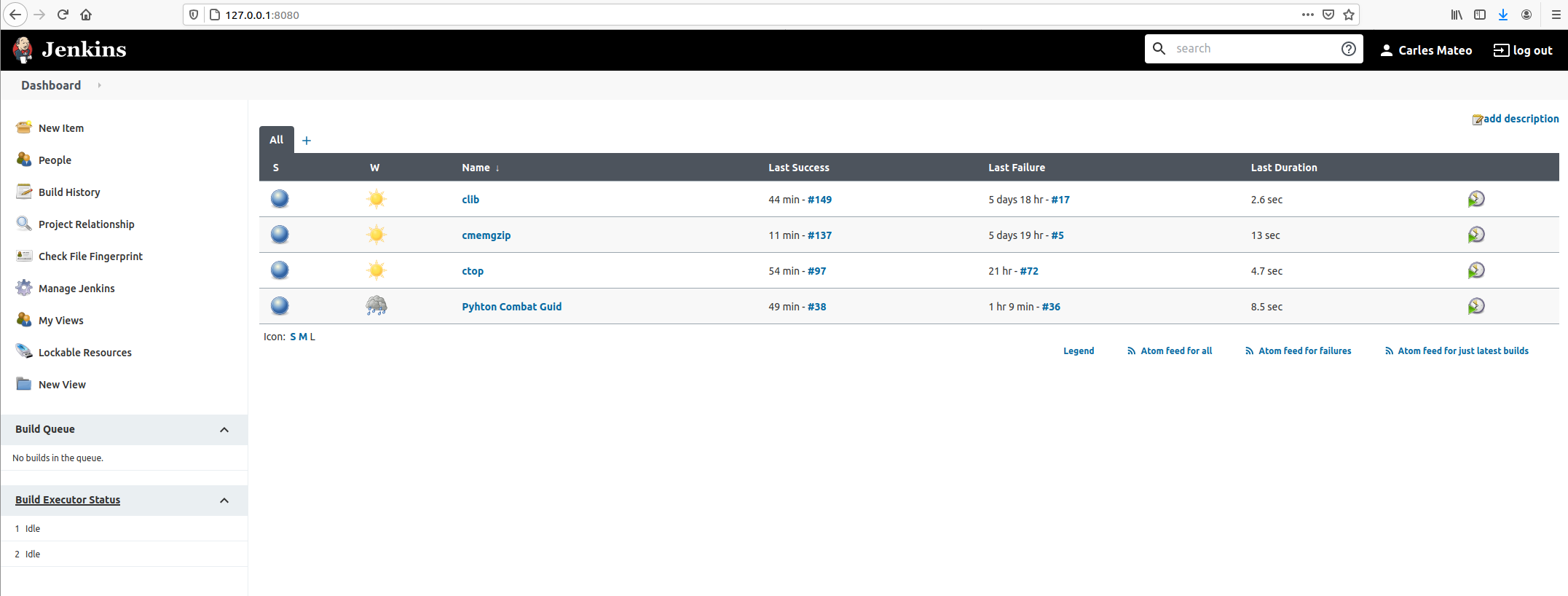
I’ll show you how to configure Jenkins for several projects using only your main computer/laptop.
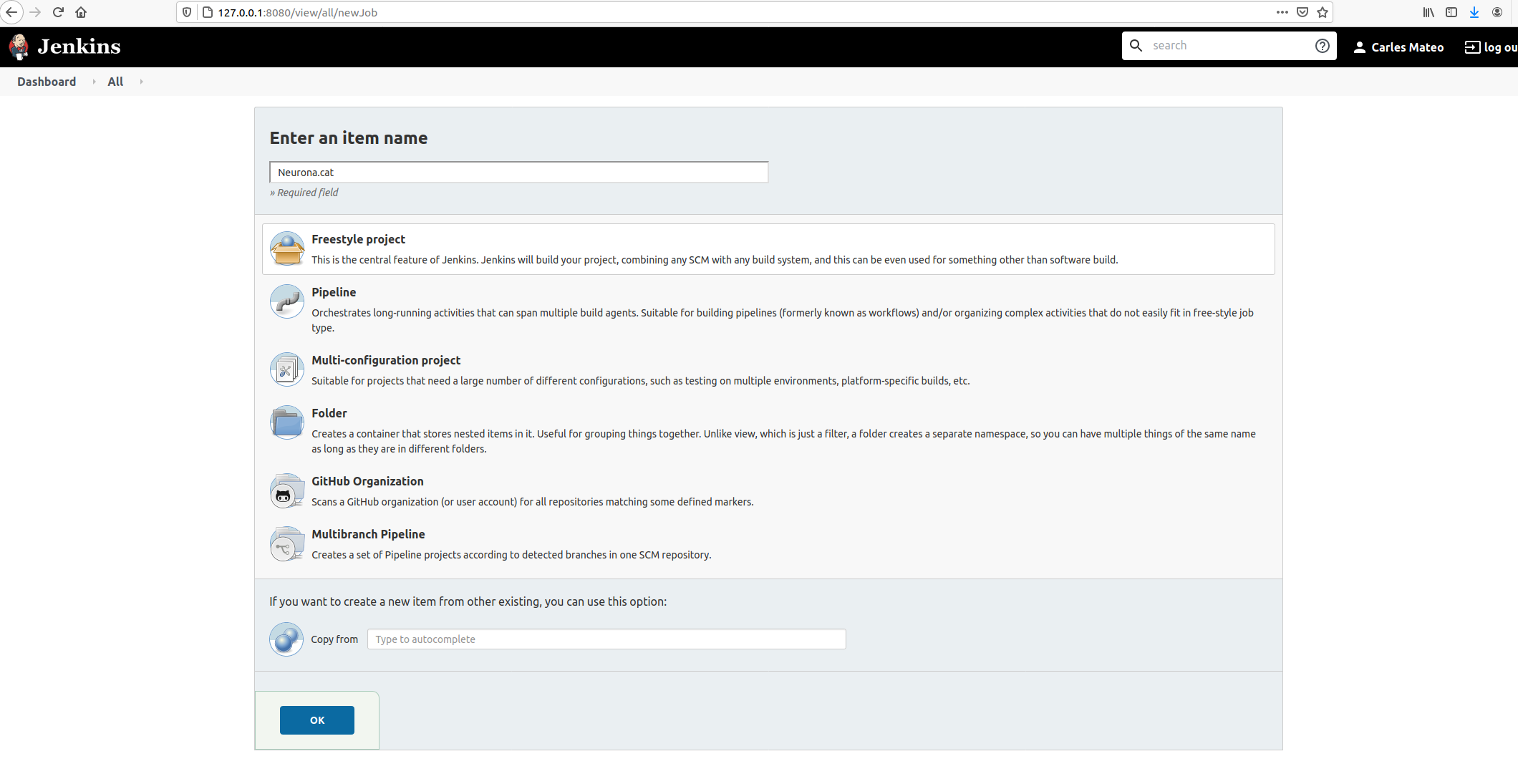
Then give it an appropriate name and choose Freestyle Project.
Take in count that the name given will be used as the name of the workspace, so you may want to avoid special characters.
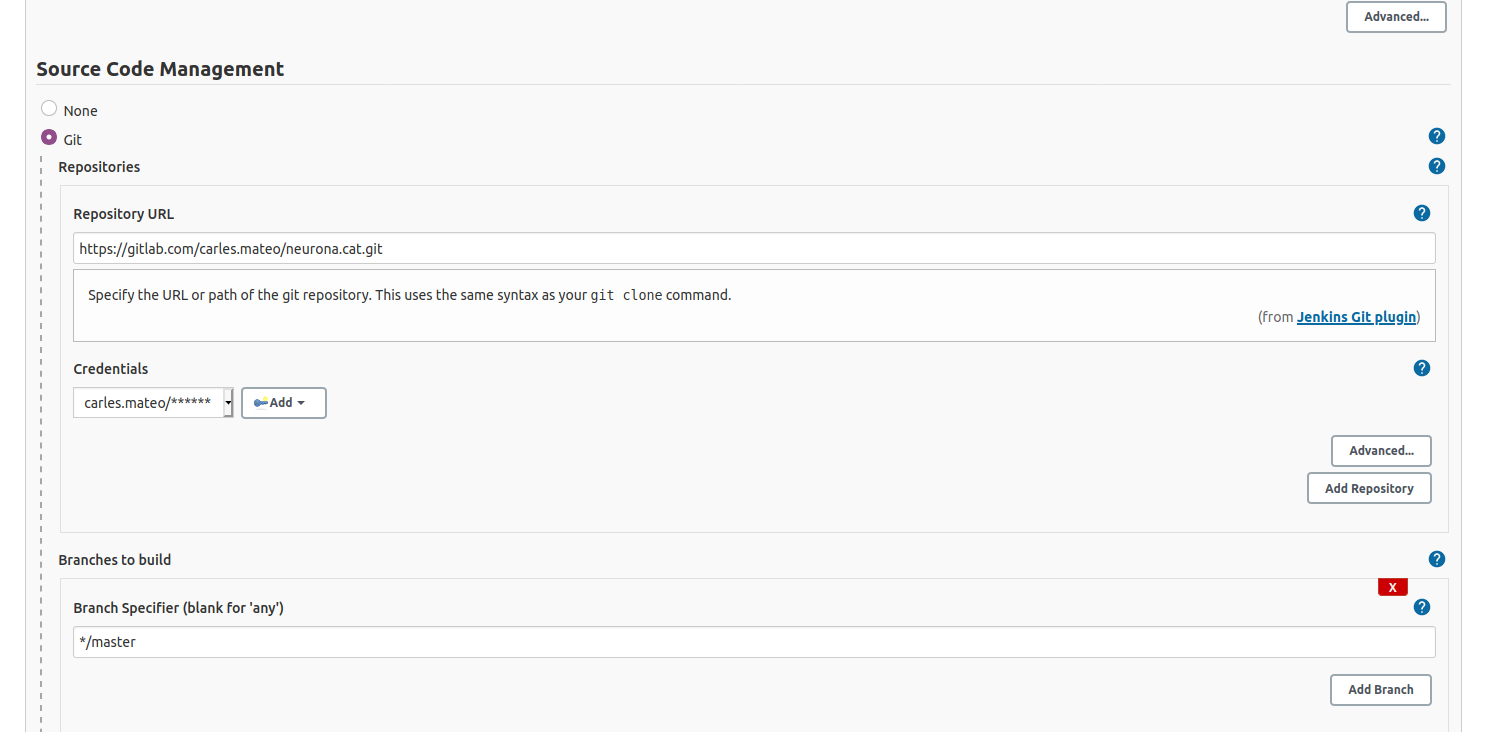
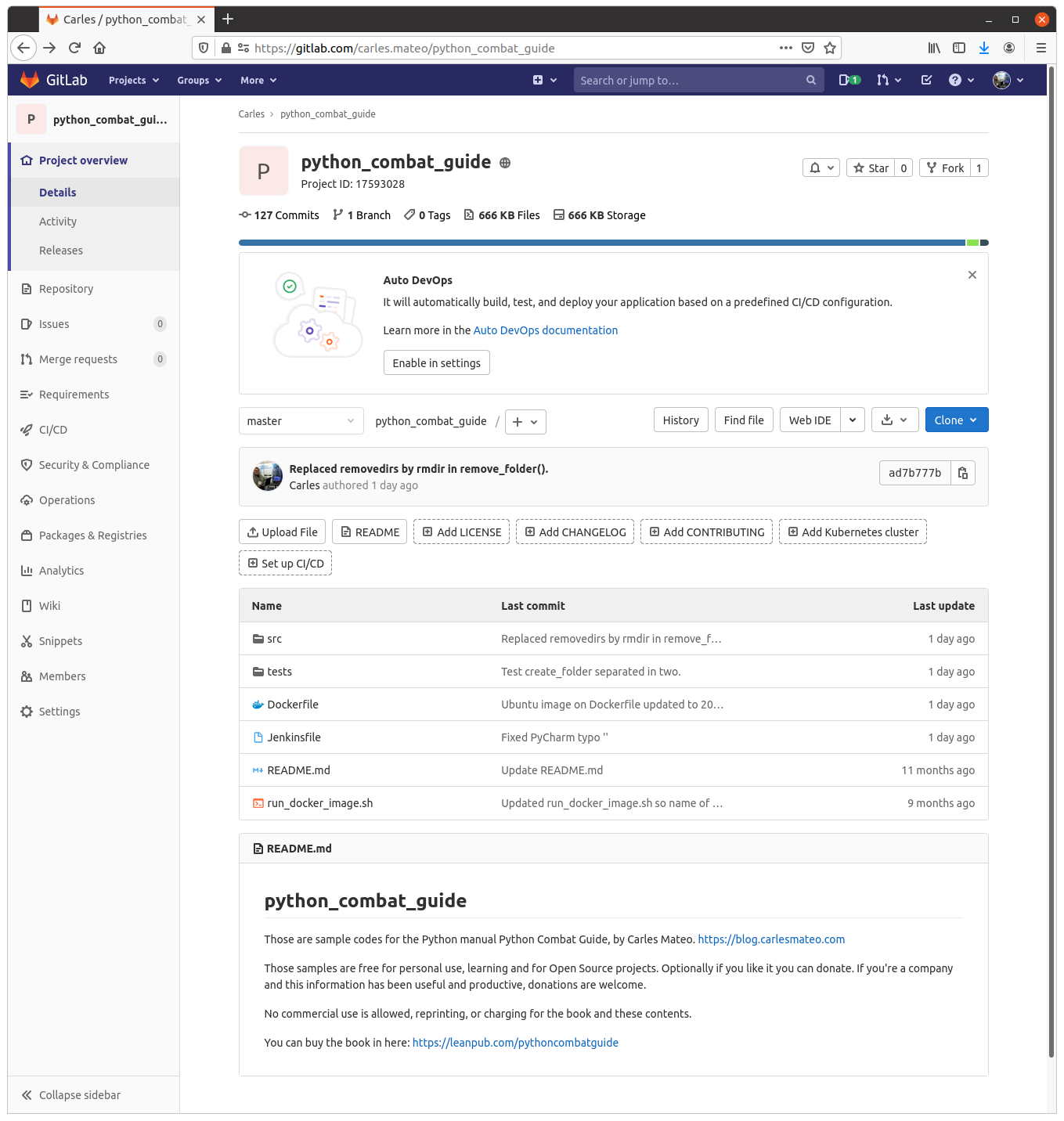
It is very convenient to let Jenkins deal with your repository changes instead of using shell commands. So I’m going to fill this section.
I also provided credentials, so Jenkins can log to my Gitlab.
This kind of project is the most simple and we will use the same Docker Container where Jenkins resides, to run the Unit Testing of our code.
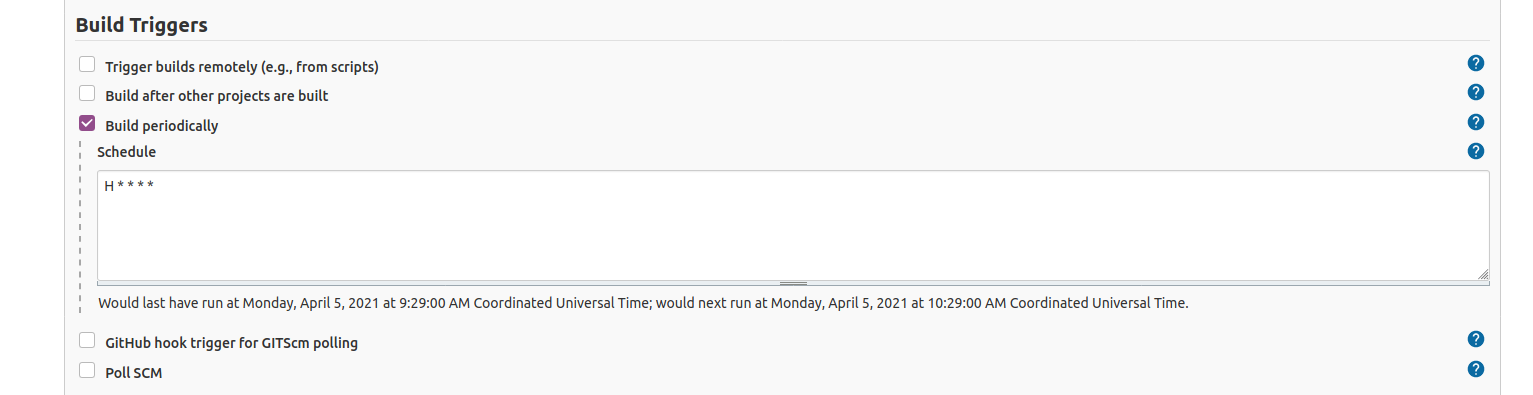
We are going to select to Build periodically.
If your Server is in Internet, you can active the Web Hooks so your Jenkins is noticed via a web connection from GitLab, GitHub or your CVS provider. As I’m strictly running this at home, Jenkins will be periodically check for changes in the repository and do nothing if there are no changes.
I’ll set H * * * * so Jenkins will try every hour.
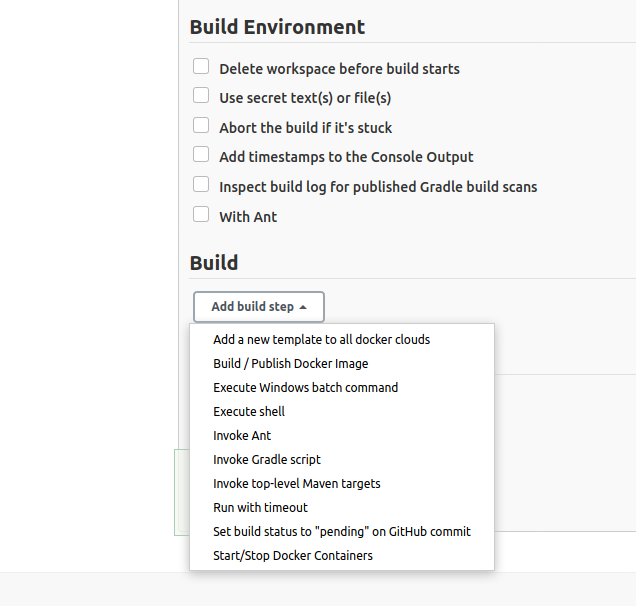
Go down and select Add Build Step:
Select Execute shell.
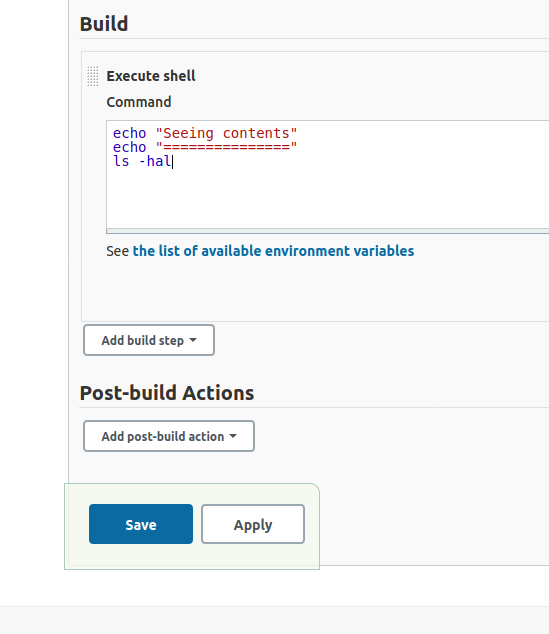
Then add a basic echo command to print in the Console Output, and ls command so you see what is in the default’s directory your shell script is executing in.
Now save your project.
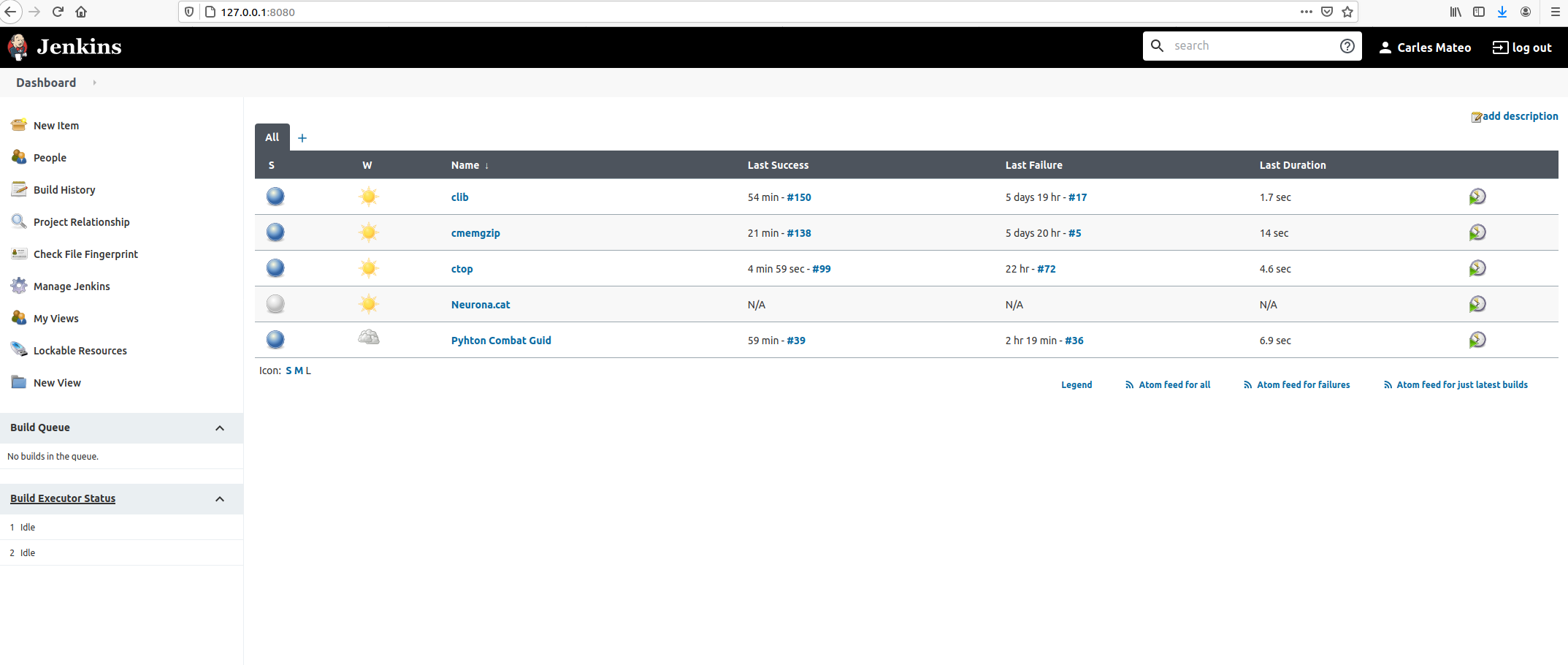
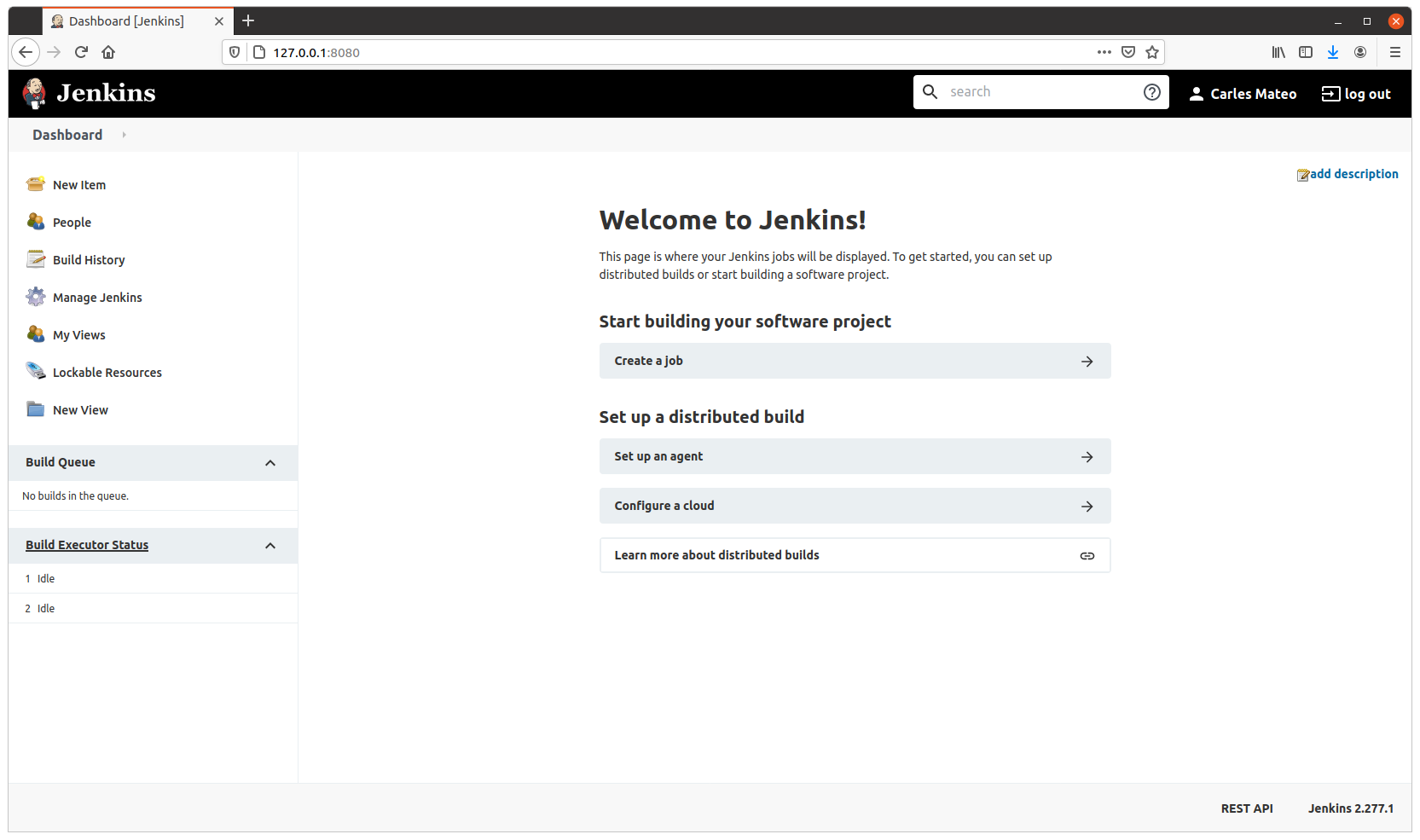
And go back to Dashboard.
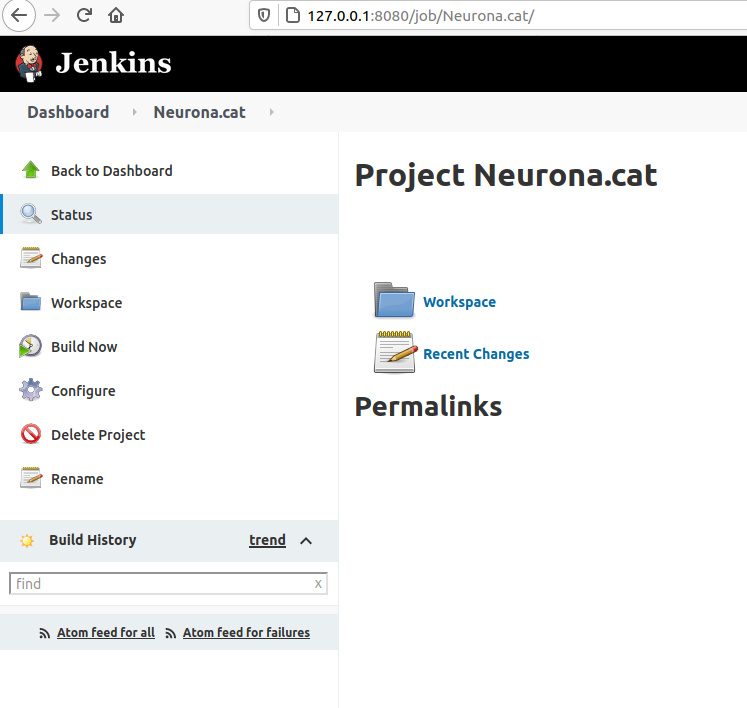
Click inside of Neurona.cat to view Project’s Dashboard.
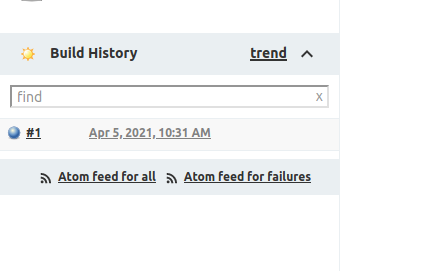
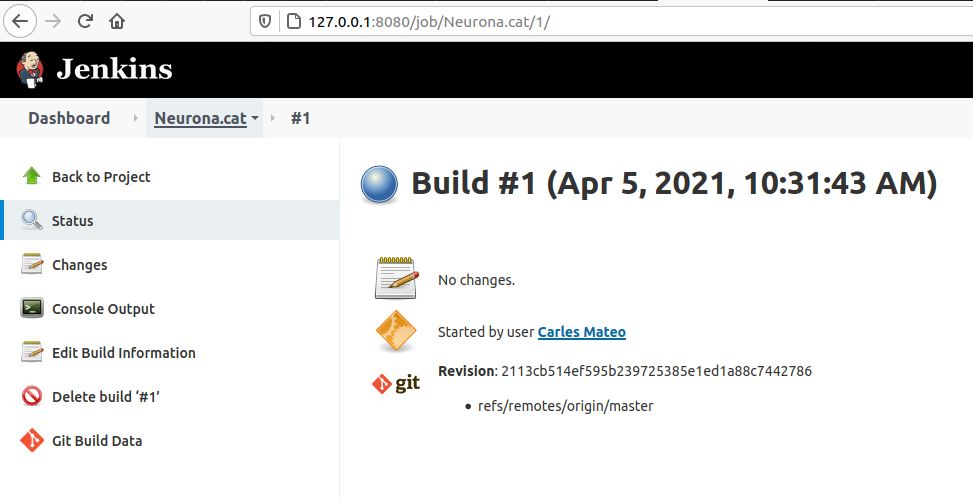
Click: Build Now. And then click on the Build task (Apr 5, 2021, 10:31 AM)
Click on Console Output.
You’ll see a verbose log of everything that happened.
You’ll see for example that Jenkins has put the script on the path of the git project folder that we instructed before to clone/pull.
This example doesn’t have test. Let’s see one with Unit Test.
Running Unit Testing with pytest
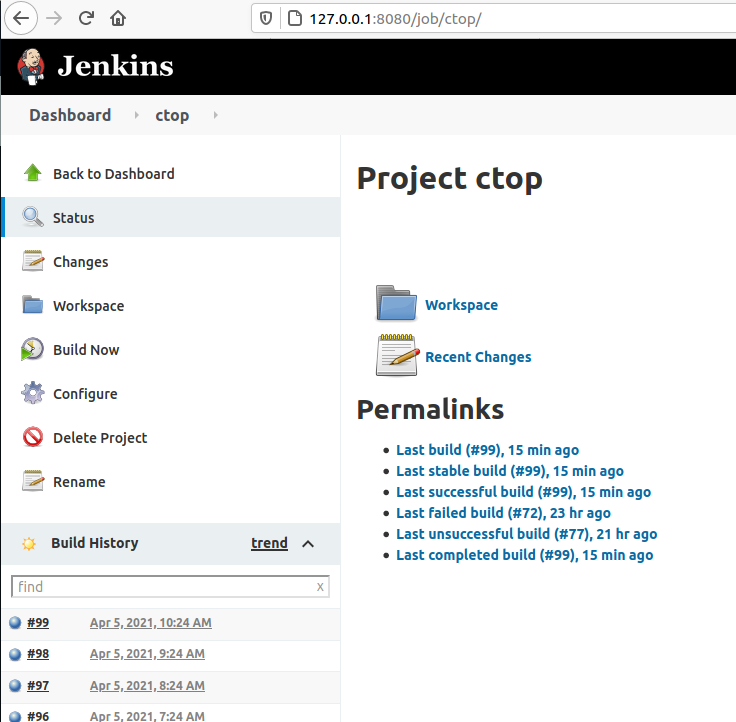
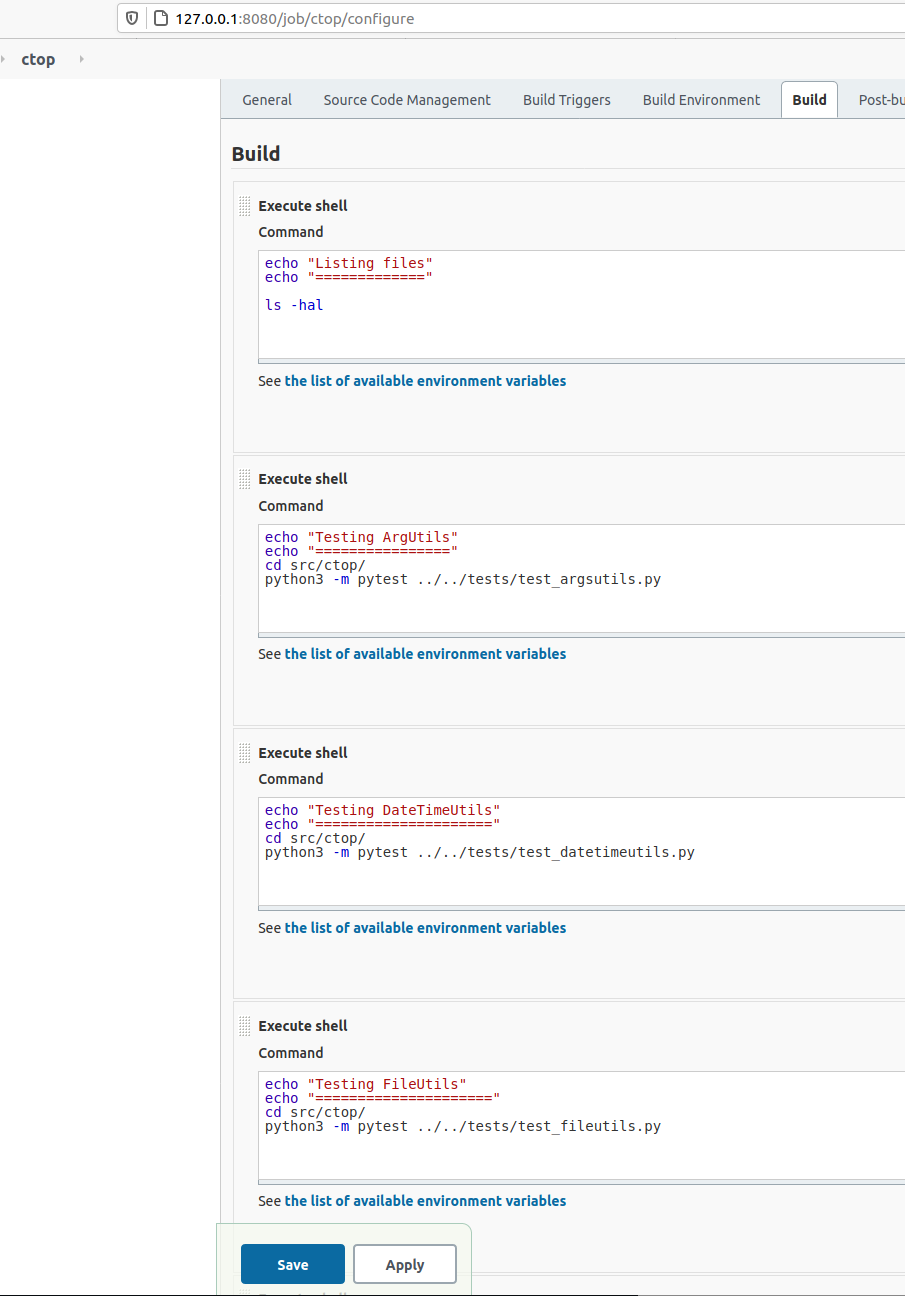
If we enter the project CTOP and then select Configure you’ll see the steps I did for making it do the Unite Testing.
In my case I wanted to have several steps, one per each Unit Test file.
If each one of them I’ve to enter the right directory before launching any test.
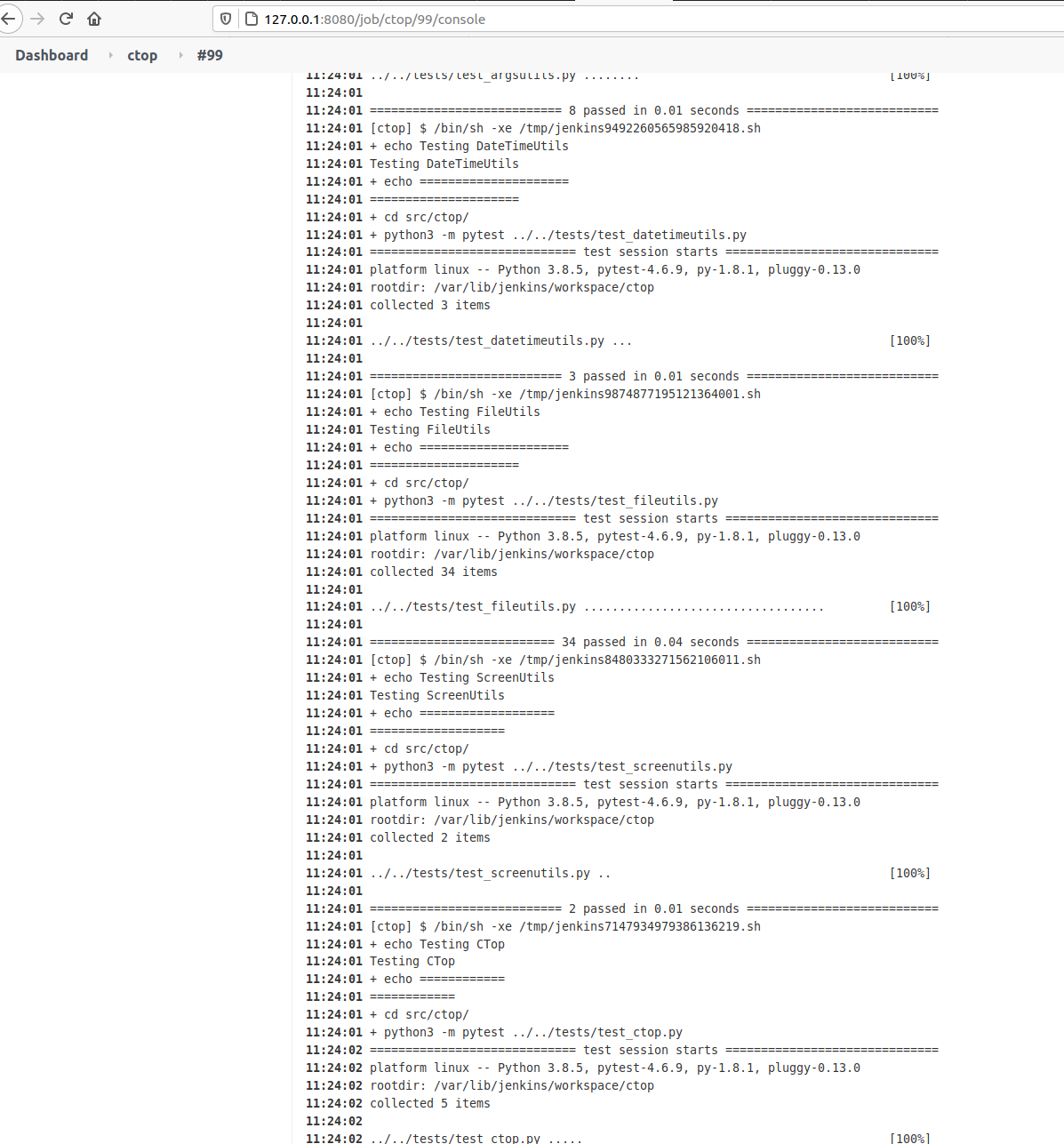
If you open the last successful build and and select Console Output you’ll see all the tests, going well.
If a test will go wrong, pytest will exit with Exit Code different of 0, and so Jenkins will detect it and show that the Build Fails.
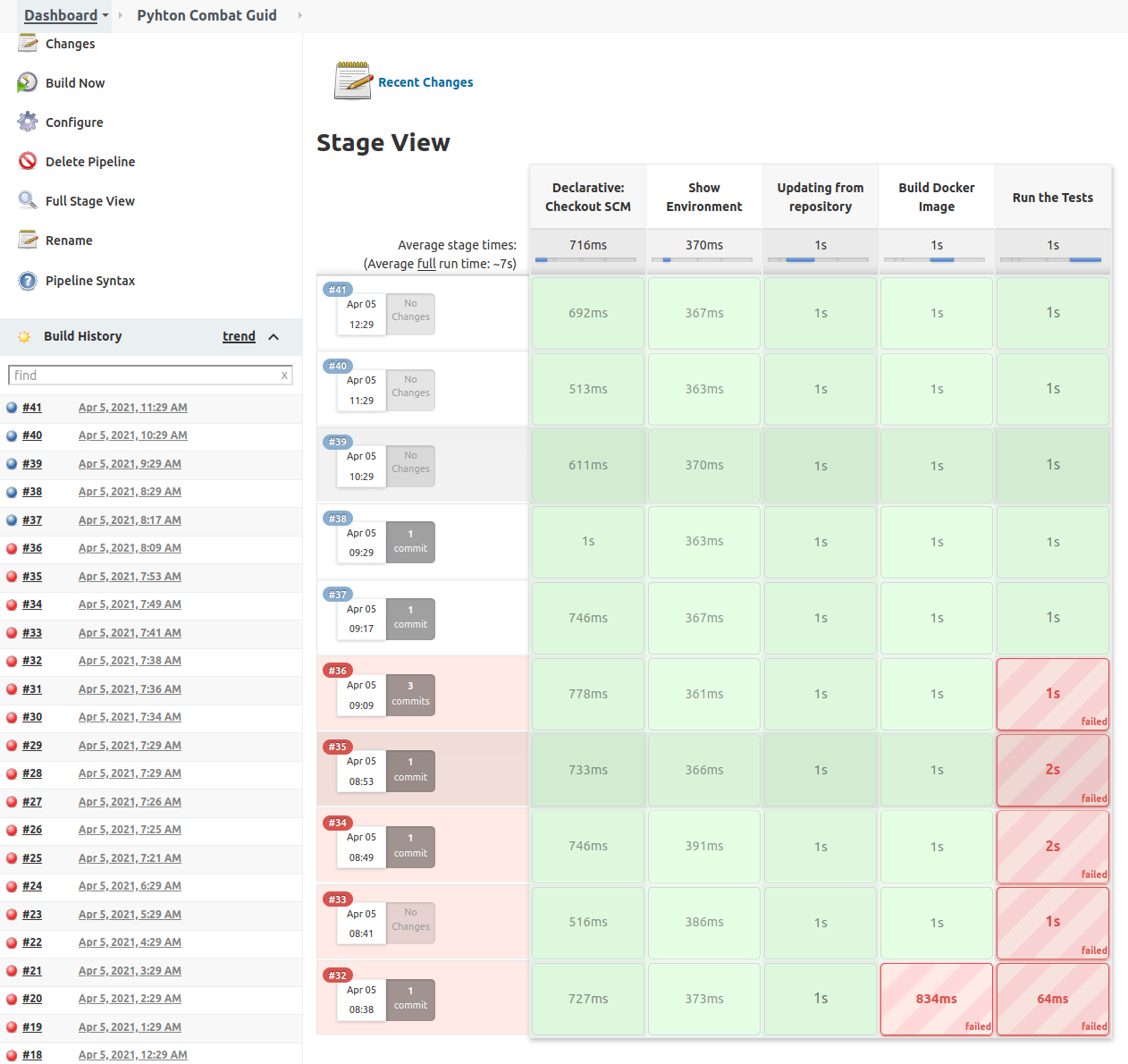
Building a Project from Pipeline
Pipeline is the set of plugins that allow us to do Continuous Deployment.
Inform the information about your git project.
Then in your gitlab or github project create a file named Jenkinsfile.
Jenkins will look for it when it clones your repo, to build the Pipeline.
pipeline {
    agent any
    stages {
        stage('Show Environment') {
            steps {
                echo 'Showing the environment'
                sh 'ls -hal'
            }
        }
        stage('Updating from repository') {
            steps {
                echo 'Grabbing from repository'
                withCredentials([usernamePassword(credentialsId: 'ssh-fast', usernameVariable: 'USERNAME', passwordVariable: 'USERPASS')]) {
                    script {
                        sh "sshpass -p '$USERPASS' -v ssh -o StrictHostKeyChecking=no $USERNAME@$ip_fast 'git clone https://gitlab.com/carles.mateo/python_combat_guide.git; cd python_combat_guide; git pull'"
                    }
                }
            }
        }
        stage('Build Docker Image') {
            steps {
                echo 'Building Docker Container'
                withCredentials([usernamePassword(credentialsId: 'ssh-fast', usernameVariable: 'USERNAME', passwordVariable: 'USERPASS')]) {
                    script {
                        sh "sshpass -p '$USERPASS' -v ssh -o StrictHostKeyChecking=no $USERNAME@$ip_fast 'cd python_combat_guide; docker build -t python_combat_guide .'"
                    }
                }
            }
        }
        stage('Run the Tests') {
            steps {
                echo "Running the tests from the Container"
                withCredentials([usernamePassword(credentialsId: 'ssh-fast', usernameVariable: 'USERNAME', passwordVariable: 'USERPASS')]) {
                    script {
                        sh "sshpass -p '$USERPASS' -v ssh -o StrictHostKeyChecking=no $USERNAME@$ip_fast 'cd python_combat_guide; docker run  python_combat_guide'"
                    }
                }
            }
        }
    }
}
My Jenkins Docker installation has the sshpass command, and I use it to connect via SSH, with username and Password to the server defined by ip_fast environment variable.
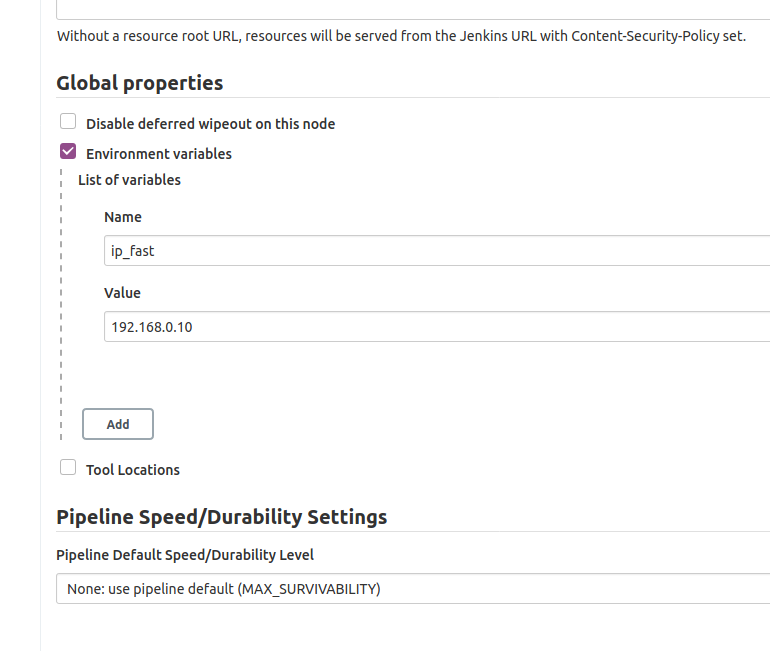
We defined the variable ip_fast in Manage Jenkins > Configure System.
There in Global Properties , Environment Variables I defined ip_fast:
In the Build Server I’ll make a new user and allow it to build Docker:
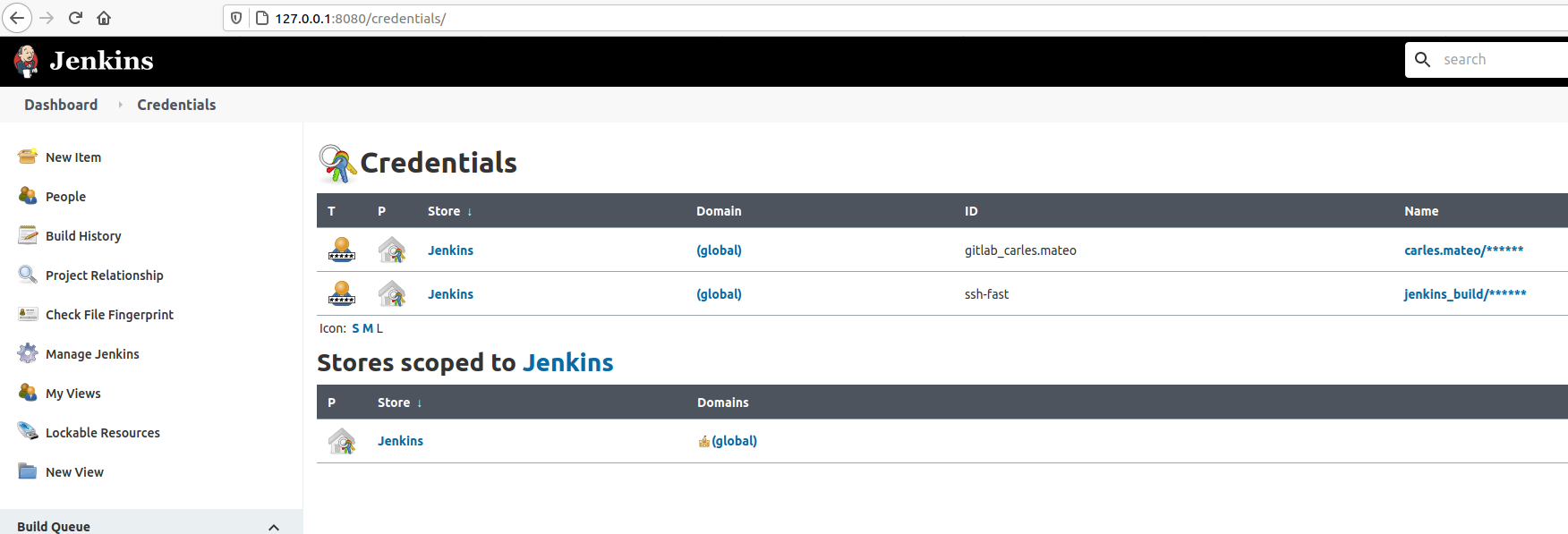
The Credentials can be managed from Manage Jenkins > Manage Credentials.
You can see how I use all this combined in the Jenkinsfile so I don’t have to store credentials in the CVS and Jenkins (Docker Container) will connect via SSH to make the computer after ip_fast Ip, to build and run another Container. That Container will run with a command to do the Unit Testing. If something goes wrong, that is, if any program return an Exit Code different from 0, Jenkins will consider the build fail.
Take in count that $? only stores the Exit Code of the last program. So be careful if you pass multiple commands in one single line, as this may mask an error.
Separating the execution in multiple Stages helps to save time, as after a failure, execution will not continue.
So I share with you my base Jenkins Dockerfile, so you can spawn a new Jenkins for your projects.
The Dockerfile installs Ubuntu 20.04 LTS as base image and add the required packages to run jenkins but also Development and Testing tools to use inside the Container to run Unit Testing on your code, for example. So you don’t need external Servers, for instance.
You will need 3 files:
Dockerfile
docker_run_jenkins.sh
requirements.txt
The requirements.txt file contains your PIP3 dependencies. In my case I only have pytest version 4.6.9 which is the default installed with Ubuntu 20.04, however, this way, I enforce that this and not any posterior version will be installed.
File requirements.txt:
pytest==4.6.9
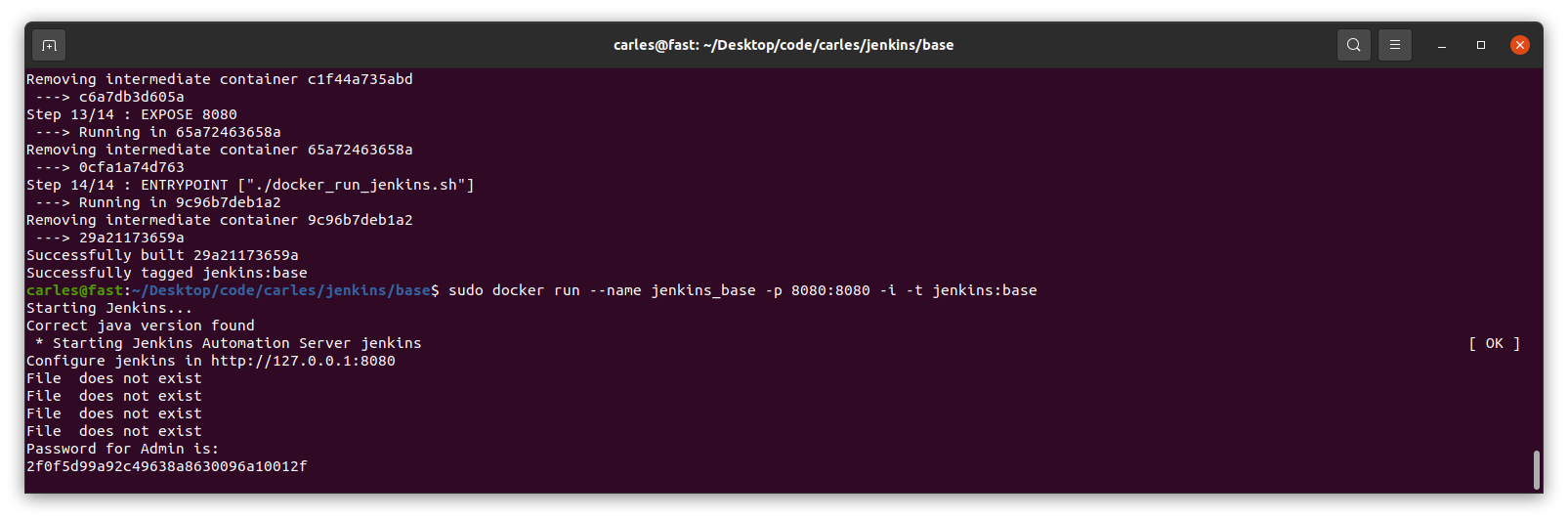
The file docker_run_jenkins.txt start Jenkins when the Container is run and it will wait until the initial Admin password is generated and then it will display it.
File docker_run_jenkins.sh:
#!/bin/bash

echo "Starting Jenkins..."

service jenkins start

echo "Configure jenkins in http://127.0.0.1:8080"

s_JENKINS_PASSWORD_FILE="/var/lib/jenkins/secrets/initialAdminPassword"

i_PASSWORD_PRINTED=0

while [ true ];
do
    sleep 1
    if [ $i_PASSWORD_PRINTED -eq 1 ];
    then
        # We are nice with multitasking
        sleep 60
        continue
    fi

    if [ ! -f "$s_JENKINS_PASSWORD_FILE" ];
    then
        echo "File $s_FILE_ORIGIN does not exist"
    else
        echo "Password for Admin is:"
        cat $s_JENKINS_PASSWORD_FILE
        i_PASSWORD_PRINTED=1
    fi
done
That file has the objective to show you the default admin password, but you don’t need to do that, you can just start a shell into the Container and check manually by yourself.
However I added it to make it easier for you.
And finally you have the Dockerfile:
FROM ubuntu:20.04

LABEL Author="Carles Mateo" \
      Email="jenkins@carlesmateo.com" \
      MAINTAINER="Carles Mateo"

# Build this file with:
# sudo docker build -f Dockerfile -t jenkins:base .
# Run detached:
# sudo docker run --name jenkins_base -d -p 8080:8080 jenkins:base
# Run seeing the password:
# sudo docker run --name jenkins_base -p 8080:8080 -i -t jenkins:base
# After you CTRL + C you will continue with:
# sudo docker start
# To debug:
# sudo docker run --name jenkins_base -p 8080:8080 -i -t jenkins:base /bin/bash

ARG DEBIAN_FRONTEND=noninteractive

ENV SERVICE jenkins

RUN set -ex

RUN echo "Creating directories and copying code" \
    && mkdir -p /opt/${SERVICE}

COPY requirements.txt \
    docker_run_jenkins.sh \
    /opt/${SERVICE}/

# Java with Ubuntu 20.04 LST is 11, which is compatible with Jenkins.
RUN apt update \
    && apt install -y default-jdk \
    && apt install -y wget curl gnupg2 \
    && apt install -y git \
    && apt install -y python3 python3.8-venv python3-pip \
    && apt install -y python3-dev libsasl2-dev libldap2-dev libssl-dev \
    && apt install -y python3-venv \
    && apt install -y python3-pytest \
    && apt install -y sshpass \
    && wget -qO - https://pkg.jenkins.io/debian-stable/jenkins.io.key | apt-key add - \
    && echo "deb http://pkg.jenkins.io/debian-stable binary/" > /etc/apt/sources.list.d/jenkins.list \
    && apt update \
    && apt -y install jenkins \
    && apt-get clean

RUN echo "Setting work directory and listening port"
WORKDIR /opt/${SERVICE}

RUN chmod +x docker_run_jenkins.sh

RUN pip3 install --upgrade pip \
    && pip3 install -r requirements.txt


EXPOSE 8080


ENTRYPOINT ["./docker_run_jenkins.sh"]
Build the Container
docker build -f Dockerfile -t jenkins:base .
Run the Container displaying the password
sudo docker run --name jenkins_base -p 8080:8080 -i -t jenkins:base
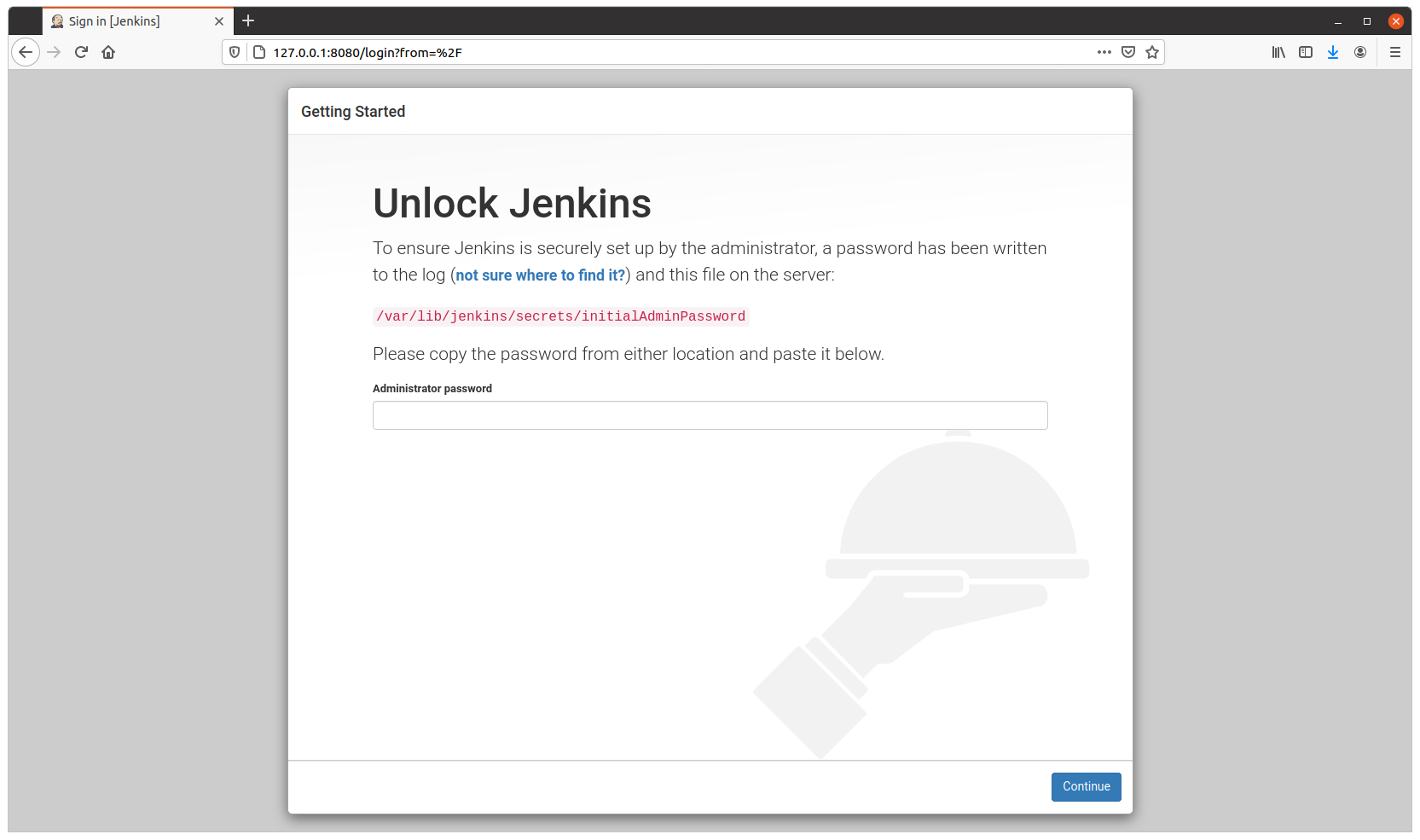
You need this password for starting the configuration process through the web.
Visit http://127.0.0.1:8080 to configure Jenkins.
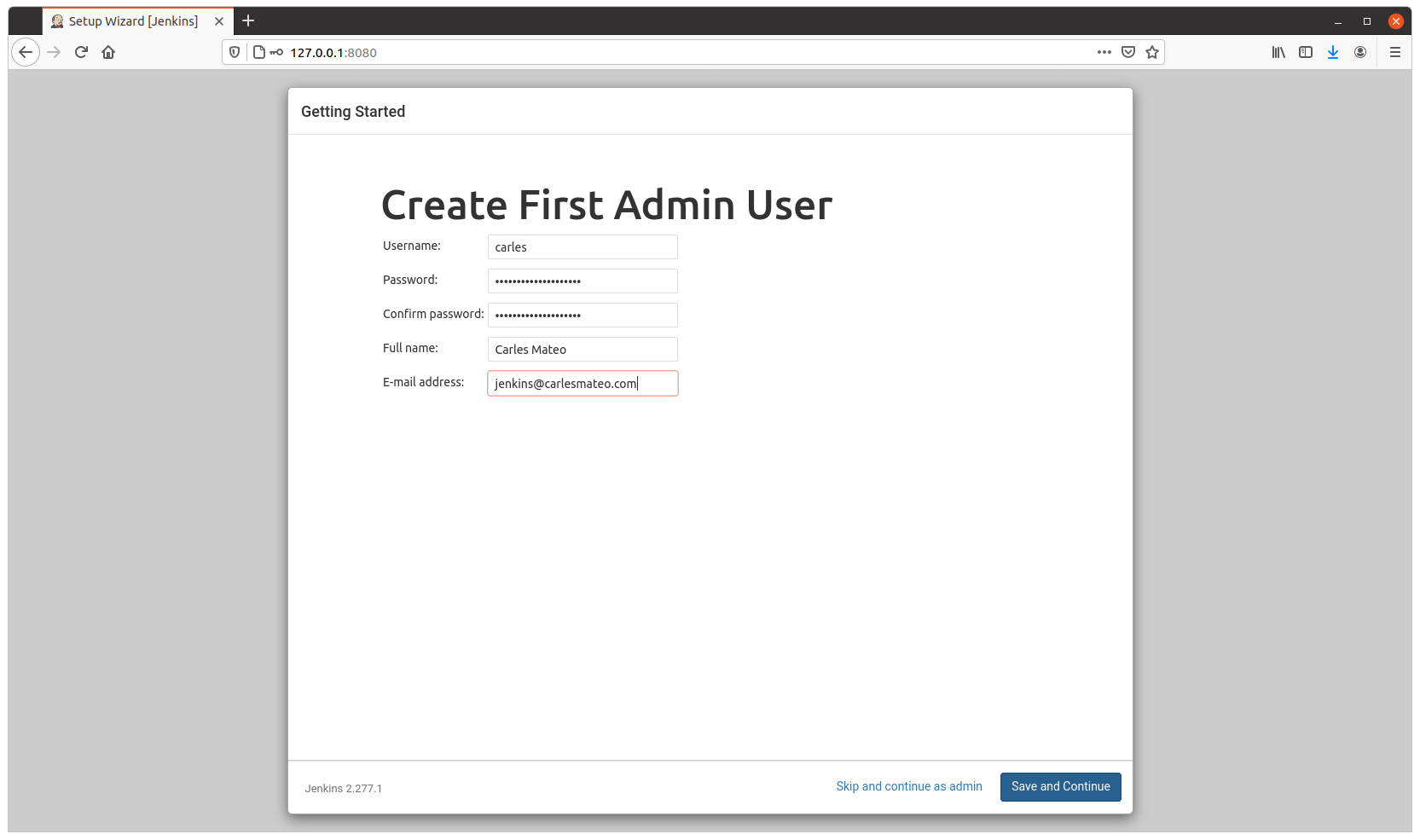
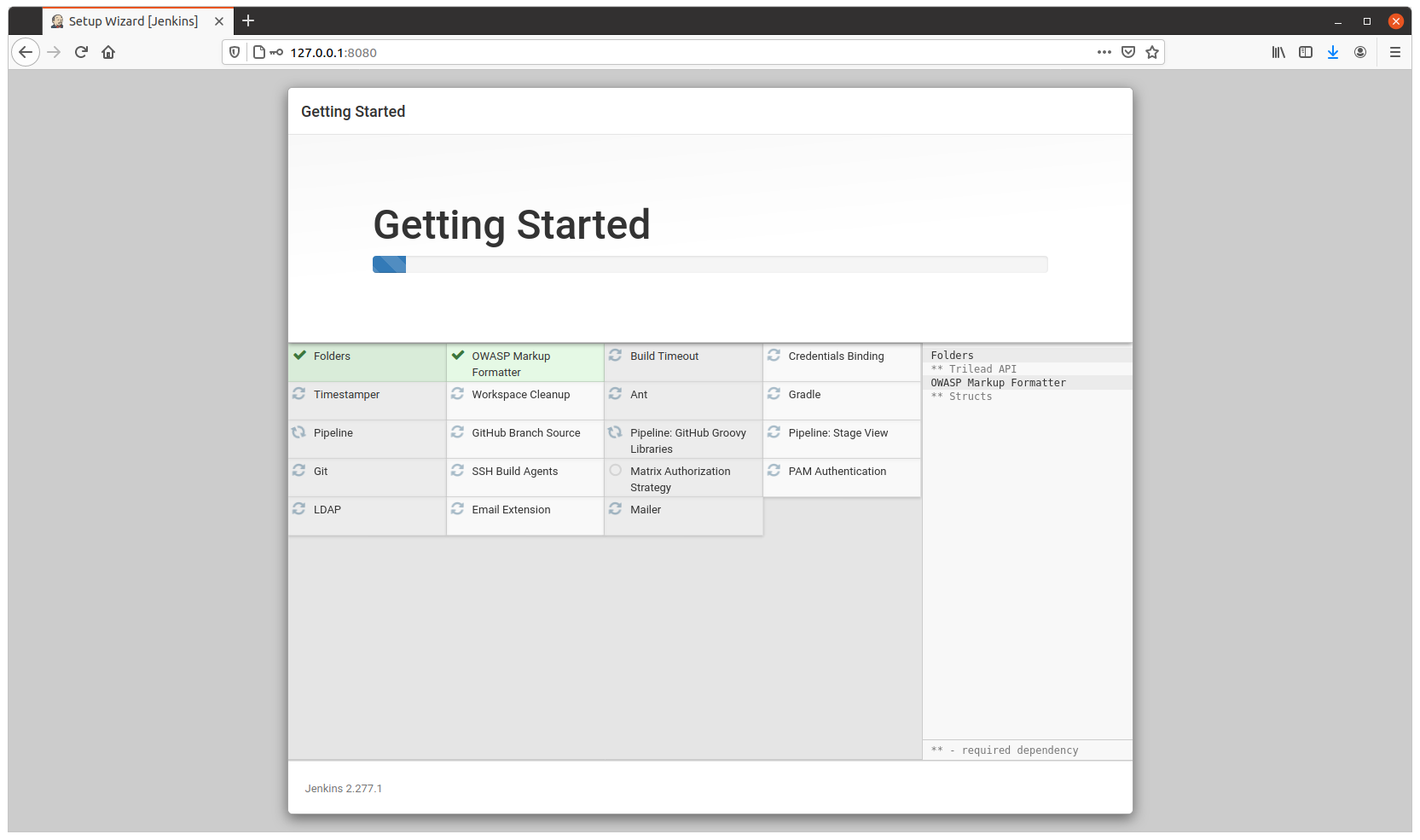
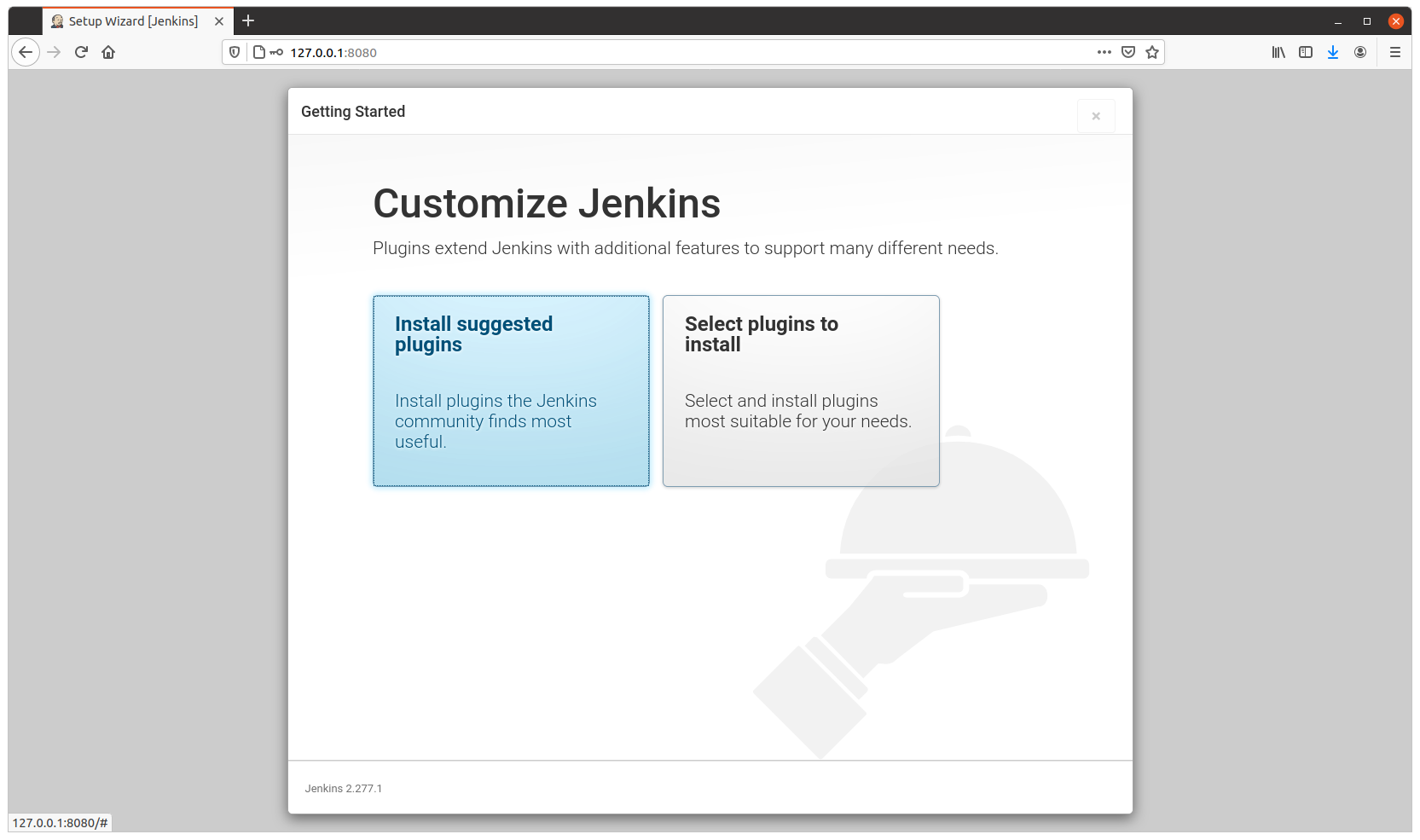
Configure as usual
Resuming after CTRL + C
After you configured it, on the terminal, press CTRL + C.
And continue, detached, by running:
sudo docker start jenkins_base
The image is 1.2GB in size, and will allow you to run Python3, Virtual Environments, Unit Testing with pytest and has Java 11 (not all versions of Java are compatible with Jenkins), use sshpass to access other Servers via SSH with Username and Password…