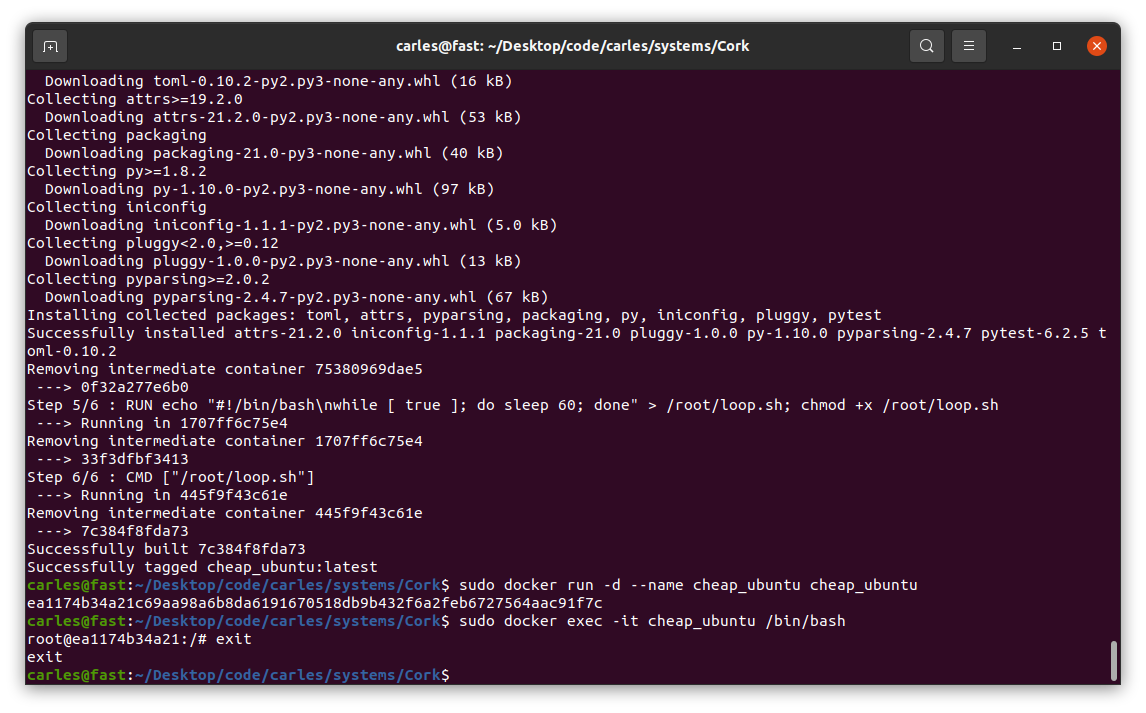
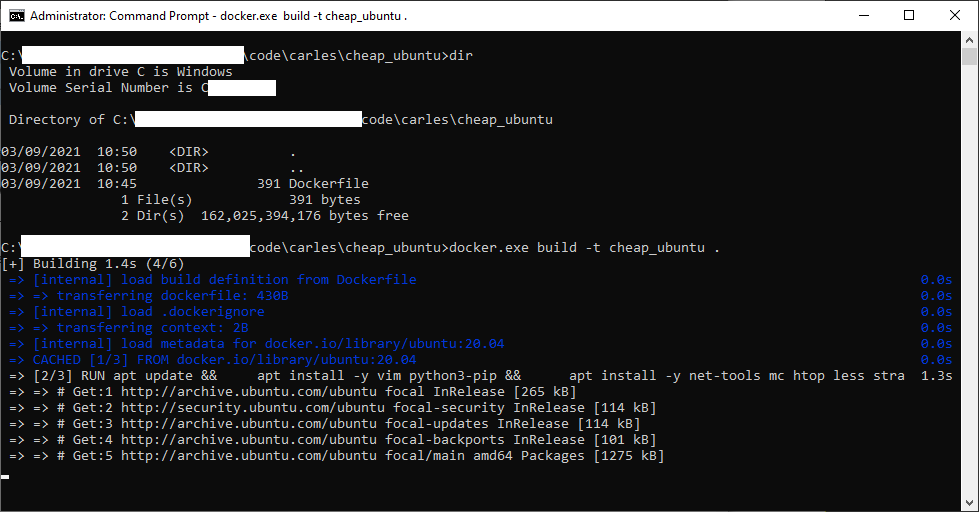
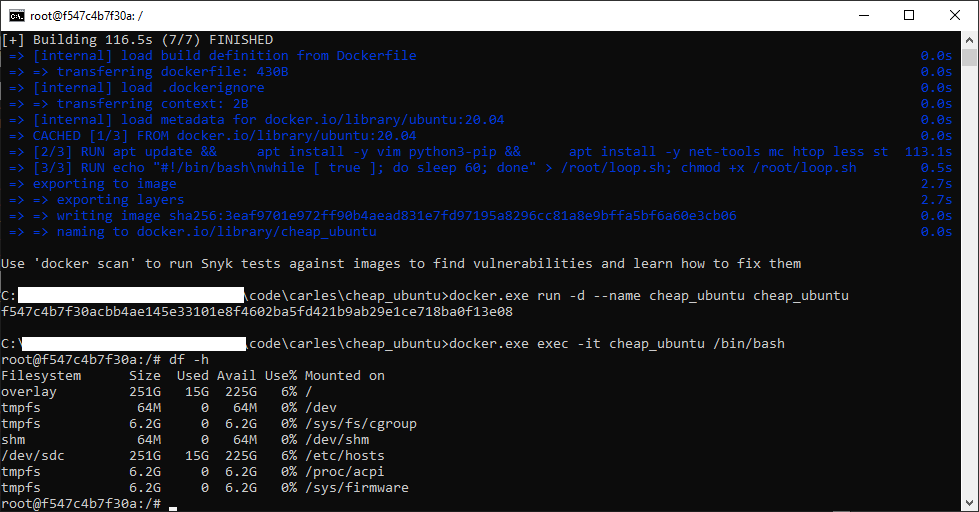
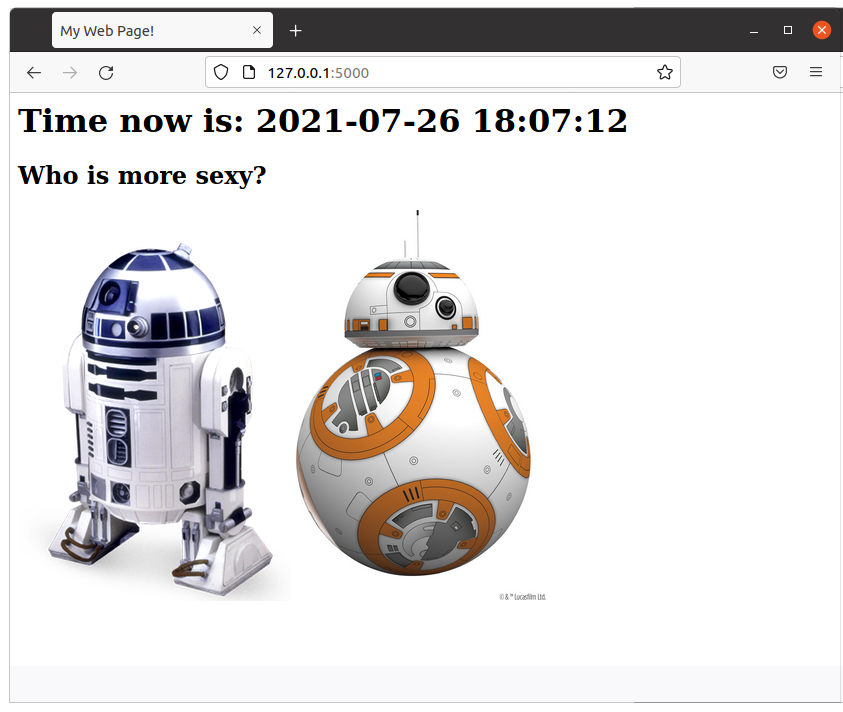
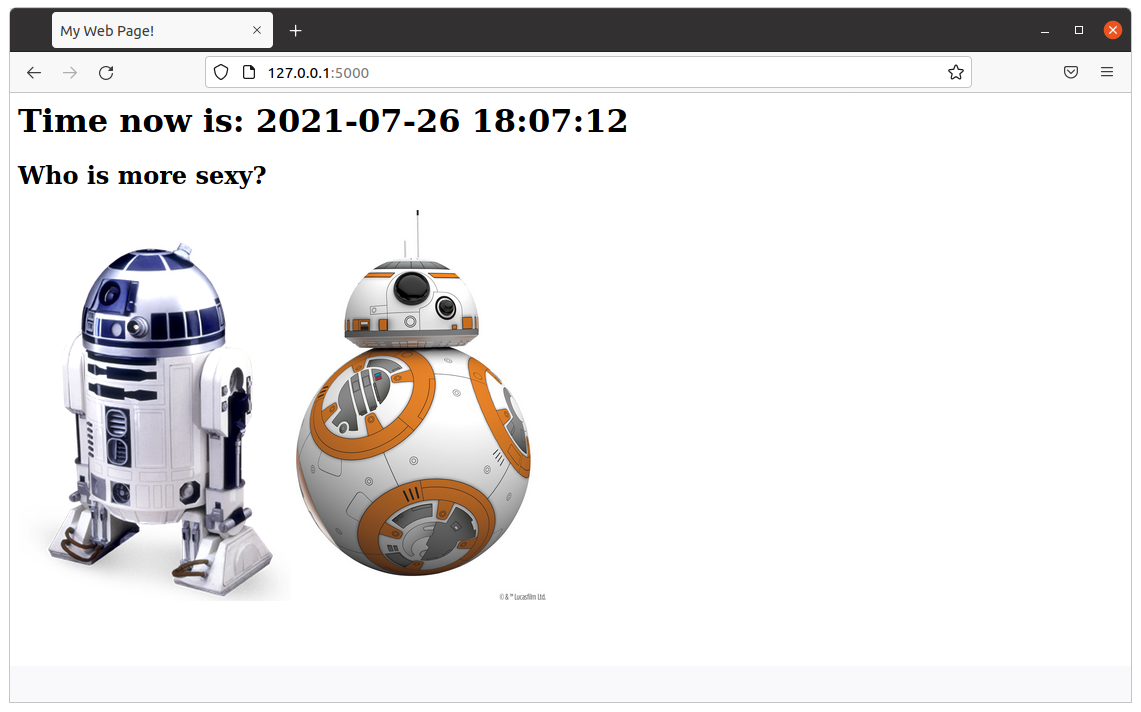
After Docker Image flask_app is built, you can run a Docker Container based on it with:
sudo docker run -d -p 5000:5000 --name flask_app flask_app
After you’re done, in order to stop the Container type:
sudo docker stop flask_app
Here is the source code of the Python file flask_app.py:
#
# flask_app.py
#
# Author: Carles Mateo
# Creation Date: 2020-05-10 20:50 GMT+1
# Description: A simple Flask Web Application
# Part of the samples of https://leanpub.com/pythoncombatguide
# More source code for the book at https://gitlab.com/carles.mateo/python_combat_guide
#
from flask import Flask
import datetime
def get_datetime(b_milliseconds=False):
"""
Return the datetime with miliseconds in format YYYY-MM-DD HH:MM:SS.xxxxx
or without milliseconds as YYYY-MM-DD HH:MM:SS
"""
if b_milliseconds is True:
s_now = str(datetime.datetime.now())
else:
s_now = str(datetime.datetime.now().strftime("%Y-%m-%d %H:%M:%S"))
return s_now
app = Flask(__name__)
# Those variables will keep their value as long as Flask is running
i_votes_r2d2 = 0
i_votes_bb8 = 0
@app.route('/')
def page_root():
s_page = "<html>"
s_page += "<title>My Web Page!</title>"
s_page += "<body>"
s_page += "<h1>Time now is: " + get_datetime() + "</h1>"
s_page += """<h2>Who is more sexy?</h2>
<a href="r2d2"><img src="static/r2d2.png"></a> <a href="bb8"><img width="250" src="static/bb8.jpg"></a>"""
s_page += "</body>"
s_page += "</html>"
return s_page
@app.route('/bb8')
def page_bb8():
global i_votes_bb8
i_votes_bb8 = i_votes_bb8 + 1
s_page = "<html>"
s_page += "<title>My Web Page!</title>"
s_page += "<body>"
s_page += "<h1>Time now is: " + get_datetime() + "</h1>"
s_page += """<h2>BB8 Is more sexy!</h2>
<img width="250" src="static/bb8.jpg">"""
s_page += "<p>I have: " + str(i_votes_bb8) + "</p>"
s_page += "</body>"
s_page += "</html>"
return s_page
@app.route('/r2d2')
def page_r2d2():
global i_votes_r2d2
i_votes_r2d2 = i_votes_r2d2 + 1
s_page = "<html>"
s_page += "<title>My Web Page!</title>"
s_page += "<body>"
s_page += "<h1>Time now is: " + get_datetime() + "</h1>"
s_page += """<h2>R2D2 Is more sexy!</h2>
<img src="static/r2d2.png">"""
s_page += "<p>I have: " + str(i_votes_r2d2) + "</p>"
s_page += "</body>"
s_page += "</html>"
return s_page
if __name__ == "__main__":
app.run(host="0.0.0.0", port=5000, debug=True)
As always, the naming of the variables is based on MT Notation.
The Dockerfile is very straightforward:
FROM ubuntu:20.04
MAINTAINER Carles Mateo
ARG DEBIAN_FRONTEND=noninteractive
RUN apt update && \
apt install -y vim python3-pip && pip3 install pytest && \
apt-get clean
ENV PYTHON_COMBAT_GUIDE /var/python_combat_guide
RUN mkdir -p $PYTHON_COMBAT_GUIDE
COPY ./ $PYTHON_COMBAT_GUIDE
ENV PYTHONPATH "${PYTHONPATH}:$PYTHON_COMBAT_GUIDE/src/:$PYTHON_COMBAT_GUIDE/src/lib"
RUN pip3 install -r $PYTHON_COMBAT_GUIDE/requirements.txt
# This is important so when executing python3 -m current directory will be added to Syspath
# Is not necessary, as we added to PYTHONPATH
#WORKDIR $PYTHON_COMBAT_GUIDE/src/lib
EXPOSE 5000
# Launch our Flask Application
CMD ["/usr/bin/python3", "/var/python_combat_guide/src/flask_app.py"]
However we are going to run everything from a Docker Container so the only thing you need is to have installed Docker.
If you prefer to install MySql in your computer (or Virtual Box instance) directly, skip the Docker steps.
Dockerfile
The Dockerfile is the file that Docker uses to build the Docker Container.
Ours is like that:
FROM ubuntu:20.04
MAINTAINER Carles Mateo
ARG DEBIAN_FRONTEND=noninteractive
RUN apt update && apt install -y python3 pip mysql-server vim mc wget curl && apt-get clean
RUN pip install mysql-connector-python
EXPOSE 3306
ENV FOLDER_PROJECT /var/mysql_carles
RUN mkdir -p $FOLDER_PROJECT
COPY docker_run_mysql.sh $FOLDER_PROJECT
COPY start.sql $FOLDER_PROJECT
COPY src $FOLDER_PROJECT
RUN chmod +x /var/mysql_carles/docker_run_mysql.sh
CMD ["/var/mysql_carles/docker_run_mysql.sh"]
The first line defines that we are going to use Ubuntu 20.04 (it’s a LTS version).
We install all the apt packages in a single line, as Docker works in layers, and what is used as disk space in the previous layer is not deleted even if we delete the files, so we want to run apt update, install all the packages, and clean the temporal files in one single step.
I also install some useful tools like: vim, mc, less, wget and curl.
We expose to outside the port 3306, in case you want to run the Python code from your computer, but having the MySql in the Container.
The last line executes a script that starts the MySql service, creates the table, the user, and add two rows and runs an infinite loop so the Docker does not finish.
build_docker.sh
build_docker.sh is a Bash script that builds the Docker Image for you very easily.
It stops the container and removes the previous image, so your hard drive does not fill with Docker images if you do modifications.
It checks for errors building and it also remembers you how to run and debug the Docker Container.
#!/bin/bash
# Execute with sudo
s_DOCKER_IMAGE_NAME="blog_carlesmateo_com_mysql"
printf "Stopping old image %s\n" "${s_DOCKER_IMAGE_NAME}"
sudo docker stop "${s_DOCKER_IMAGE_NAME}"
printf "Removing old image %s\n" "${s_DOCKER_IMAGE_NAME}"
sudo docker rm "${s_DOCKER_IMAGE_NAME}"
printf "Creating Docker Image %s\n" "${s_DOCKER_IMAGE_NAME}"
sudo docker build -t ${s_DOCKER_IMAGE_NAME} . --no-cache
i_EXIT_CODE=$?
if [ $i_EXIT_CODE -ne 0 ]; then
printf "Error. Exit code %s\n" ${i_EXIT_CODE}
exit
fi
echo "Ready to run ${s_DOCKER_IMAGE_NAME} Docker Container"
echo "To run type: sudo docker run -d -p 3306:3306 --name ${s_DOCKER_IMAGE_NAME} ${s_DOCKER_IMAGE_NAME}"
echo "or just use run_in_docker.sh"
echo
echo "Debug running Docker:"
echo "docker exec -it ${s_DOCKER_IMAGE_NAME} /bin/bash"
echo
docker_run.sh
I also provide a script named docker_run.sh that runs your Container easily, exposing the MySql port.
#!/bin/bash
# Execute with sudo
s_DOCKER_IMAGE_NAME="blog_carlesmateo_com_mysql"
docker run -d -p 3306:3306 --name ${s_DOCKER_IMAGE_NAME} ${s_DOCKER_IMAGE_NAME}
echo "Showing running Instances"
docker ps
As you saw before I named the image after blog_carlesmateo_com_mysql.
I did that so basically I wanted to make sure that the name was unique, as the build_docker.sh deletes an image named like the name I choose, I didn’t want to use a generic name like “mysql” that may lead to you to delete the Docker Image inadvertently.
docker_run_mysql.sh
This script will run when the Docker Container is launched for the first time:
#!/bin/bash
# Allow to be queried from outside
sed -i '31 s/bind-address/#bind-address/' /etc/mysql/mysql.conf.d/mysqld.cnf
service mysql start
# Create a Database, a user with password, and permissions
cd /var/mysql_carles
mysql -u root < start.sql
while [ true ]; do sleep 60; done
With sed command we modify the line 31 of the the MySQL config file so we can connect from Outside the Docker Instance (bind-address: 127.0.0.1)
As you can see it executes the SQL contained in the file start.sql as root and we start MySql.
Please note: Our MySql installation has not set a password for root. It is only for Development purposes.
start.sql
The SQL file that will be ran inside our Docker Container.
CREATE DATABASE carles_database;
CREATE USER 'python'@'localhost' IDENTIFIED BY 'blog.carlesmateo.com-db-password';
CREATE USER 'python'@'%' IDENTIFIED BY 'blog.carlesmateo.com-db-password';
GRANT ALL PRIVILEGES ON carles_database.* TO 'python'@'localhost';
GRANT ALL PRIVILEGES ON carles_database.* TO 'python'@'%';
USE carles_database;
CREATE TABLE car_queue (
i_id_car int,
s_model_code varchar(25),
s_color_code varchar(25),
s_extras varchar(100),
i_right_side int,
s_city_to_ship varchar(25)
);
INSERT INTO car_queue (i_id_car, s_model_code, s_color_code, s_extras, i_right_side, s_city_to_ship) VALUES (1, "GOLF2021", "BLUE7", "COND_AIR, GPS, MULTIMEDIA_V3", 0, "Barcelona");
INSERT INTO car_queue (i_id_car, s_model_code, s_color_code, s_extras, i_right_side, s_city_to_ship) VALUES (2, "GOLF2021_PLUGIN_HYBRID", "BLUEMETAL_5", "COND_AIR, GPS, MULTIMEDIA_V3, SECURITY_V5", 1, "Cork");
As you can see it creates the user “python” with the password ‘blog.carlesmateo.com-db-password’ for access local and remote (%).
It also creates a Database named carles_database and grants all the permissions to the user “python”, for local and remote.
This is the user we will use to authenticate from out Python code.
Then we switch to use the carles_database and we create the car_queue table.
We insert two rows, as an example.
select_values_example.py
Finally the Python code that will query the Database.
import mysql.connector
if __name__ == "__main__":
o_conn = mysql.connector.connect(user='python', password='blog.carlesmateo.com-db-password', database='carles_database')
o_cursor = o_conn.cursor()
s_query = "SELECT * FROM car_queue"
o_cursor.execute(s_query)
for a_row in o_cursor:
print(a_row)
o_cursor.close()
o_conn.close()
Nothing special, we open a connection to the MySql and perform a query, and parse the cursor as rows/lists.
Please note: Error control is disabled so you may see any exception.
Executing the Container
First step is to build the Container.
From the directory where you cloned the project, execute:
sudo ./build_docker.sh
Then run the Docker Container:
sudo ./docker_run.sh
The script also performs a docker ps command, so you can see that it’s running.
Then change to the directory where I installed the sample files:
cd /var/mysql_carles
And execute the Python 3 example:
python3 select_values_example.py
Tying together MySql and a Python Menu with Object Oriented Programming
In order to tie all together, and specially to give a consistent view to my students, to avoid showing only pieces but a complete program, and to show a bit of Objects Oriented in action I developed a small program which simulates the handling of a production queue for Volkswagen.
MySQL Library
First I created a library to handle MySQL operations.
lib/mysqllib.py
import mysql.connector
class MySql():
def __init__(self, s_user, s_password, s_database, s_host="127.0.0.1", i_port=3306):
self.s_user = s_user
self.s_password = s_password
self.s_database = s_database
self.s_host = s_host
self.i_port = i_port
o_conn = mysql.connector.connect(host=s_host, port=i_port, user=s_user, password=s_password, database=s_database)
self.o_conn = o_conn
def query(self, s_query):
a_rows = []
o_cursor = self.o_conn.cursor()
o_cursor.execute(s_query)
for a_row in o_cursor:
a_rows.append(a_row)
o_cursor.close()
return a_rows
def insert(self, s_query):
o_cursor = self.o_conn.cursor()
o_cursor.execute(s_query)
i_inserted_row_count = o_cursor.rowcount
# Make sure data is committed to the database
self.o_conn.commit()
return i_inserted_row_count
def delete(self, s_query):
o_cursor = self.o_conn.cursor()
o_cursor.execute(s_query)
i_deleted_row_count = o_cursor.rowcount
# Make sure data is committed to the database
self.o_conn.commit()
return i_deleted_row_count
def close(self):
self.o_conn.close()
Basically when this class is instantiated, a new connection to the MySQL specified in the Constructor is established.
We have a method query() to send SELECT queries.
We have a insert method, to send INSERT, UPDATE queries that returns the number of rows affected.
This method ensures to perform a commit to make sure changes persist.
We have a delete method, to send DELETE Sql queries that returns the number of rows deleted.
We have a close method which closes the MySql connection.
A Data Object: CarDO
Then I’ve defined a class, to deal with Data and interactions of the cars.
Initially I was going to have a CarDO Object without any logic. Only with Data.
In OOP the variables of the Instance are called Properties, and the functions Methods.
Then I decided to add some logic, so I can show what’s the typical use of the objects.
So I will use CarDO as Data Object, but also to do few functions like printing the info of a Car.
Queue Manager
Finally the main program.
We also use Object Oriented Programming, and we use Dependency Injection to inject the MySQL Instance. That’s very practical to do Unit Testing.
from lib.mysqllib import MySql
from do.cardo import CarDO
class QueueManager():
def __init__(self, o_mysql):
self.o_mysql = o_mysql
def exit(self):
exit(0)
def main_menu(self):
while True:
print("Main Menu")
print("=========")
print("")
print("1. Add new car to queue")
print("2. List all cars to queue")
print("3. View car by Id")
print("4. Delete car from queue by Id")
print("")
print("0. Exit")
print("")
s_option = input("Choose your option:")
if s_option == "1":
self.add_new_car()
if s_option == "2":
self.see_all_cars()
if s_option == "3":
self.see_car_by_id()
if s_option == "4":
self.delete_by_id()
if s_option == "0":
self.exit()
def get_all_cars(self):
s_query = "SELECT * FROM car_queue"
a_rows = self.o_mysql.query(s_query)
a_o_cars = []
for a_row in a_rows:
i_id_car = a_row[0]
s_model_code = a_row[1]
s_color_code = a_row[2]
s_extras = a_row[3]
i_right_side = a_row[4]
s_city_to_ship = a_row[5]
o_car = CarDO(i_id_car=i_id_car, s_model_code=s_model_code, s_color_code=s_color_code, s_extras=s_extras, i_right_side=i_right_side, s_city_to_ship=s_city_to_ship)
a_o_cars.append(o_car)
return a_o_cars
def get_car_by_id(self, i_id_car):
b_success = False
o_car = None
s_query = "SELECT * FROM car_queue WHERE i_id_car=" + str(i_id_car)
a_rows = self.o_mysql.query(s_query)
if len(a_rows) == 0:
# False, None
return b_success, o_car
i_id_car = a_rows[0][0]
s_model_code = a_rows[0][1]
s_color_code = a_rows[0][2]
s_extras = a_rows[0][3]
i_right_side = a_rows[0][4]
s_city_to_ship = a_rows[0][5]
o_car = CarDO(i_id_car=i_id_car, s_model_code=s_model_code, s_color_code=s_color_code, s_extras=s_extras, i_right_side=i_right_side, s_city_to_ship=s_city_to_ship)
b_success = True
return b_success, o_car
def replace_apostrophe(self, s_text):
return s_text.replace("'", "´")
def insert_car(self, o_car):
s_sql = """INSERT INTO car_queue
(i_id_car, s_model_code, s_color_code, s_extras, i_right_side, s_city_to_ship)
VALUES
(""" + str(o_car.get_i_id_car()) + ", '" + o_car.get_s_model_code() + "', '" + o_car.get_s_color_code() + "', '" + o_car.get_s_extras() + "', " + str(o_car.get_i_right_side()) + ", '" + o_car.get_s_city_to_ship() + "');"
i_inserted_row_count = self.o_mysql.insert(s_sql)
if i_inserted_row_count > 0:
print("Inserted", i_inserted_row_count, " row/s")
b_success = True
else:
print("It was impossible to insert the row")
b_success = False
return b_success
def add_new_car(self):
print("Add new car")
print("===========")
while True:
s_id_car = input("Enter new ID: ")
if s_id_car == "":
print("A numeric Id is needed")
continue
i_id_car = int(s_id_car)
if i_id_car < 1:
continue
# Check if that id existed already
b_success, o_car = self.get_car_by_id(i_id_car=i_id_car)
if b_success is False:
# Does not exist
break
print("Sorry, this Id already exists")
s_model_code = input("Enter Model Code:")
s_color_code = input("Enter Color Code:")
s_extras = input("Enter extras comma separated:")
s_right_side = input("Enter R for Right side driven:")
if s_right_side.upper() == "R":
i_right_side = 1
else:
i_right_side = 0
s_city_to_ship = input("Enter the city to ship the car:")
# Sanitize SQL replacing apostrophe
s_model_code = self.replace_apostrophe(s_model_code)
s_color_code = self.replace_apostrophe(s_color_code)
s_extras = self.replace_apostrophe(s_extras)
s_city_to_ship = self.replace_apostrophe(s_city_to_ship)
o_car = CarDO(i_id_car=i_id_car, s_model_code=s_model_code, s_color_code=s_color_code, s_extras=s_extras, i_right_side=i_right_side, s_city_to_ship=s_city_to_ship)
b_success = self.insert_car(o_car)
def see_all_cars(self):
print("")
a_o_cars = self.get_all_cars()
if len(a_o_cars) > 0:
print(a_o_cars[0].get_car_header_for_list())
else:
print("No cars in queue")
print("")
return
for o_car in a_o_cars:
print(o_car.get_car_info_for_list())
print("")
def see_car_by_id(self, i_id_car=0):
if i_id_car == 0:
s_id = input("Car Id:")
i_id_car = int(s_id)
s_id_car = str(i_id_car)
b_success, o_car = self.get_car_by_id(i_id_car=i_id_car)
if b_success is False:
print("Error, car id: " + s_id_car + " not located.")
return False
print("")
o_car.print_car_info()
print("")
return True
def delete_by_id(self):
s_id = input("Enter Id of car to delete:")
i_id_car = int(s_id)
if i_id_car == 0:
print("Invalid Id")
return
# reuse see_car_by_id
b_found = self.see_car_by_id(i_id_car=i_id_car)
if b_found is False:
return
s_delete = input("Are you sure you want to DELETE. Type Y to delete: ")
if s_delete.upper() == "Y":
s_sql = "DELETE FROM car_queue WHERE i_id_car=" + str(i_id_car)
i_num = self.o_mysql.delete(s_sql)
print(i_num, " Rows deleted")
# if b_success is True:
# print("Car deleted successfully from the queue")
if __name__ == "__main__":
try:
o_mysql = MySql(s_user="python", s_password="blog.carlesmateo.com-db-password", s_database="carles_database", s_host="127.0.0.1", i_port=3306)
o_queue_manager = QueueManager(o_mysql=o_mysql)
o_queue_manager.main_menu()
except KeyboardInterrupt:
print("Detected CTRL + C. Exiting")
This program talks to MySQL, that we have started in a Docker previously.
We have access from inside the Docker Container, or from outside.
The idea of this simple program is to use a library for dealing with MySql, and objects for dealing with the Cars. The class CarDO contributes to the render of its data in the screen.
To enter inside the Docker once you have generated it and is running, do:
I have read a lot of wrong recommendations about the use of Swap and Swappiness so I want to bring some light about it.
The first to say is that every project is different, so it is not possible to make a general rule. However in most of the cases we want systems to operate as fast and efficiently as possible.
So this suggestions try to covert 99% of the cases.
By default Linux will try to be as efficient as possible. So for example, it will use Free Memory to keep IO efficient by keeping in Memory cache and buffers.
That means that if you are using files often, Linux will keep that information cached in RAM.
The swappiness Kernel setting defines what tradeoff will take Linux between keeping buffers with Free Memory and using the available Swap Memory.
# sysctl vm.swappiness
vm.swappiness = 60
The default value is 60 and more or less means that when RAM memory gets to 60%, swap will start to be used.
And so we can find Servers with 256GB of RAM, that when they start to use more than 153 GB of RAM, they start to swap.
Let’s analyze the output of free -h:
carles@vbi78g:~/Desktop/Software/checkswap$ free -h
total used free shared buff/cache available
Mem: 2.9Gi 1.6Gi 148Mi 77Mi 1.2Gi 1.1Gi
Swap: 2.0Gi 27Mi 2.0Gi
So from this VM that has 2.9GB of RAM Memory, 1.6GB are used by applications.
The are 148MB that can immediately used by Applications, and there are 1.2GB in buffers/cache. Does that means that we can only use 148MB (plus swap)?. No, that mean that Linux tried to optimize io speed by keeping 1.2GB of RAM memory in buffers. But this is the best effort of Linux to have performance, for real applications will be also able to use 1.1GB that corresponds to the available field.
About swap, from 2GB, only 27MB have been used.
As vm.swappiness is set to 60, more RAM will be swapped out to swap, even if we have lots available.
As I said every case is different. If we are talking about a Desktop that has NVMe drives, the impact will be low. But if we are talking about a Server that is a hypervisor running VMs and has high usage on CPU and has the swap partition or the swap in a file, that could lead to huge problems. If there is a physical Server with a single spinning drive (or logical unit through RAID), and one partition is for Swap, and the other for mountpoints, and a process is heavily reading/writing to a partition mounted (an elastic search, or a telegraf, prometheus…), and the System tries to swap, then they will be competing for the magnetic head of disk, slowing down everything.
If you take a look on how the process of swapping memory pages from the memory to disk, you will understand that applications may need certain pages before being able to run, so in many cases we get to lock situations, that force everything to wait.
In my career I found Servers that temporarily stopped responding to ping. After a while ping came back, I was able to ssh and uptime showed that the Server did not reboot.
I troubleshooted that, and I saw a combination of high CPU usage spikes and Swap usage.
Using iostat and iotop I monitored what was speed of transference of only 1 MB/second!!.
I even did swapoff and it took one hour to free 4 GB swap partition!.
I also saw swap partition being in a spinning disk, and in another partition of the same spinning drive, having a swapfile. Magnetic spinning drives can only access one are of the drive at the same time, so that situation, using swap is very bad.
And I have seen situations were the swap or swapfile was mounted in a block device shared via network with the Server (like iSCSI or NFS), causing terrible performance when swapping.
So you have to adapt the strategy according to the project.
My preferred strategy for Compute Nodes and NoSQL Databases is to not use swap at all. In other cases, like MySQL Databases I may set swappiness to preferably to 1 or to 10.
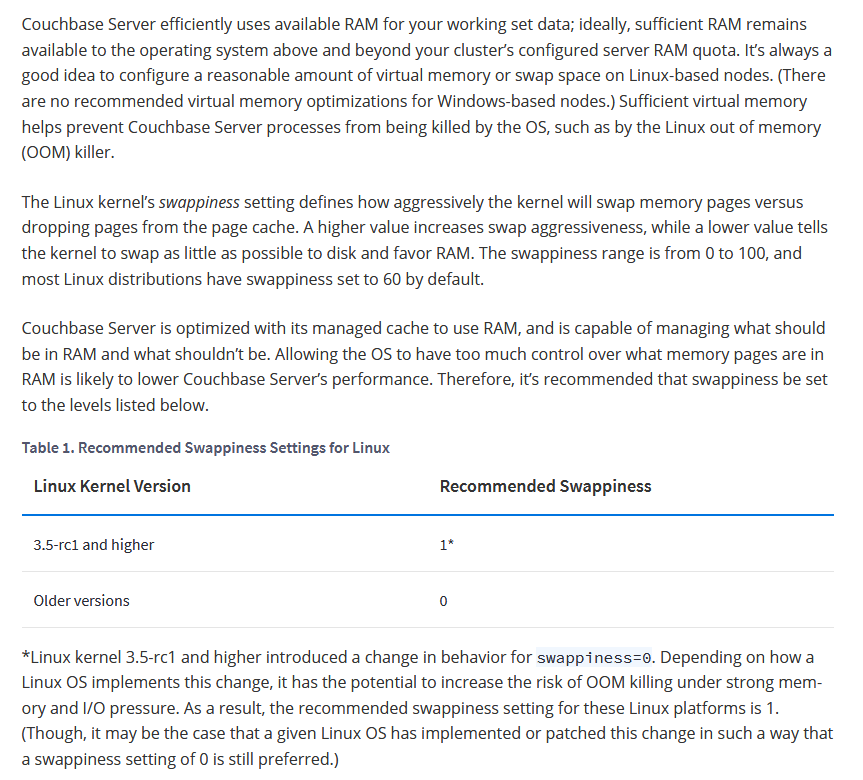
The Linux kernel’s swappiness setting defines how aggressively the kernel will swap memory pages versus dropping pages from the page cache. A higher value increases swap aggressiveness, while a lower value tells the kernel to swap as little as possible to disk and favor RAM. The swappiness range is from 0 to 100, and most Linux distributions have swappiness set to 60 by default.
Couchbase Server is optimized with its managed cache to use RAM, and is capable of managing what should be in RAM and what shouldn’t be. Allowing the OS to have too much control over what memory pages are in RAM is likely to lower Couchbase Server’s performance. Therefore, it’s recommended that swappiness be set to the levels listed below.
Another theme, is when you log to a Server and you see all the Swap memory in use.
Linux may have moved the pages that were less used, and that may be Ok for some cases, for example a Cron Service that waits and runs every 24 hours. It is safe to swap that (as long as the swap IO is decent).
When Kernel Swaps it may generate locks.
But if we log to a Server and all the Swap is in use, how can we know that the Swap has been quiet there?.
Well, you can use iostat or iotop or you can:
cat /proc/vmstat
This file contains a lot of values related to Memory, we will focus on:
Paging refers to writing portions, termed pages, of a process’ memory to disk. Swapping, strictly speaking, refers to writing the entire process, not just part, to disk. In Linux, true swapping is exceedingly rare, but the terms paging and swapping often are used interchangeably.
page-out: The system’s free memory is less than a threshold “lotsfree” and unnused / least used pages are moved to the swap area. page-in: One process which is running requested for a page that is not in the current memory (page-fault), it’s pages are being brought back to memory. swap-out: System is thrashing and has deactivated a process and it’s memory pages are moved into the swap area. swap-in: A deactivated process is back to work and it’s pages are being brought into the memory.
Values from /proc/vmstat:
pgpgin, pgpgout – number of pages that are read from disk and written to memory, you usually don’t need to care that much about these numbers
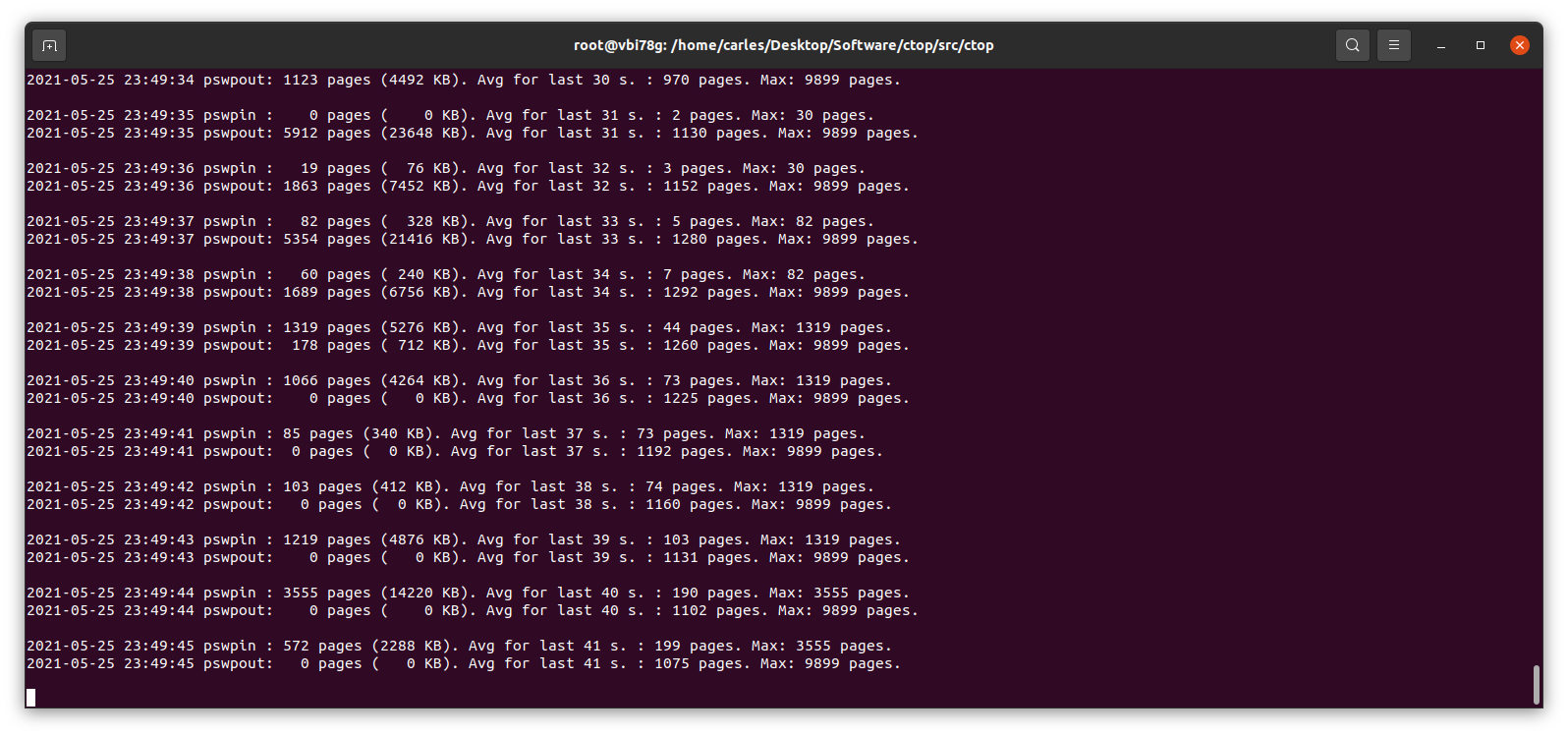
pswpin, pswpout – you may want to track these numbers per time (via some monitoring like prometheus), if there are spikes it means system is heavily swapping and you have a problem.
In this actual example that means that since the start of the Server there has been 508992338 Page Swap In (with 4K memory pages this is 1,941 GB, so almost 2 TB transferred) and for Page Swat Out (with 4K memory pages this is 1,071 GB, so 1 TB of transferred). I’m talking about a Server that had a 4GB swap partition in a spinning disk and a 12 GB swapfile in another ext4 partition of the same spinning disk.
The 16 GB of swap were in use and iotop showed only two sources of IO, one being 2 VMs writing, another was a journaling process writing to the mountpoint where the swapfile was. That was an spinning drive (underlying hardware was raid, for simplicity I refer to one single drive. I checked that both spinning drives were healthy and fast). I saw small variations in the size of the Swap, so I decided to monitor the changes in pswpin and pswpout in /proc/vmstat to see how much was transferred from/to swap.
I saw then how many pages were being transferred!.
I wrote a small Python program to track those changes:
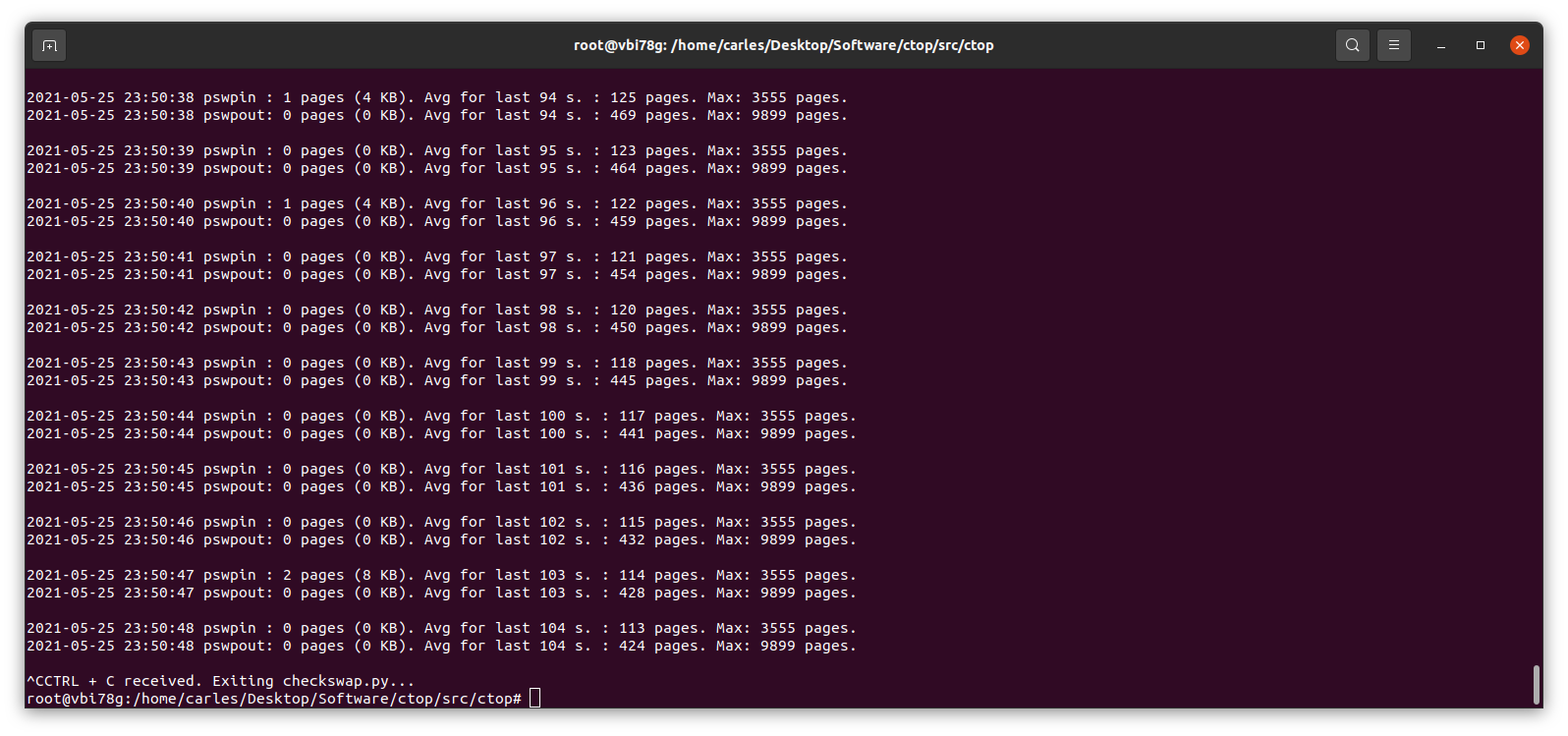
This little program works in Python 2 and Python 3, and will show the evolution of pswpin and pswpout in /proc/vmstat and will offer the average for last 5 minutes and keep the max value detected as well.
As those values show the page swaps since the start of the Server, my little program, makes the adjustments to show the Page Swaps per second.
A cheap way to reproduce collapse by using swap is using VirtualBox: install an Ubuntu 20.04 LTS in there, with 2 GB of less of memory, and one single core. Ping that VM from elsewhere.
Then you may run a little program like this in order to force it to swap:
#!/usr/bin/env python3
a_items = []
i_total = 0
# Add zeros if your VM has more memory
for i in range(0, 10000000):
i_total = i_total + i
a_items.append(i_total)
And checkswap will show you the spikes:
Many voices are discordant. Some say swappiness default value of 60 is good, as Linux will use the RAM memory to optimize the IO. In my experience, I’ve seen Hypervisors Servers running Virtual Machines that fit on the available physical RAM and were doing pure CPU calculations, no IO, and the Hypervisor was swapping just because it had swappiness to 60. Also having swap on spinning drives, mixing swap partition and swapfile, and that slowing down everything. In a case like that it would be much better not using Swap at all.
In most cases the price of Swapping to disk is much more higher than the advantage than a buffer for IO brings. And in the case of a swapfile, well, it’s also a file, so my suspect is that the swapfile is also buffered. Nothing I recommend, honestly.
My program https://gitlab.com/carles.mateo/checkswap may help you to demonstrate how much damage the swapping is doing in terms of IO. Combine it with iostat and iotop --only to see how much bandwidth is wasted writing and reading from/to swap.
You may run checkswap from a screen session and launch it with tee so results are logged. For example:
python3 checkswap.py | tee 2021-05-27-2107-checkswap.log
If you want to automatically add the datetime you can use:
python3 checkswap.py | tee `date +%Y-%m-%d-%H%M`-checkswap.log
Press CTRL + a and then d, in order to leave the screen session and return to regular Bash.
Type screen -r to resume your session if this was the only screen session running in background.
An interesting reflection from help Ubuntu:
The “diminishing returns” means that if you need more swap space than twice your RAM size, you’d better add more RAM as Hard Disk Drive (HDD) access is about 10³ slower then RAM access, so something that would take 1 second, suddenly takes more then 15 minutes! And still more then a minute on a fast Solid State Drive (SSD)…
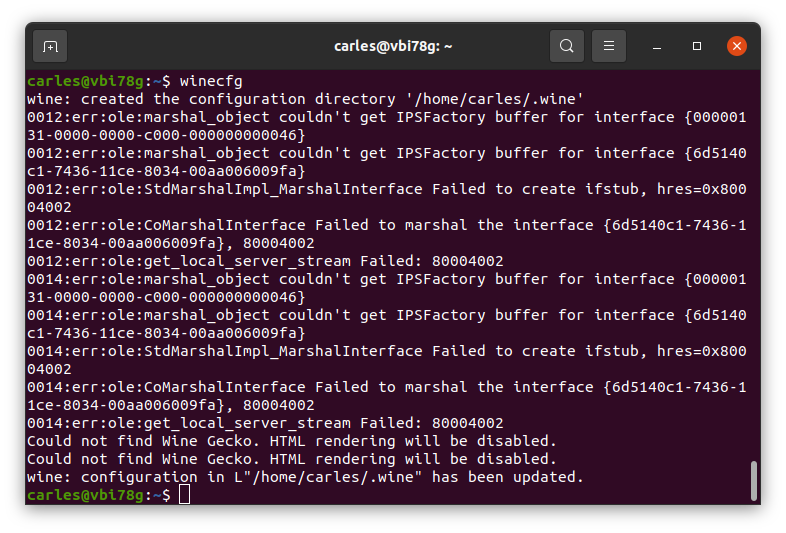
If that fails is very probably that creating a new configuration, for a new user, will make things right.
Update 2022-01-05: Take in count that you will be copying the Windows registry when doing this. I use this trick to clone applications that are no longer downloadable from the Internet. I clone wine to dedicated Virtual Machines. You may need different Virtual Machines for different programs if windows registry is different for them.
So I share with you my base Jenkins Dockerfile, so you can spawn a new Jenkins for your projects.
The Dockerfile installs Ubuntu 20.04 LTS as base image and add the required packages to run jenkins but also Development and Testing tools to use inside the Container to run Unit Testing on your code, for example. So you don’t need external Servers, for instance.
You will need 3 files:
Dockerfile
docker_run_jenkins.sh
requirements.txt
The requirements.txt file contains your PIP3 dependencies. In my case I only have pytest version 4.6.9 which is the default installed with Ubuntu 20.04, however, this way, I enforce that this and not any posterior version will be installed.
File requirements.txt:
pytest==4.6.9
The file docker_run_jenkins.txt start Jenkins when the Container is run and it will wait until the initial Admin password is generated and then it will display it.
File docker_run_jenkins.sh:
#!/bin/bash
echo "Starting Jenkins..."
service jenkins start
echo "Configure jenkins in http://127.0.0.1:8080"
s_JENKINS_PASSWORD_FILE="/var/lib/jenkins/secrets/initialAdminPassword"
i_PASSWORD_PRINTED=0
while [ true ];
do
sleep 1
if [ $i_PASSWORD_PRINTED -eq 1 ];
then
# We are nice with multitasking
sleep 60
continue
fi
if [ ! -f "$s_JENKINS_PASSWORD_FILE" ];
then
echo "File $s_FILE_ORIGIN does not exist"
else
echo "Password for Admin is:"
cat $s_JENKINS_PASSWORD_FILE
i_PASSWORD_PRINTED=1
fi
done
That file has the objective to show you the default admin password, but you don’t need to do that, you can just start a shell into the Container and check manually by yourself.
However I added it to make it easier for you.
And finally you have the Dockerfile:
FROM ubuntu:20.04
LABEL Author="Carles Mateo" \
Email="jenkins@carlesmateo.com" \
MAINTAINER="Carles Mateo"
# Build this file with:
# sudo docker build -f Dockerfile -t jenkins:base .
# Run detached:
# sudo docker run --name jenkins_base -d -p 8080:8080 jenkins:base
# Run seeing the password:
# sudo docker run --name jenkins_base -p 8080:8080 -i -t jenkins:base
# After you CTRL + C you will continue with:
# sudo docker start
# To debug:
# sudo docker run --name jenkins_base -p 8080:8080 -i -t jenkins:base /bin/bash
ARG DEBIAN_FRONTEND=noninteractive
ENV SERVICE jenkins
RUN set -ex
RUN echo "Creating directories and copying code" \
&& mkdir -p /opt/${SERVICE}
COPY requirements.txt \
docker_run_jenkins.sh \
/opt/${SERVICE}/
# Java with Ubuntu 20.04 LST is 11, which is compatible with Jenkins.
RUN apt update \
&& apt install -y default-jdk \
&& apt install -y wget curl gnupg2 \
&& apt install -y git \
&& apt install -y python3 python3.8-venv python3-pip \
&& apt install -y python3-dev libsasl2-dev libldap2-dev libssl-dev \
&& apt install -y python3-venv \
&& apt install -y python3-pytest \
&& apt install -y sshpass \
&& wget -qO - https://pkg.jenkins.io/debian-stable/jenkins.io.key | apt-key add - \
&& echo "deb http://pkg.jenkins.io/debian-stable binary/" > /etc/apt/sources.list.d/jenkins.list \
&& apt update \
&& apt -y install jenkins \
&& apt-get clean
RUN echo "Setting work directory and listening port"
WORKDIR /opt/${SERVICE}
RUN chmod +x docker_run_jenkins.sh
RUN pip3 install --upgrade pip \
&& pip3 install -r requirements.txt
EXPOSE 8080
ENTRYPOINT ["./docker_run_jenkins.sh"]
Build the Container
docker build -f Dockerfile -t jenkins:base .
Run the Container displaying the password
sudo docker run --name jenkins_base -p 8080:8080 -i -t jenkins:base
You need this password for starting the configuration process through the web.
Visit http://127.0.0.1:8080 to configure Jenkins.
Configure as usual
Resuming after CTRL + C
After you configured it, on the terminal, press CTRL + C.
And continue, detached, by running:
sudo docker start jenkins_base
The image is 1.2GB in size, and will allow you to run Python3, Virtual Environments, Unit Testing with pytest and has Java 11 (not all versions of Java are compatible with Jenkins), use sshpass to access other Servers via SSH with Username and Password…
When you see this error for the first time it can be pretty ugly to detect why it happens.
At personal level I use only Linux for my computers, with an exception of a windows laptop that I keep for specific tasks. But my employers often provide me laptops with windows.
I suffered this error for first time when I inherited a project, in a company I joined time ago. And I suffered some time later, by the same reason, so I decided to explain it easily.
In the project I inherited the build process was broken, so I had to fix it, and when this was done I got the mentioned error when trying to run the Container:
standard_init_linux.go:190: exec user process caused "no such file or directory"
The Dockerfile was something like this:
FROM docker-io.battle.net/alpine:3.10.0
LABEL Author="Carles Mateo" \
Email="docker@carlesmateo.com" \
MAINTAINER="Carles Mateo"
ENV SERVICE cservice
RUN set -ex
RUN echo "Creating directories and copying code" \
&& mkdir -p /opt/${SERVICE}
COPY config.prod \
config.dev \
config.st \
requirements.txt \
utils.py \
cservice.py \
tests/test_cservice.py \
run_cservice.sh \
/opt/${SERVICE}/
RUN echo "Setting work directory and listening port"
WORKDIR /opt/${SERVICE}
EXPOSE 7000
RUN echo "Installing dependencies" \
&& apk add build-base openldap-dev python3-dev py-pip \
&& pip3 install --upgrade pip \
&& pip3 install -r requirements.txt \
&& pip3 install pytest
ENTRYPOINT ["./run_cservice.sh"]
So the project was executing a Bash script run_cservice.sh, via Dockerfile ENTRYPOINT.
That script would do the necessary amends depending if the Container is launched with prod, dev, or staging parameter.
I debugged until I saw that the Container never executed this in the expected way.
A echo “Debug” on top of the Bash Script would be enough to know that very basic call was never executed. The error was first.
After much troubleshooting the Container I found that the problem was that the Bash script, that was copied to the container with COPY in the Dockerfile, from a Windows Machines, contained CRLF Windows carriage return. While for Linux and Mac OS X carriage return is just a character, LF.
In that company we all use Windows. And trying to build the Container worked after removing the CRLF, but the Bash script with CRLF was causing that problem.
When I replace the CRLF by Unix type LF, and rebuild the image, and ran the container, it worked lovely.
A very easy, manual way, to do this in Windows, is opening your file with Notepad++ and setting LF as carriage return. Save the file, rebuild, and you’ll see your Container working.
Please note that in the Dockerfile provided I install pytest Framework and a file calles tests/test_cservice.py. That was not in the original Dockerfile, but I wanted to share with you that I provide Unit Testing that can be ran from a Linux Container, for all my projects. What normally I do is to have two Dockerfiles. One for the Production version to be deployed, another for running Unit Testing, and some time functional testing as well, from inside the Docker Container. So strictly speaking for the production version, I would not copy the tests/test_cservice.py and install pytest. A different question are internal Automation Tools, where it may be interested providing a All-in-One image, that can run the Unit Testing before start the service. It is interesting to provide some debugging tools in out Internal Automation Tools, so we can troubleshoot what’s going on in case of problems. Take a look at my previous article about Python version for Docker and Automation tools, for more considerations.
I reproduced your case in a VM and paste here step by step. :)
Note: First of all, please do a backup of your data. I added an empty new disk, so ZFS had no doubt what was the master drive. Although you should have no problem as the first drive already forms part of the pool, a backup is recommended.
Quick answer: You need the zpool attach command.
Basically:
sudo zpool attach hdd0 existinghdd blankhdd
After, do:
zpool status
And you will see that a mirror has been created. Your data on the already existing drive will be keep, and will be replicated to the new one (Resilvered).
As ZFS only copys the actual information this process will take more or less depending on the amount of Data.
In my VM 300 GB were replicated in 3 seconds, while my experience with SAS and SATA drives, I was Resilvering 10 TB in less than 24 hours (for that I was using drives from 10TB to 14TB SAS) .
Now the long answer with everything I did in my Virtual Box VM:
lsblk --scsi
identify the two empty drives by:
ls /dev/disk/by-id/
Select one of them and create a pool like your: sudo zpool create hdd0 id_of_mydrive
See that pool /hdd0 has been created and mounted on root.
sudo zpool statussudo zpool listsudo ls -al /hdd0
Fill with some random data (or better copy files there) to generate a drive like data like you. I generated from random:
pool: hdd0
state: ONLINE
scan: resilvered 301M in 0 days 00:00:03 with 0 errors…
NAME STATE READ WRITE CKSUM hdd0 mirror-0 ata-VBOX_HARDDISK_VBa8... ONLINE 0 0 0 ata-VBOX_HARDDISK_VB8c... ONLINE 0 0 0
errors: No known data errors
I verified the checksums.
zpool list will return as well 99GB of space available, as two drives of 100GB are being used in mirror.
So as kaulex mentioned the format is: zpool attach
Where device is your previous vdev with data (the single hard drive with Data in the ZFS pool named ‘hdd0’).
As I did you want to use the Id of the device and not the name, so you will use the identifier in /dev/disk/by-id/ and not sdb, sdc… (Please note, adding /dev/ is not necessary). The reason to do not use device names like sdb, sdc, sdea, etc… is that those names may change why live is running or between reboots. The id never changes. In real systems, not Virtual Box, they may start by wwn or ata.
You know I love Linux. I was compiling my own Kernels back in 1995, when it took more than 24 hours in a 386, and working on the first ISPs in Barcelona managing the Linux Systems.
For my computers I prefer Linux, no doubt about it, but many multinationals I worked for have Windows option only for the Laptops and Desktops.
During years I had to deal with sending files to Linux or Unix (HP UX, Sun Solaris…) to process them and getting back the result. Some sort of ETL and Map Reduce in the prehistory of personal computers, taking in count aspects like Networks speeds too, available space, splitting files for processing.
When I was working as Senior Project Manager in Winterthur Insurance, now Axa, I had to run a lot of ETL (Extract Transform Load) for considerably big files, or when I was project manager and later head of department in Volkswagen gedas or later helping Start ups like Privalia. I can tell you that Windows didn’t like you to open editors to work with 1GB text or CSV file, and doesn’t like it, even if your computer has 16GB of Memory, and even if they do the simplicity of Bash scripts and using pipes, grep, awk… is so powerful that is very convenient to have those files processed using Linux.
And honestly is a pain to send back and forth files to a UNIX System just for Data Crunch. And a VM will be slow and use memory, and you have enable some sort of sharing with it so it can access the Data. Not to talk if you need to split the data files in blocks to be processed in parallel by several computers.
There are many solutions, like using Virtual Machines, Docker, external Servers, etc…
WSL allows you to run Linux command line tools inside Windows.
Having WSL allows things to be done much more straightforward, processing the files in your local windows hard drives.
Please note: Maybe you have enough using GitBash.
Error installing: WslRegisterDistribution failed with error: 0x80070057
When I installed it I found this error and look for an answer online. I found no solutions and many people suffering from the same problem, so I decided to publish an article on how to make it work.
Microsoft use Powershell to activate the features disabled in Windows, I did the same with Command Line, which I found more convenient for most of the non extremely tech people.
You will need:
For x64 systems: Version 1903 or higher, with Build 18362 or higher.
You can check your version of windows opening a Terminal (CMD.exe) and typing:
winver
For ARM64 systems: Version 2004 or higher, with Build 19041 or higher.
I’m not covering installing WSL for ARM, only for Intel/AMD Desktop/Laptops with Windows 10.
If you’re unsure, you can open a Terminal (CMD.exe) and run:
The recommended way to install Ubuntu on WSL is through the Microsoft Store.
The following Ubuntu releases are available as apps on the Microsoft Store:
Ubuntu 16.04 LTS (Xenial) is the first release available for WSL. It supports the x64 architecture only. (offline installer: x64)
Ubuntu 18.04 LTS (Bionic) is the second LTS release and the first one supporting ARM64 systems, too. (offline installers: x64, ARM64)
Ubuntu 20.04 LTS (Focal) is the current LTS release, supporting both x64 and ARM64 architecture.
Ubuntu (without the release version) always follows the recommended release, switching over to the next one when it gets the first point release. Right now it installs Ubuntu 20.04 LTS.
Each app creates a separate root file system in which Ubuntu shells are opened but app updates don’t change the root file system afterwards. Installing a different app in parallel creates a different root file system allowing you to have both Ubuntu LTS releases installed and running in case you need it for keeping compatibility with other external systems. You can also upgrade your Ubuntu 16.04 to 18.04 by running ‘do-release-upgrade’ and have three different systems running in parallel, separating production and sandboxes for experiments.
But if you prefer, instead of using the Windows Store, you can download the appx.
In the same page mentioned you can do it for several versions, I attach the link for Ubuntu 20.04 LTS: https://aka.ms/wslubuntu2004
Assuming you used the Windows Store, if you did not reboot and try now to execute it for the first time, or you go to the Command Line and write bash, or open Ubuntu from Windows menu, whatever method you use, you’ll get the abovementioned error.
If that happens to you, just reboot and when you open it will work and will start the install and ask for a user and password:
From here you’re able to update the system, execute the text commands available in Linux, access to the Windows drives, launch htop, git, Python3, apt, wget… copy and paste between windows and Linux terminal, share PATH…
And of course you can run CTOP.py
Take in count that the space reported in / partition is not real, and that you have a 4GB swap.
This is a trick to restart a Service that is running on a immutable Docker, with some change, and you need to refresh the values very quickly without having to roll the CI/CD Jenkins Pipeline and uploading a new image.
So why would you need to do that?.
I can think about possible scenarios like:
Need to roll out an urgent fix in a time critical manner
Jenkins is broken
Somebody screw it on the git master branch
Docker Hub is down
GitHub is down
Your artifactory is down
The lines between your jumpbox or workstation and the secure Server are down and you have really few bandwidth
You have to fix something critical and you only have a phone with you and SSH only
Maybe the Dockerfile had latest, and the latest image has changed
FROM os:latest
The ideal is that if you work with immutable images, you roll out a new immutable image and that’s it.
But if for whatever reason you need to update this super fast, this trick may become really handy.
Let’s go for it!.
Normally you’ll start your container with a command similar to this:
docker run -d --rm -p 5000:5000 api_carlesmateo_com:v7 prod
The first thing we have to do is to stop the container.
So:
docker ps
Locate your container across the list of running containers and stop it, and then restart without the –rm:
docker stop container_name
docker run -d -p 5000:5000 api_carlesmateo_com:v7 prod
the –rm makes the container to cleanup. By default a container’s file system persists even after the container exits. So don’t start it with –rm.
Ok, so login to the container:
docker exec -it container_name /bin/sh
Edit the config you require to change, for example config.yml
If what you have to update is a password, and is encoded in base64, encode it:
echo -n "ThePassword" | base64
VGhlUGFzc3dvcmQ=
Stop the container. You can do it by stopping the container with docker stop or from inside the container, killing the listening process, probably a Python Flask.
If your Dockerfile ends with something like:
ENTRYPOINT ["./webservice.py"]
And webservice.py has Python Flask code similar to this:
#!/usr/bin/python3
#
# webservice.py
#
# Author: Carles Mateo
# Creation Date: 2020-05-10 20:50 GMT+1
# Description: A simple Flask Web Application
# Part of the samples of https://leanpub.com/pythoncombatguide
# More source code for the book at https://gitlab.com/carles.mateo/python_combat_guide
#
from flask import Flask, request
import logging
# Initialize Flask
app = Flask(__name__)
# Sample route so http://127.0.0.1/carles
@app.route('/carles', methods=['GET'])
def carles():
logging.critical("A connection was established")
return "200"
logging.info("Initialized...")
if __name__ == "__main__":
app.run(host='0.0.0.0', port=5000, debug=True)
Then you can kill the process, and so ending the container, from inside the container by doing:
This will finish the container the same way as docker stop container_name.
Then start the container (not run)
docker start container_name
You can now test from outside or from inside the container. If from inside:
/opt/webservice # wget localhost:5000/carles
Connecting to localhost:5000 (127.0.0.1:5000)
carles 100% |**************************************************************************************************************| 3 0:00:00 ETA
/opt/webservice # cat debug.log
2020-05-06 20:46:24,349 Initialized...
2020-05-06 20:46:24,359 * Running on http://0.0.0.0:5000/ (Press CTRL+C to quit)
2020-05-06 20:46:24,360 * Restarting with stat
2020-05-06 20:46:24,764 Initialized...
2020-05-06 20:46:24,771 * Debugger is active!
2020-05-06 20:46:24,772 * Debugger PIN: 123-456-789
2020-05-07 13:18:43,890 127.0.0.1 - - [07/May/2020 13:18:43] "GET /carles HTTP/1.1" 200 -
if you don’t use YAML files or what you need is to change the code, all this can be avoided as when you update the Python code, Flash realizes that and reloads. See this line in the logs:
2020-05-07 13:18:40,431 * Detected change in '/opt/webservice/wwebservice.py', reloading
The webservice.py autoreloads because we init Flask with debug set to on.
You can also start a container with shell directly:
This is a great new for scaling performance in the Data Centers. For routers, switches…
And this makes me think about all the Architects that are using Memcached and Redis in different Servers, in Networks of 1Gbps and makes me want to share with you what a nonsense, is often, that.
So the idea of having Memcache or Redis is just to cache the queries and unload the Database from those queries.
But 1Gbps is equivalent to 125MB (Megabytes) per second.
Local RAM Memory in Servers can perform at 24GB and more (24,000,000 Megabytes) per second, even more.
A PCIE NVMe drive at 3.5GB per second.
A local SSD drive without RAID 550 MB/s.
A SSD in the Cloud, varies a lot on the provider, number of drives, etc… but I’ve seen between 200 MB/s and 2.5GB/s aggregated in RAID.
In fact I have worked with Servers equipped with several IO Controllers, that were delivering 24GB/s of throughput writing or reading to HDD spinning drives.
If you’re in the Cloud. Instead of having 2 Load Balancers, 100 Front Web servers, with a cluster of 5 Redis with huge amount of RAM, and 1 MySQL Master and 1 Slave, all communicating at 1Gbps, probably you’ll get a better performance having the 2 LBs, and 11 Front Web with some more memory and having the Redis instance in the same machine and saving the money of that many small Front and from the 5 huge dedicated Redis.
The same applies if you’re using Docker or K8s.
Even if you just cache the queries to drive, speed will be better than sending everything through 1 Gbps.
This will matter for you if your site is really under heavy load. Most of the sites just query the MySQL Server using 1 Gbps lines, or 2 Gbps in bonding, and that’s enough.